A little guidance
How to create a contact QR code for a business card
Encode a name, organization, phone, email and website as a vCard QR code. Download it for a business card and check the contact fields after scanning.
A fictional business-card contact for Maya Chen
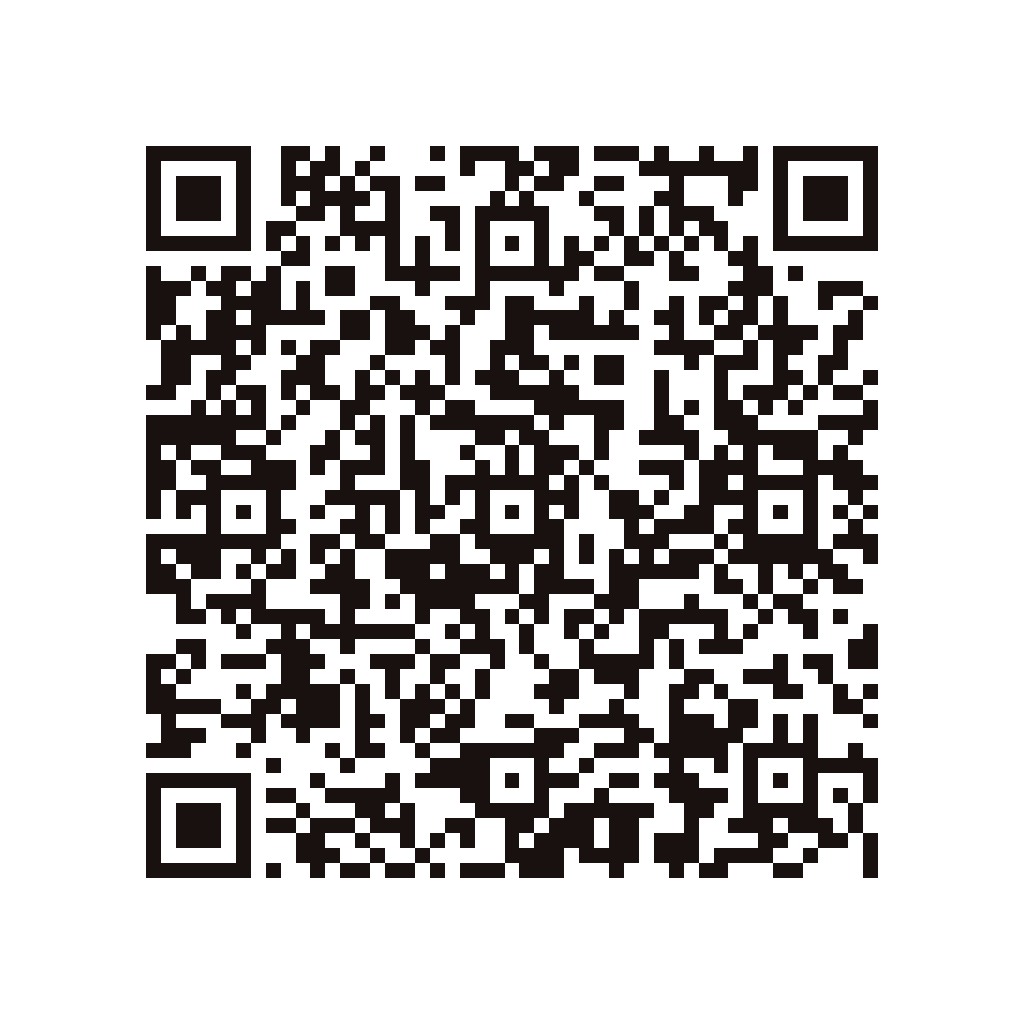
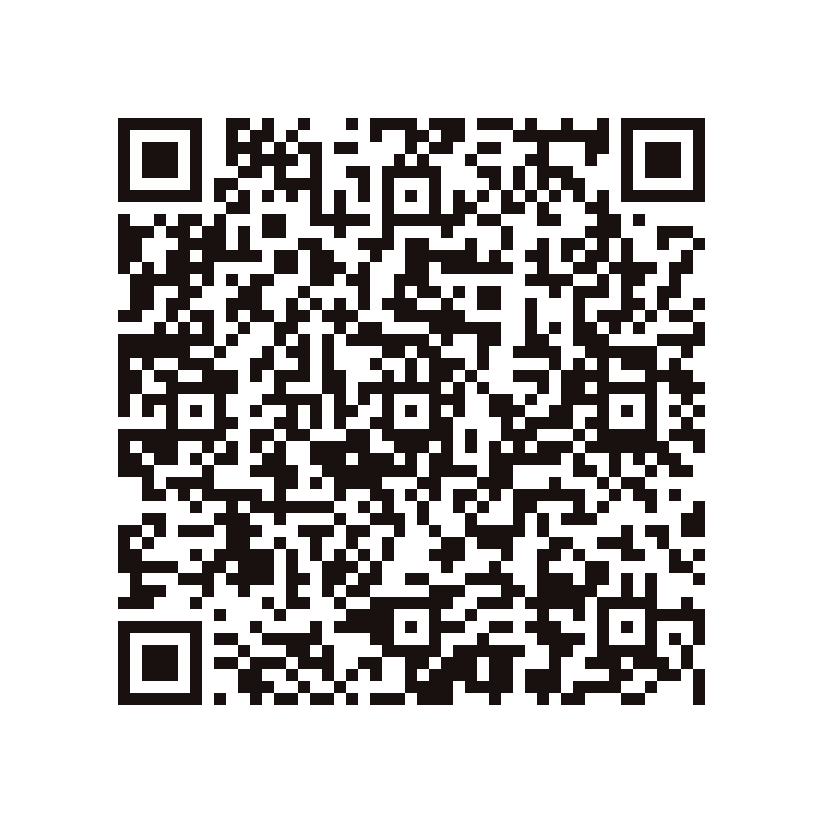
We chose Contact, entered Maya Chen, Garden Studio, maya@example.com and https://example.com, and left Phone empty. Both exports decoded to a vCard 3.0 with those same fields.
Compare the actual downloads
- Download the 1024 px PNG28.3 KiB
- Download the matching SVG89.5 KiB
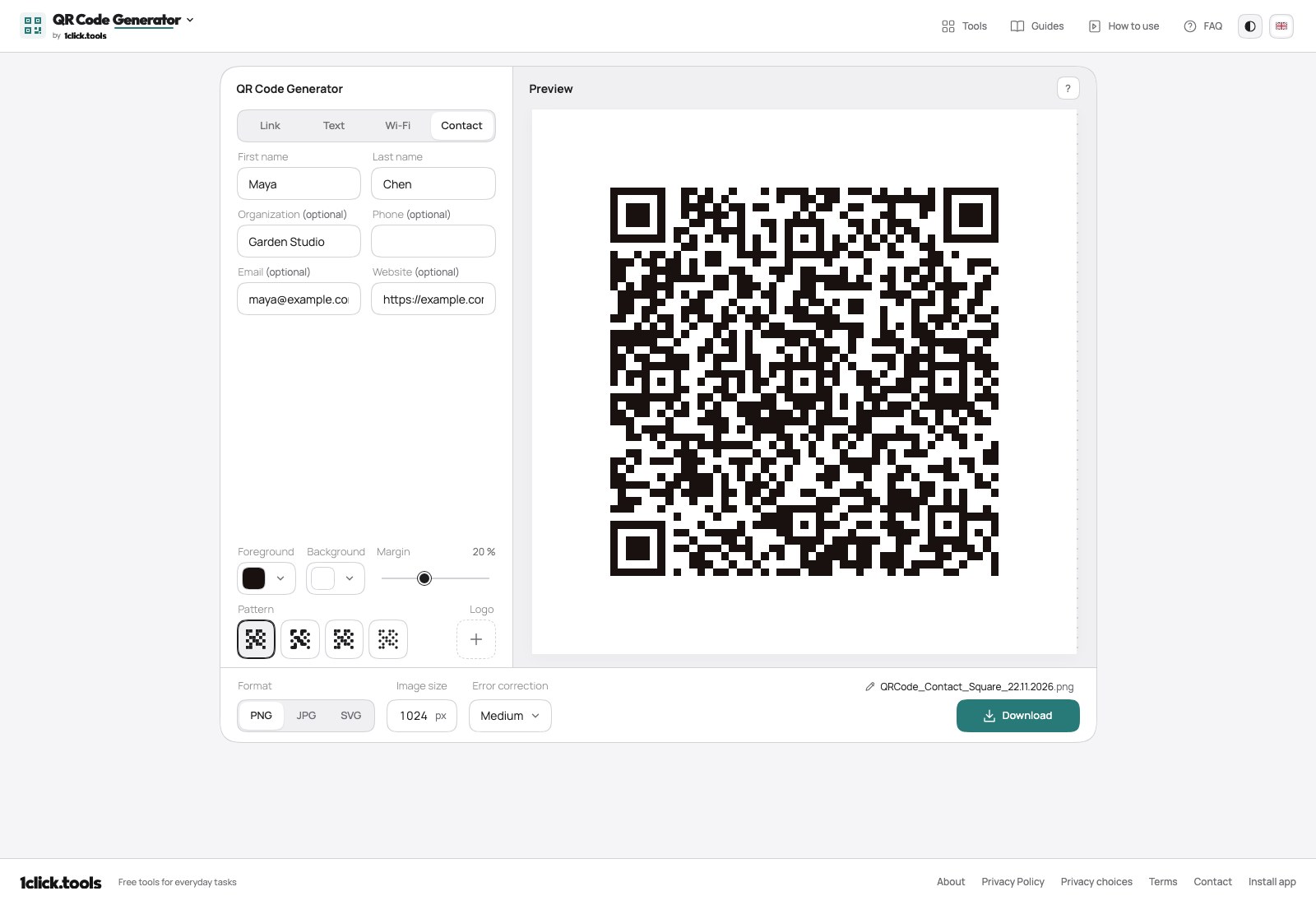
| Contact field | Decoded value |
|---|---|
| First and last name | Maya Chen |
| Organization | Garden Studio |
| maya@example.com | |
| Website | https://example.com |
| Phone | Omitted |
| Contact format | vCard 3.0 |
Maya Chen and Garden Studio are fictional demonstration details. example.com is used for the sample email and website; no personal contact information is included.
Repeat this example
- Select Contact and enter Maya in First name and Chen in Last name.
- Add Garden Studio, maya@example.com and https://example.com; leave Phone empty. Under Logo, select Remove logo.
- Download PNG or SVG. On your own phone, review the scanned contact fields before saving.
Check the decoded result
Both downloads contain BEGIN:VCARD, VERSION:3.0, the name, organization, email and website, followed by END:VCARD. No TEL field is present because Phone was left empty.
A common mistake
Printing a static contact code before checking every field means a later email or phone correction requires replacing the code.
Create your own QR codeSources and credits
Actual QR Code Generator sessions. Files are unchanged browser exports saved under descriptive guide names. Both the PNG and a raster rendering of the exported SVG were independently decoded with jsQR. This verifies the samples, not physical printing, phone contact imports or real Wi-Fi connections.
ZXing: barcode content formats. Describes URL, plain-text, Wi-Fi and contact payload conventions. What a phone does after scanning depends on its reader.
RFC 2426: vCard 3.0. The contact format emitted by this tool. This does not claim that every scanner imports every vCard field.
Choose the contact details to share
Decide which details belong on your business card, event badge or contact sheet. This tool encodes a contact vCard directly, rather than a link to a hosted profile. Anyone with the code can read those fields. Use professional contact details intended for that audience, and leave unnecessary optional fields empty.
Complete the Contact fields
Select Contact and enter at least First name or Last name. Organization, Phone, Email and Website are optional. Enter a full http:// or https:// address for Website. The example uses fictional contact Maya Chen at Garden Studio, with maya@example.com and no phone number. The generator creates a vCard 3.0 payload from these fields.
Keep the business-card layout simple
Start with Square pixels, dark foreground and white background. Retain the 20% Margin around the code. Adding more contact fields makes the payload longer and can make the symbol denser, so check it at its actual business-card size. Download SVG if your layout software supports it, or a PNG large enough for the finished placement.
Adding your brand mark? Read how to add and test a logo.
Review the scanned contact before saving
Scan the downloaded file on the devices your audience uses. A compatible scanner may offer to create a contact; check the first and last names, organization, email, phone and website in that preview before saving it. Scanner and address-book support vary. The example verifies the decoded vCard fields in software; it does not claim an address-book import on every phone.
Plan for changed contact details
The exported code is static. Changing an encoded email or phone number requires a new code and, for printed cards, a new print run. If your priority is keeping contact information editable at one address, use Link with a contact page you control instead of embedding the contact fields. This tool does not host contact profiles.
For a contact page you can update, use a website-link QR code.