A little guidance
How to add a logo to a QR code and test it
Add a PNG, JPG or WebP logo to a QR code, compare the result and download it. Learn what High error correction does and what still needs testing.
A website QR code with the 1click.tools logo
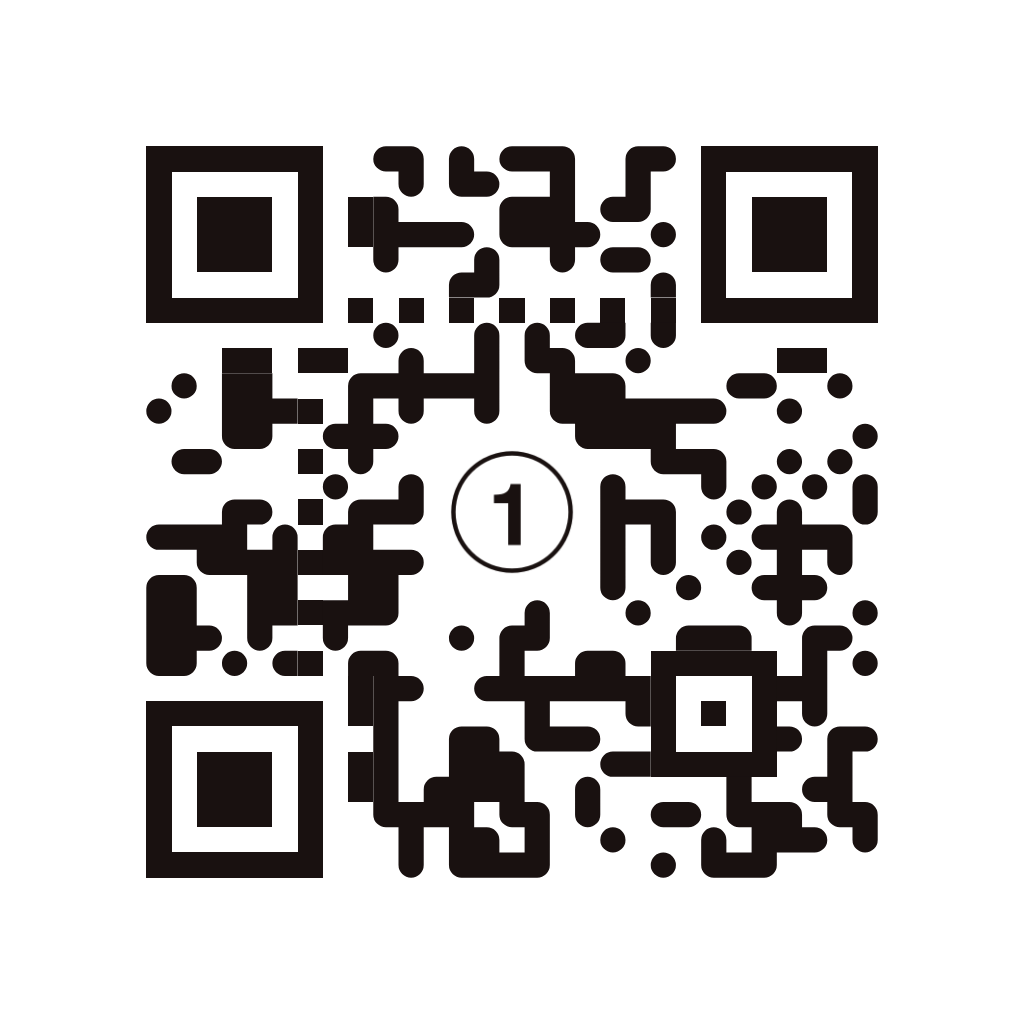
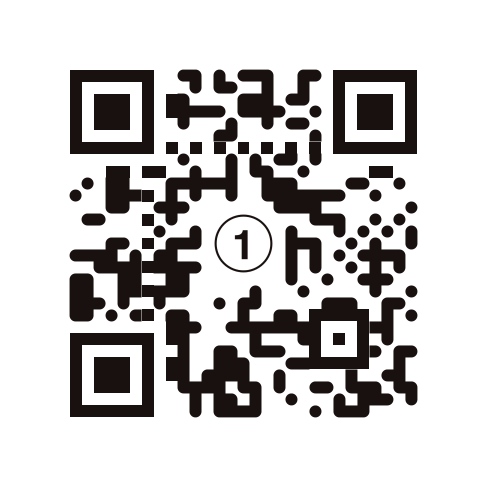
We entered https://1click.tools/, selected Connected (the second Pattern option), kept the circular 1click.tools logo and used 20% Margin. The sample logo has a white fill with transparency outside the circle. Error correction switched to High. Both branded downloads decoded to the same public address.
Compare the actual downloads
- Download the 1024 px PNG86.0 KiB
- Download the matching SVG49.6 KiB
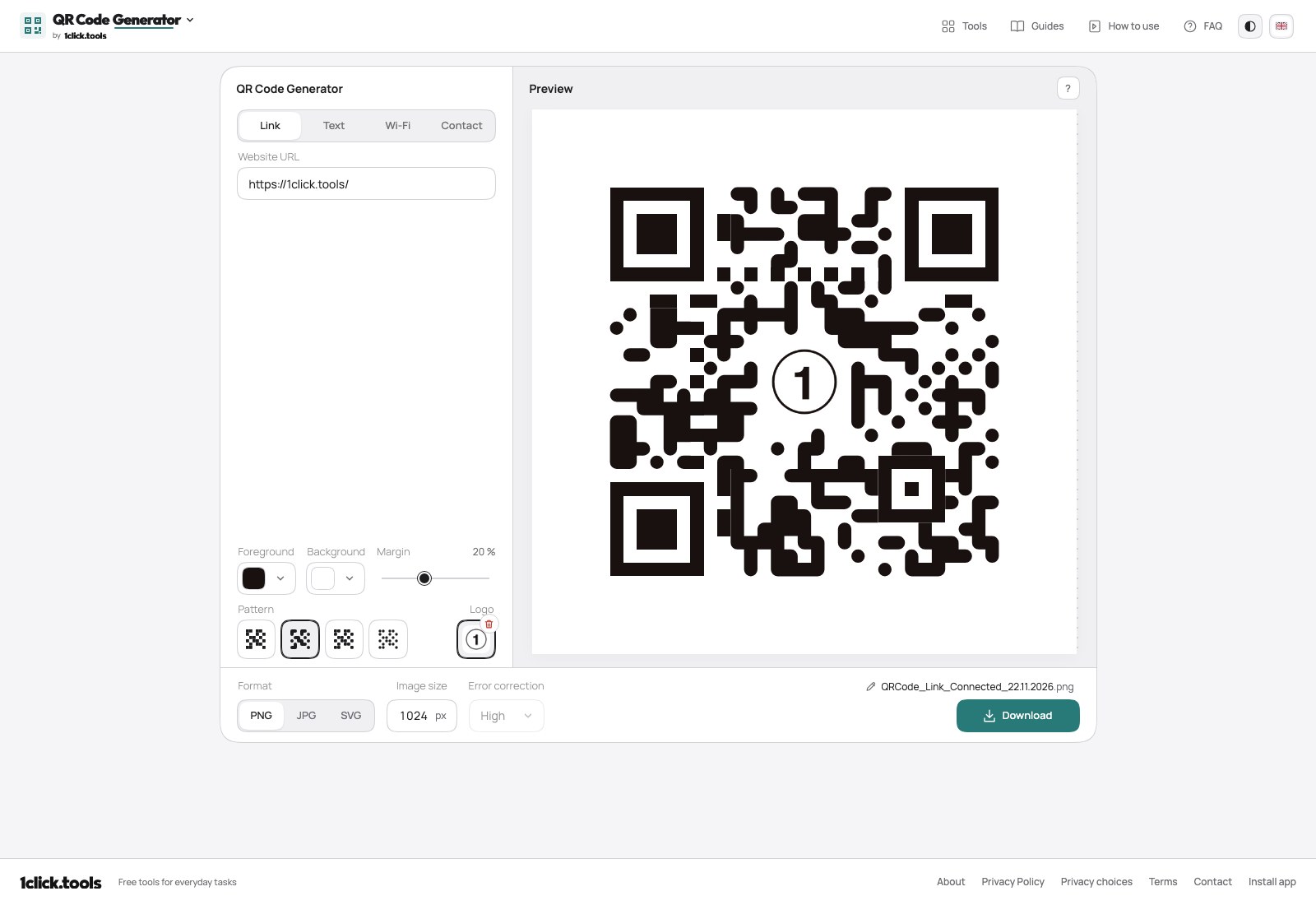
| Setting or check | Observed result |
|---|---|
| Logo source | 1click.tools logo, selected by default |
| Error correction | High; control disabled while the logo is present |
| PNG export | 1024 × 1024 |
| SVG export | Vector modules with an embedded raster logo |
| Decoded address | https://1click.tools/ |
High correction and one successful software decode do not guarantee scan success on every camera or printed surface. Test the final branded placement.
Repeat this example
- Select Link and replace the example https://example.com in Website URL with https://1click.tools/.
- Keep the 1click.tools logo shown under Logo, or select Change logo to open your own PNG, JPG or WebP. Select Connected, the second Pattern option, for joined pixels with rounded ends and separate dots. The sample logo has a white circle and is transparent outside it.
- Confirm Error correction shows High, then download PNG and SVG and test your final layout.
Check the decoded result
Both files decode to https://1click.tools/. The exported SVG embeds the logo as a PNG data image rather than referencing a remote image.
A common mistake
Assuming that SVG output makes the logo vector artwork. Only the QR modules are vector shapes; the logo remains raster.
Create your own QR codeSources and credits
Actual QR Code Generator sessions. Files are unchanged browser exports saved under descriptive guide names. Both the PNG and a raster rendering of the exported SVG were independently decoded with jsQR. This verifies the samples, not physical printing, phone contact imports or real Wi-Fi connections.
ZXing: barcode content formats. Describes URL, plain-text, Wi-Fi and contact payload conventions. What a phone does after scanning depends on its reader.
1click.tools logo. The site’s own logo, which the generator uses as its default logo.
DENSO WAVE: QR symbol area and quiet zone. Specifies a four-module clear margin on every side of a standard QR symbol.
Start with a working code
Choose the content type and enter valid content first. The generator starts with the 1click.tools logo; select Remove logo under Logo to download and scan a plain Square code before adding branding. The example uses https://1click.tools/ with the default 1click.tools logo at the center. Keep the encoded link short where possible so the symbol has room for its data and error correction. Select Connected, the second Pattern option, for joined pixels with rounded ends and separate dots. The sample logo has a white circle and is transparent outside it.
Add a supported logo image
Under Logo in the Content panel, beside Pattern, select Change logo (or Add logo after removing it) and choose a PNG, JPG or WebP file under 2 MB and 16 million pixels. The image is decoded locally and embedded in the exported artwork. SVG is not a supported logo input. A simple mark is easier to recognize in the small central area than a detailed wordmark.
Review High error correction and contrast
A logo covers part of the code, so the generator switches Error correction to High and disables that control while a logo is present. High adds recovery data but cannot guarantee scanning for every content length, logo or camera. Keep a dark foreground on a light background and preserve the clear margin. Square is the simplest pattern to compare against a code that scans poorly.
Download the branded result
Download PNG or SVG and check the actual exported file. The SVG contains vector QR modules, but its embedded logo is a raster image; enlarging it does not turn the logo into vector artwork. Change logo replaces the source image, and Remove logo returns to an unbranded code. The generator does not add a watermark.
Test the final placement
Scan the branded export on more than one intended device, then test the code at its final physical size in the actual design. If the result is unreliable, remove the logo, shorten the content or use a larger placement. The sample PNG is decoded in software, which verifies that sample’s payload but does not certify every print or device.
For the print layout, check clear margin and physical proofing.