A little guidance
How to prepare a QR code for print: PNG, SVG and clear margin
Choose SVG or a suitably sized PNG for a poster, flyer or business card. Preserve the quiet zone and test the actual printed code before a full run.
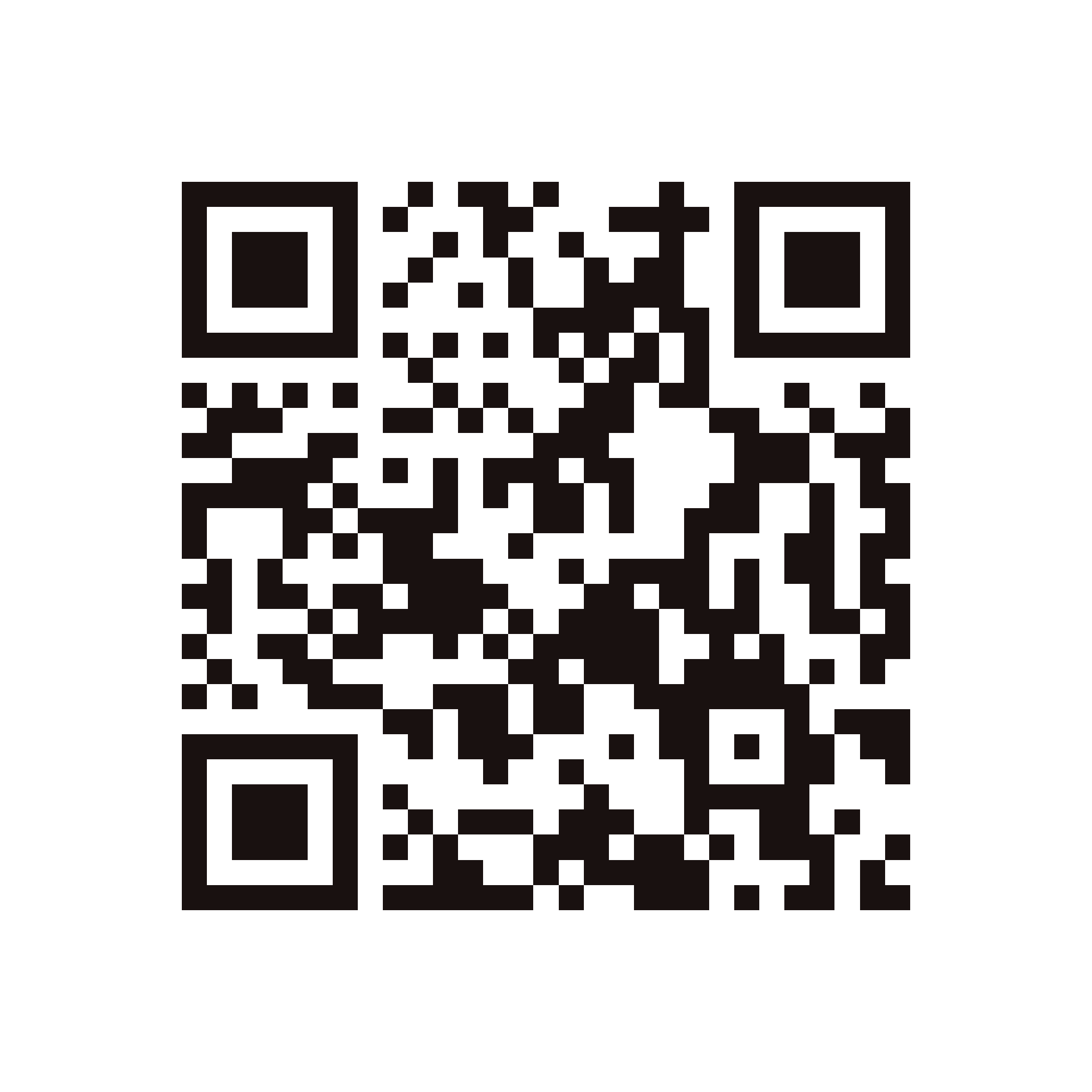
The same print design exported as 2048 px PNG and SVG
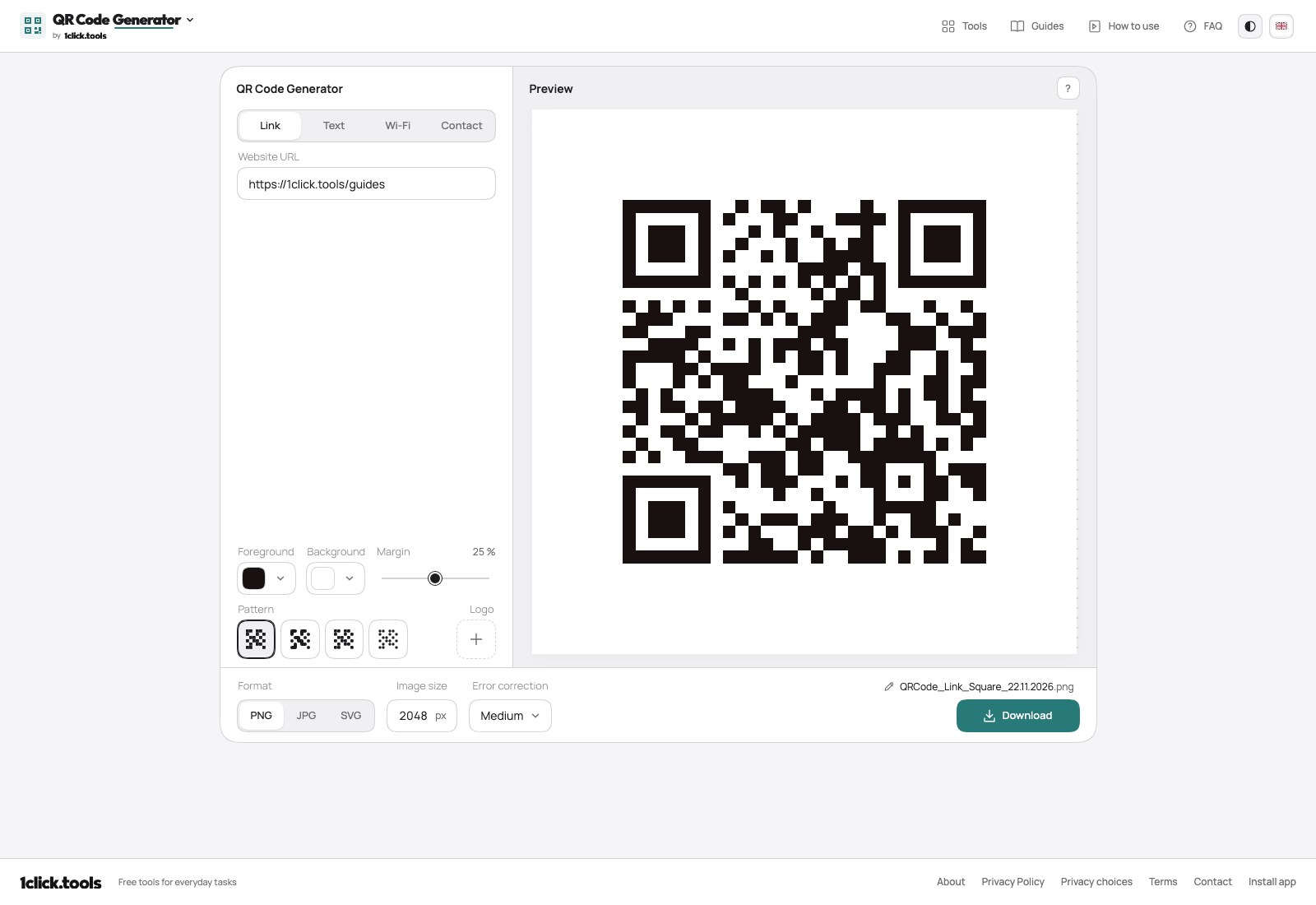
We encoded https://1click.tools/guides, increased Margin to 25% and downloaded a 2048 px PNG and a matching SVG. Both files were decoded independently.
Compare the actual downloads
- Download the 2048 px PNG88.7 KiB
- Download the matching SVG32.0 KiB
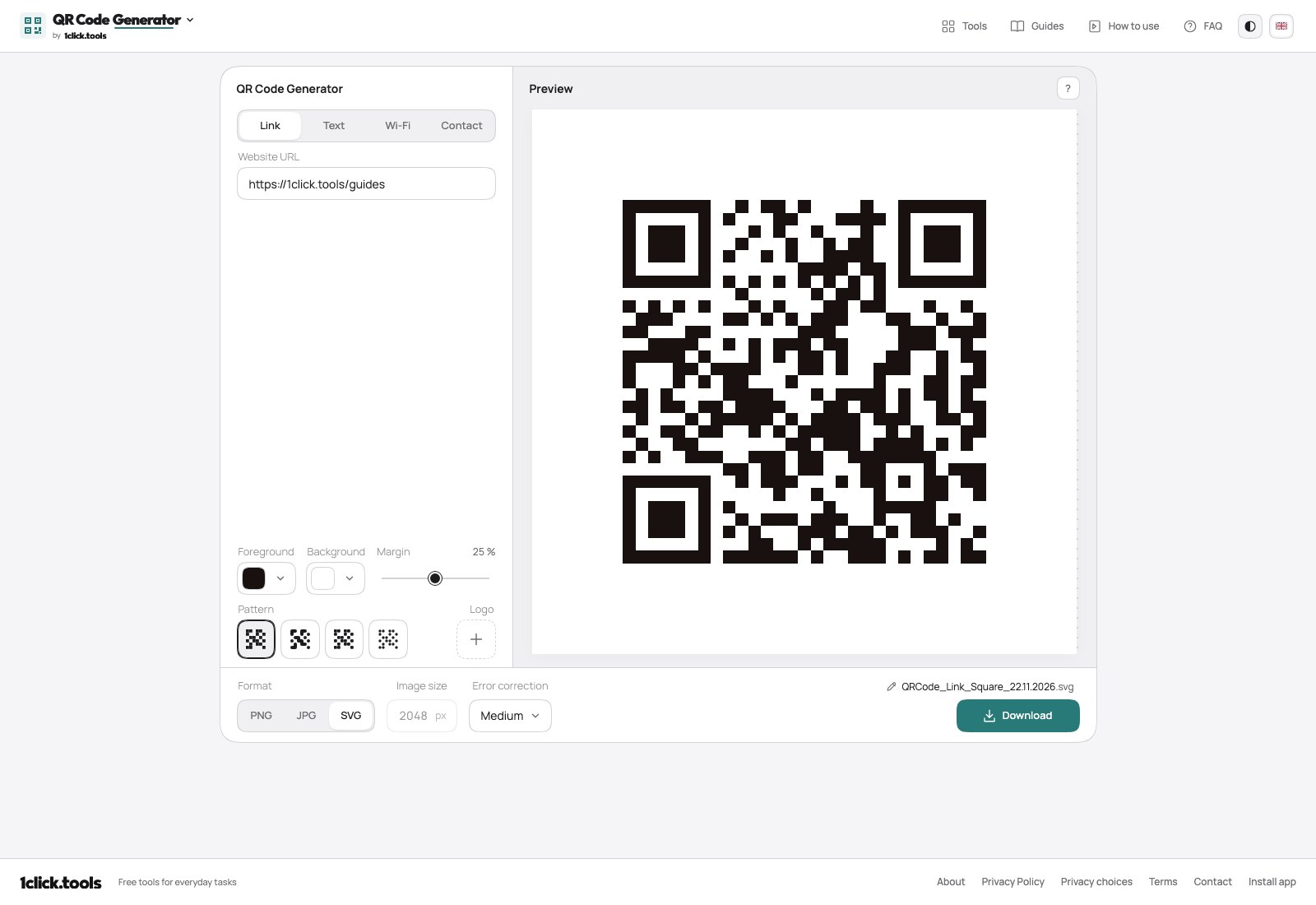
| Setting or result | PNG | SVG |
|---|---|---|
| Output | 2048 × 2048 raster pixels | Vector QR modules |
| Image size control | 2048 px | Disabled |
| Margin | 25% | 25% |
| Error correction | Medium | Medium |
| Decoded destination | https://1click.tools/guides | https://1click.tools/guides |
These are verified digital files, not a photographed print test. Set the physical dimensions in your layout application and scan a real proof before a full print run.
Repeat this example
- Select Link and replace the example https://example.com in Website URL with https://1click.tools/guides.
- Under Logo, select Remove logo. Set Margin to 25% and Image size to 2048, then Download.
- Select SVG and Download again. Place the preferred file into your layout without cropping its border.
Check the decoded result
The PNG dimensions are 2048 × 2048. Both downloads decode to the guide-directory URL, and SVG mode disables the Image size field.
A common mistake
Cropping the white border to make the QR code fill its box removes the quiet zone needed around the symbol.
Create your own QR codeSources and credits
Actual QR Code Generator sessions. Files are unchanged browser exports saved under descriptive guide names. Both the PNG and a raster rendering of the exported SVG were independently decoded with jsQR. This verifies the samples, not physical printing, phone contact imports or real Wi-Fi connections.
ZXing: barcode content formats. Describes URL, plain-text, Wi-Fi and contact payload conventions. What a phone does after scanning depends on its reader.
DENSO WAVE: QR symbol area and quiet zone. Specifies a four-module clear margin on every side of a standard QR symbol.
Create and verify the content first
Enter your website, text, Wi-Fi or contact information and check it before working on the print layout. Use the final address or details. The sample print exports both contain https://1click.tools/guides and use Square pixels, dark foreground, white background, Medium error correction and a 25% Margin.
Choose SVG when your layout supports it
Select SVG in Format and download the file. The QR modules are vector shapes, so layout software can scale them without raster pixelation. Image size is disabled in SVG mode because it does not set SVG resolution. An added logo remains raster even in an SVG. If a print supplier does not accept SVG, ask which format and resolution their workflow requires.
For branded artwork, see the logo export example.
Choose PNG dimensions for the placement
PNG is a square raster image. Set Image size from 256 to 4096 pixels; the example exports 2048 × 2048. Physical print size is set in your layout application, not by the generator. At an intended 300 pixels per inch, a 30 mm placement needs about 355 pixels across: 30 ÷ 25.4 × 300. That calculation describes raster resolution, not a guarantee that a dense code will scan at 30 mm.
Keep the clear margin intact
DENSO WAVE specifies a quiet zone at least four modules wide on every side of a standard QR code. A module is one small square in the symbol. Margin is now a 0–50% slider beside Foreground and Background. The percentage sets the border on each side relative to the QR symbol width. Keep the default 20% or more for printing, and preserve the entire border in the final layout.
Test a physical proof
Print one sample at the final size, on the intended material, with the same layout and print settings as the full run. Scan it at the expected distance and in typical lighting with the devices your audience uses. Content length, print quality, contrast, glare and camera behavior all matter, so there is no single size that guarantees success for every code. The worked example verifies the files in software; it is not a physical print test.