A little guidance
How to turn a website link into a QR code
Make a direct-link QR code for a website, booking page, online menu or form. Check the exact address and download PNG or SVG.
A direct link to the guide directory
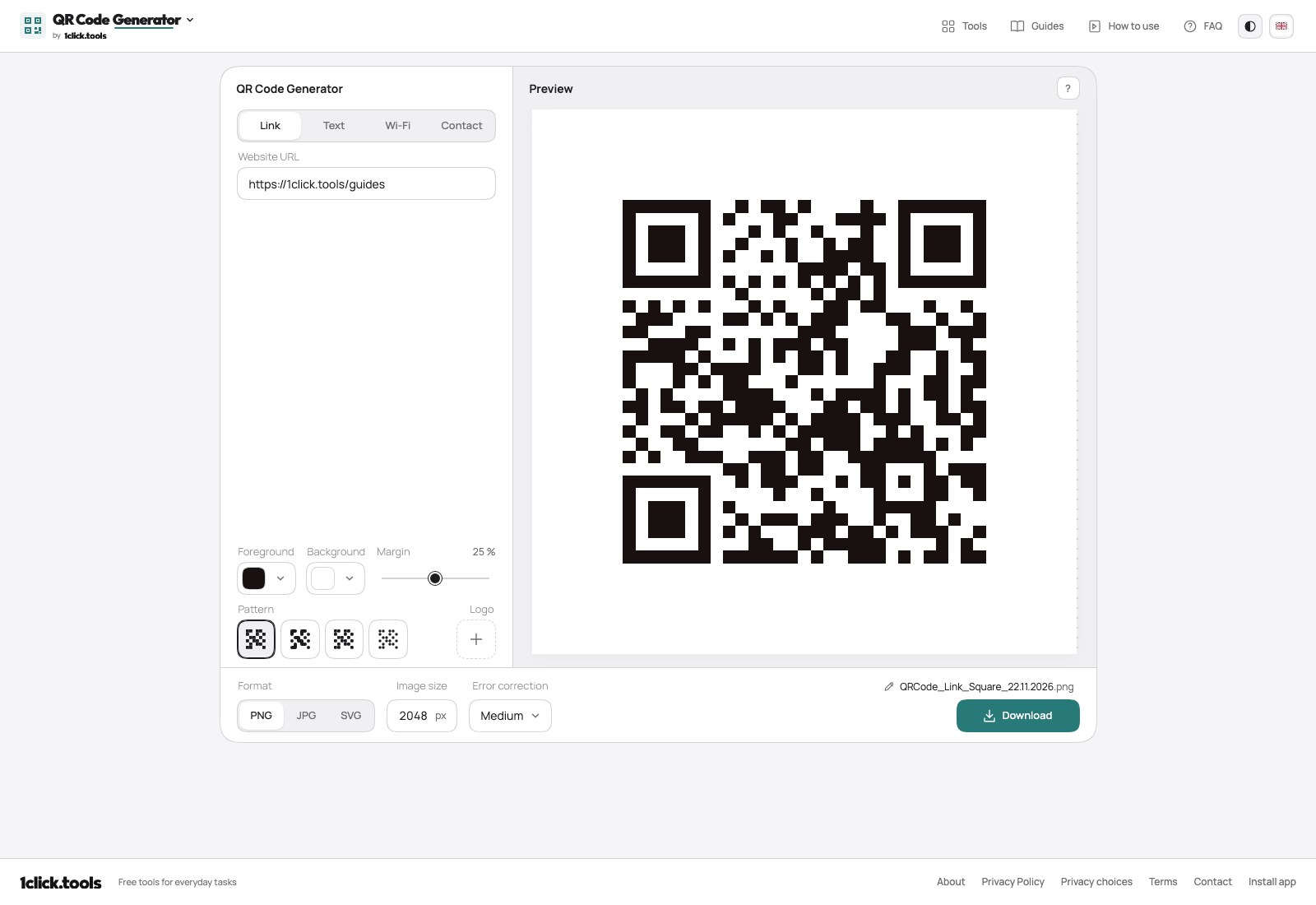
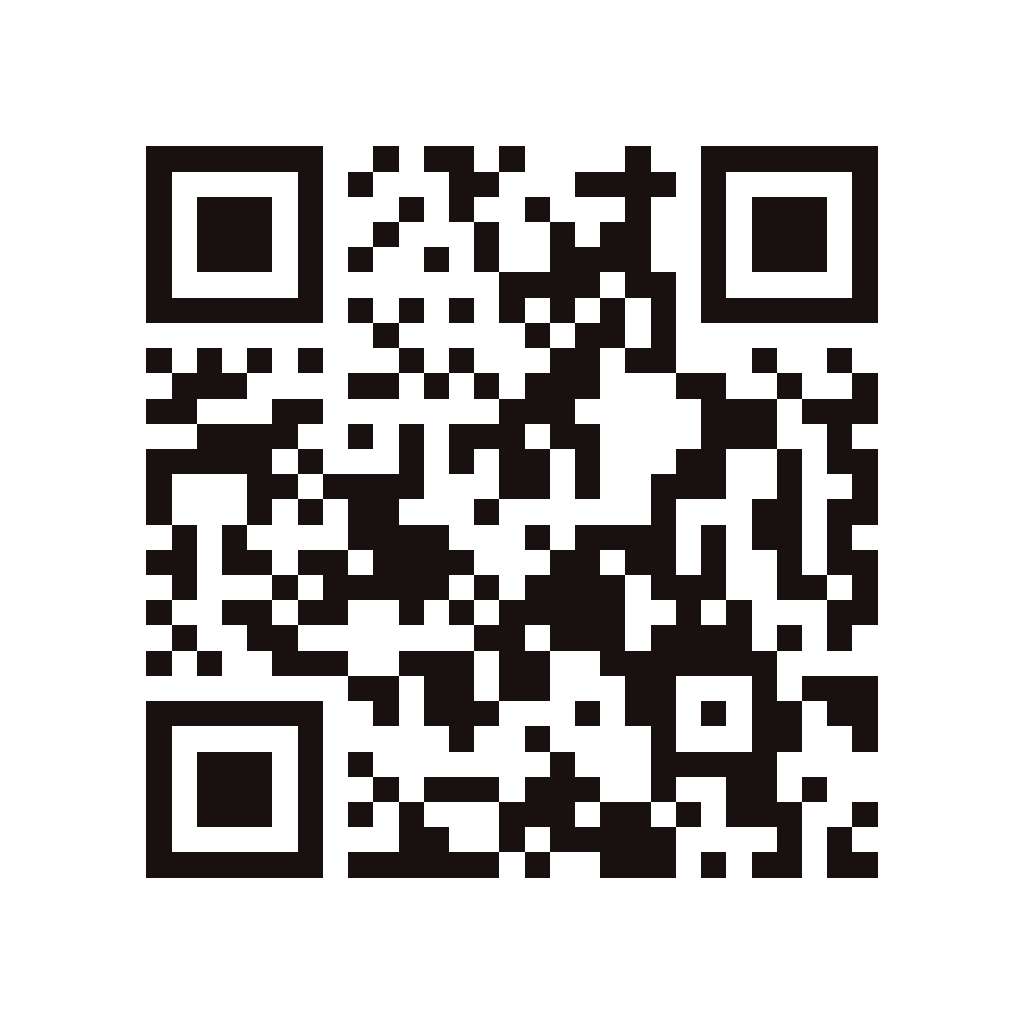
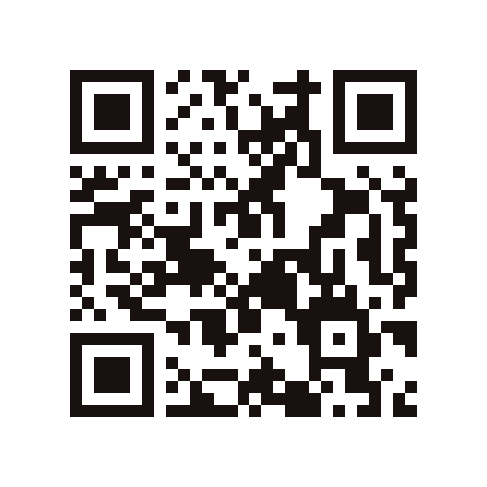
We chose Link, entered https://1click.tools/guides and removed the default logo and downloaded PNG and SVG with the default appearance. Both exports decoded to the exact guide-directory address.
Compare the actual downloads
- Download the 1024 px PNG25.7 KiB
- Download the matching SVG31.1 KiB
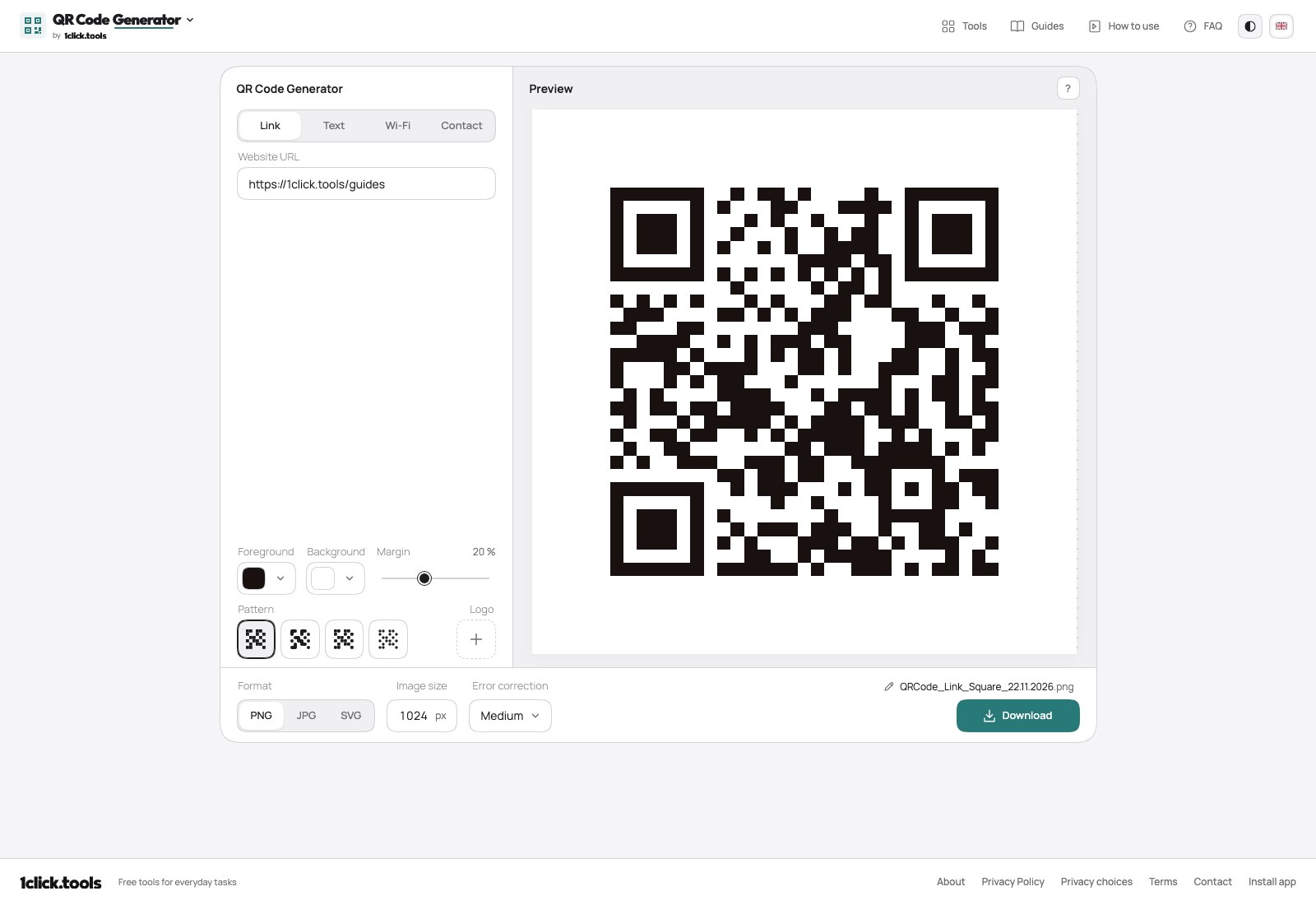
| Setting | Actual value |
|---|---|
| Type | Link |
| Decoded address | https://1click.tools/guides |
| PNG dimensions | 1024 × 1024 |
| Appearance | Square · Medium correction · 20% margin |
The tool adds no redirect. The file contains the address itself; the destination site controls its page content and availability.
Repeat this example
- Select Link and replace the example https://example.com in Website URL with https://1click.tools/guides.
- Under Logo, select Remove logo, then keep Square, the default colors, Medium correction and 20% Margin.
- Download PNG at 1024 px; select SVG and download again.
Check the decoded result
Both exported files decode to https://1click.tools/guides. Opening that link is a separate action from decoding it.
A common mistake
Encoding a private editing link instead of the public page gives scanners the same login or access restrictions as that editing link.
Create your own QR codeSources and credits
Actual QR Code Generator sessions. Files are unchanged browser exports saved under descriptive guide names. Both the PNG and a raster rendering of the exported SVG were independently decoded with jsQR. This verifies the samples, not physical printing, phone contact imports or real Wi-Fi connections.
ZXing: barcode content formats. Describes URL, plain-text, Wi-Fi and contact payload conventions. What a phone does after scanning depends on its reader.
Choose the page people should open
Use the full address of the destination, starting with https:// or http://. For a booking page, menu or registration form, open the page yourself first and confirm that it works for someone who is not signed in. A link to a private dashboard or an expiring sharing page will keep those restrictions when scanned.
Enter the address in Link
Open QR Code Generator, select Link and paste the address into Website URL. The preview updates immediately. The worked example uses https://1click.tools/guides, so scanning opens the guide directory rather than the homepage. This tool encodes the address you enter directly; it does not insert its own tracking redirect or visit the destination.
Choose a file for the destination
Start with Square pixels, a dark foreground, white background and the default 20% Margin. Use the pencil next to File name to give the download a useful name. Choose PNG for inserting into a document or message, or SVG for a print layout that accepts vector artwork. Image size changes the PNG or JPG dimensions, not the encoded URL.
For posters and cards, follow the QR print-export guide.
Check the exported code and destination
Download the file and scan it on another device. Read the complete address before opening it, then check the actual page, including any login or permission prompts. Test the file placed in your final layout as well as the original download. A preview that looks correct is not a test of the final printed result.
Keep the address working
The downloaded code is static: changing its encoded address requires a new code. If you control the destination page, you can update the content at that same address, such as replacing a menu. The code has no expiry added by this tool, but a deleted page, expired domain or changed access permission can stop the destination working.