A little guidance
How to rename PDF files from their title
Tidy a folder of PDFs with names like scan_001 or download (3): Metadata Editor renames each one after the title stored inside it when you save.
Four sample PDFs renamed in their folder
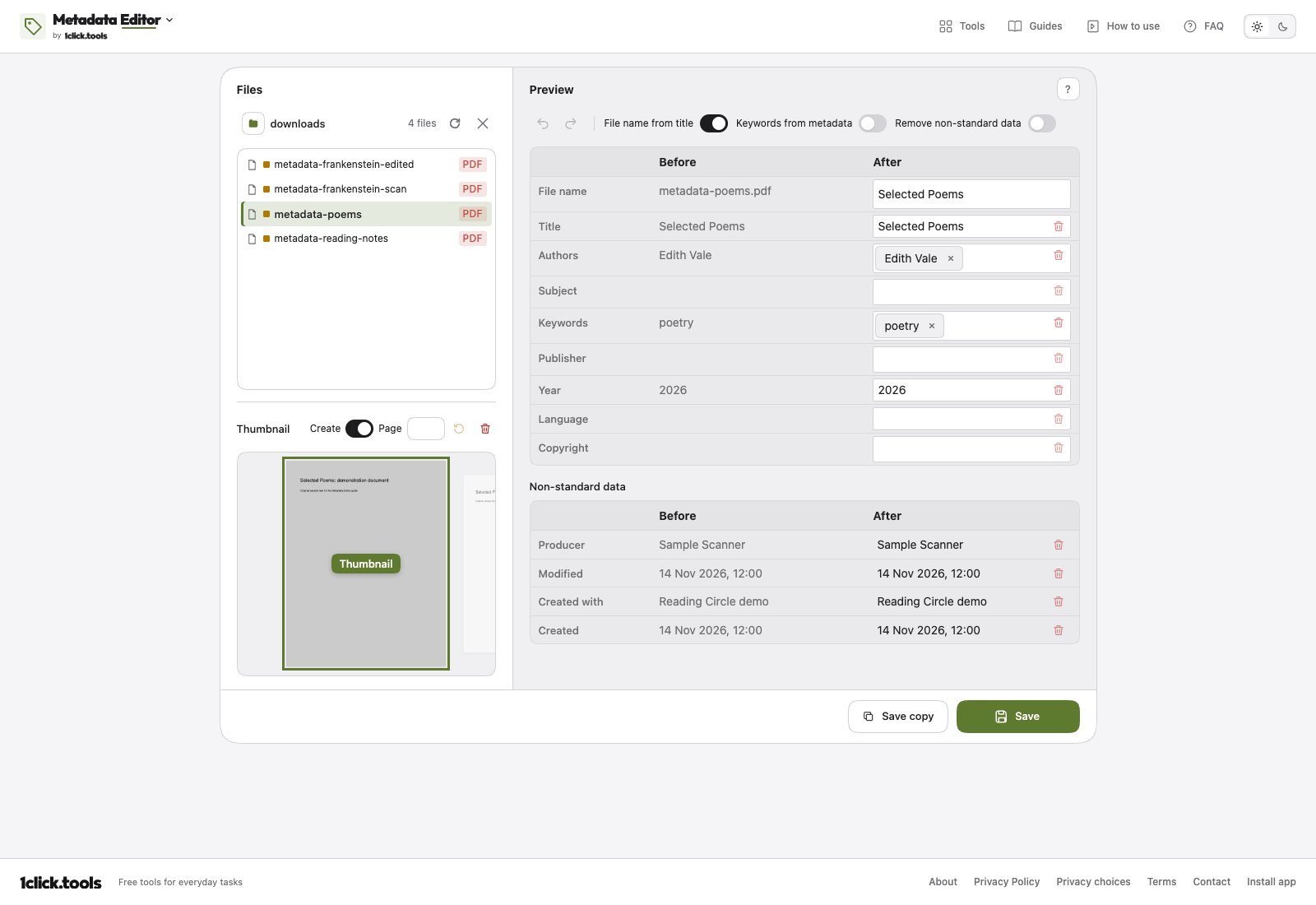
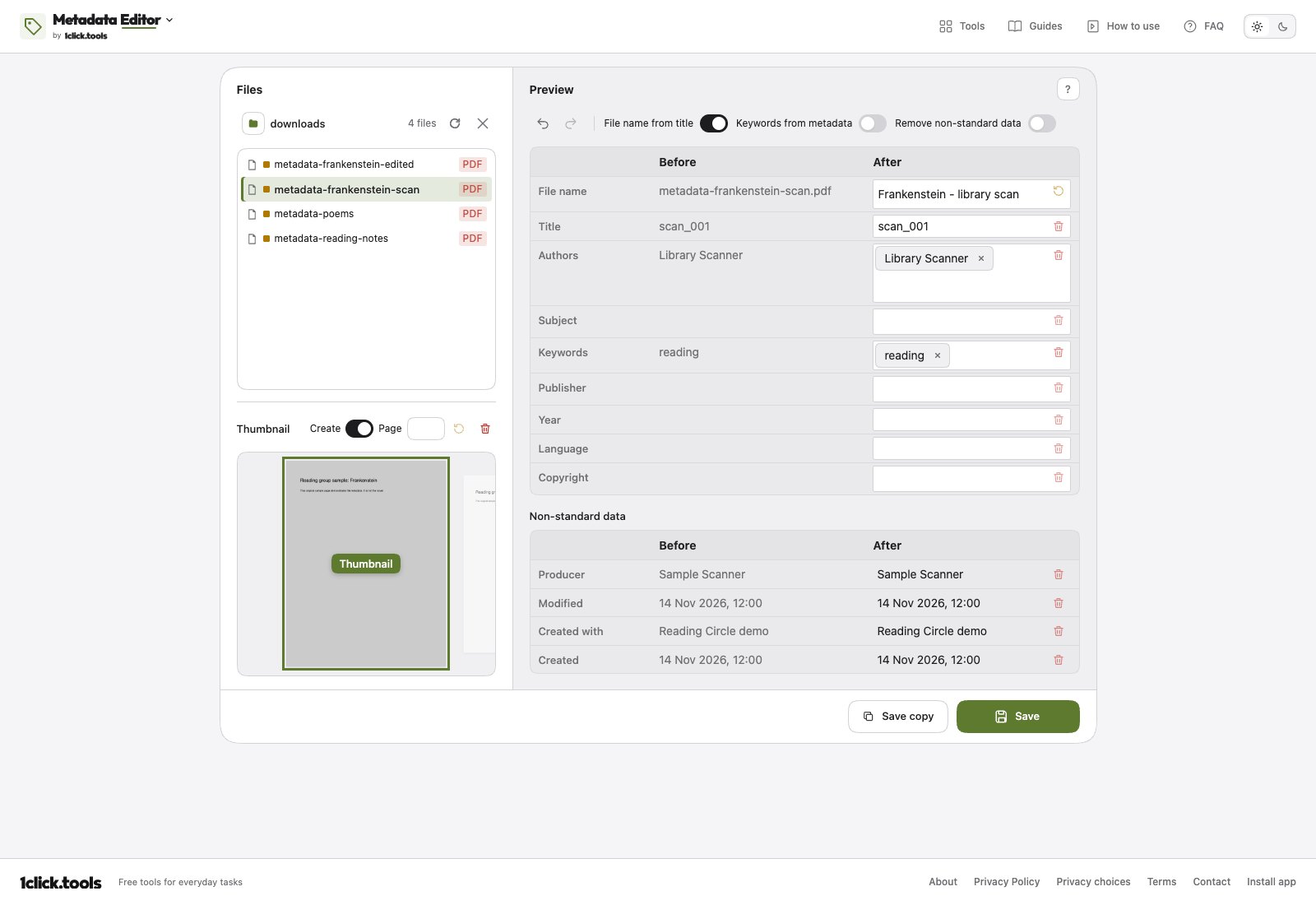
We opened a folder of four sample PDFs whose names say little. Three got clear names from their own titles; the scan’s title was scan_001, so we typed a name for it.
Start with these files
- metadata-frankenstein-edited.pdf2.6 KiB
- metadata-poems.pdf1.7 KiB
- metadata-reading-notes.pdf1.5 KiB
- metadata-frankenstein-scan.pdf1.7 KiB
| Original file | Title inside | New name |
|---|---|---|
| metadata-frankenstein-edited.pdf | Frankenstein | Frankenstein.pdf |
| metadata-poems.pdf | Selected Poems | Selected Poems.pdf |
| metadata-reading-notes.pdf | Reading notes | Reading notes.pdf |
| metadata-frankenstein-scan.pdf | scan_001 | Frankenstein - library scan.pdf (typed) |
Only the file names changed; titles stayed as they were.
Repeat this example
- Open the folder and turn on File name from title.
- Click each file to check its new name; for the scan, click the name in After and type Frankenstein - library scan.
- Select all four (click the first, Shift-click the last), leave Remove non-standard data off and click Save.
Check the result
The folder holds four PDFs with the names in the table, and each still opens with the same pages.
A common mistake
Trusting the title blindly. A PDF made by a scanner or a website can have a title like scan_001 or Untitled; check each name before saving.
Open Metadata EditorSources and credits
Original Metadata Editor demonstration files. The sample PDF pages were made for these guides; names and other fields are demonstration metadata. Screenshots come from a real Metadata Editor run.
Open the folder
Click Choose folder and pick the folder with your PDFs, or drop it onto the Preview. Every PDF in it is listed in the Files tree. Many PDFs carry a title inside them even when the file name says nothing, and the tool reads them on your device without uploading anything.
Turn on File name from title
The switch is above the table and starts off. When on, each file is named after its title, for example Frankenstein.pdf, and keeps its extension. A file without a title keeps its name, and characters such as : or ? that file names can’t contain become spaces.
Check each name and fix the odd one
Click a file in the list. The File name row shows the old name in Before and the new one in After. If the title is junk, like a scanner’s scan_001, correct the Title, or click the new name and type your own (without the extension). A typed name always wins, and reset on the row goes back to the title.
To correct a title, authors and year properly, follow the PDF title, authors and year guide.
Save all of them
Select the files (click the first, then Shift-click the last) and click Save: each file is renamed in its folder. Two files that would get the same name get (2). Save copy writes renamed copies instead and leaves the originals as they were. Leave Remove non-standard data off to change only the names.
Changing other fields for the whole group as well? See how to batch edit metadata.