A little guidance
How to batch edit metadata for selected files
Select several files as in Finder, inspect Mixed values, apply shared metadata and save only the selected files.
Edit two selected books and leave a third out
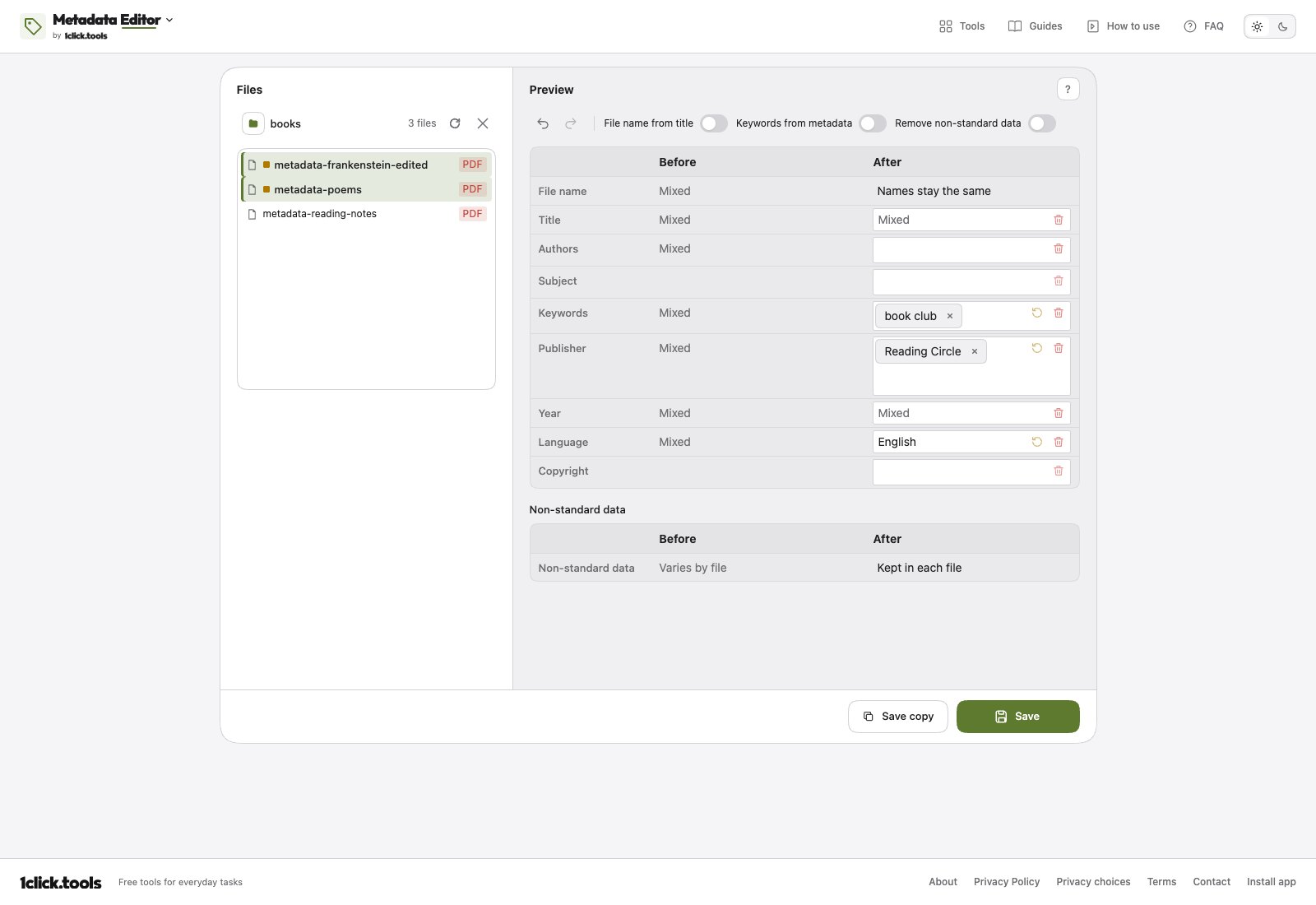
We opened a folder with the Frankenstein PDF, a fictional Selected Poems PDF and Reading notes, selected the two books with Cmd-click, and gave them a shared publisher, language and keyword.
Start with these files
- Edited Frankenstein sample2.6 KiB
- Selected Poems sample1.7 KiB
- Reading notes · left unselected1.5 KiB
Compare the actual downloads
| Setting | Selected books | Reading notes |
|---|---|---|
| Selection | Click, then Cmd-click | Not selected |
| Title / author / year | Each book keeps its own | Unchanged |
| Publisher / language | Reading Circle / English | Unchanged |
| Keyword | book club added; earlier keywords kept | Unchanged |
| Saved | A copy of each, next to the originals | Not saved |
Each copy keeps its own title and author. A shared publisher doesn’t overwrite either book’s title.
Repeat this example
- Choose the folder. Click Frankenstein, then Cmd-click (Ctrl-click on Windows) Selected Poems.
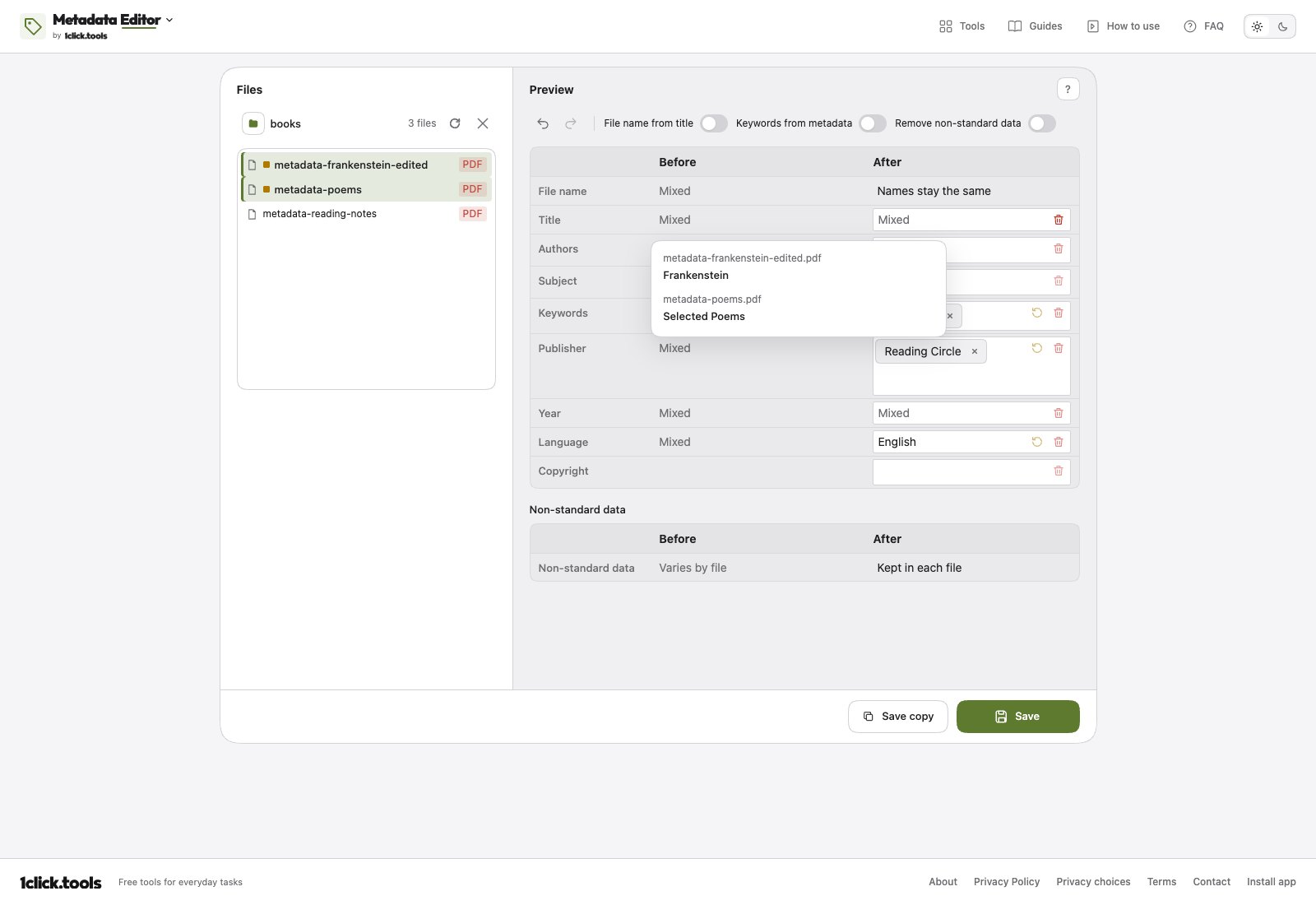
- Hover Mixed on Title without changing it. Add Reading Circle as Publisher, choose English and add book club to Keywords.
- Click Save copy and check both copies.
Check your download
Both copies have publisher Reading Circle, language en and keyword book club, and keep their own titles, authors, years and earlier keywords. Reading notes is unchanged.
A common mistake
Typing into a Mixed title replaces both titles. Leave Mixed alone to keep their own values.
Try these files in Metadata EditorSources and credits
Original Metadata Editor demonstration files. The sample PDF pages and illustrated landscape were made for these guides. Names and location fields are demonstration metadata. Screenshots come from actual tool sessions and the result files from the same editing engine; the PNG illustration is not a camera photograph.
Select exactly the files you want
Open the folder with Choose folder, or add files with Choose files. Click a file to select it alone. Ctrl-click on Windows or Cmd-click on Mac adds or removes a file, and Shift-click selects a range in list order. Every selected file is highlighted, and the table edits them together. A dot before a name marks a file with unsaved changes.
Inspect Mixed before replacing anything
Values that differ between the selected files show as Mixed. Hover over Mixed, or focus it with the keyboard, to see each file and its value; Not set marks a missing one. Before shows the original values, After the current ones. In this example the two books have different titles and years, so leave those fields alone to keep them.
Apply a shared value to the selection
Type Reading Circle in Publisher and press Enter, and choose English in Language; these apply only to the selected PDFs. Type book club in Keywords and press Enter: it is added without replacing each file’s other keywords. After shows only the entries every selected file shares; select one file to see its full list. Reset on a row brings back every selected file’s own value.
Keep names individual
File name from title names each file after its own title, so every file gets its own name. The File name row shows Mixed for a batch; hover it to see each new name. Two files that would get the same name in one folder get a number, such as (2).
For a single book and its name, follow the PDF title, authors and year example.
Save the selection
Save writes the changes into every selected file, and Save copy writes a copy of each next to its original. Files you didn’t select stay as they were. Unreadable and protected files are left out. To clear the list, use × in the folder bar above it; that never deletes anything from your computer.