A little guidance
How to edit a PDF title, authors and year
Edit PDF document properties directly in a before-and-after table and save them into the file, or as a copy. Follow an example with authors, publisher, year and language.
A scanner file becomes a titled PDF
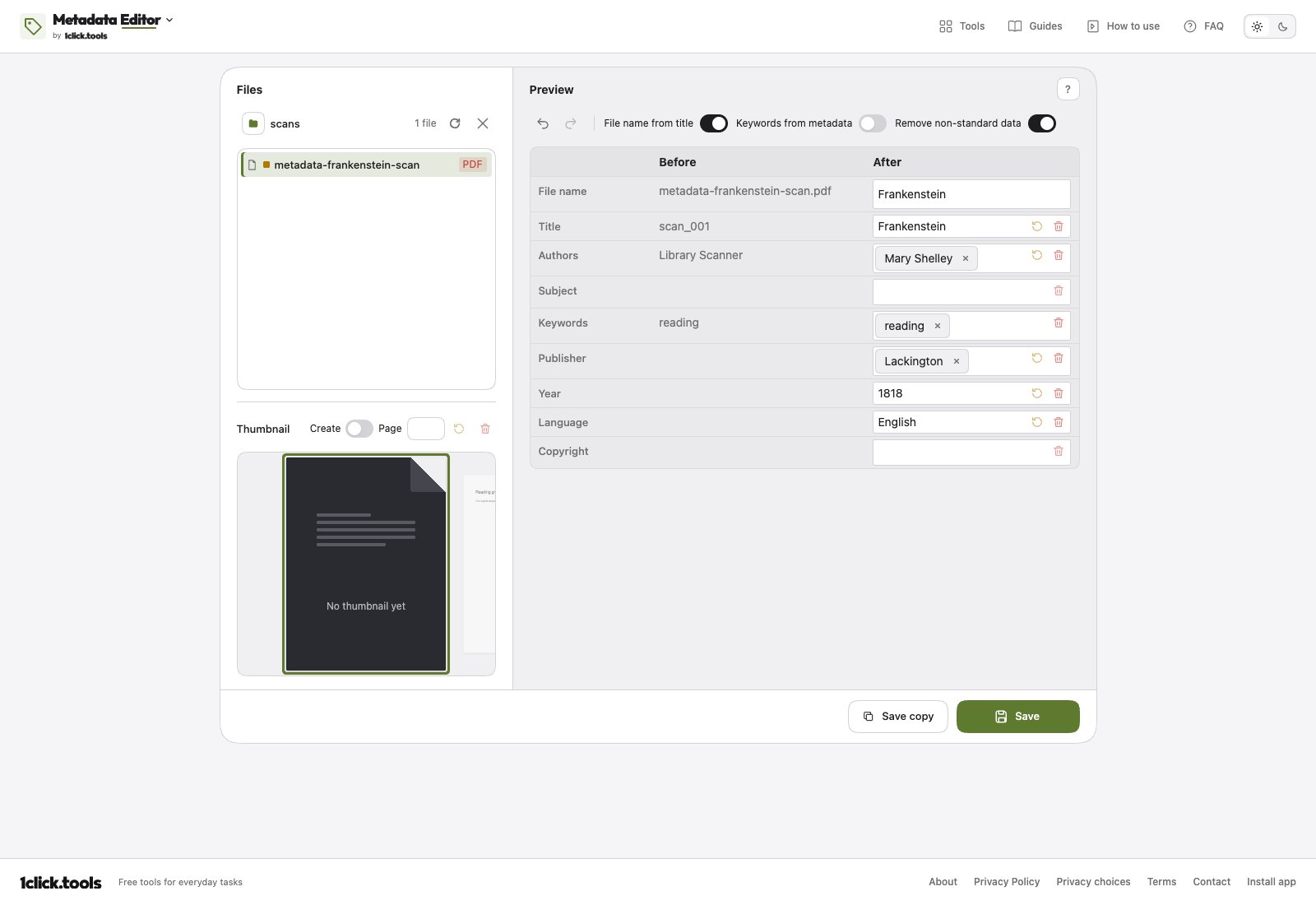
We opened a one-page sample PDF titled scan_001 by Library Scanner, edited its document properties in After, named it from its new metadata and saved a copy.
Start with these files
Compare the actual downloads
| Field | Before | After |
|---|---|---|
| Title | scan_001 | Frankenstein |
| Authors | Library Scanner | Mary Shelley |
| Publisher / year / language | Empty | Lackington / 1818 / English |
| Non-standard data | Sample Scanner; creation software and dates | Removed |
| File name | metadata-frankenstein-scan.pdf | Frankenstein.pdf |
The page content is an original demonstration, not the text of Frankenstein. The metadata and the file name are what change.
Repeat this example
- Add the scanner sample and click it in the Files list.
- In After, set Title to Frankenstein, replace Library Scanner with Mary Shelley, add Lackington as Publisher, click 1818 on the Year wheel and choose English.
- Turn on File name from title and Remove non-standard data, then click Save copy.
Check your download
The copy has one unchanged page, the edited title and author, the year 1818 and language en, and no scanner software or dates.
A common mistake
Changing the metadata title does not change the text printed on the page.
Try these files in Metadata EditorSources and credits
Original Metadata Editor demonstration files. The sample PDF pages and illustrated landscape were made for these guides. Names and location fields are demonstration metadata. Screenshots come from actual tool sessions and the result files from the same editing engine; the PNG illustration is not a camera photograph.
Open the PDF
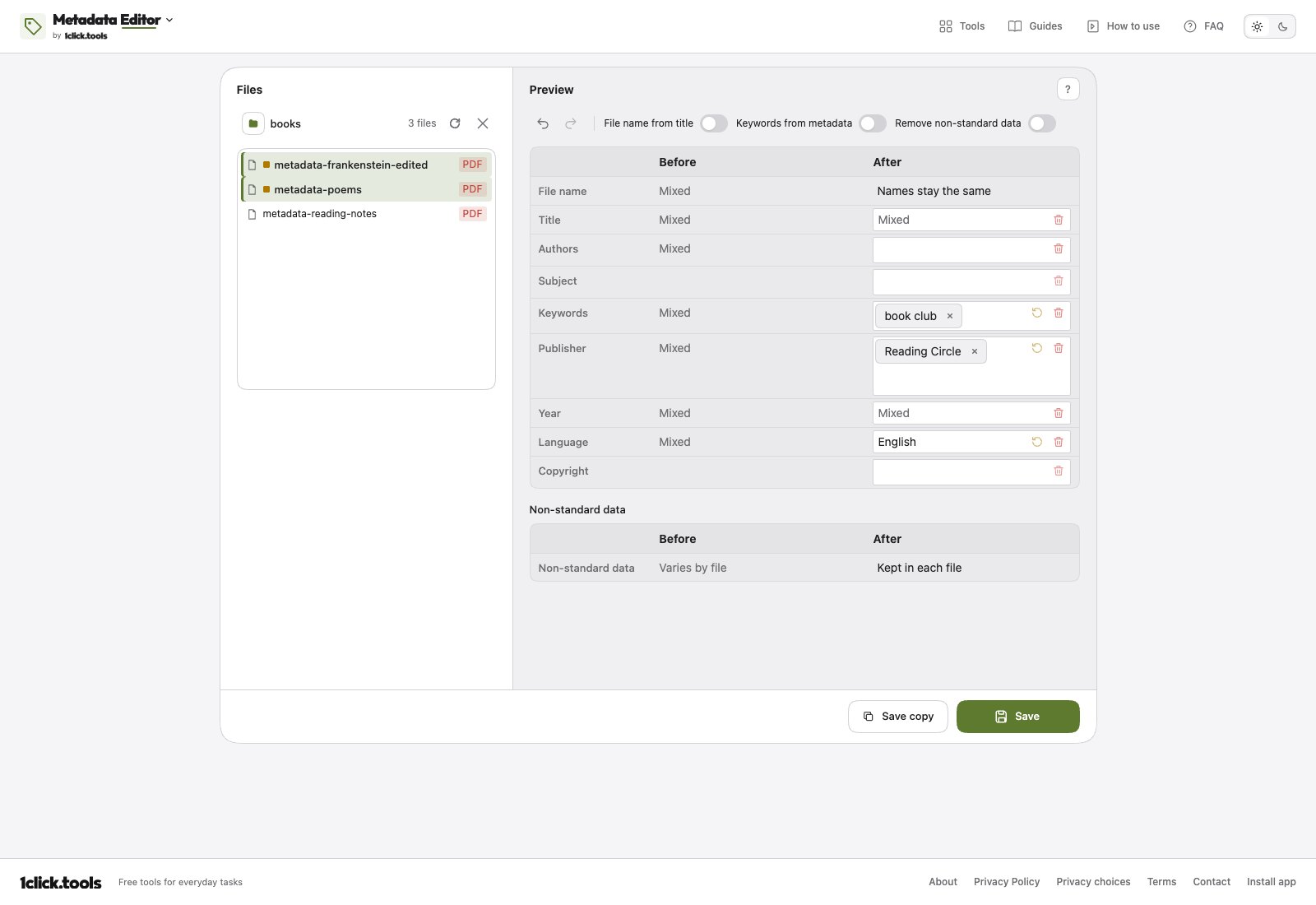
Click Choose files in the empty Preview, choose a folder with Choose folder, or drop either onto the Preview. Later, the folder bar at the top of the Files list opens another folder or file; it shows the folder’s path. The list shows every PDF and photo with a coloured badge for its type at the right of its row, an amber square before the name of each file with changes, and folders you can open and close; click a file to show it. This example uses metadata-frankenstein-scan.pdf, a one-page demonstration PDF whose title is scan_001 and author Library Scanner. It contains original sample text, not the novel.
For a group of documents, follow the batch editing example.
Edit the After column
Before keeps the values read from the file; After is where you edit. Replace the title with Frankenstein. Remove Library Scanner with its ×, type Mary Shelley in Authors and press Enter. Open Year: scrolling the wheel only looks, so click 1818 to choose it. Type Lackington in Publisher and choose English in Language. Each row ends with reset, which brings back the value from Before, and a bin that deletes the field. Undo and redo, above the table, step back through your edits.
Understand lists and empty fields
Authors, Subject, Keywords, Publisher and Copyright can hold several entries. Semicolons split pasted entries; commas do not, so Austen, Jane stays one person. Click an entry to rename it. Nothing is filled in for you: a PDF without a language stays without one until you choose it. Editable fields have a light border; empty ones stay blank.
Choose the file name
Turn on File name from title, above the table, to name the file after its title: this example becomes Frankenstein.pdf. The File name box holds the name without its extension, which stays as it was. A name you type there always takes priority, and its reset goes back to the automatic one. With the switch off, the file keeps its name.
Save or save a copy
Scanner software and dates are listed in the Non-standard data table under the main one. Turn on Remove non-standard data to discard all of it while keeping the fields you entered; the table hides. Save writes the changes into the file on your computer and renames it, which works in Chrome, Edge and Opera on a computer; it is greyed out until something changed. Save copy writes a new file next to the original and leaves the original untouched. Saving invalidates a digital signature; password-protected PDFs can’t be rewritten.