A little guidance
Quote image sizes: square, portrait, wide and story
Compare the four exported quote-image sizes and choose JPG or PNG. See how the same words and photo change across real downloadable examples.
Real comparison: the same quote in all four canvas sizes
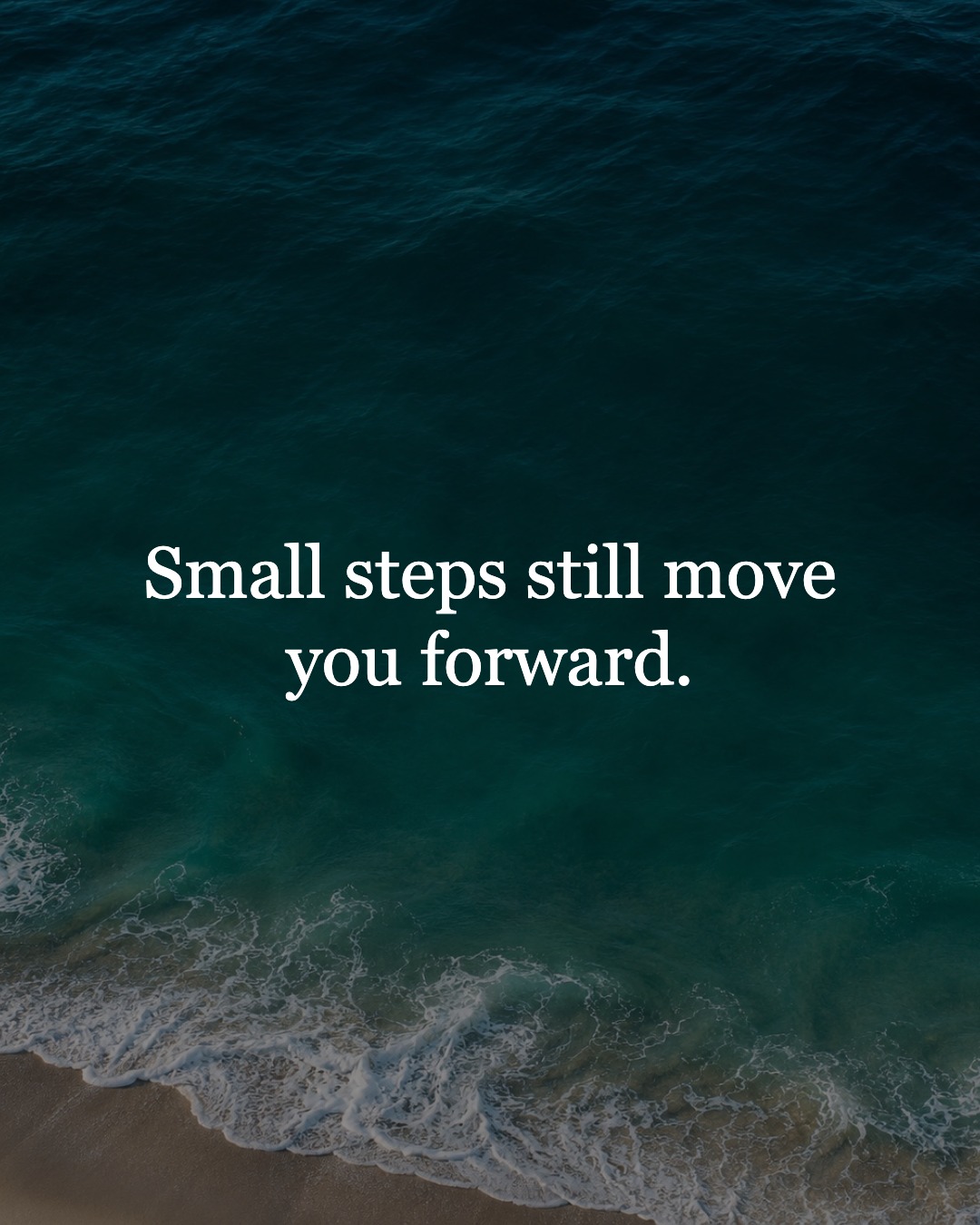
We used the Coast design with “Small steps still move you forward.”, left Author empty, kept white text and 45% darkening, and downloaded a JPG in each canvas size.
Compare the actual downloads
- Square JPG · 1080 × 1080208.4 KiB
- Portrait JPG · 1080 × 1350230.6 KiB
- Wide JPG · 1200 × 630108.9 KiB
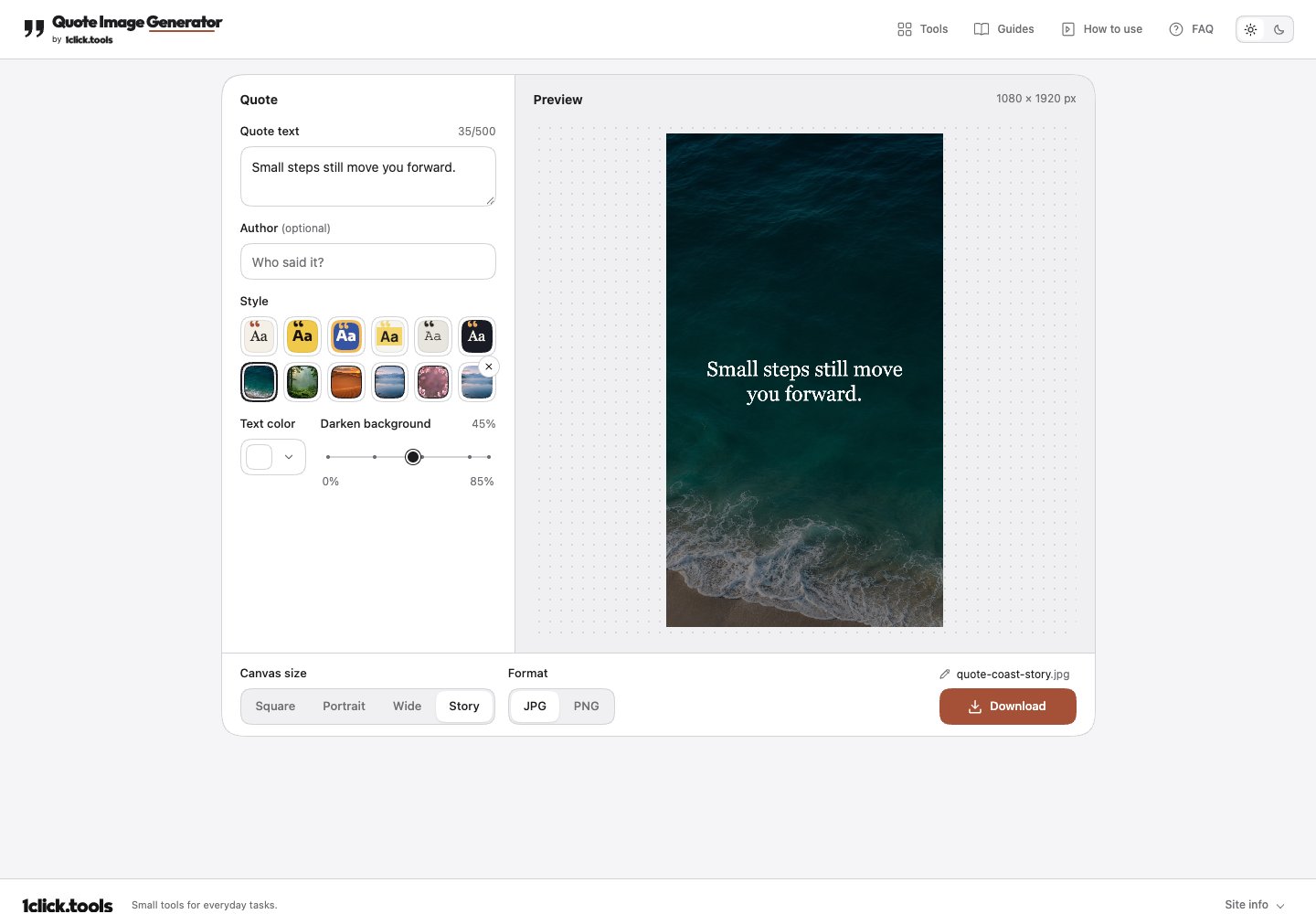
- Story JPG · 1080 × 1920267.3 KiB
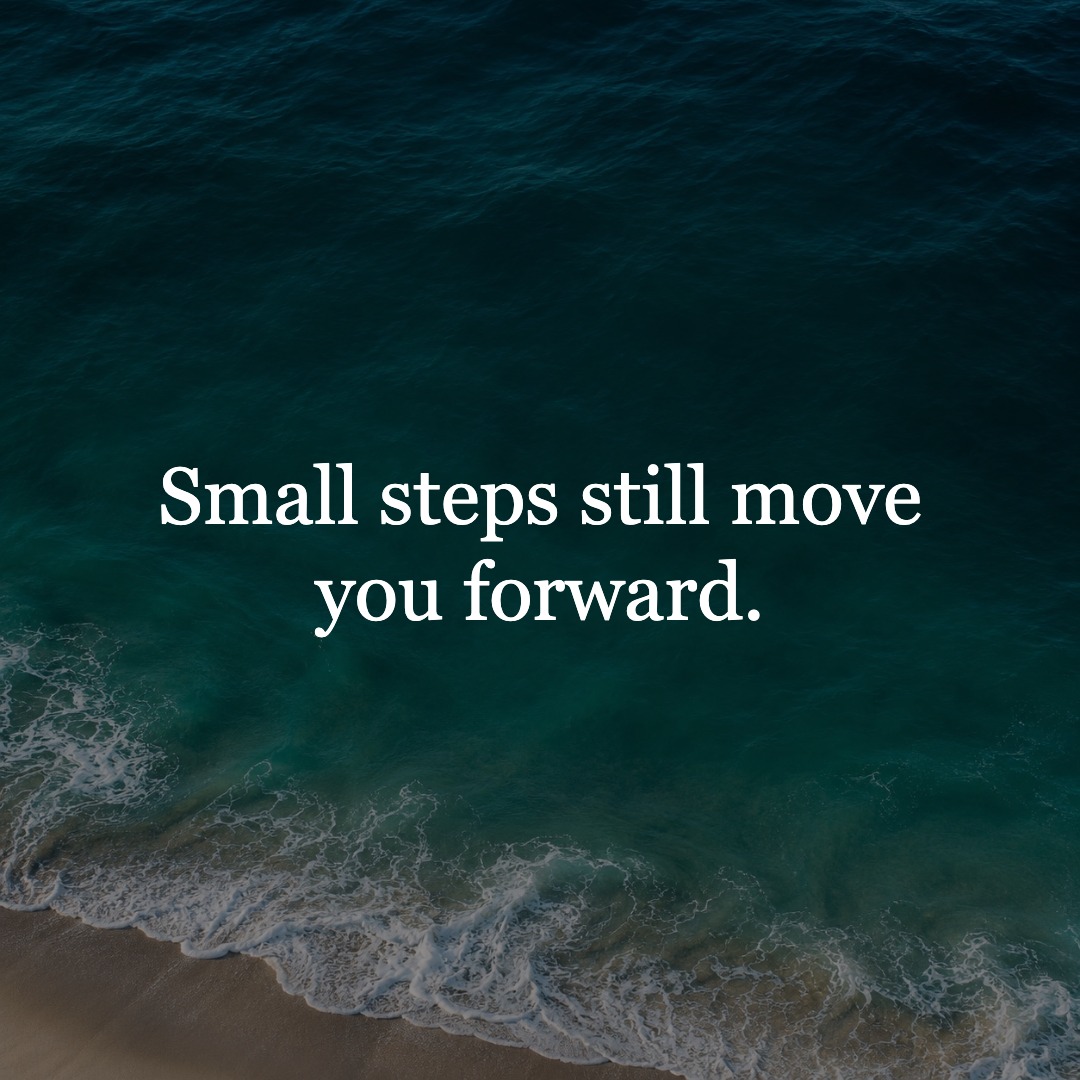
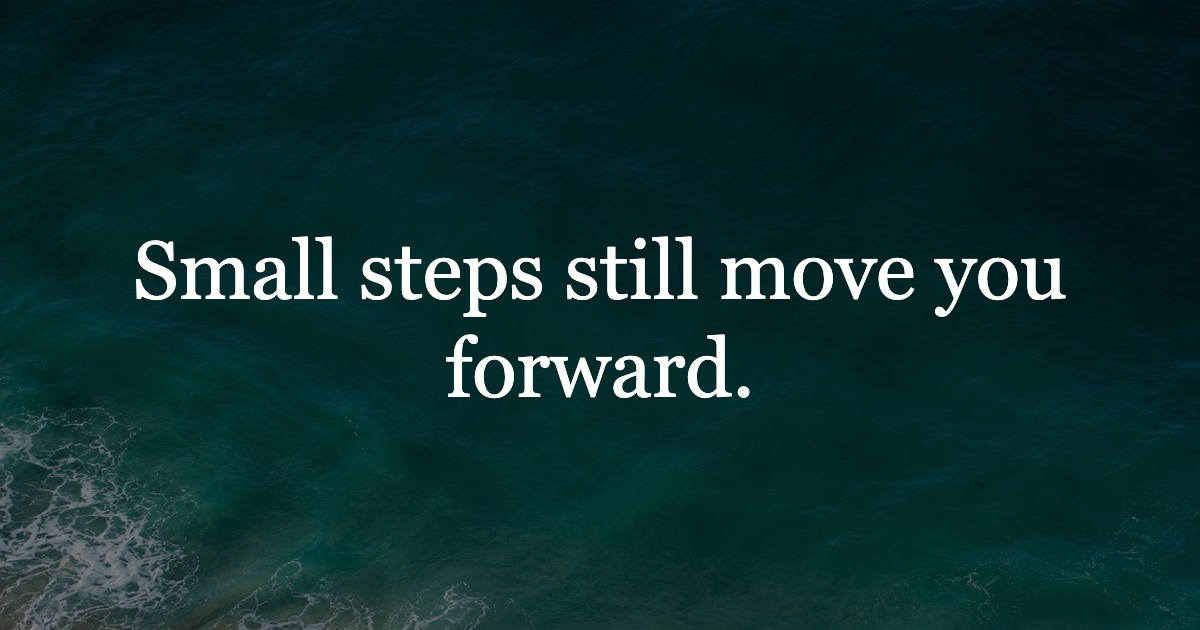
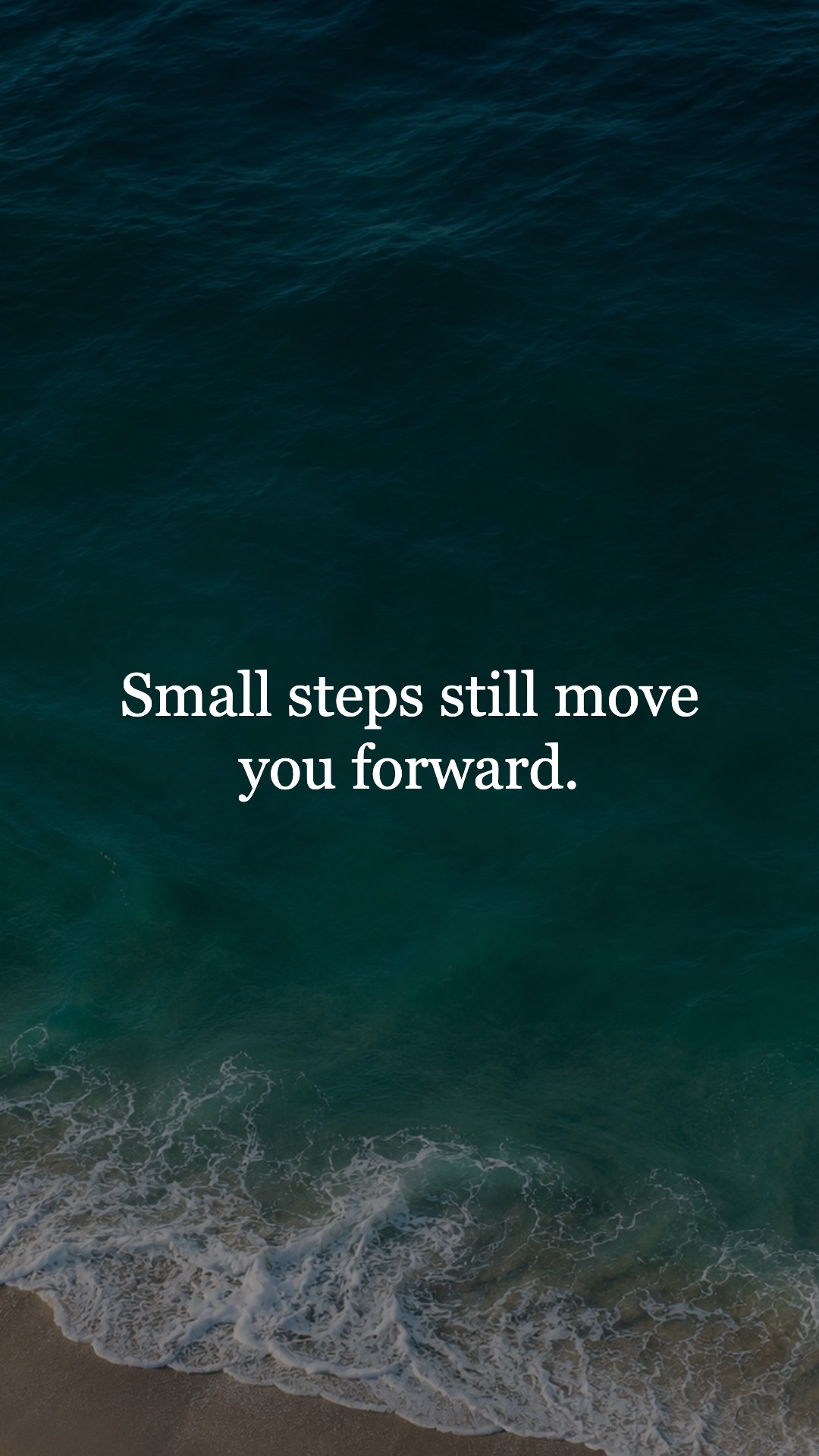
| Canvas size | Verified dimensions | Measured JPG size |
|---|---|---|
| Square | 1080 × 1080 pixels | 213,432 bytes |
| Portrait | 1080 × 1350 pixels | 236,138 bytes |
| Wide | 1200 × 630 pixels | 111,532 bytes |
| Story | 1080 × 1920 pixels | 273,742 bytes |
Every dimension was read from the actual downloaded image. File sizes are measured for this sentence, design and browser; they are not a prediction for other quote images.
Repeat this example
- Enter “Small steps still move you forward.”, clear Author and choose the Coast photo thumbnail.
- Keep Text color at #FFFFFF and Darken background at 45%. Choose JPG.
- Download Square, Portrait, Wide and Story under different filenames. Reopen each file and compare its dimensions, text wrapping and photo crop.
Check your download
The four files have different shapes and the exact pixel dimensions shown in the table. The quote remains complete in each export.
A common mistake
The size of the image on your monitor is not its export resolution. Check the dimensions of the downloaded file, and inspect every crop before sharing.
Compare your own quote in four sizesSources and credits
Demonstration quote. “Small steps still move you forward.” was entered without an author.
Coast background. Built-in Coast design. The four quote images are actual tool downloads.
Choose a shape before editing
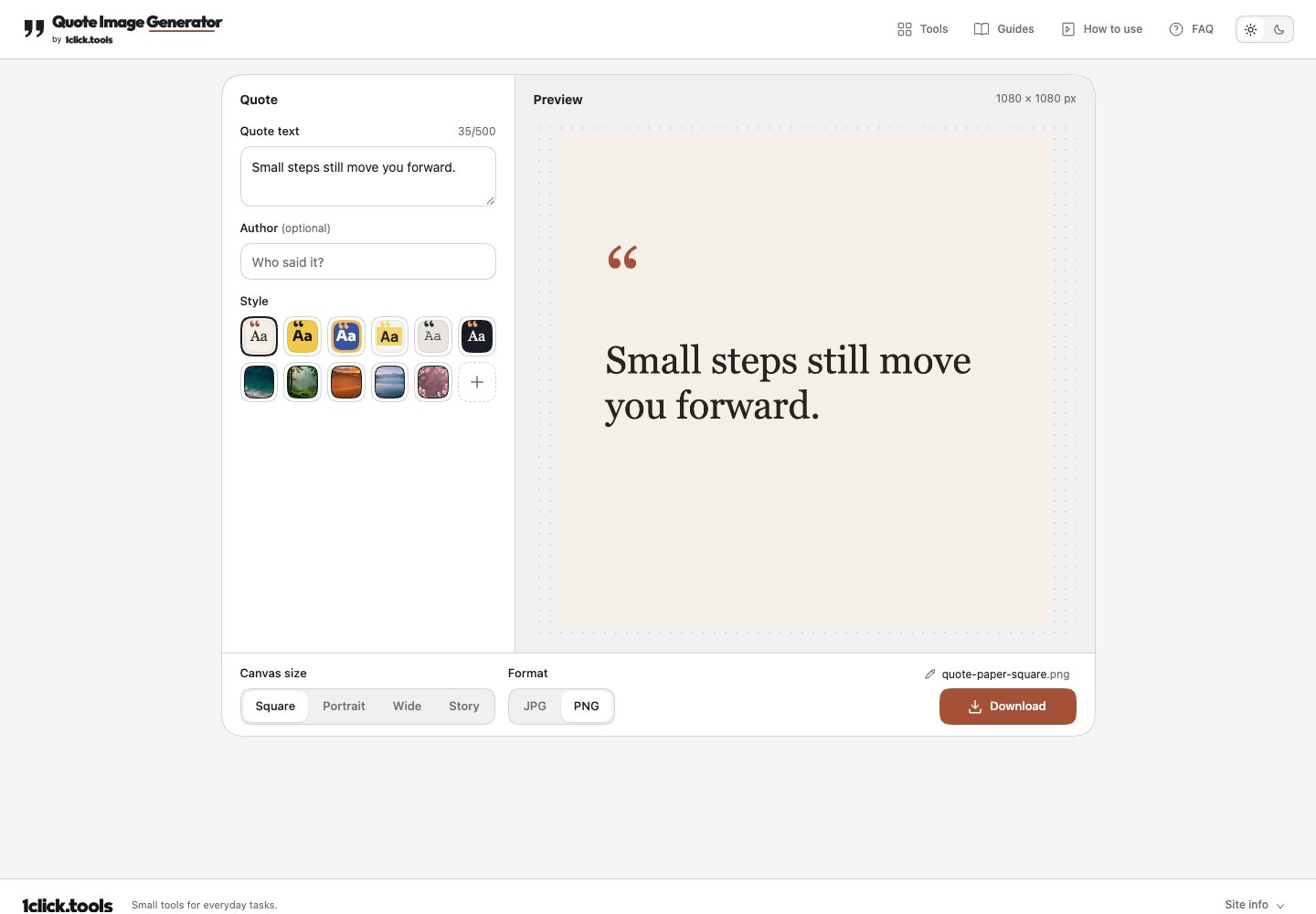
Canvas size determines the pixels in your downloaded image. Choose the shape that fits your intended space, then review the words and background in that shape. The size shown above Preview is the export size even when the on-screen image is scaled down. The example keeps one quote and the Coast design fixed while changing only the canvas size.
For the basic editing and download flow, follow how to make your first quote image.
Square and Portrait
Square is 1080 × 1080 pixels with equal width and height. Portrait is 1080 × 1350 pixels, a 4:5 shape with more vertical room. Both use the same 1080-pixel width, but the extra height can change where the quote sits and which parts of a photo remain visible. Use the actual downloads above to compare them at the same display width.
Wide and Story
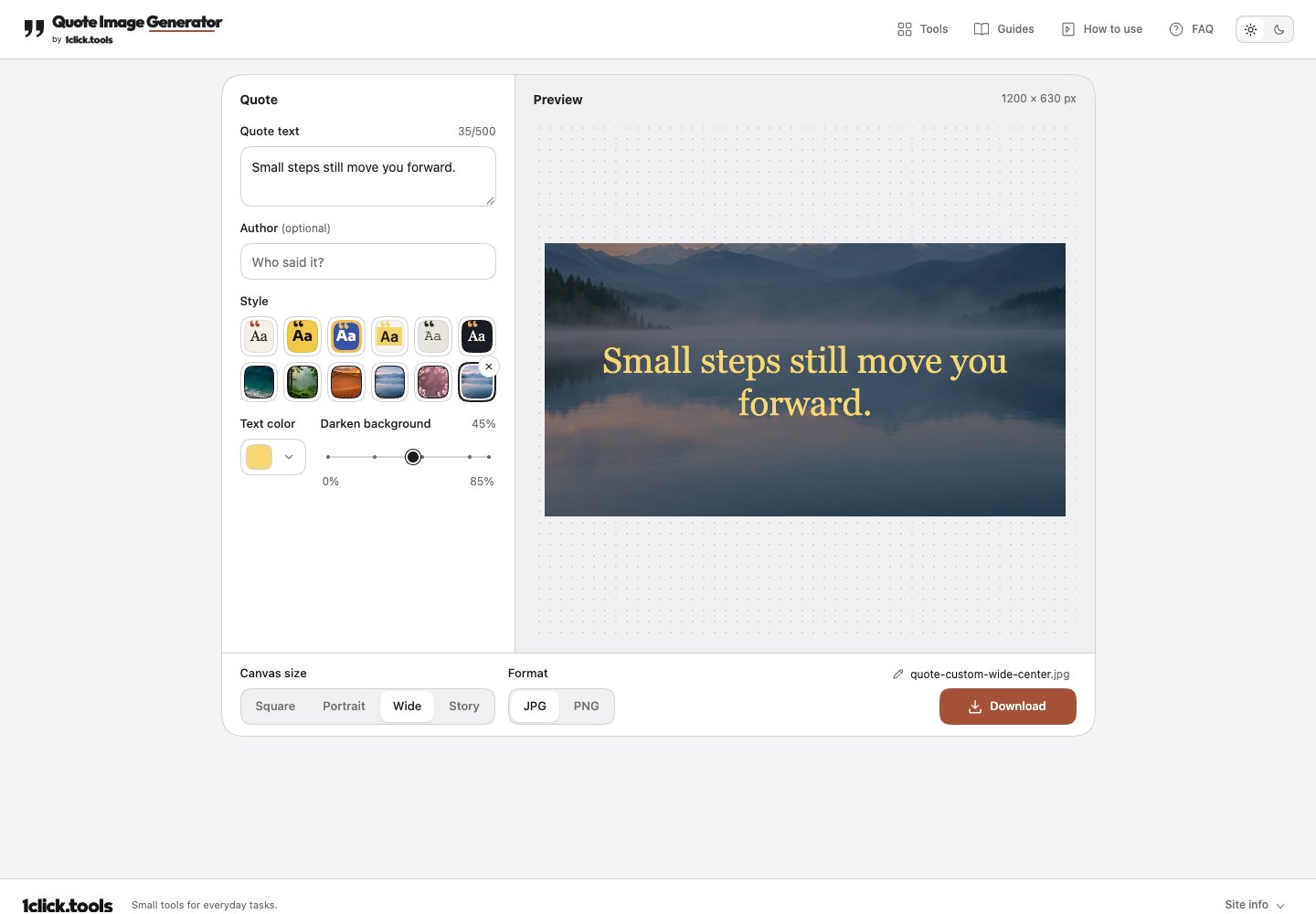
Wide is 1200 × 630 pixels, useful when your layout has a broad horizontal space. Story is 1080 × 1920 pixels, a tall 9:16 shape. These are the tool’s fixed export dimensions, not a guarantee that every publishing destination accepts them unchanged. Check the destination’s own size and crop controls before sharing an image.
Review the text and photo crop
The renderer wraps and reduces text size as needed to fit the chosen canvas. Manual line breaks are kept, but a line break that looks good in Wide can feel awkward in Story. Photo backgrounds fill the canvas and may lose content at the sides or top and bottom. Review each size independently. If the same quote becomes hard to read, shorten it or adjust your line breaks.
For a source of your own, compare the custom photo crop and text color examples.
Choose JPG or PNG after the layout
JPG and PNG preserve the selected pixel dimensions. JPG is lossy and can produce a smaller sharing file; PNG is lossless and can preserve crisp text edges. Neither format guarantees a particular file size, and neither adds detail to a low-resolution source. Both export the background as part of the image. These quote designs do not produce transparent PNGs.
Check the pixels after downloading
Download each version you need and inspect the saved file’s dimensions. The worked example includes Square at 1080 × 1080, Portrait at 1080 × 1350, Wide at 1200 × 630 and Story at 1080 × 1920, verified by reopening the actual downloads. Compare them at their intended display sizes and keep separate filenames so you can tell the versions apart.