A little guidance
How to put a quote on your own photo
Add a custom background that stays centered, choose readable text colors and compare a real download made with the same photo and quote.
Real example: a quote on your own photo
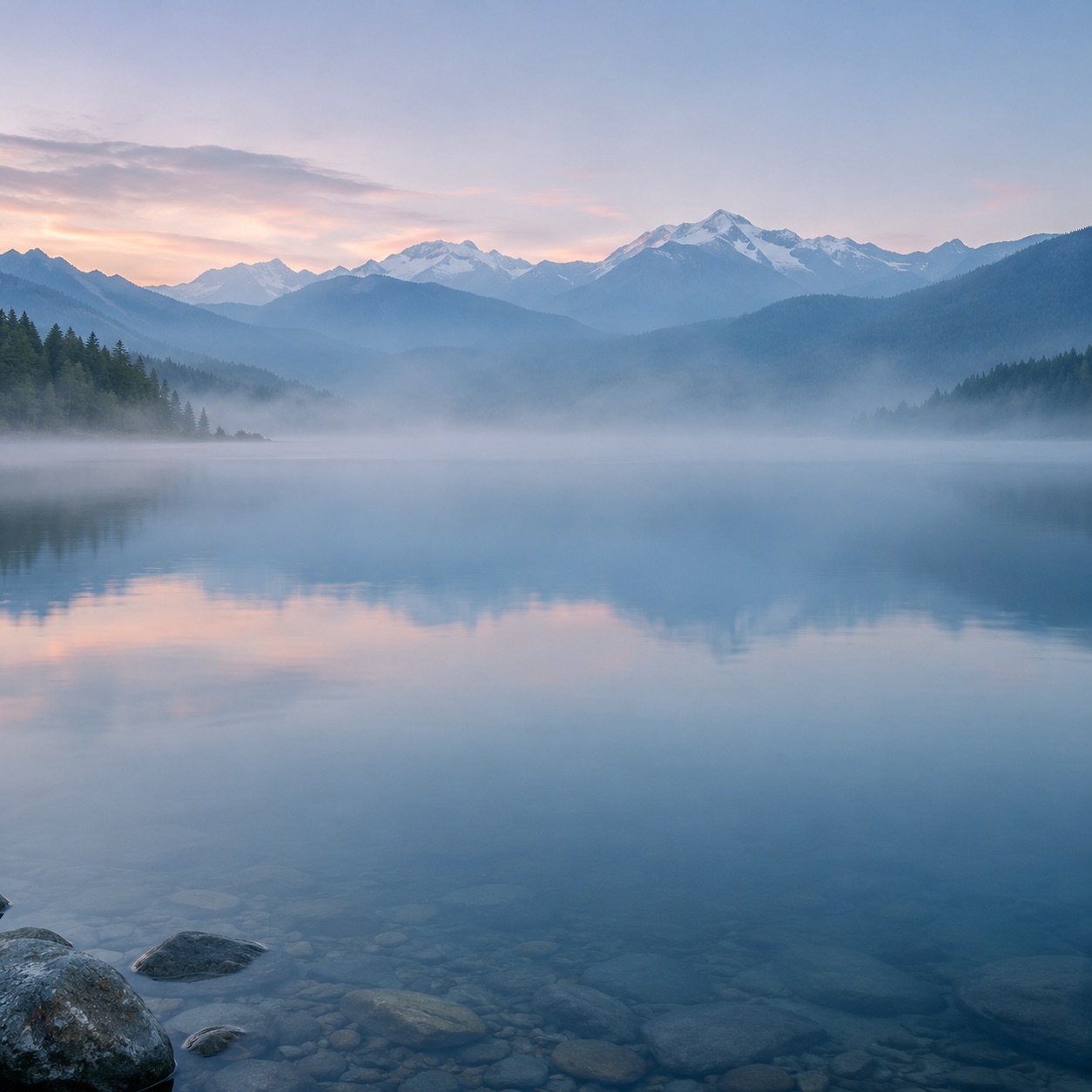
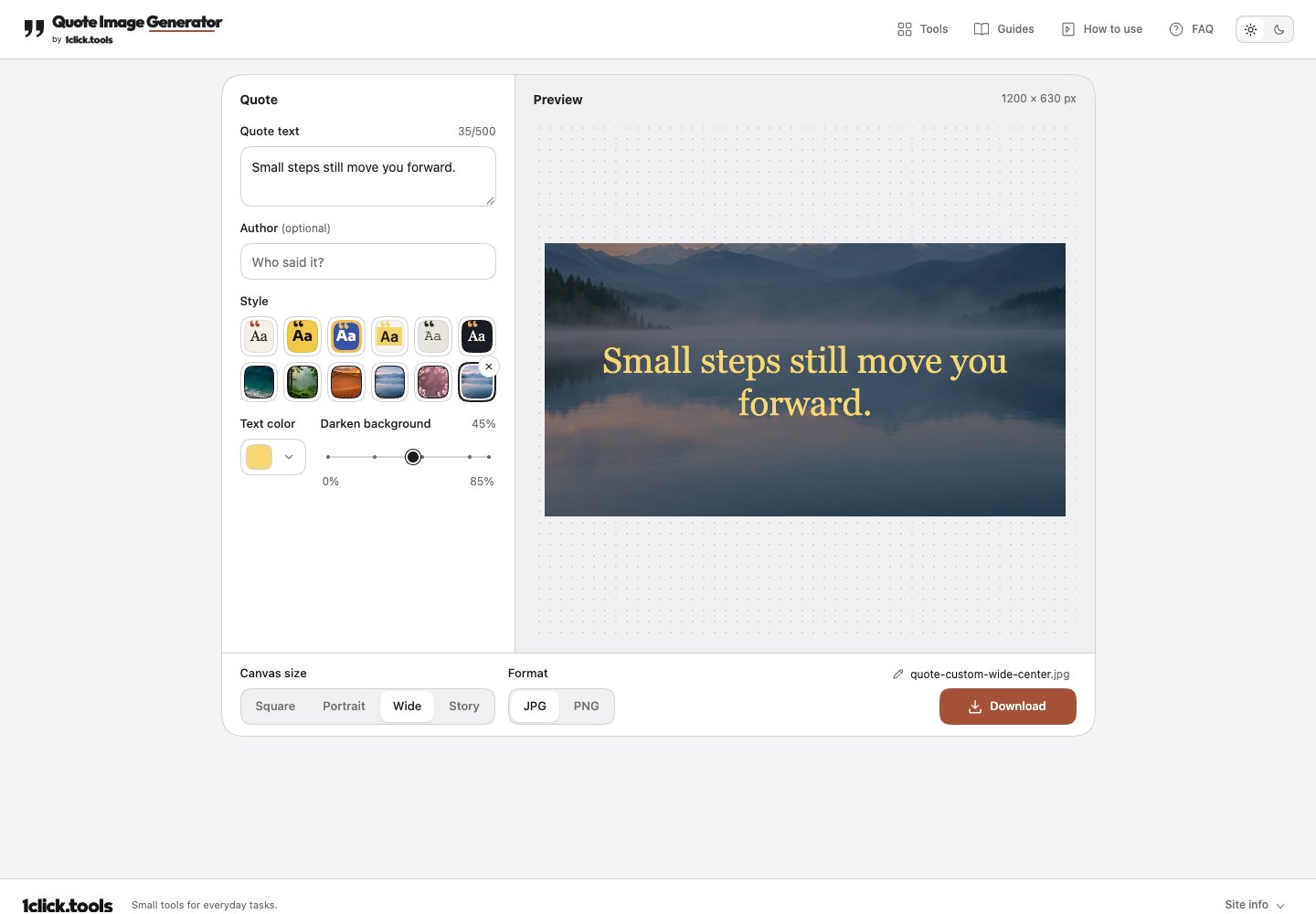
We loaded the supplied 1254 × 1254 Alpine image through the custom plus tile, entered “Small steps still move you forward.” without an author, chose Wide, set Text color to #F7D774 and kept Darken background at 45%. The photo stays centered in the canvas.
Start with these files
- Alpine background · 1254 × 1254 JPG188.7 KiB
Compare the actual downloads
- Download the centered Wide JPG80.9 KiB
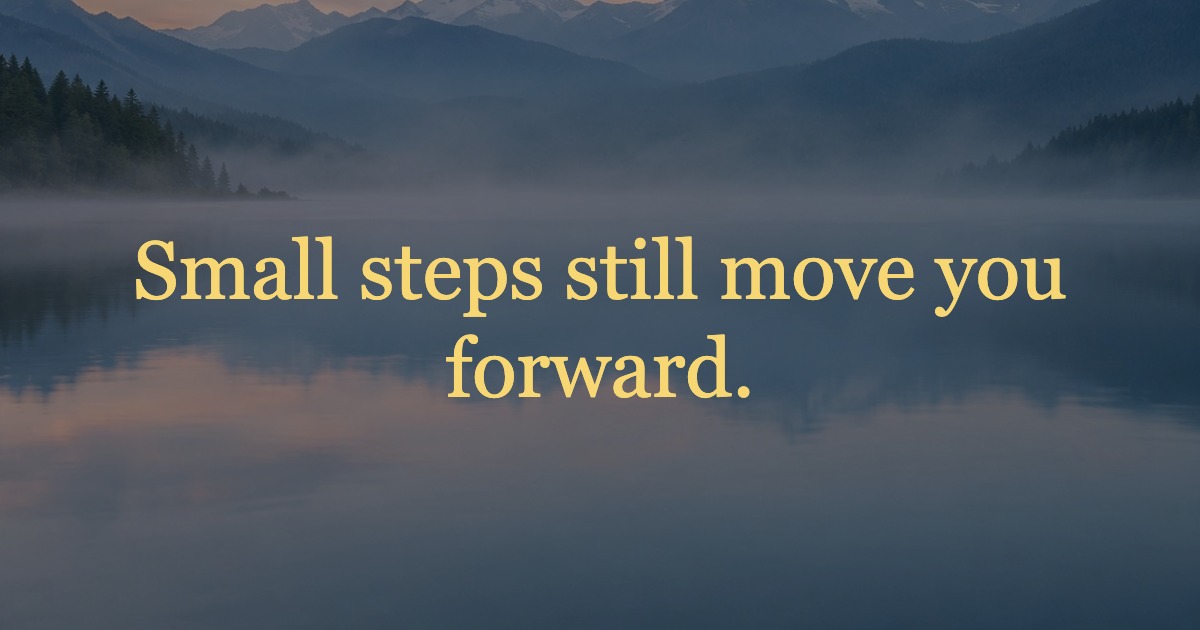
| Download | Settings | Actual download |
|---|---|---|
| Centered Wide JPG | Wide · #F7D774 text · 45% darkening | 1200 × 630 JPG · 82,847 bytes |
The square source is taller than the Wide canvas, so its top and bottom are cropped evenly and the middle of the mountain-and-lake image stays visible. This is a real tool export, not an illustration.
Repeat this example
- Download the Alpine background above. Select the plus thumbnail in Quote Image Generator, choose that file and enter “Small steps still move you forward.” with Author empty.
- Choose Wide, open Text color and enter #F7D774. Keep Darken background at 45%.
- Choose JPG and Download. Compare the saved image with the one above.
Check your download
The JPG is 1200 × 630 with gold text and the middle of the photo visible; the top and bottom of the square source are cropped evenly.
A common mistake
The photo always stays centered. If an important part of your image sits near the top or bottom edge, crop the photo before uploading it or choose a taller canvas such as Portrait or Story.
Put a quote on your photoSources and credits
Demonstration quote. “Small steps still move you forward.” was entered without an author.
Alpine background. Built-in Quote Image Generator background, supplied unchanged for this example.
Add your own image
Enter your quote, then select the plus thumbnail on the left to choose a background image. JPG, PNG and WebP files up to 25 MB are supported. The image stays on your device; selecting it does not upload it to a server. The preview waits for a readable image before enabling Download. The worked example uses the downloadable Alpine background supplied with this site.
New to the tool? Start with the first quote image walkthrough.
Choose the crop before the colors
Select the canvas size first. The photo fills the entire canvas while keeping its proportions; any excess is cropped rather than stretched. The photo always stays centered, so keep the important part of your image near the middle. For example, a square photo on the Wide canvas loses some of its top and bottom.
To compare the available shapes, see the four canvas sizes and their actual exports.
Set the text color and background shade
Photo designs show Text color and Darken background on the same row. Open Text color to choose a swatch, use the color picker or enter a HEX value. The color applies to both the quote and author. Darken background shades the photo without dimming the text. Check readability against both bright and dark parts of your own photo.
Use a source with enough detail
A larger exported canvas does not recover detail from a small or blurred photo. Start with a clear source and check whether the crop removes an important subject. If the lettering becomes too small, shorten the quote or choose another canvas shape. Keep your original photo separately; the downloaded quote card is a new image with the text and background combined.
Remove and replace the image
Use the red trash on the custom thumbnail to remove that background. The tile returns to a plus, which lets you add another image. Your quote and author stay in place. Switching to a built-in design keeps the custom image available for the current session; removing it clears it. If a replacement cannot be decoded, the tool reports the problem and retains the previous usable background.
Download the finished photo quote
Choose JPG or PNG, then Download. Reopen the saved file and inspect its crop and text contrast at the intended display size. Your own image and browser may produce different sizes.