A little guidance
How to use logo colors and gradients in a QR code
Apply logo colors, choose a two-color gradient and direction, and give corners and eyes separate colors. Download and test the styled result.
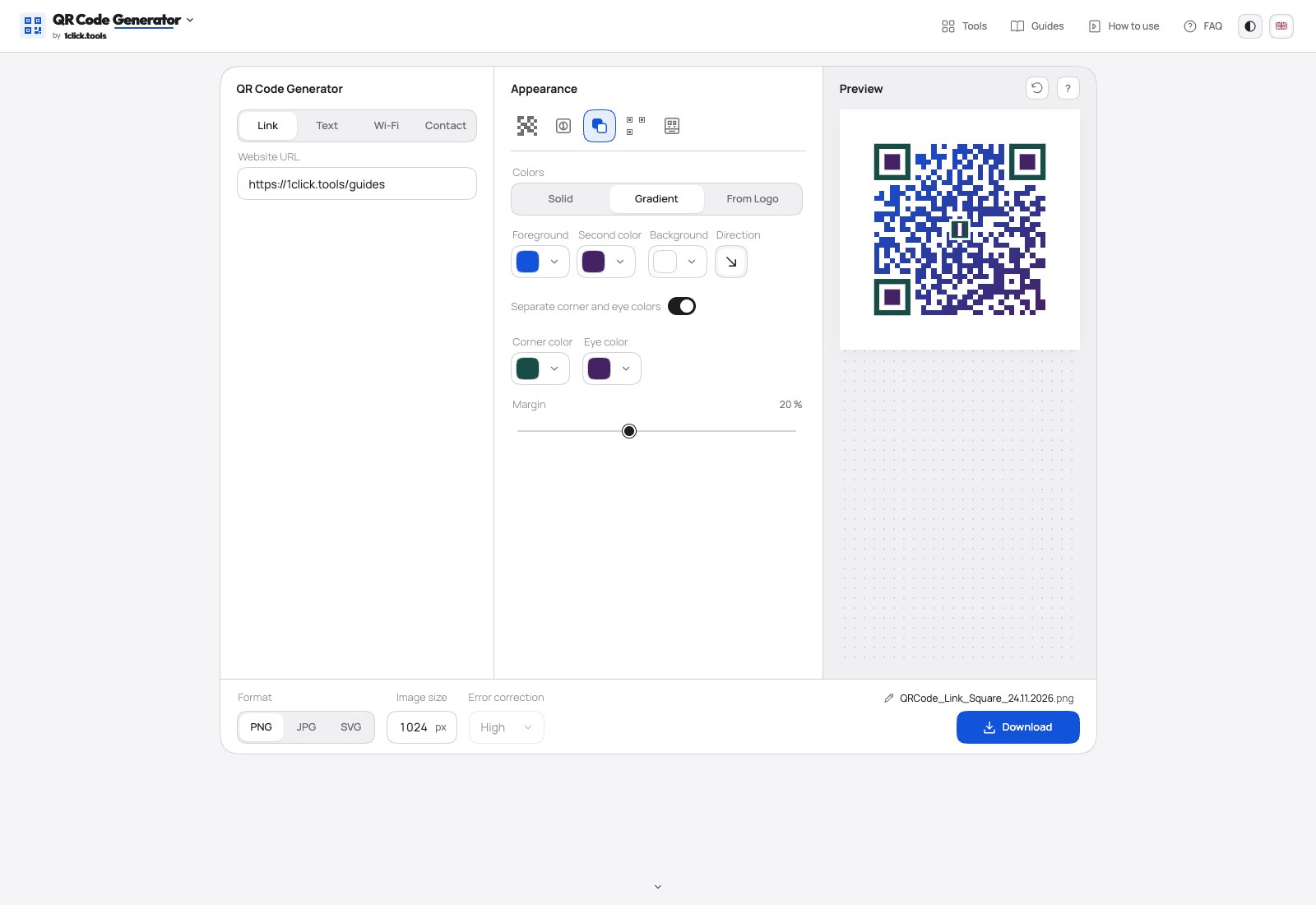
A blue-to-purple gradient with green finder rings
We uploaded the supplied geometric sample logo, chose Gradient in Colors, set blue and purple endpoints and the diagonal Direction icon after Background, then enabled separate corner and eye colors. Both exports decoded to the guide-directory URL.
Start with these files
- Download the sample logo2.4 KiB
Compare the actual downloads
- Download the 1024 px PNG288.2 KiB
- Download the matching SVG43.2 KiB
| Control | Recorded setting |
|---|---|
| Foreground / Second color | #1254D9 / #452263 |
| Direction | Top left to bottom right |
| Background | #FFFFFF |
| Corner color / Eye color | #184D47 / #452263 |
| Margin | 20% |
Repeat this example
- Enter https://1click.tools/guides in Link and upload the supplied PNG in Logo.
- In Colors choose Gradient; set Foreground to #1254D9, Second color to #452263 and Background to #FFFFFF. Select the diagonal down-right Direction arrow after Background.
- Enable Separate corner and eye colors, use #184D47 for Corner color and #452263 for Eye color, and set Margin to 20%. Download PNG or SVG.
Check the decoded result
Both files decode to https://1click.tools/guides. The SVG contains one continuous foreground gradient and separate colors for all three finder rings and centers.
A common mistake
Using a bright gradient endpoint on white can remove local contrast even when the other endpoint is dark.
Create your own QR codeSources and credits
Actual QR Code Generator sessions. Files are unchanged browser exports saved under descriptive guide names. Both the PNG and a raster rendering of the exported SVG were independently decoded with jsQR. This verifies the samples, not physical printing, phone contact imports or real Wi-Fi connections.
ZXing: barcode content formats. Describes URL, plain-text, Wi-Fi and contact payload conventions. What a phone does after scanning depends on its reader.
Geometric sample logo. A simple demonstration image created for this guide; it contains no third-party logo.
Start with From Logo
Open Colors, the third appearance tab. From Logo is selected by default and applies foreground and background colors from the logo in your browser. Upload a logo in Logo to use its colors. If the logo lacks a contrasting pair, a light or dark neutral supplies the missing color. Presets in the color picker stay unchanged.
Choose Solid or Gradient
Solid uses one Foreground color. Gradient uses Foreground and Second color. After Background, open the Direction arrow picker to choose one of eight directions. The example uses blue #1254D9 to purple #452263 from top left to bottom right, on white. Keep both endpoints dark enough against the background.
Color corners and eyes separately
Enable Separate corner and eye colors in Colors. Corner color changes the three outer finder rings; Eye color changes their centers. These two colors apply to all three markers independently of their shape settings. The example uses green #184D47 rings and purple #452263 eyes. Opacity controls are inside the QR foreground/background color pickers.
Export and check the final surface
Increase Margin to 20% for this example and download PNG or SVG. The gradient direction and finder colors are included in both files. PNG/SVG can preserve transparency; JPG uses a solid background. Scan the export in its final placement, since background surfaces and faint or light colors can reduce contrast.
For print spacing, see the QR print guide.