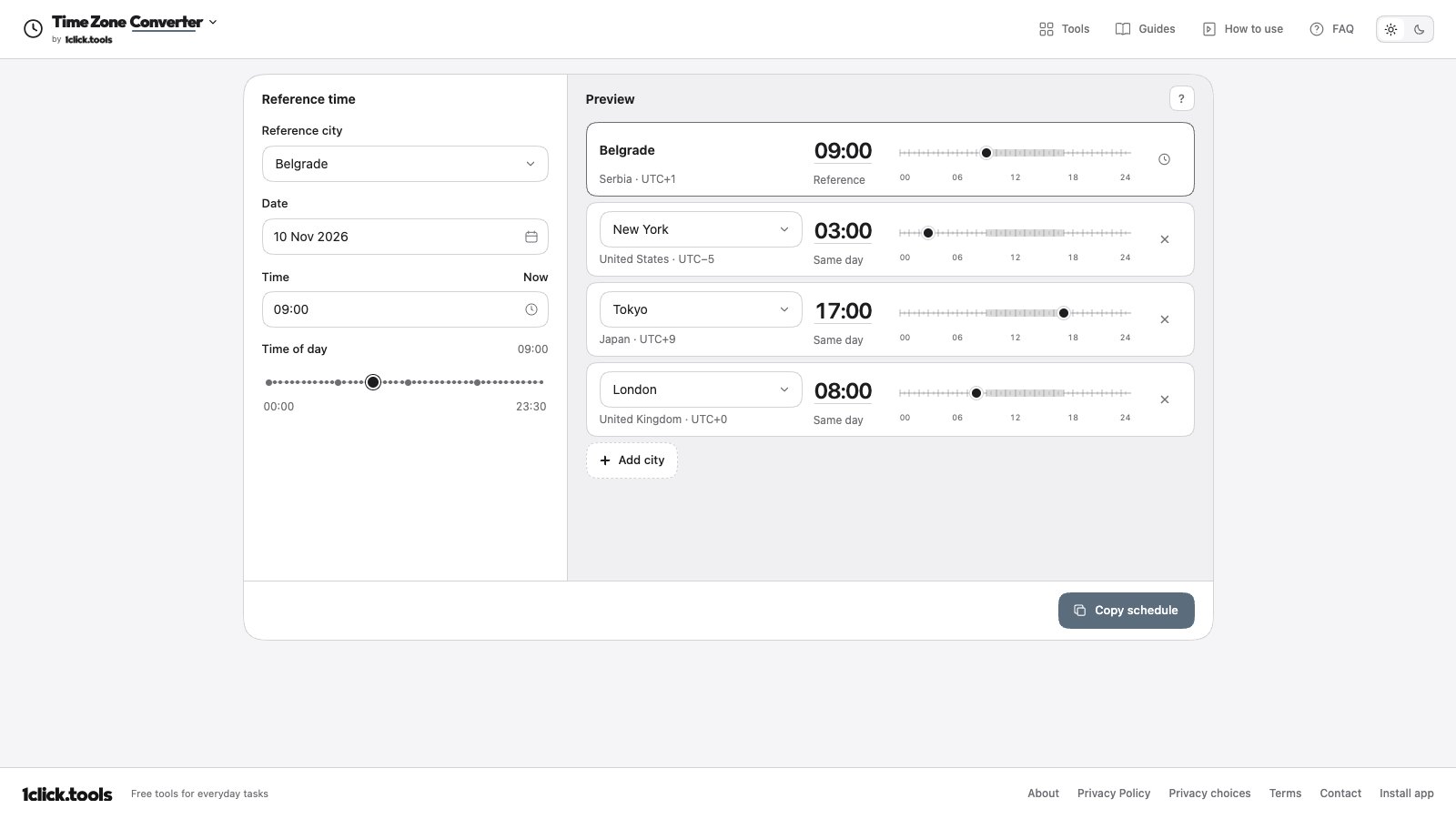
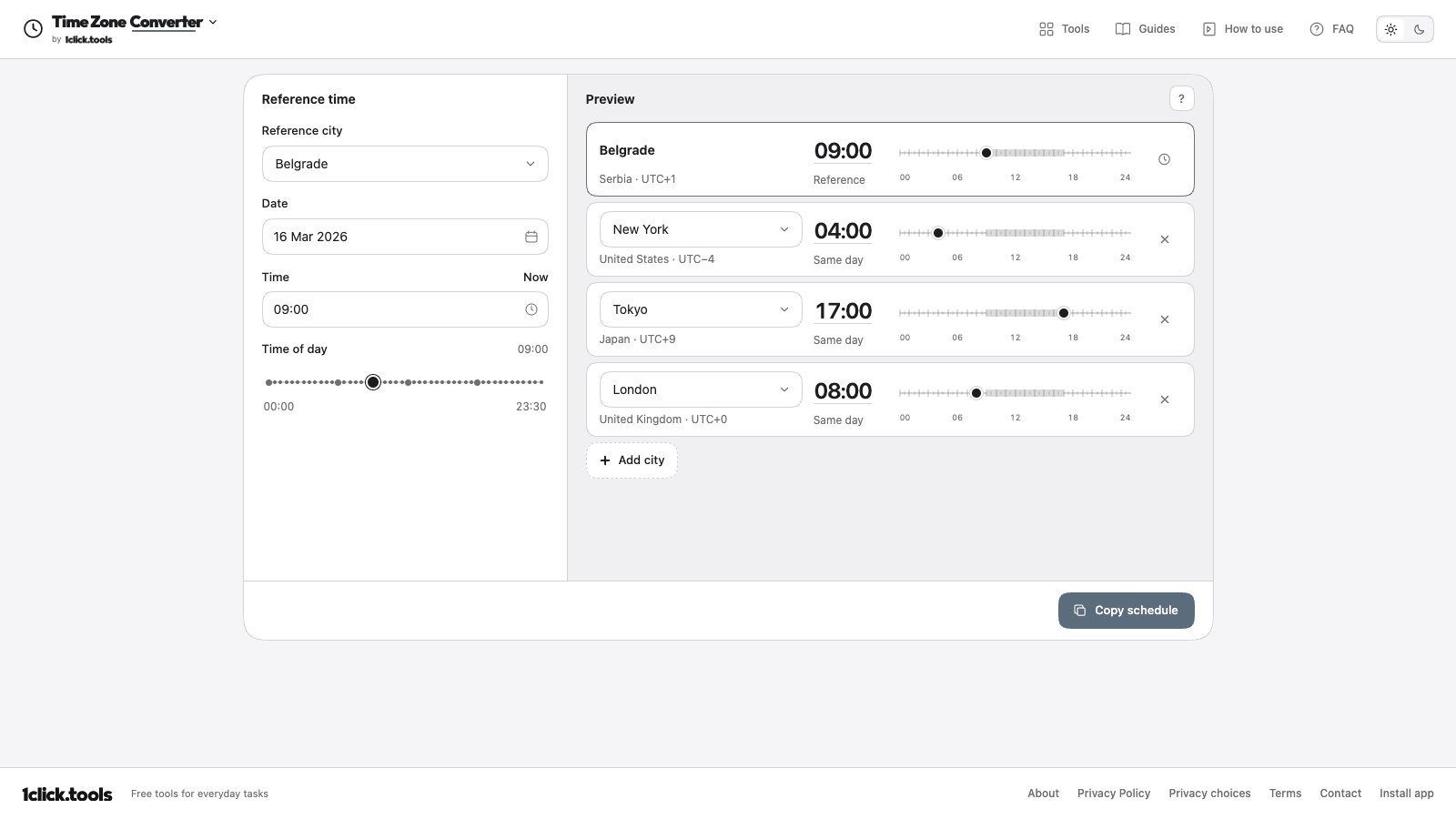
A little guidance
How to plan a meeting across time zones
Compare multiple cities, check daytime bands and local dates, and choose a meeting time. See two real schedules for Europe, New York and Tokyo.
Two candidate meeting times across five cities
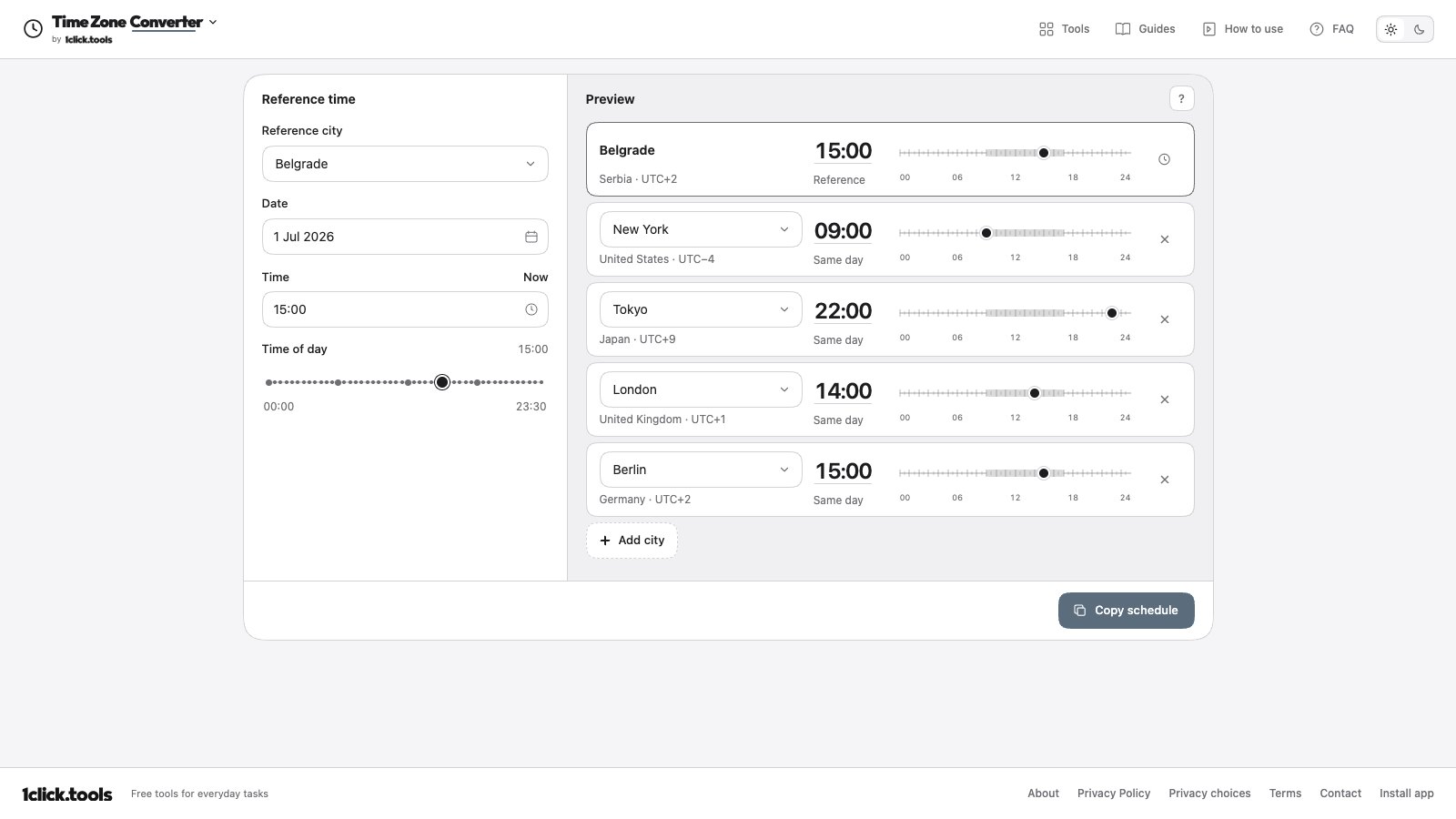
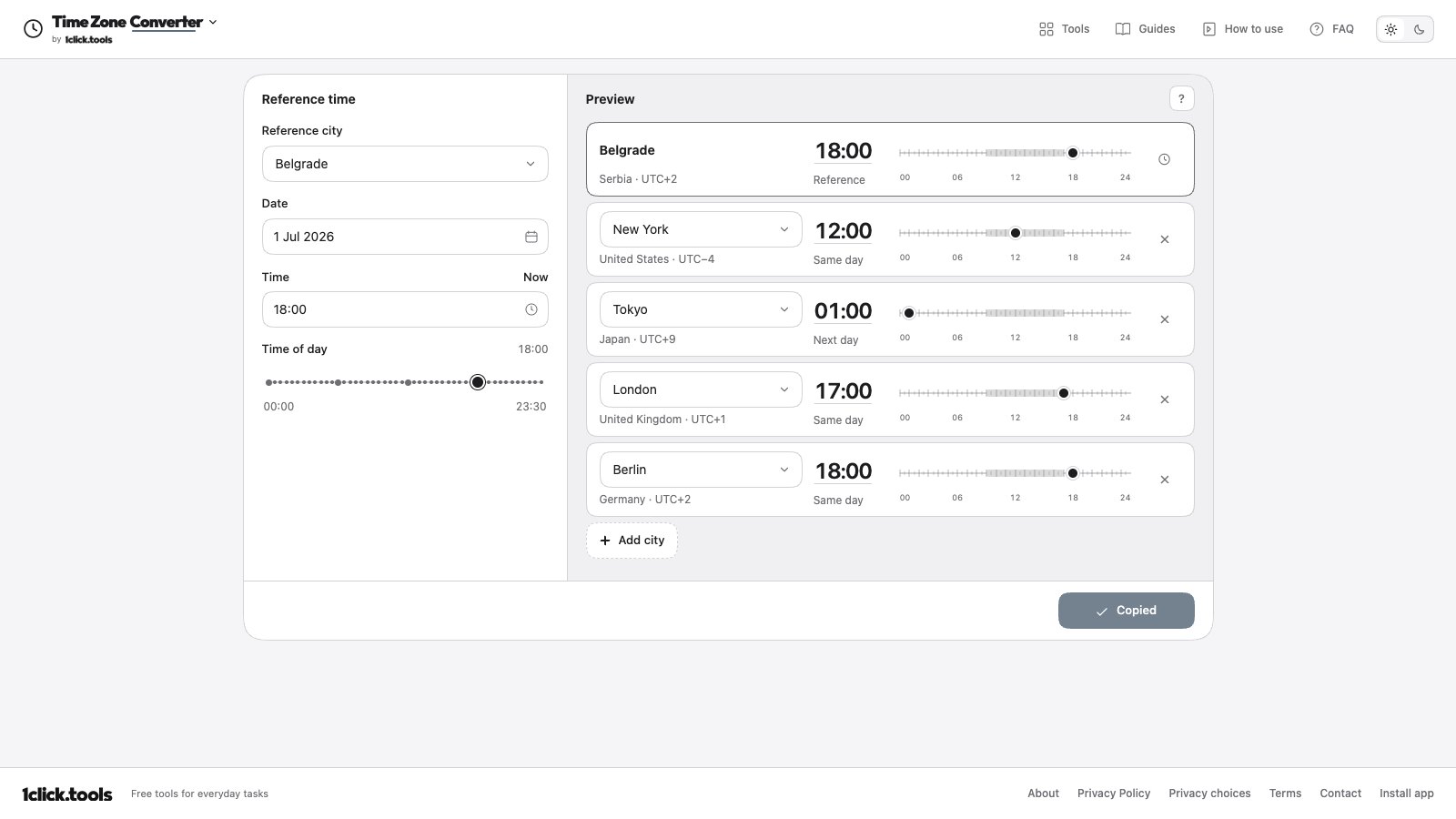
We added Berlin to the default four cities, selected 1 July 2026, and compared 15:00 with 18:00 in Belgrade. The later candidate moves Tokyo onto the following day.
| Belgrade · 1 July | New York | Tokyo | London | Berlin |
|---|---|---|---|---|
| 15:00 | 09:00 · 1 July | 22:00 · 1 July | 14:00 · 1 July | 15:00 · 1 July |
| 18:00 | 12:00 · 1 July | 01:00 · 2 July | 17:00 · 1 July | 18:00 · 1 July |
The shaded 09:00–17:00 band does not represent a participant’s actual availability. Neither candidate puts every city inside that band.
Repeat this example
- Start with Belgrade, New York, Tokyo and London. Add Berlin as the fifth location.
- Choose 1 July 2026 in the calendar and set 15:00 with the hour/minute wheels. Read the first comparison.
- Move the reference slider to 18:00 and check Tokyo’s Next day label. Copy schedule and look for the brief Copied confirmation.
Check the comparison
You can add up to 20 cities. At that limit, remove a destination to make room for another. The reference date remains 1 July in both recorded candidates.
A common mistake
An acceptable hour in the reference city may be the middle of the night elsewhere. The converter does not know work schedules or send calendar invitations.
Compare your own meeting candidatesSources and credits
Actual Time Zone Converter sessions. Screenshots and comparison tables were recorded from the tool with the stated dates and times. This tool copies text to the clipboard and does not export calendar files.
IANA Time Zone Database. Time-zone boundaries, UTC offsets and daylight-saving rules can change. Actual conversions use the browser’s installed database.
Add the places you need
Compare up to 20 cities: one reference and up to 19 destinations. For this example, keep Belgrade as the reference and New York, Tokyo and London as destinations, then select Add city to include Berlin. To change a destination, open its city picker and search by city, country or time zone. Different cities sharing the same time zone can be compared separately; selecting the exact same location twice is prevented. Add city becomes disabled at 20 cities. Remove a destination to make room for another; longer desktop lists scroll inside the workspace.
For the basic controls, start with the city-to-city conversion guide.
Compare two candidate times
Open Date, select the month/year heading, choose July 2026 on the wheels, select Done and choose day 1. Open Time and scroll to 15 and 00. At 15:00 in Belgrade, New York shows 09:00, Tokyo 22:00, London 14:00 and Berlin 15:00. Move the reference slider to 18:00: New York becomes 12:00, Tokyo 01:00 the following day, London 17:00 and Berlin 18:00. Sliders snap to half-hour stops; use the time wheels for any exact minute. The screenshots record both candidates.
Use the band as a visual guide
The shaded strip represents 09:00–17:00 in each location. It does not know anyone’s work pattern, holidays or availability. In this example, a convenient European afternoon is already late in Tokyo. Check with the participants, compare another candidate, or rotate inconvenient times for recurring conversations. The tool does not automatically find an available slot.
Check the date before sharing
At the second candidate, Tokyo is on 2 July while the reference is still on 1 July. Include each local date when sharing the schedule. Drag Tokyo’s slider or select its underlined time to open the wheels. Either edit uses Tokyo’s currently displayed local day, updates all cities, and may change the reference day. Read the updated reference date after every edit.
Copy the chosen schedule
Select Copy schedule. A checkmark and Copied appear briefly after all selected cities have been copied, then the button returns to its usual label. Paste the comparison into the calendar description or messaging application you use. The converter does not create an event, send invitations or save recurring meetings. For another meeting date, change the calendar date and recheck the offsets instead of assuming that today’s time difference stays constant.
For date-dependent offsets, see how daylight saving changes time differences.