A little guidance
How to make a GIF small enough for Discord and Slack
Work backwards from a chat app’s upload limit: a real two-second clip goes from 2 MB to 374 KB for a chat message and 109 KB for an emoji-sized GIF.
Real example: one clip sized for a chat message and for an emoji
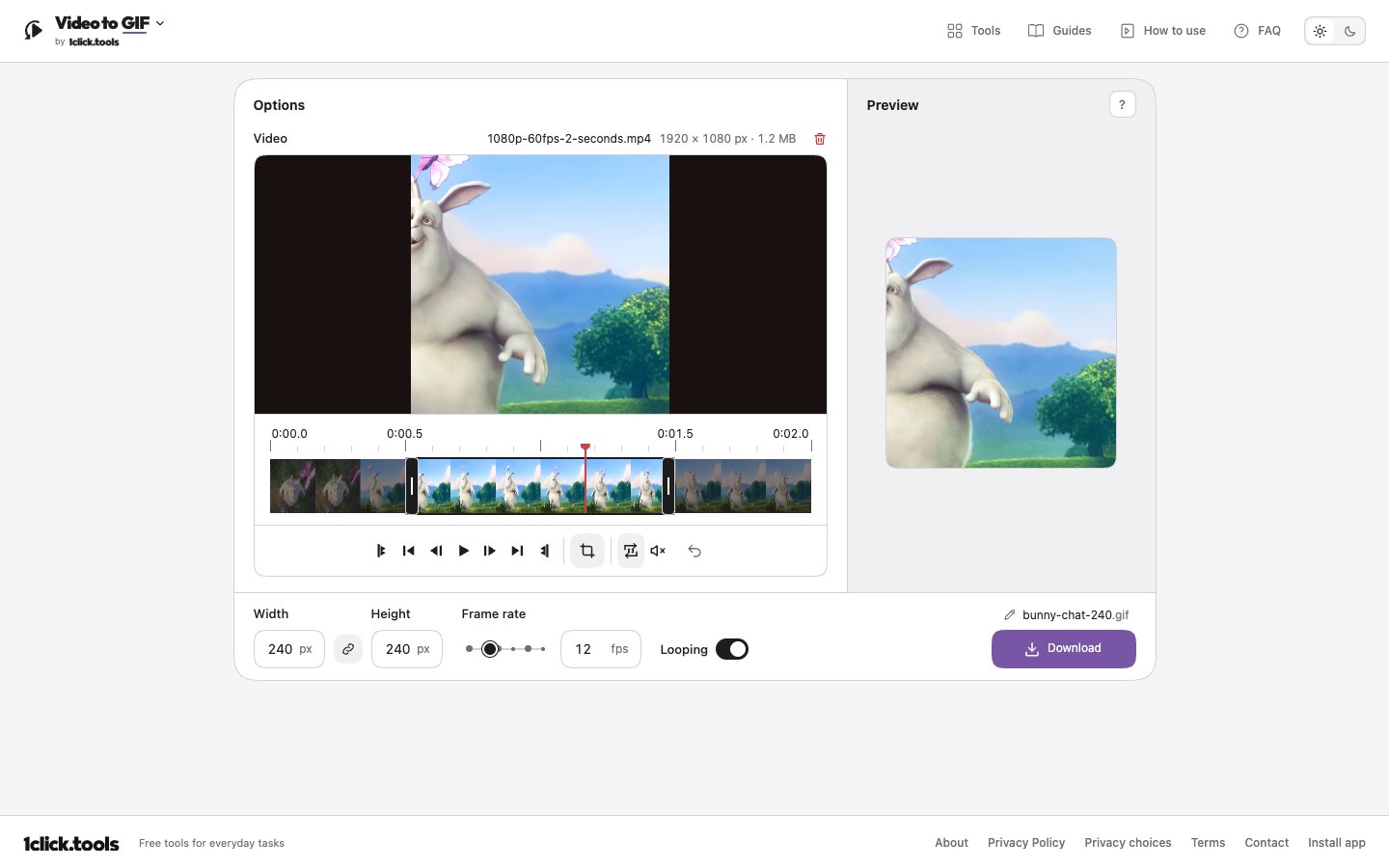
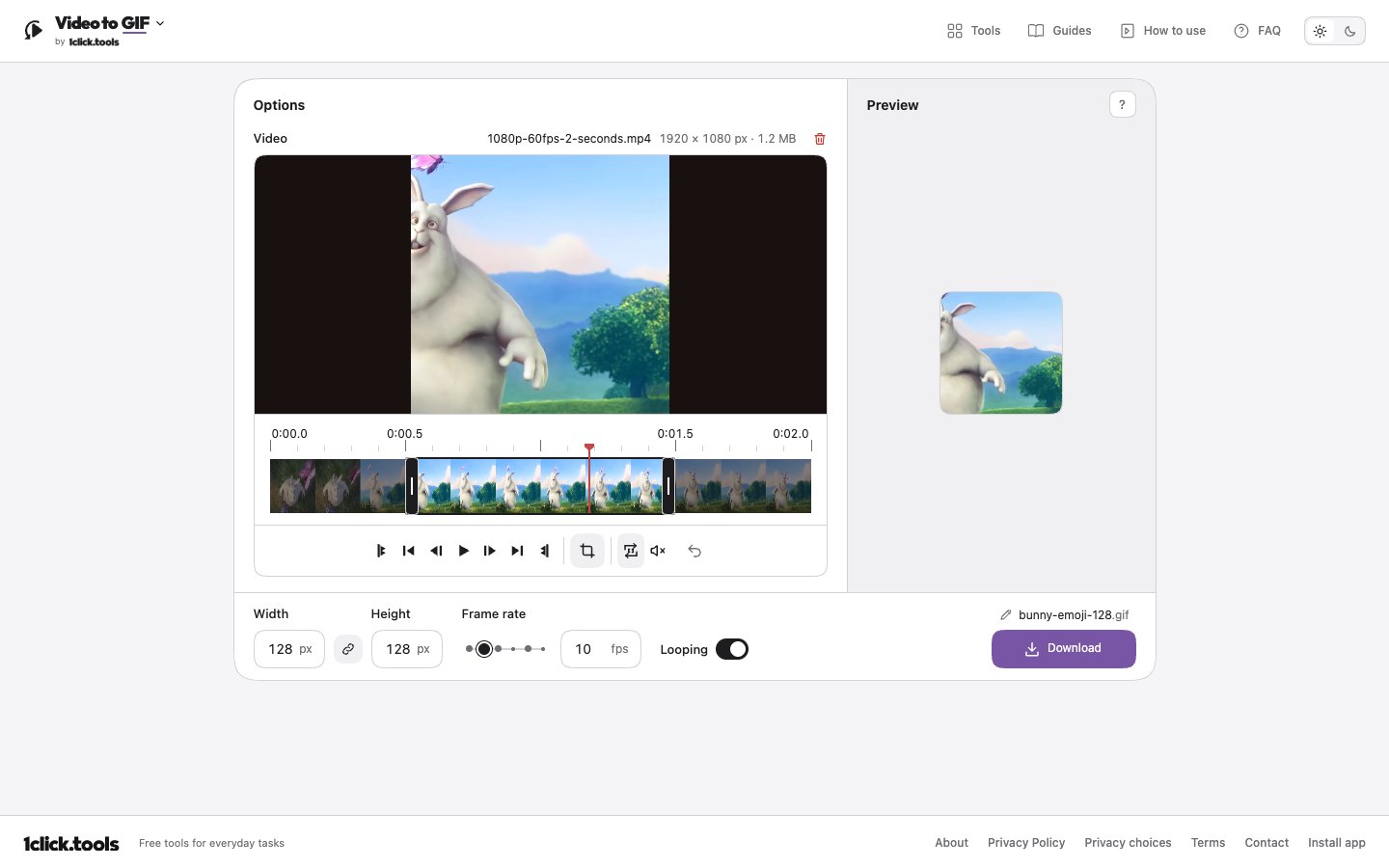
We converted the two-second 1920 × 1080 MP4 three times. First with the defaults, then trimmed to 0.5–1.5 s with a centered 683 × 683 square crop at Width 240 and Frame rate 12, and finally the same trim and crop at Width 128 and Frame rate 10. Looping stayed on.
Start with these files
| Use | Settings | Downloaded GIF | Compared with the defaults |
|---|---|---|---|
| Defaults | 0–2 s · no crop · 480 px · 15 fps | 480 × 270 · 30 frames · 2,024 KB | Starting point |
| Chat message | 0.5–1.5 s · square crop · 240 px · 12 fps | 240 × 240 · 12 frames · 374 KB | 82% smaller |
| Emoji-sized | 0.5–1.5 s · square crop · 128 px · 10 fps | 128 × 128 · 10 frames · 109 KB | 95% smaller |
The tool does not show the GIF’s size, so these numbers are the sizes of the downloaded files. Another clip with more detail or motion will be larger at the same settings.
Repeat this example
- Open the MP4 and drag the trim handles to 0.5 s and 1.5 s.
- Select the crop icon, make a centered square and press Enter, then type Width 240 and Frame rate 12 and download.
- For the emoji version, change Width to 128 and Frame rate to 10 and download again under a new name.
Check the result
The chat GIF is 240 × 240 with 12 frames and 374 KB; the emoji-sized GIF is 128 × 128 with 10 frames and 109 KB, against 2,024 KB for the defaults.
A common mistake
Uploading a GIF as a custom emoji without checking it is square. Emoji slots are square, so a widescreen GIF is shrunk or letterboxed; crop to a square first.
Try this clip in Video to GIFSources and credits
Big Buck Bunny · © 2008 Blender Foundation / www.bigbuckbunny.org · CC BY 3.0. The supplied MP4 sample comes from ffmpegwasm/testdata. The example GIFs are trimmed, cropped, resized and converted from that clip in the browser.
Pick a target before you convert
Chat apps cap how large a file or custom emoji can be, and the limits change over time and by plan, so check the app’s current help page. At the time of writing, Discord lets free accounts upload files up to 20 MB (it has changed several times) and custom emoji must be under 256 KB, while Slack asks for small, square custom emoji of about 128 KB. A GIF that only needs to play in a message is happiest under a few MB: it uploads quickly and starts playing on phones without a wait.
Decide the shape the app shows
Chat apps show GIFs in a small box, so the full widescreen frame is rarely needed. Select the crop icon under the video and keep only the part that matters, such as a face or a reaction; a square works well for messages and is required for emoji. With the link between Width and Height on, the GIF keeps the crop’s shape, and the output dimensions determine the number of pixels in each frame.
For the exact keys and handles, follow how to crop a video into a square GIF.
Spend the size on what people notice
Video to GIF has four settings that change the file size: the trim handles on the filmstrip (how many seconds), the crop, Width and Height (1 to 1920 px) and Frame rate (5 to 30 fps). For a message, around 240 to 320 px wide, 10 to 12 fps and one or two seconds is usually plenty. For an emoji, try 128 × 128 at 10 fps and under two seconds. Looping does not change the size, and neither does muting, because a GIF has no sound.
Check the real size and adjust
The tool shows the size of your video, not of the GIF, so look at the downloaded file in your file manager or browser downloads. If it is still over your target, change one thing at a time and download again under a new name: shorten the trim first, then lower the width, then the frame rate. Busy, noisy footage compresses far worse than flat colors, so the same settings can give very different sizes for another clip.
To see how much each setting saves on its own, compare real sizes at lower widths and frame rates.