A little guidance
How to make a GIF from a video smaller
Compare real file sizes from the same two-second clip at 480, 320 and 240 pixels and 15 or 10 fps, and see which setting saves the most.
Real example: the same two seconds at three sizes
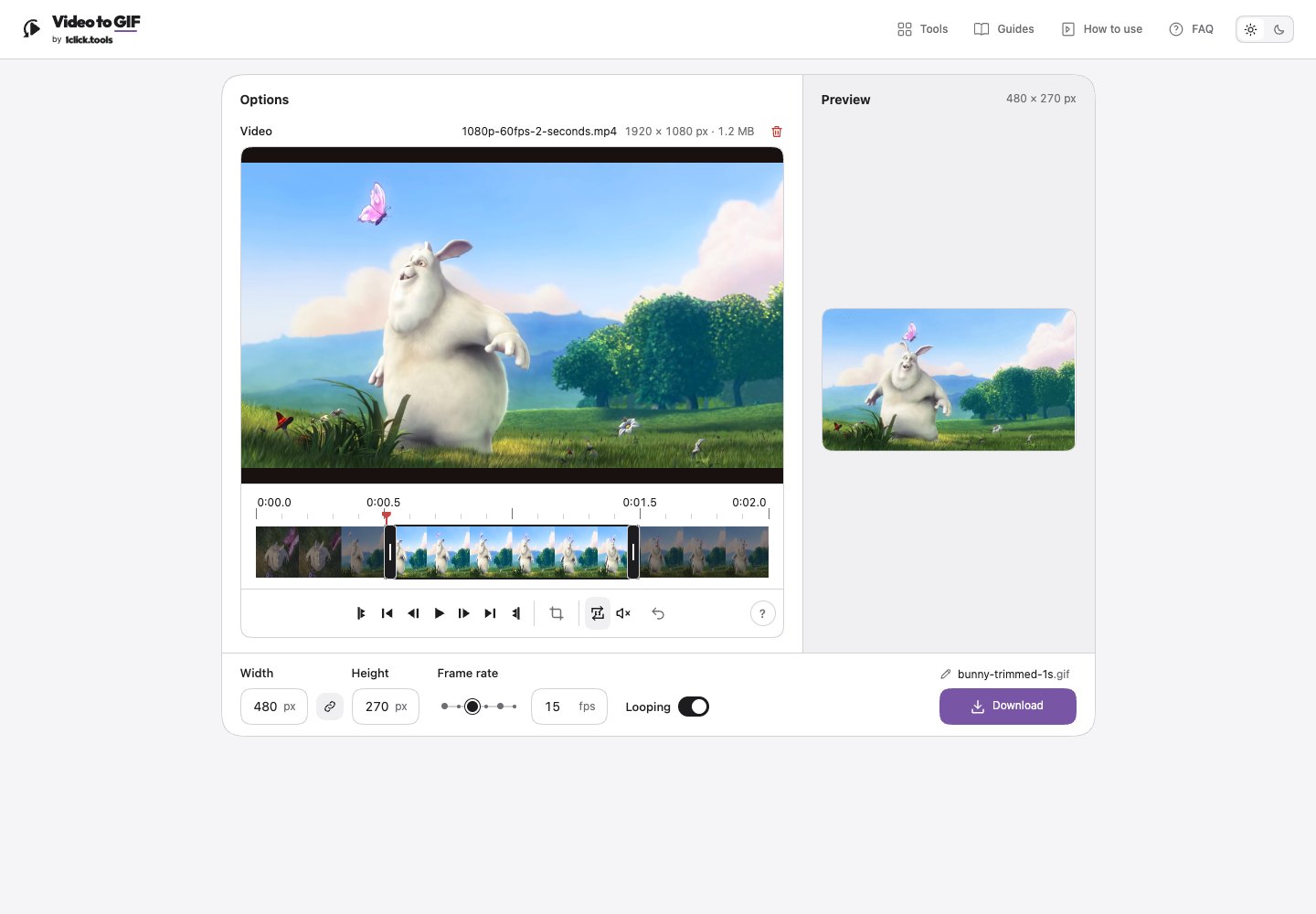
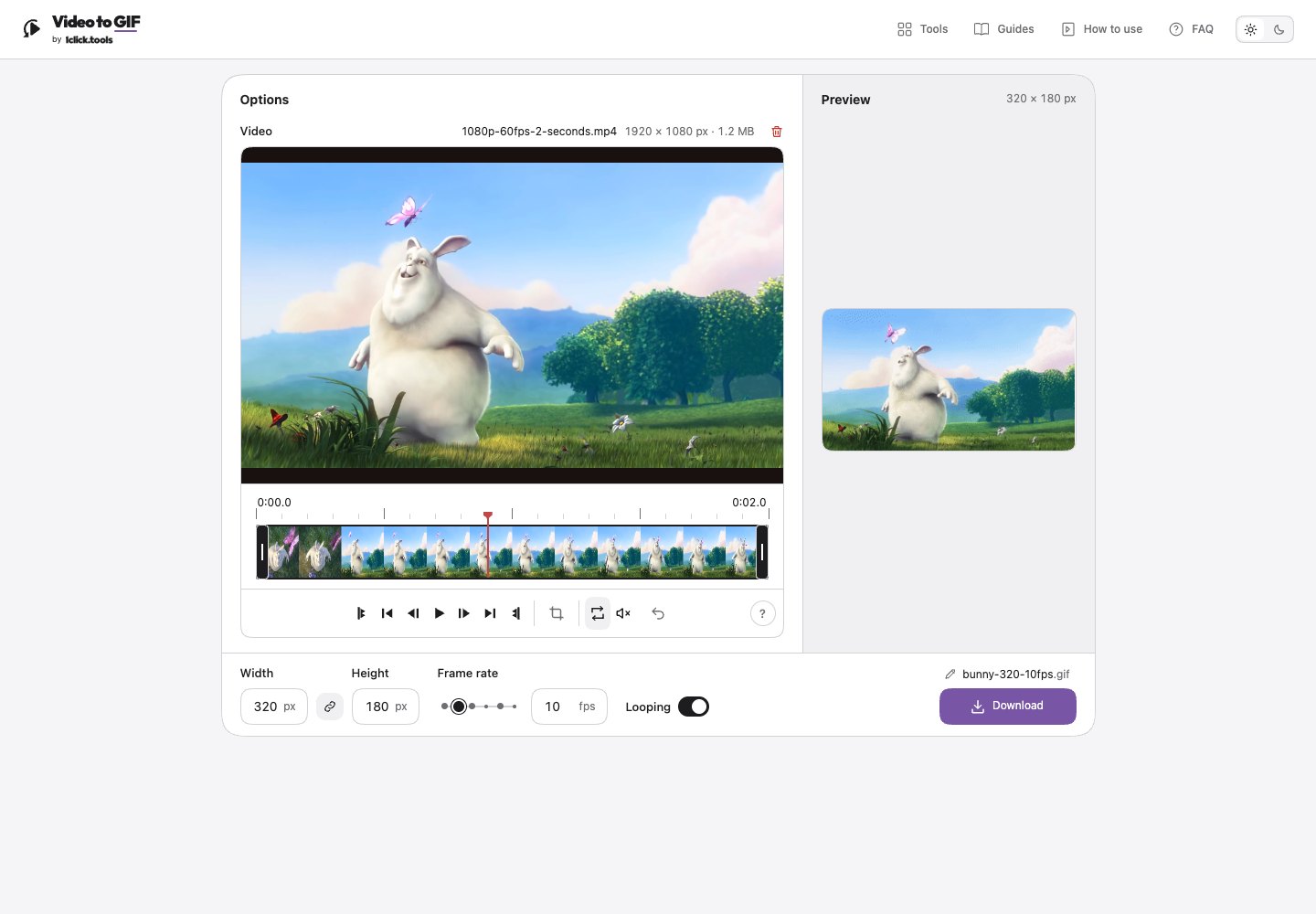
We converted the full two-second clip three times, changing only Width and Frame rate: 480 px at 15 fps, 320 px at 10 fps and 240 px at 10 fps. Proportions stayed linked and Looping stayed on.
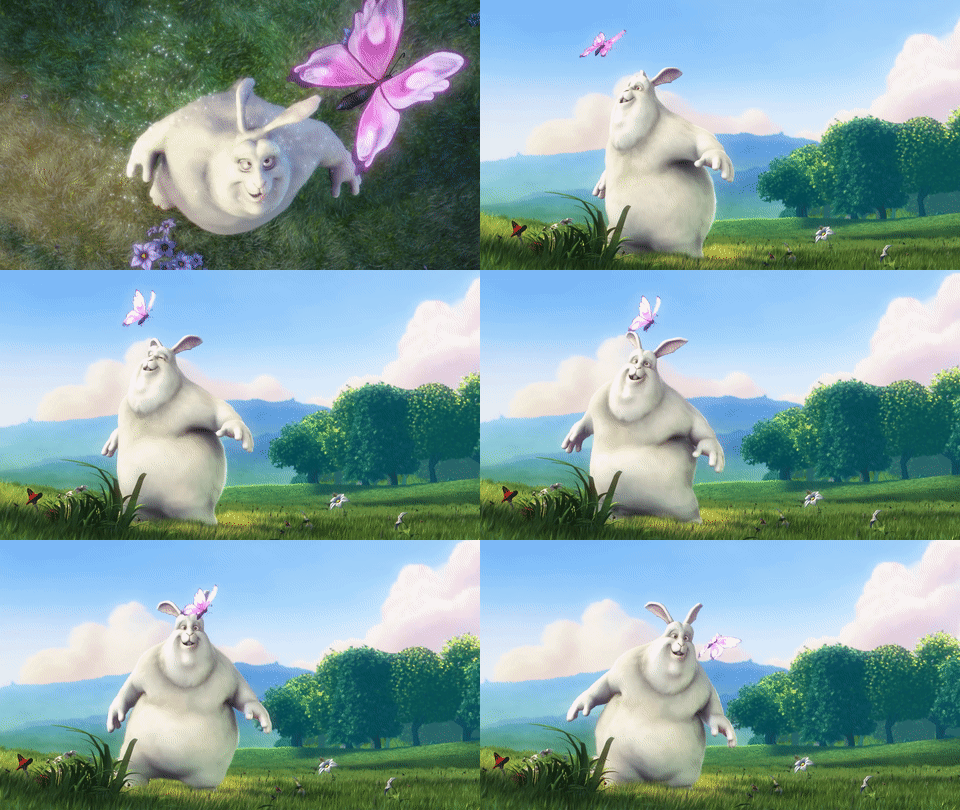
Start with these files
Compare the actual downloads
| Settings | Downloaded GIF | Compared with 480 px · 15 fps |
|---|---|---|
| 480 × 270 · 15 fps | 480 × 270 · 30 frames · 1.99 s · 2,024 KB | Starting point |
| 320 × 180 · 10 fps | 320 × 180 · 20 frames · 2.00 s · 655 KB | 68% smaller |
| 240 × 135 · 10 fps | 240 × 135 · 20 frames · 2.00 s · 386 KB | 81% smaller |
The source MP4 is 1,267 KB. GIF stores every frame as a picture, so the 480 px GIF is larger than the video, while the 240 px version is about 30% of it.
Repeat this example
- Open the MP4 and keep the full 0–2 second selection.
- Download once at 480 px and 15 fps. Then set Width 320 and Frame rate 10 and download again, and finally Width 240.
- Compare the three file sizes and open each GIF to judge whether it still reads well.
Check your download
20 frames at 10 fps instead of 30 at 15 fps, and fewer pixels per frame: the 320 px GIF is 655 KB and the 240 px GIF 386 KB, against 2,024 KB.
A common mistake
Turning Looping off or muting the video does not reduce the size. Shorter time, a smaller width, a lower frame rate or a tighter crop do.
Try this clip in Video to GIFSources and credits
Big Buck Bunny · © 2008 Blender Foundation / www.bigbuckbunny.org · CC BY 3.0. The supplied MP4 sample comes from ffmpegwasm/testdata. The example GIFs are trimmed, cropped, resized and converted from that clip in the browser.
Start with the time you keep
Every second adds frames, and every frame adds bytes. Trim the clip first: halving the selected time roughly halves the number of frames. A short, focused moment is the most effective size saving and also makes the GIF easier to watch.
For exact cuts with the playhead and frame steps, follow the trimming guide.
Lower the width
Width and Height set the GIF in pixels. Each frame stores every pixel, so a GIF two thirds as wide has well under half the pixels per frame. Keep the link on to preserve the picture shape and type only the width. The real example below lowers width and frame rate together and shows the combined effect.
Lower the frame rate
Frame rate sets how many pictures per second the GIF stores, from 5 to 30 fps. 15 fps is smooth for most clips; 10 fps still reads well for slow motion, faces and reactions, and stores a third fewer frames. Very fast motion may look choppy below 10 fps.
Compare real downloads
Change one setting at a time and download each version with its own file name, then compare the sizes in your file manager. GIF compression depends on the picture: busy, noisy or fast-moving video produces much larger files than flat graphics, so the same settings can give very different sizes for different clips.
Know what does not help
A GIF has a limited color palette and no audio, so muting the editor or choosing a different source format does not change its size. Turning Looping off does not make the file smaller either; it only stops the GIF repeating. Cropping changes the framing; reduce output Width or Height to lower the number of pixels.