A little guidance
How to trim a video to the exact moment for a GIF
Keep only the part of a clip you need with the trim handles, the playhead and frame steps. A real example trims a two-second MP4 to one second.
Real example: one second out of a two-second clip
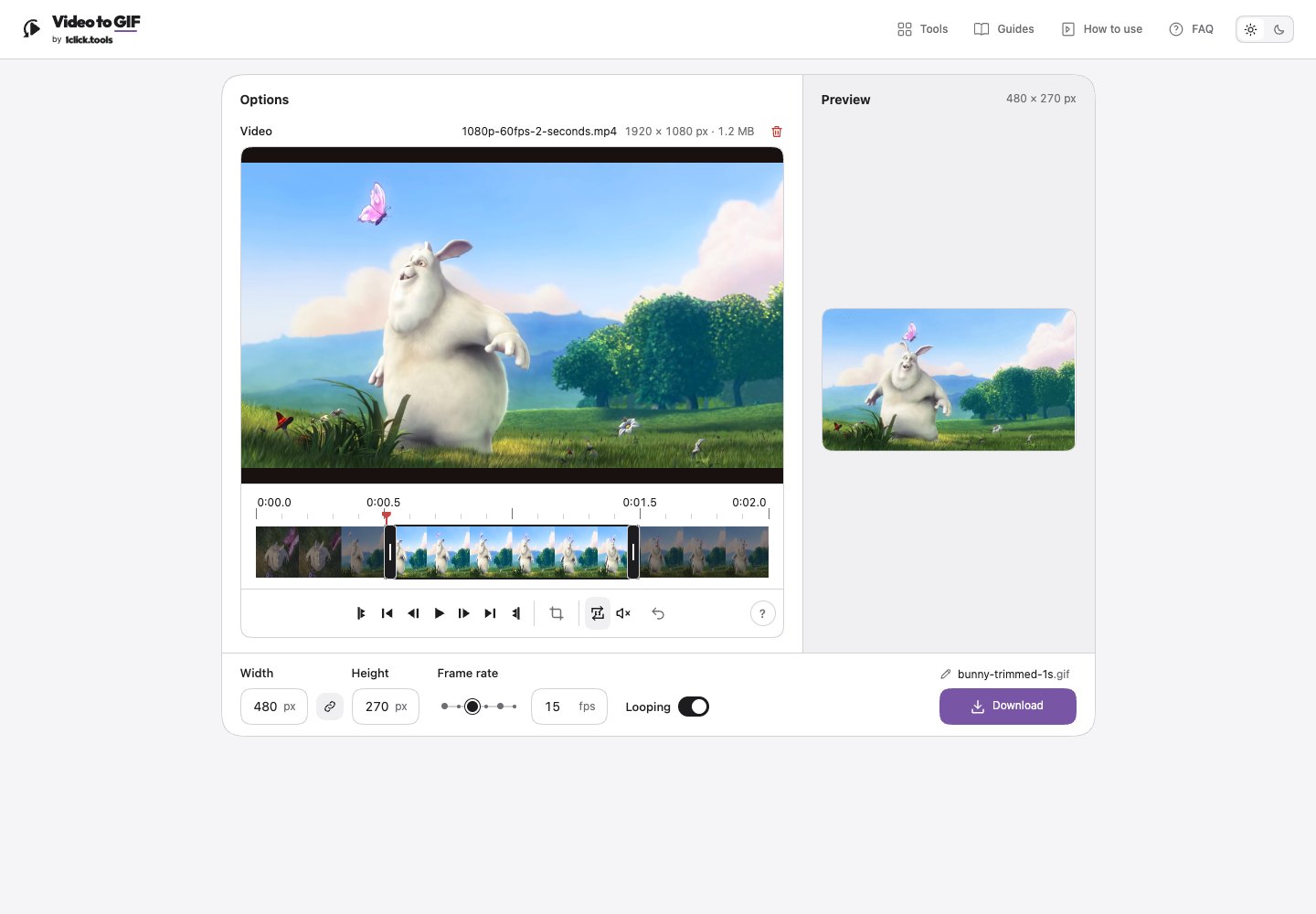
We opened the two-second 1920 × 1080 MP4 and moved the start handle to 0.5 s and the end handle to 1.5 s with five arrow presses each. Size stayed at 480 × 270, 15 fps, Looping on.
Start with these files
Compare the actual downloads
- Download the actual one-second GIF998.4 KiB
| Setting | Actual input or output | What to check |
|---|---|---|
| Source MP4 | 1920 × 1080 · 60 fps · 2.00 s | The source is not changed |
| Selection | Start 0:00.5 · End 0:01.5 | Timeline labels show both edges |
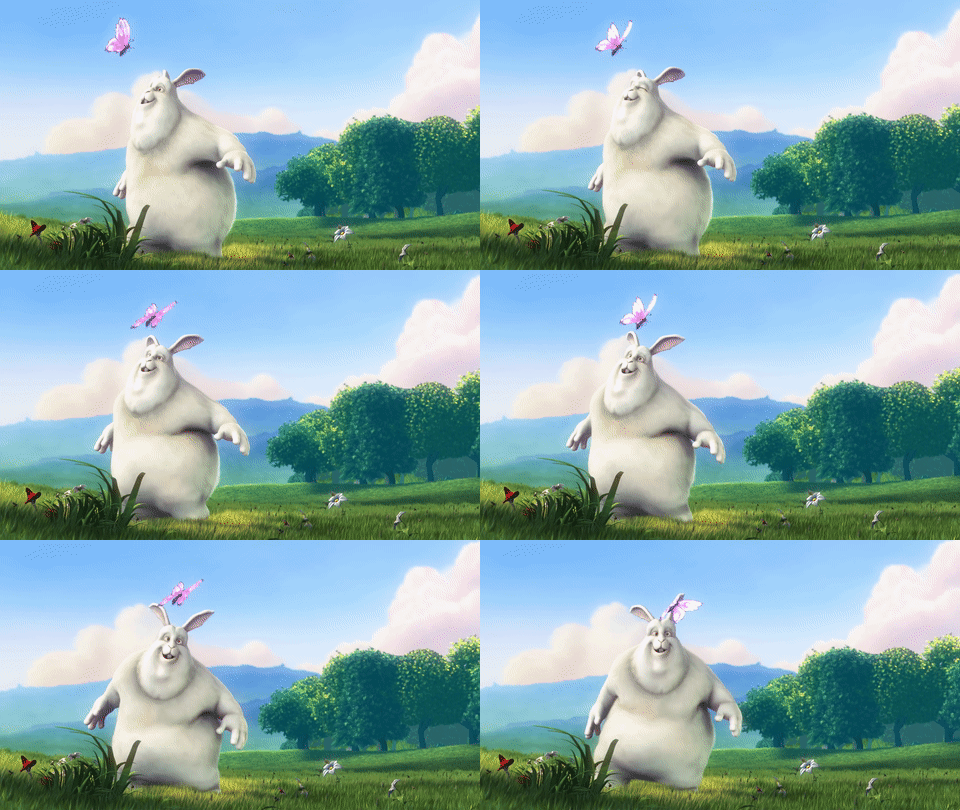
| Downloaded GIF | 480 × 270 · 15 frames · 0.99 s · 998 KB | Half the time, half the frames |
| Full clip for comparison | 480 × 270 · 30 frames · 1.99 s · 2,024 KB | The trimmed GIF is 51% smaller |
Repeat this example
- Download the MP4 above and open it in Video to GIF.
- Focus the start handle and press Right arrow five times (0.5 s). Focus the end handle and press Left arrow five times (1.5 s).
- Keep 480 × 270 and 15 fps, then download and open the GIF.
Check your download
The GIF is 480 × 270 with 15 frames and lasts 0.99 seconds: one second at 15 fps.
A common mistake
The loop button in the editor toolbar only changes how the video replays while you edit. The Looping switch in the bottom bar decides whether the downloaded GIF repeats.
Try this clip in Video to GIFSources and credits
Big Buck Bunny · © 2008 Blender Foundation / www.bigbuckbunny.org · CC BY 3.0. The supplied MP4 sample comes from ffmpegwasm/testdata. The example GIFs are trimmed, cropped, resized and converted from that clip in the browser.
Open the clip and find the moment
Choose an MP4, WebM or MOV in Video to GIF. The video plays muted in the editor and the timeline under it shows a filmstrip of the whole clip. Click the ruler or the filmstrip to move the red playhead, or focus the ruler and use the arrow keys: each press moves 0.1 second, and Shift moves one second.
Drag the trim handles
The dark handles at both ends of the filmstrip set where the GIF starts and ends; the parts outside them are dimmed and left out. Drag a handle, or focus it and press the arrow keys for 0.1-second steps, Shift for one-second steps, Home or End to jump to the clip edges. The timeline labels show the exact start and end times.
Set the start or end at the playhead
For a precise cut, pause where the GIF should begin and select the first playback button, Set start to playhead. Pause where it should finish and select Set end to playhead. The previous and next frame buttons step by one frame at the GIF frame rate, so you can stop on the exact frame you want.
Preview the selection on a loop
The loop button next to Undo changes how the video replays while you edit: the selected range only, the whole video, or once. It only affects playback in the editor. Whether the downloaded GIF repeats is set by the Looping switch in the bar at the bottom.
Undo a trim and download
Undo, or Cmd+Z / Ctrl+Z, steps back through trim changes one drag at a time, together with crop, size and frame-rate changes. When the selection is right, rename the file with the pencil and select Download. The GIF contains only the selected time.
Want only part of the picture as well? See how to crop a video into a square GIF.