A little guidance
How to crop a video into a square GIF
Turn a widescreen clip into a square GIF: draw the crop on the video, keep proportions with Shift, apply it and set a matching size. Real 320 × 320 result.
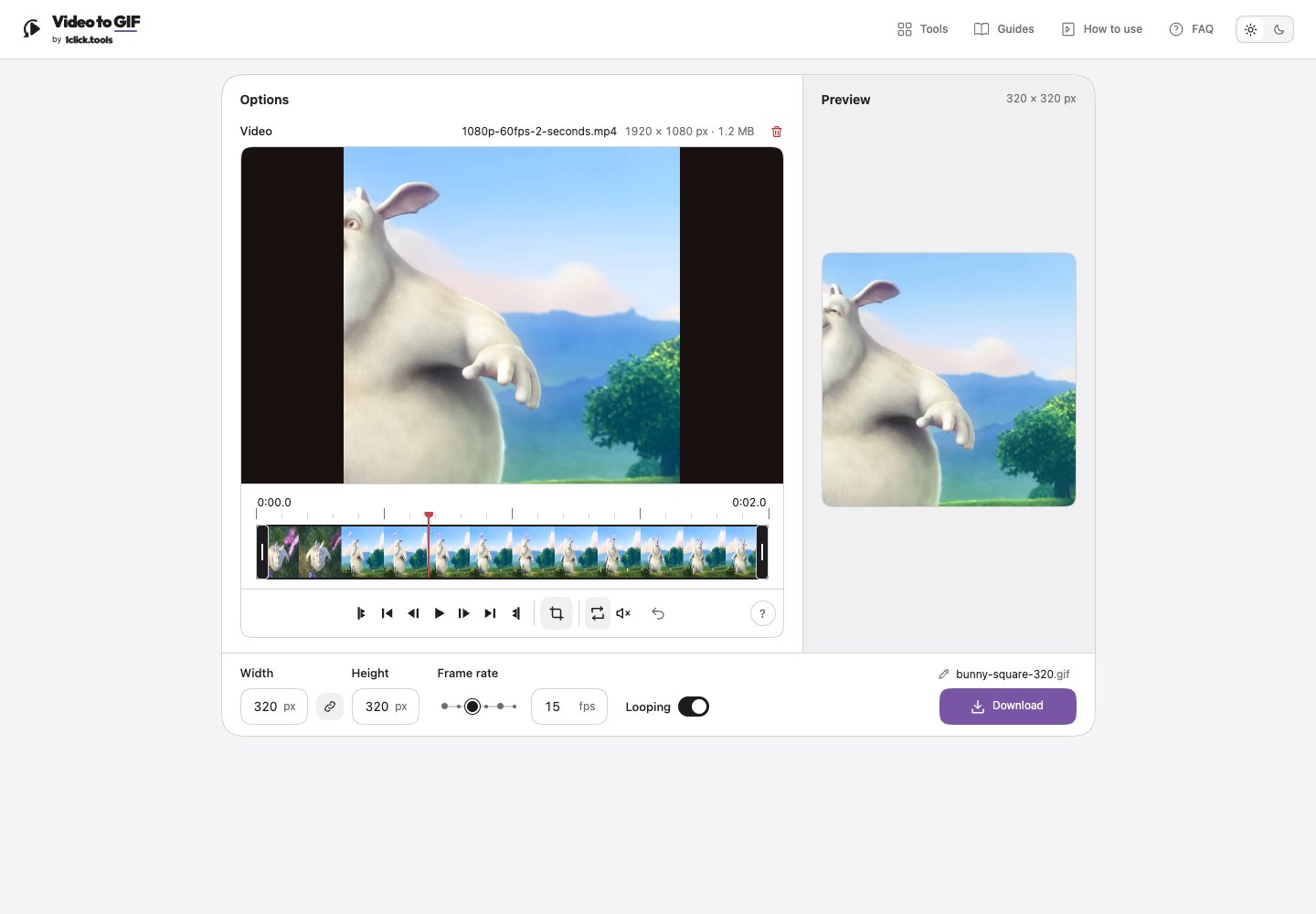
Real example: a widescreen clip as a 320 × 320 square GIF
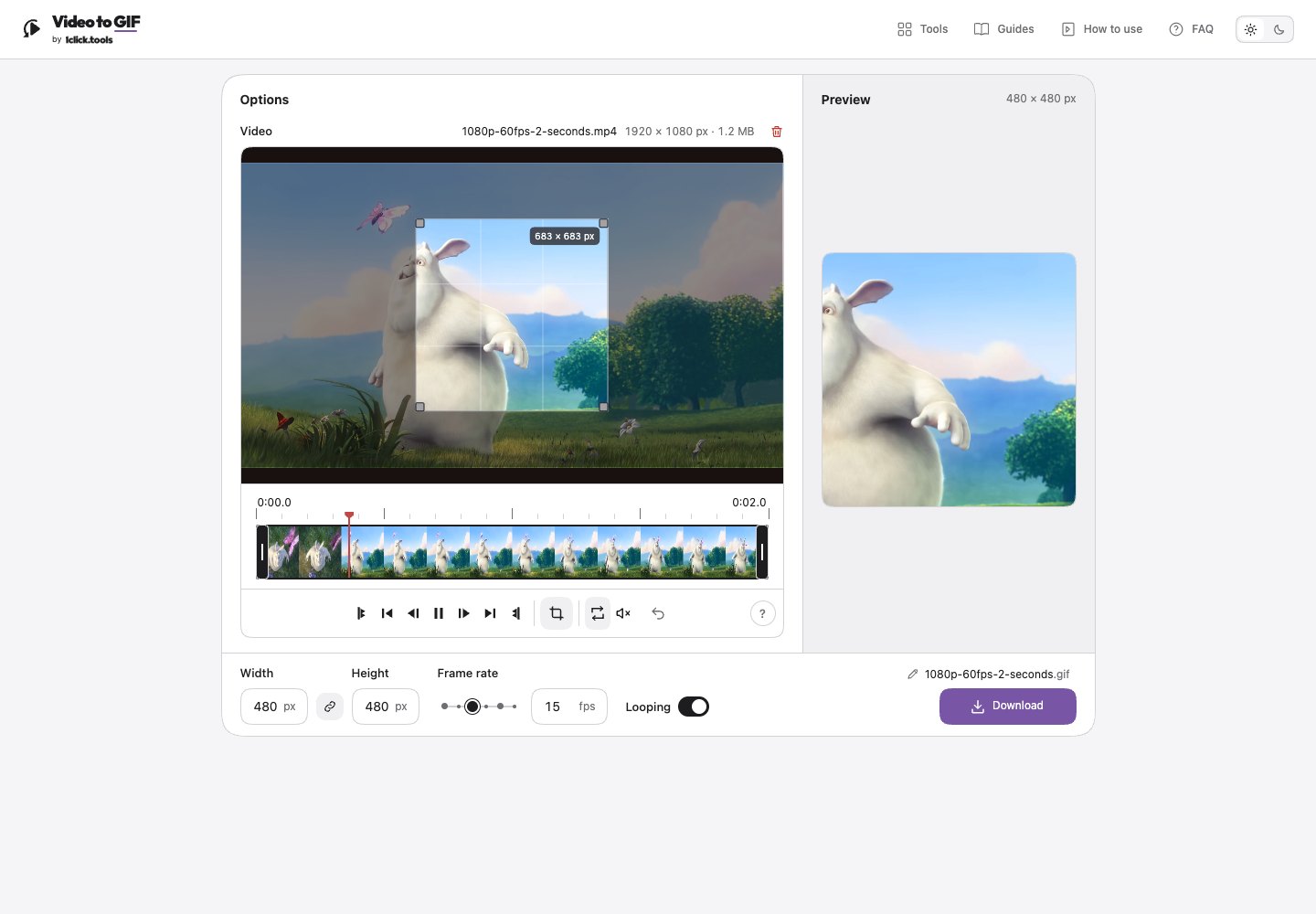
We turned on the crop, resized the starting 1214 × 683 box to 683 × 683 with Shift + Left arrow on its bottom-right corner, centered it with Shift + Right arrow on the box, applied it with Enter and typed Width 320.
Start with these files
Compare the actual downloads
| Step | Selection or file | Observed result |
|---|---|---|
| Turn on crop | 1214 × 683 source pixels | A centered starting box |
| Resize and center | 683 × 683 source pixels | A square from the middle of the frame |
| Apply and set Width 320 | 320 × 320 GIF size | Height follows the square crop |
| Downloaded GIF | 320 × 320 · 30 frames · 1.99 s · 1,554 KB | The whole clip, cropped to the square |
Repeat this example
- Open the MP4 and select the crop icon in the toolbar.
- Focus the bottom-right corner: Shift + Left arrow 53 times and Left arrow once (683 px wide). Focus the box: Shift + Right arrow 26 times and Right arrow 5 times to center it. Press Enter.
- Type 320 in Width with the link on, then download.
Check your download
The GIF is 320 × 320 with 30 frames over 1.99 seconds. Each frame shows the 683 × 683 center of the video.
A common mistake
Turning the Width–Height link off and typing a different shape stretches the cropped picture. Keep the link on so the GIF matches the crop.
Try this clip in Video to GIFSources and credits
Big Buck Bunny · © 2008 Blender Foundation / www.bigbuckbunny.org · CC BY 3.0. The supplied MP4 sample comes from ffmpegwasm/testdata. The example GIFs are trimmed, cropped, resized and converted from that clip in the browser.
Turn on the crop
Open the video and select the crop icon in the toolbar under it. The editor switches to the original frame with a crop box on top; the numbers on the box are source pixels. While the crop icon is off, the video shows the GIF result, so you always see what will be exported.
Draw the area you want
Drag the corners to change width and height freely, or drag inside the box to move it. Hold Shift while dragging a corner to keep the current proportions, and Alt (Option on a Mac) to resize evenly around the center; hold both for both. For exact numbers, focus a corner or the box and use the arrow keys: one source pixel per press, ten with Shift.
Apply the crop
Double-click the box, double-tap it on a touch screen or press Enter. The video now shows only the cropped area, exactly as the GIF will. Double-click the video to change the crop again, or select the crop icon once more to remove it and return to the full frame.
Match the GIF size to the crop
With the link between Width and Height on, the GIF keeps the shape of the crop: a square crop gives a square GIF. Type one side, for example Width 320, and the other follows. Turn the link off only if you want to stretch the picture to a different shape.
Check the preview and download
The GIF preview on the right shows the GIF at its real size, shrunk only to fit. If it looks right, download. Cropping keeps the original resolution of the selected area before resizing, so a tight crop of a large video stays sharp at small GIF sizes.
If the file is too large for where you will post it, compare real sizes at lower widths and frame rates.