A little guidance
How to edit captions in meme templates
Put text in the right meme panels, adjust fitting and keep template drafts separate. See a real two-panel Drake example and its downloaded PNG.
Real example: text in two right-hand panels
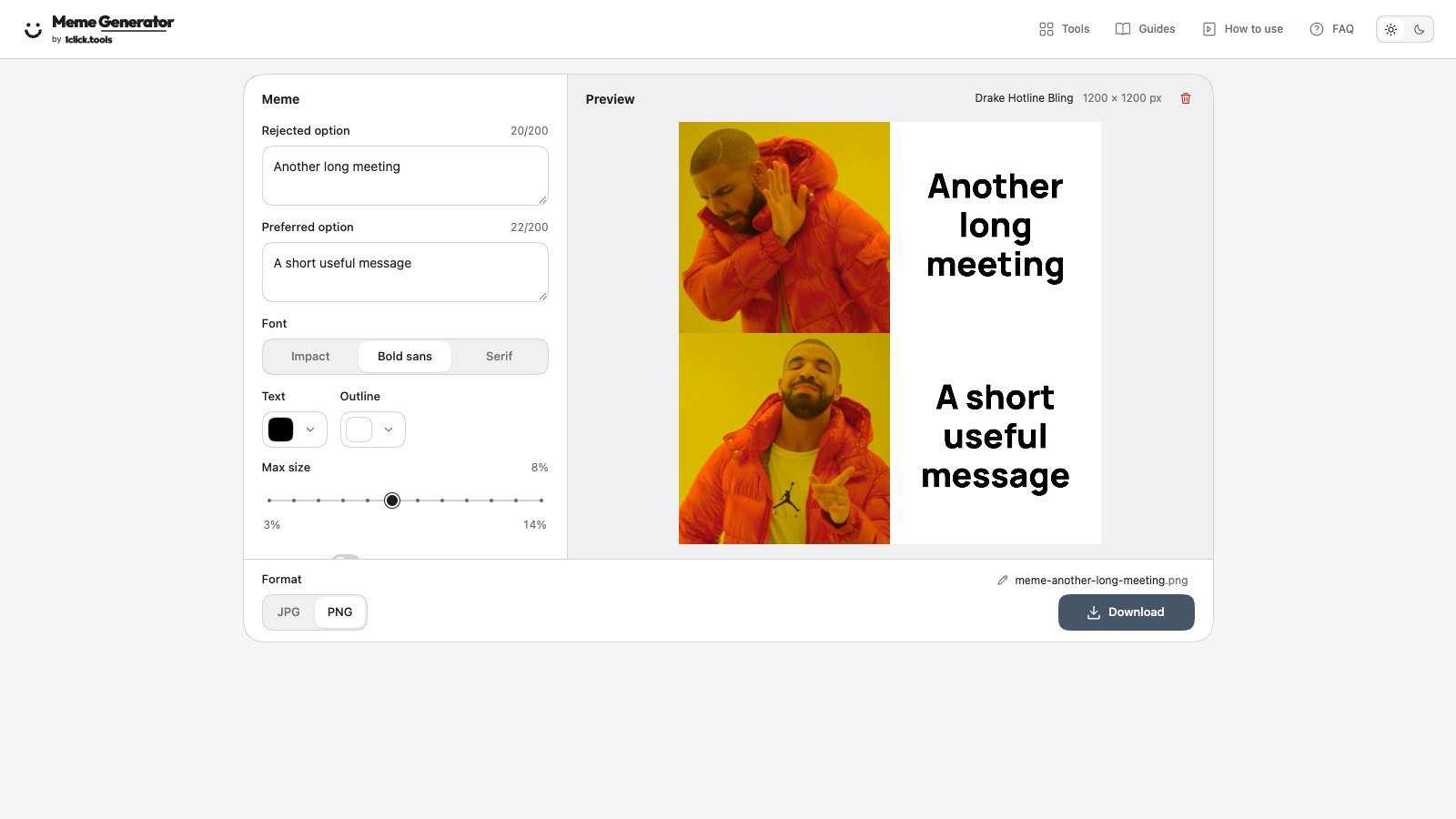
We selected Drake Hotline Bling, replaced Rejected option with Another long meeting and Preferred option with A short useful message, and kept its Bold sans styling with Max size 8%, black text, white outline, Uppercase off and Outline on.
Compare the actual downloads
- Download the real two-panel PNG1,009.5 KiB
| Caption field | Entered text | Position in the output |
|---|---|---|
| Rejected option | Another long meeting | Upper right panel |
| Preferred option | A short useful message | Lower right panel |
| PNG download | Meme_DrakeHotlineBling_AnotherLongMeeting_22.11.2026.png | 1200 × 1200 · 1,033,718 bytes |
The 1200 × 1200 PNG was reopened after downloading. Its captions stay in the right-hand panels, with no exported field-focus outline. File size varies with the image and browser. The public file retains its descriptive historical alias.
Repeat this example
- In the left template picker, search Drake Hotline Bling and select the template.
- Enter Another long meeting in Rejected option and A short useful message in Preferred option. Focus each field to check its preview position.
- Keep the template styling, choose PNG and Download. Open the saved file and inspect both panels.
Check your download
The template photos remain visible on the left, each caption is in its corresponding right-hand panel, and the downloaded PNG has no preview-only guide.
A common mistake
The first text field is not always top text across the whole image. Use the template’s field labels and focus guide to locate each caption.
Try a panel templateSources and credits
Drake Hotline Bling template source. Source of the bundled template image. Underlying image rights remain with their respective owners; no general reuse license is claimed.
Example caption layout. Actual template fields, entered captions and browser export from this tool.
Choose a template with matching fields
Search Drake Hotline Bling and select it. Click either caption in the preview’s two right-hand panels to edit it directly. Other templates have their own caption areas: Two Buttons has three and Expanding Brain has four stages. Templates without a saved panel layout use Top text and Bottom text. Free dragging and manually added text boxes are not supported.
For search and download basics, start with the first template meme walkthrough.
Use the preview to locate each caption
Click the upper preview caption and enter Another long meeting, then click the lower caption and enter A short useful message. Select Done or click outside to finish. The editing outline is only a positioning aid and does not appear in downloads. This template keeps the photos on the left and places text in the white panels on the right.
Adjust the maximum without forcing overflow
For this example, keep Bold sans, Max size 8%, black text, white outline, Uppercase off and Outline on. Max size limits every caption, but each one fits its own area independently. Shortening a caption can allow larger lettering; raising the maximum alone may not. Use the preview to check line breaks and contrast rather than forcing text outside its panel.
Switch templates without losing their drafts
Select another built-in template in the left picker, which stays available beside the preview. Its own suggested or previously edited captions and styling appear. Returning to Drake restores its draft for this session. Switching templates can change the automatic filename because it follows the template and first caption, while a manually renamed filename stays as entered. A reload keeps these drafts in this tab.
For custom-photo behavior, read the image-upload guide before replacing an uploaded file.
Export and inspect the panels
Choose PNG and Download. The current automatic name for this example is Meme_DrakeHotlineBling_AnotherLongMeeting_22.11.2026.png at 1200 × 1200 pixels; the guide stores the historical download as meme-another-long-meeting.png. Open it and check that both captions stay inside the right-hand panels, the left photographs remain visible, and no focus outline was exported. JPG is also available when you prefer a smaller sharing file.