A little guidance
How to add characters and edit a chat story
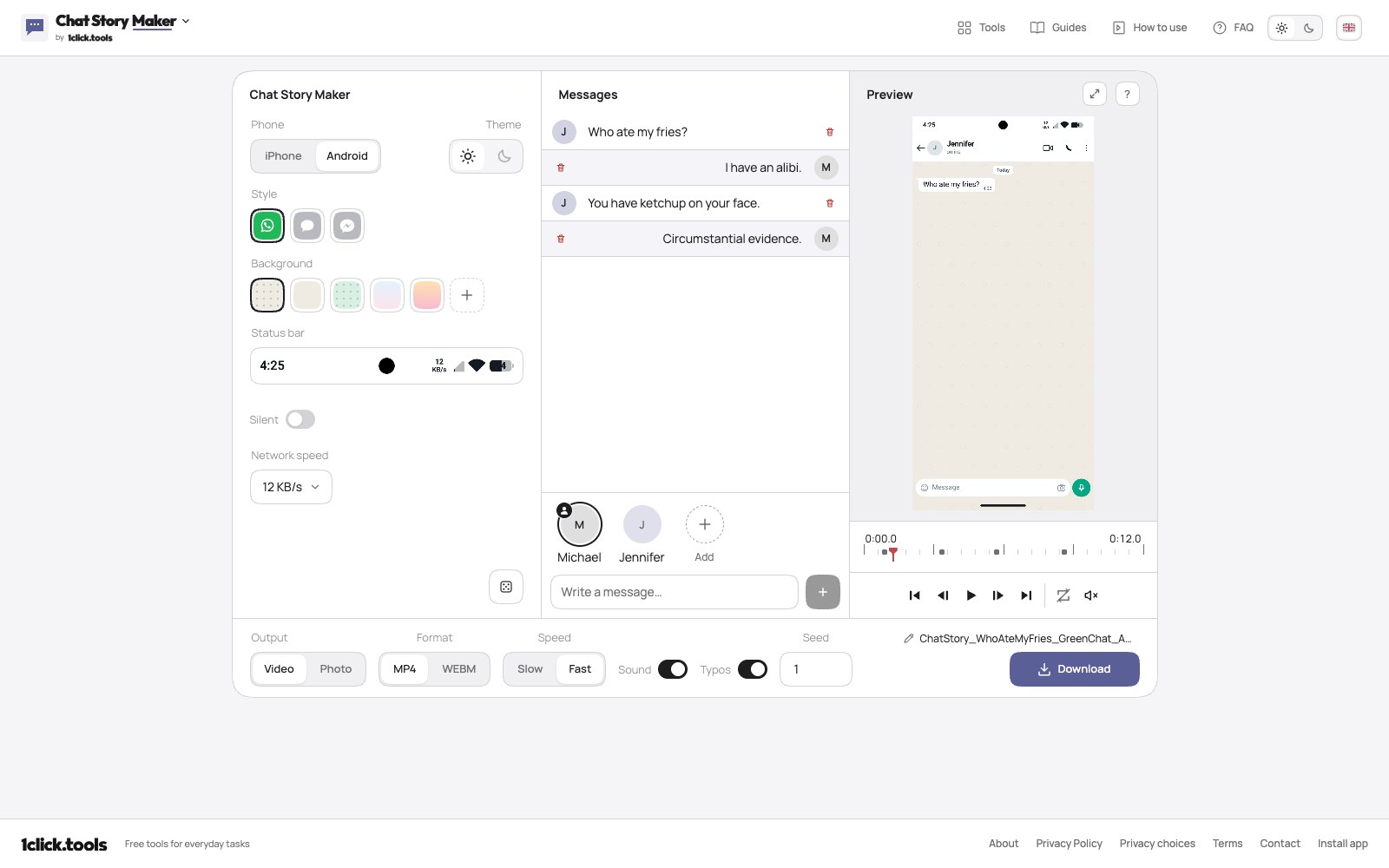
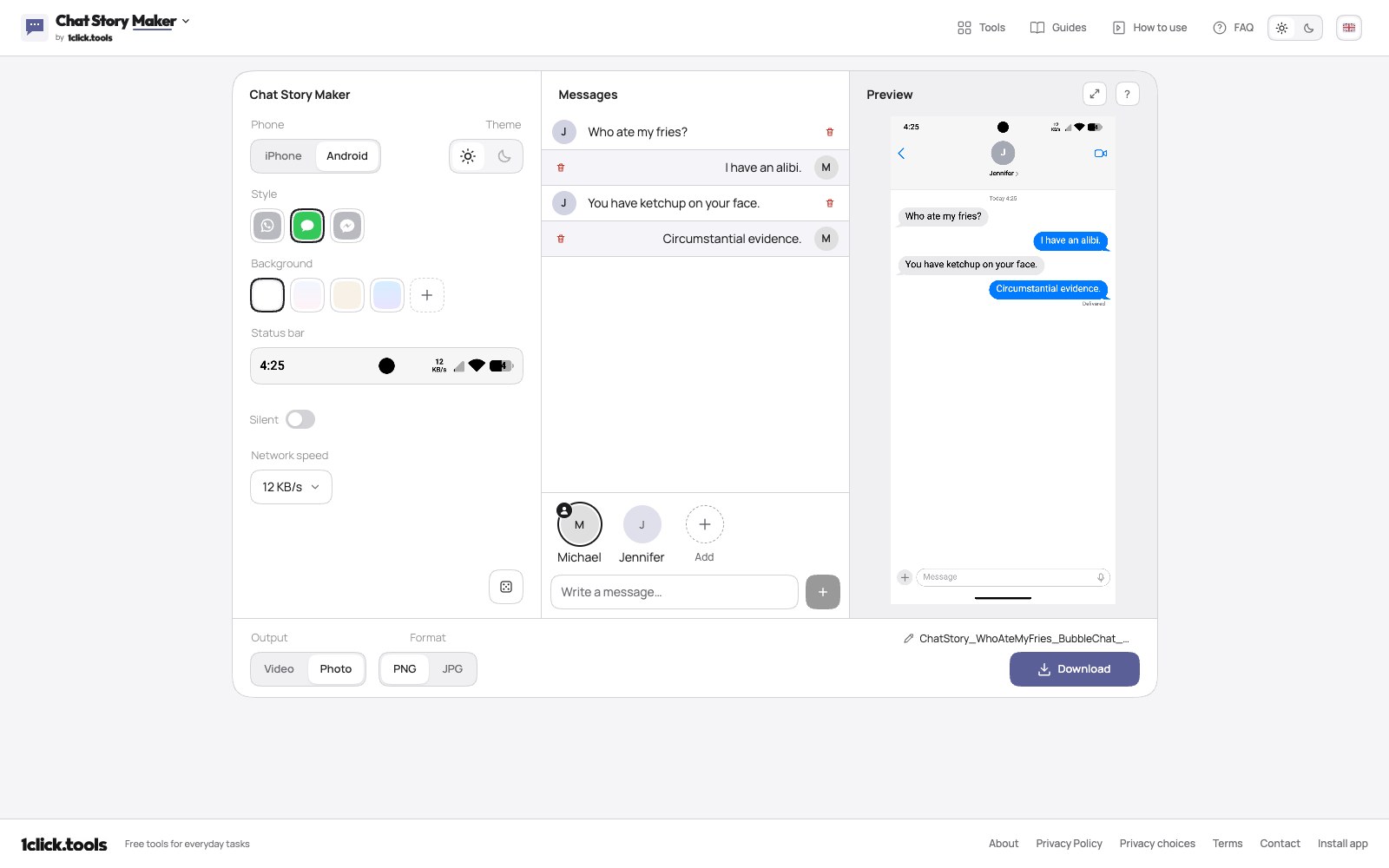
Add character circles, rename them in place, choose the owner and edit or delete messages. Follow a dragon-delivery example.
Real example: rename the owner and rewrite a dragon delivery
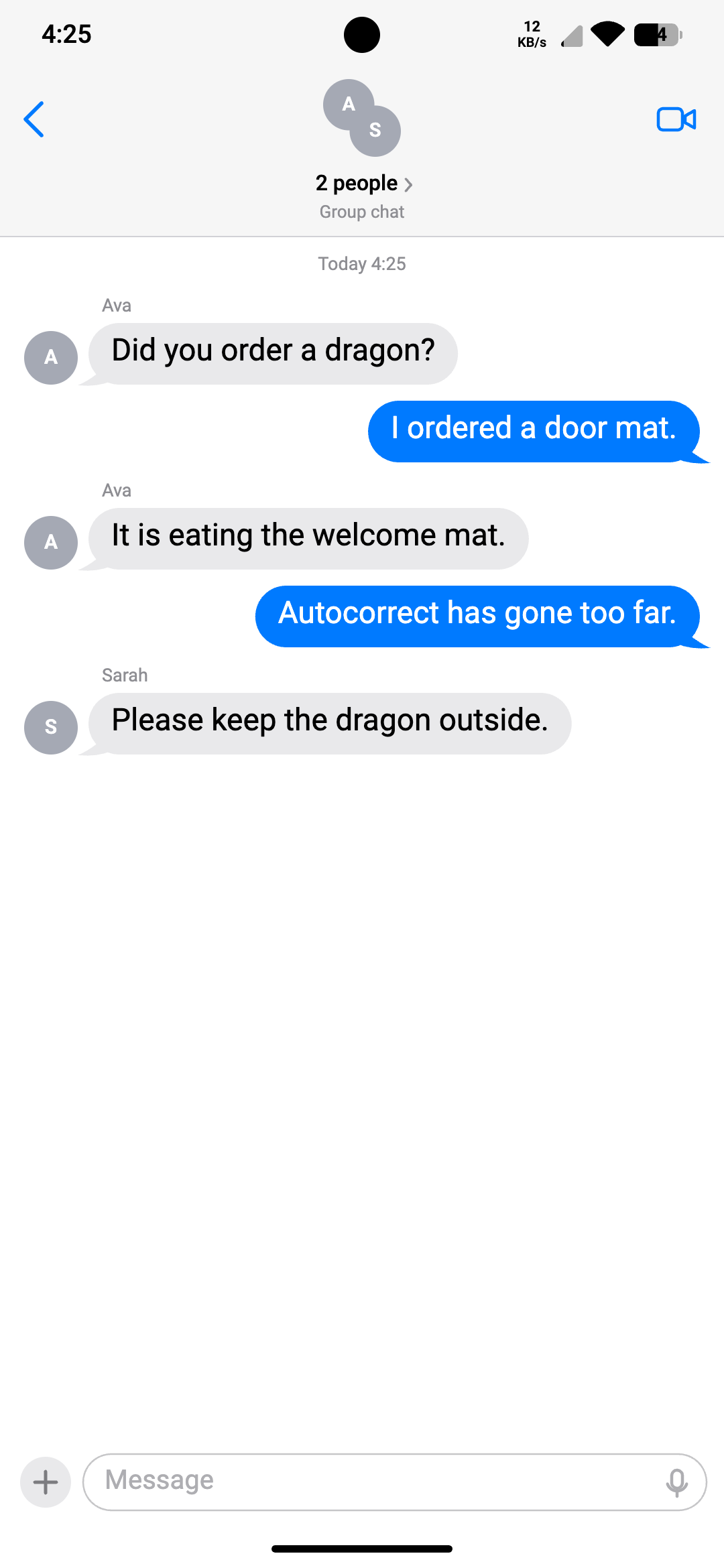
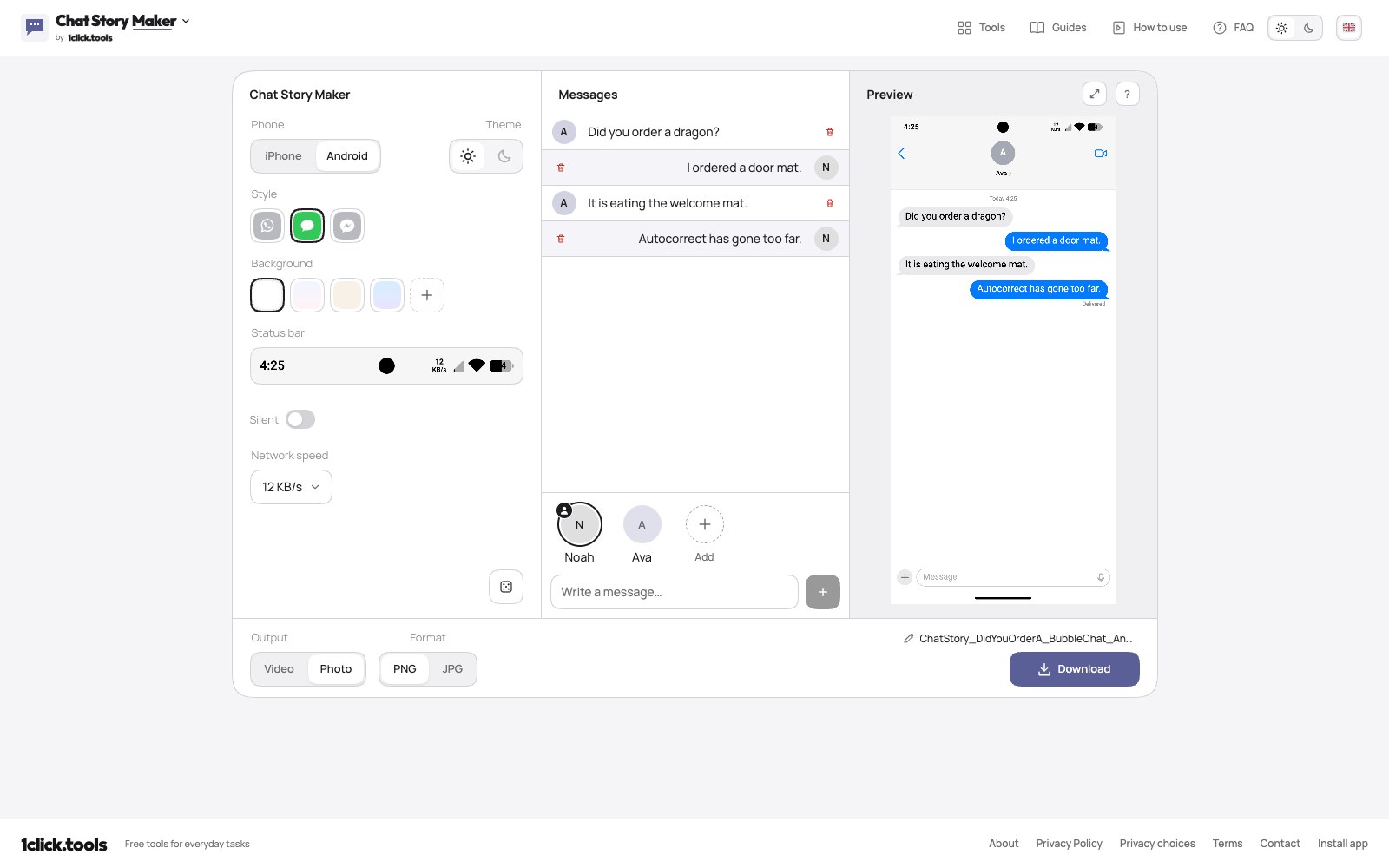
We renamed Michael to Noah and Jennifer to Ava by editing the names under their circles. Noah stayed first and remained the owner. After editing the first three messages, we deleted the old fourth reply and added a new Noah ending. We downloaded the four-message Bubble chat PNG, then added Sarah and her reply and exported a separate five-message group PNG.
Start with these files
Compare the actual downloads
| Position | Speaker | Final message |
|---|---|---|
| 1 | Ava · left | Did you order a dragon? |
| 2 | Noah · owner, right | I ordered a door mat. |
| 3 | Ava · left | It is eating the welcome mat. |
| 4 | Noah · owner, right | Autocorrect has gone too far. |
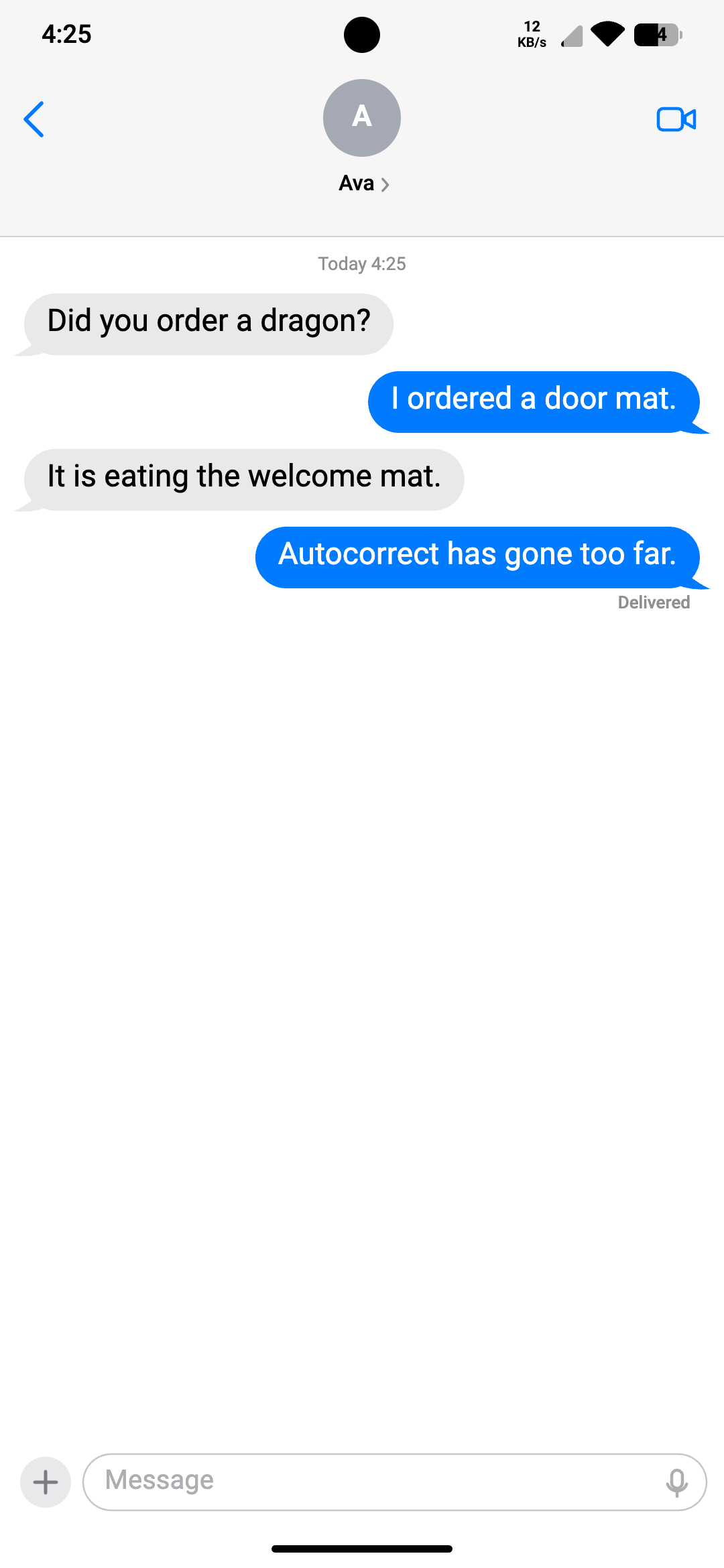
| Photo · PNG | ChatStory_DidYouOrderA_BubbleChat_Android_Photo_22.11.2026.png | 1080 × 2340 · 134,285 bytes |
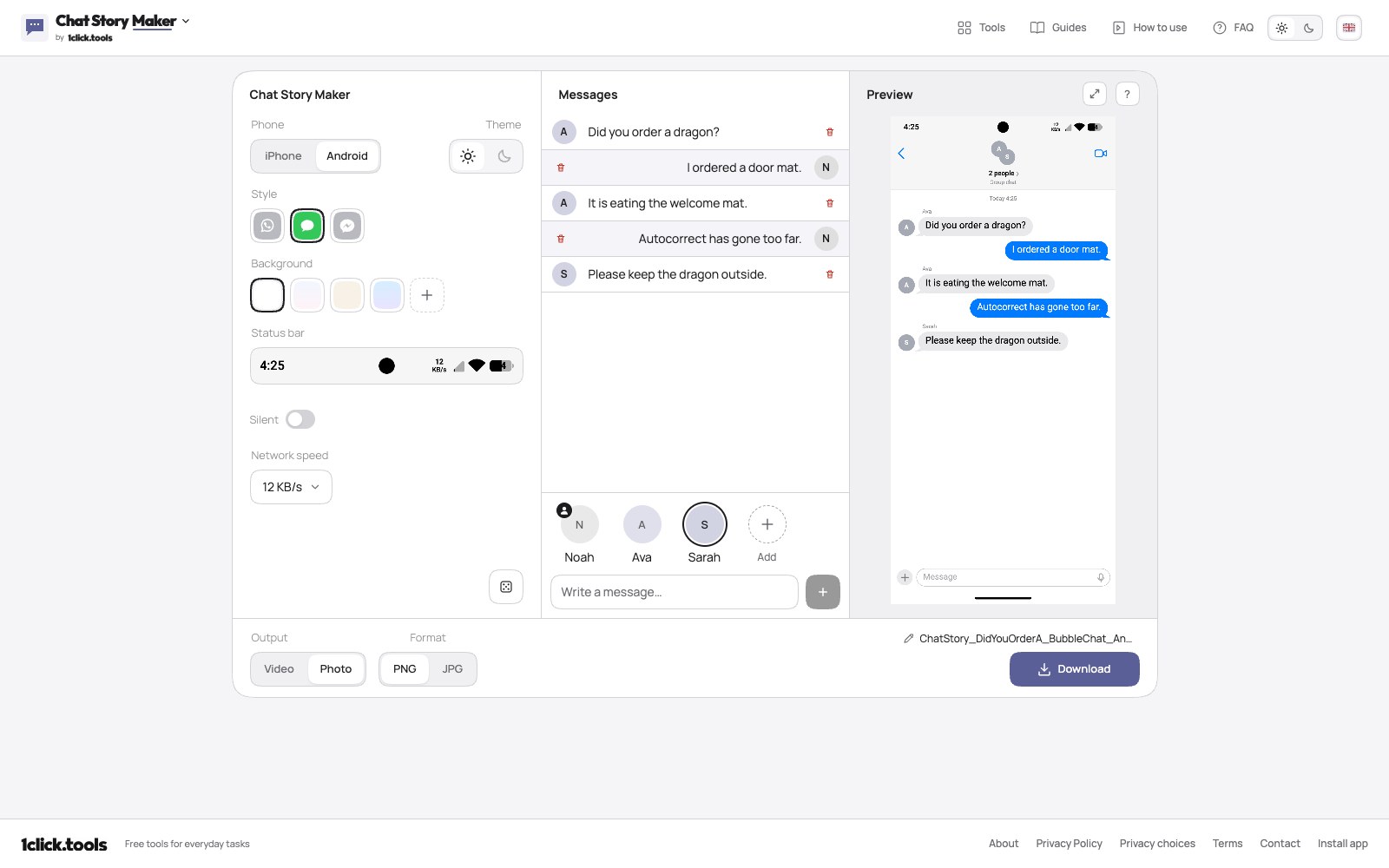
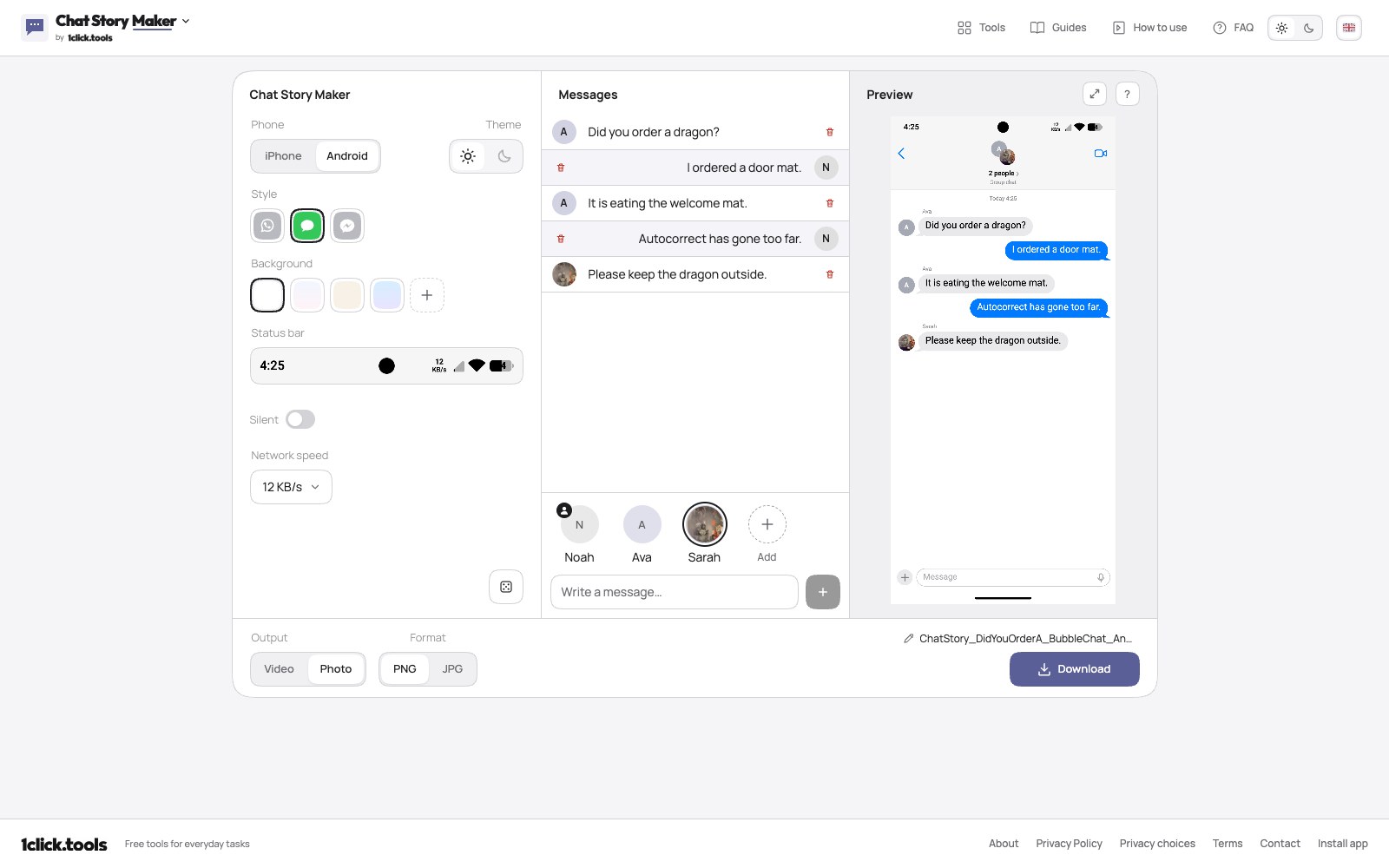
The four-message PNG is the actual download stored as chat-story-edited.png. The group PNG and screenshot include a fifth message from Sarah; that extra message is not in the four-message PNG. A separate photo screenshot shows the supplied museum image used as a demonstration avatar, then removed. The script includes both the original edit and the optional group extension.
Repeat this example
- Click Michael’s name under his circle, type Noah and press Enter. Rename Jennifer to Ava the same way. Edit the first three messages by typing straight into their rows in the Messages list, using the script above.
- Delete the old fourth message, select Noah’s circle above the message box and add Autocorrect has gone too far. Choose the Bubble chat tile under Style, then Photo and PNG in the bottom bar, and Download.
- For the optional group, select the + circle above the message box, type Sarah and press Enter. Sarah is selected for writing; add Please keep the dragon outside. Download the group PNG if you want to keep this version. Select a circle above the message box to switch speakers. To remove her later, select the bin on her circle; her message goes with her.
Check your download
The PNG has exactly four messages and Noah remains the owner. The group PNG has five messages and initials for each non-owner. The separate photo screenshot demonstrates replacing Sarah’s initials with a locally chosen image. Renaming changes the names attached to existing messages without changing their speakers or positions.
A common mistake
Escape cancels a character rename before you submit it, but an inline message edit applies immediately. Escape leaves that message field while keeping your changes.
Try characters and message editingSources and credits
Original fictional chat examples. Names and scripts are fictional. Screenshots show the current tool. Image and video files are unchanged browser downloads saved under descriptive guide filenames. The sample text files are copy references, not story imports. The chat designs do not use connected messaging accounts.
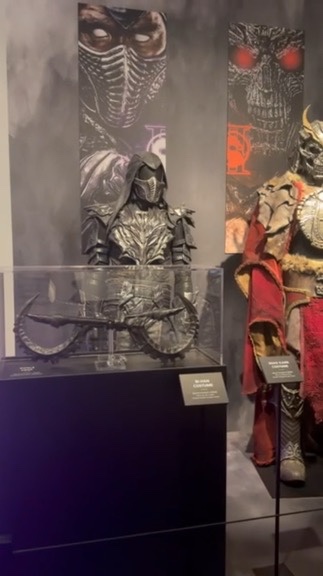
Museum photo from the supplied guide samples. The source museum-photo.jpg is unchanged. It is used as a demonstration avatar in the screenshot, then removed; the downloadable group PNG uses initials.
Rename the speakers
Click Michael’s name under his circle, replace it with Noah and press Enter. Then click Jennifer’s name and rename her Ava. Noah keeps the filled person badge and owns the chat, so his replies stay on the right; Ava’s stay on the left. To swap sides, select the person badge on Ava’s circle instead: she becomes the owner and moves to the first circle, and every message keeps its author. Names and initials update in existing messages, the speaker controls and exports. Press Escape to cancel a character rename before submitting it. Each name must be unique, ignoring letter case, and contain 1–20 characters.
For the full workflow, see how to make a chat story video or image.
Add and remove extra characters
Select the + circle, type Sarah over the suggested name and press Enter to add a third person. There can be up to eight characters. Extra participants appear on the left with their own name and initials (or photo); the preview header becomes Group chat. To remove an extra person and their messages, select the red bin in the upper-right corner of their circle (it shows on hover or keyboard focus, and always on touch screens). The first two people can be renamed but stay in the chat. Remove Sarah again before repeating the two-person example below.
Add or remove character photos
Above the message box, select the small camera on Ava’s or Sarah’s circle and choose a JPG, PNG or WebP up to 10 MB. Photos replace initials in the header and avatars where that design shows them, including the message editor and finished media. The owner’s circle takes no photo. Select the small × in the lower-right corner of a circle to return to initials. The worked photo screenshot uses the supplied museum image as a demonstration avatar; it is not a portrait of a real participant.
Edit a message in its row
Messages are a compact list, one row per message. Click the text of the first row and replace it with Did you order a dragon? Replace the second with I ordered a door mat. and the third with It is eating the welcome mat. Edits update the preview as you type. Press Enter, Escape or click away to leave the message while keeping the text; Shift+Enter adds a line break. The bin in each row deletes it: on the right of Ava’s rows, and on the left of Noah’s, whose text and picture sit on the right. There is no separate Save button. Unlike cancelling a character rename, Escape does not undo a message edit.
Delete the old ending and add a new reply
Use the trash icon beside the fourth message to remove Circumstantial evidence. Select Noah’s circle above the message box, enter Autocorrect has gone too far. and press Enter or select the + button. The new reply is appended to the conversation. Editing changes a message in place; it does not change its speaker or position. Check the initials before adding a reply.
Repair an empty message or a full canvas
Each message accepts up to 280 characters and the editor holds at most 30 messages. Every message needs text. An empty edited message or a conversation that cannot fit disables Download until corrected. Shorten the text or remove messages with the trash icon. The conversation remains in the editor so you can repair it.
Export the revised story
Select the Bubble chat tile under Style. For the example PNG, choose Photo under Output in the bottom bar, then PNG under Format and Download. The automatic name follows the pattern ChatStory_DidYouOrderADragon_BubbleChat_IPhone_Photo_22.11.2026.png; the guide stores that same download as chat-story-edited.png. Check that Ava asks about a dragon and Noah ends with Autocorrect has gone too far. For animation, switch Output to Video, check Speed and Sound, then choose a video format and download.
For other outputs, use the chat design and format comparison.