A little guidance
How to make a chat story video or image
Build a fictional chat with initials, preview its typing animation and download MP4, WebM, PNG or JPG. Follow current screenshots and real sample exports.
Real example: the same joke as a typing video and two photos
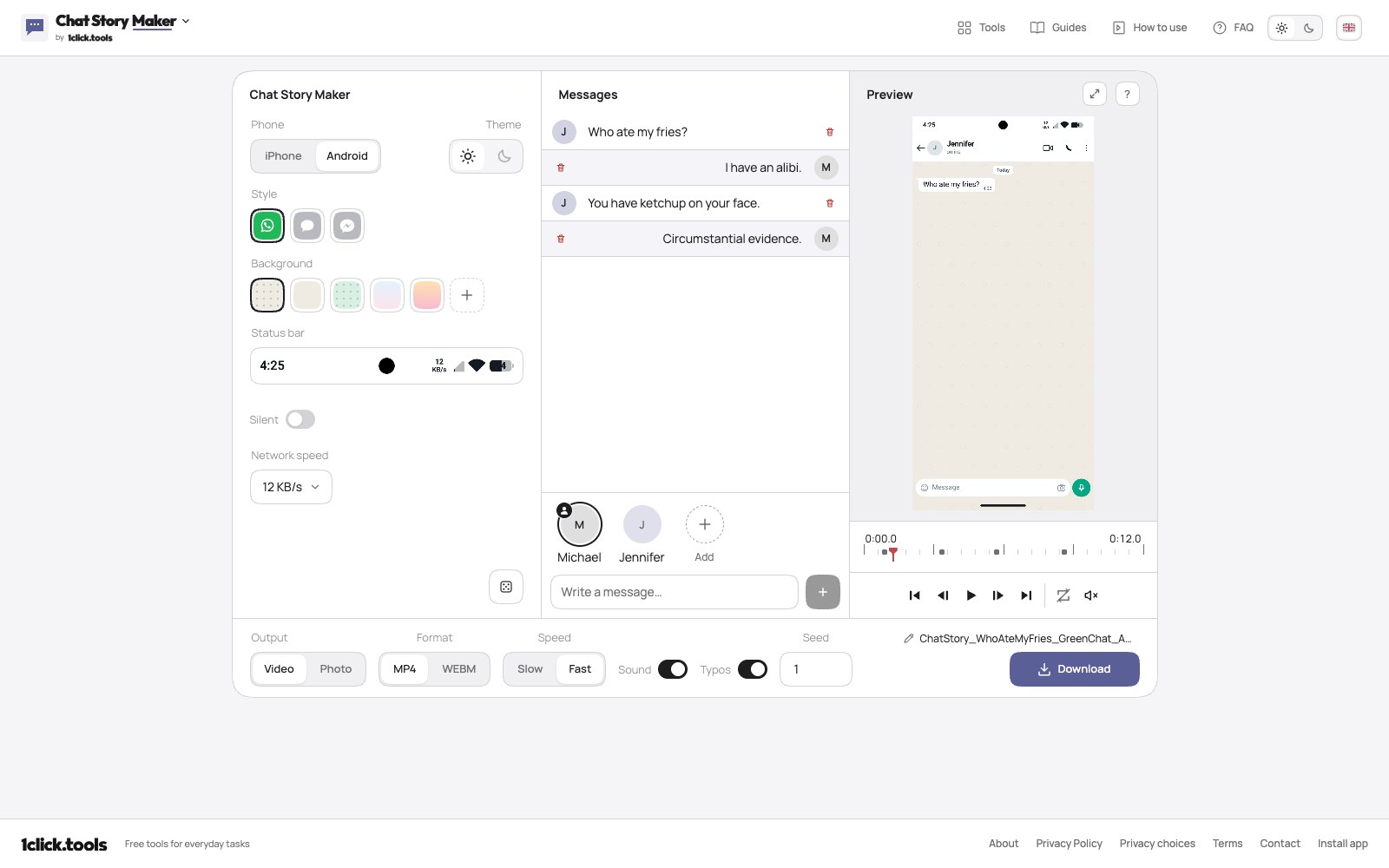
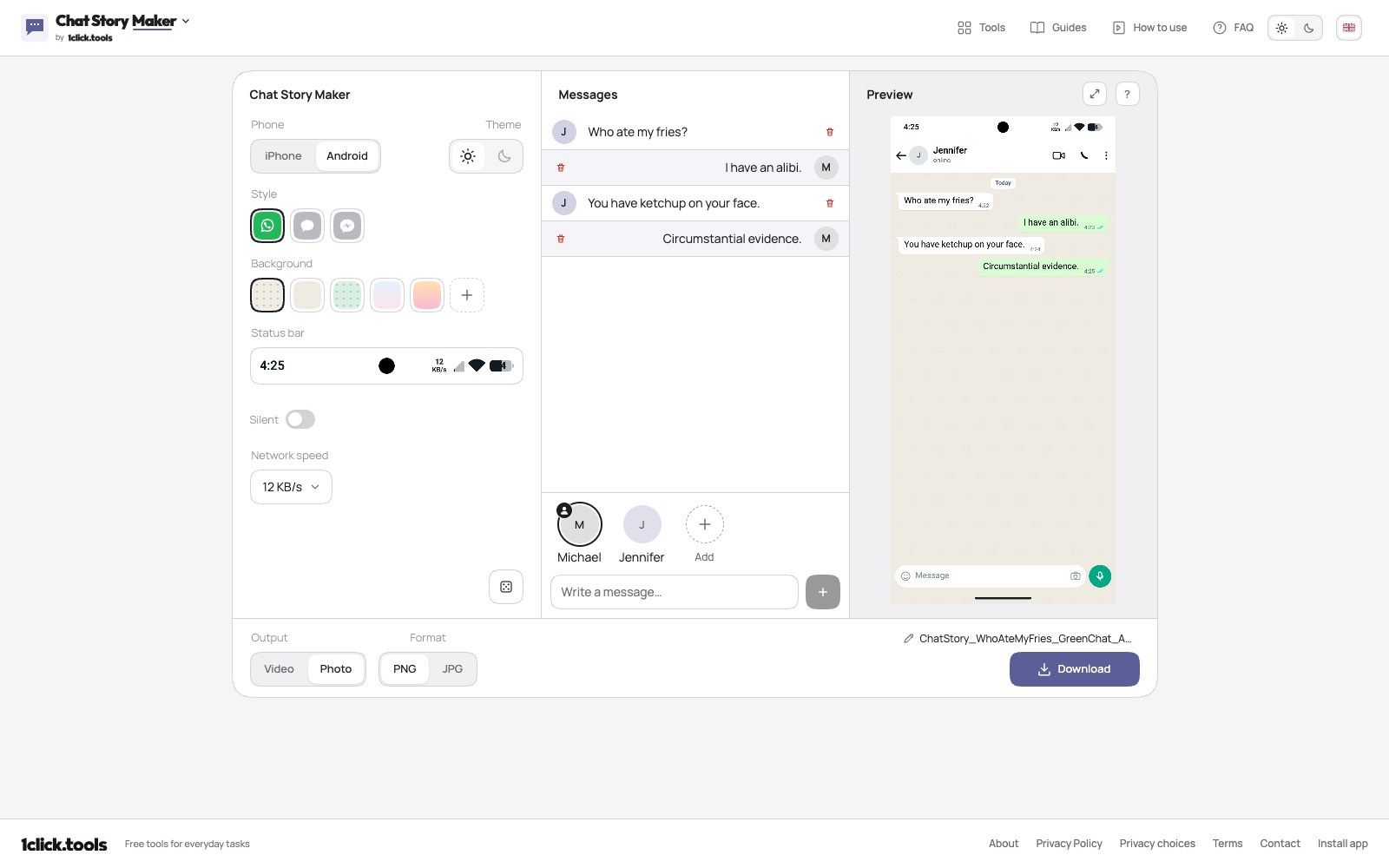
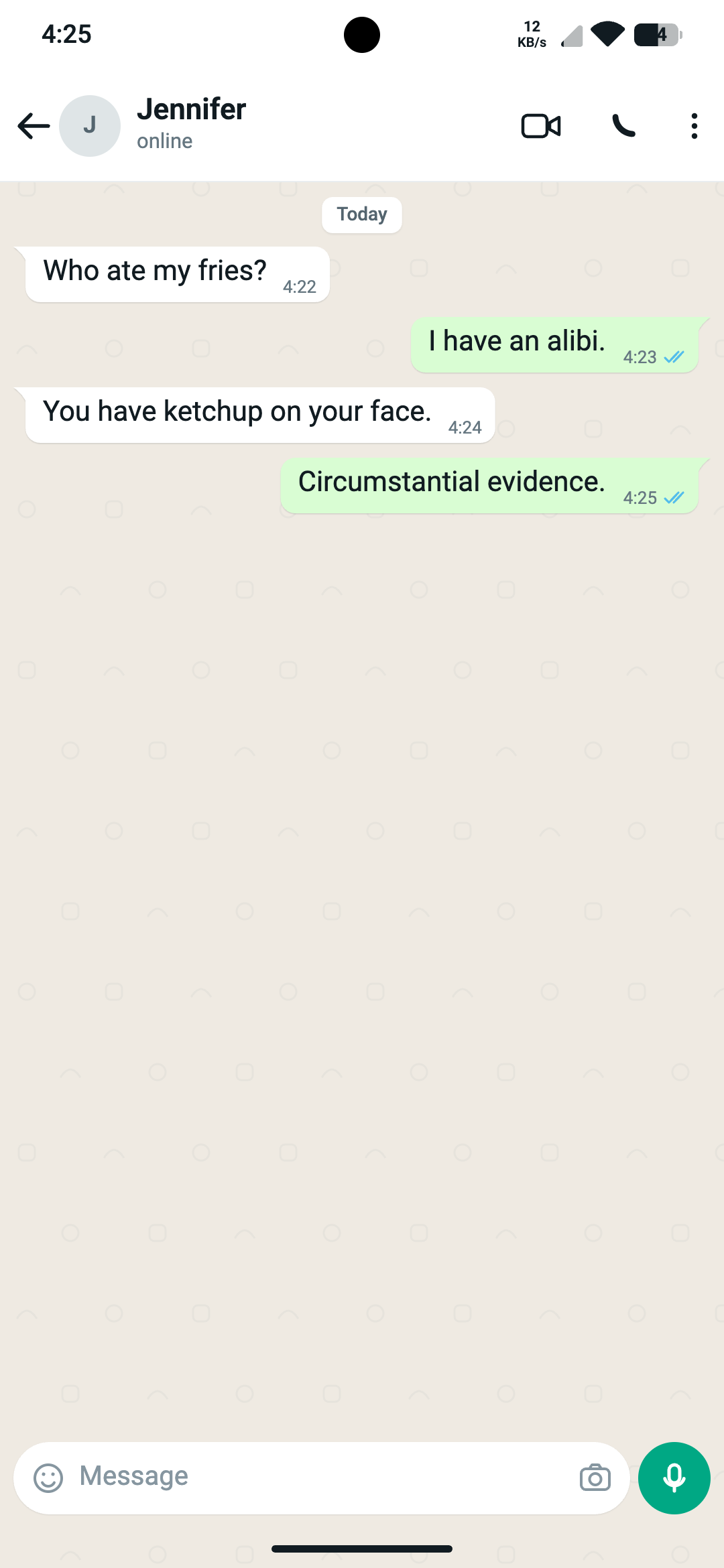
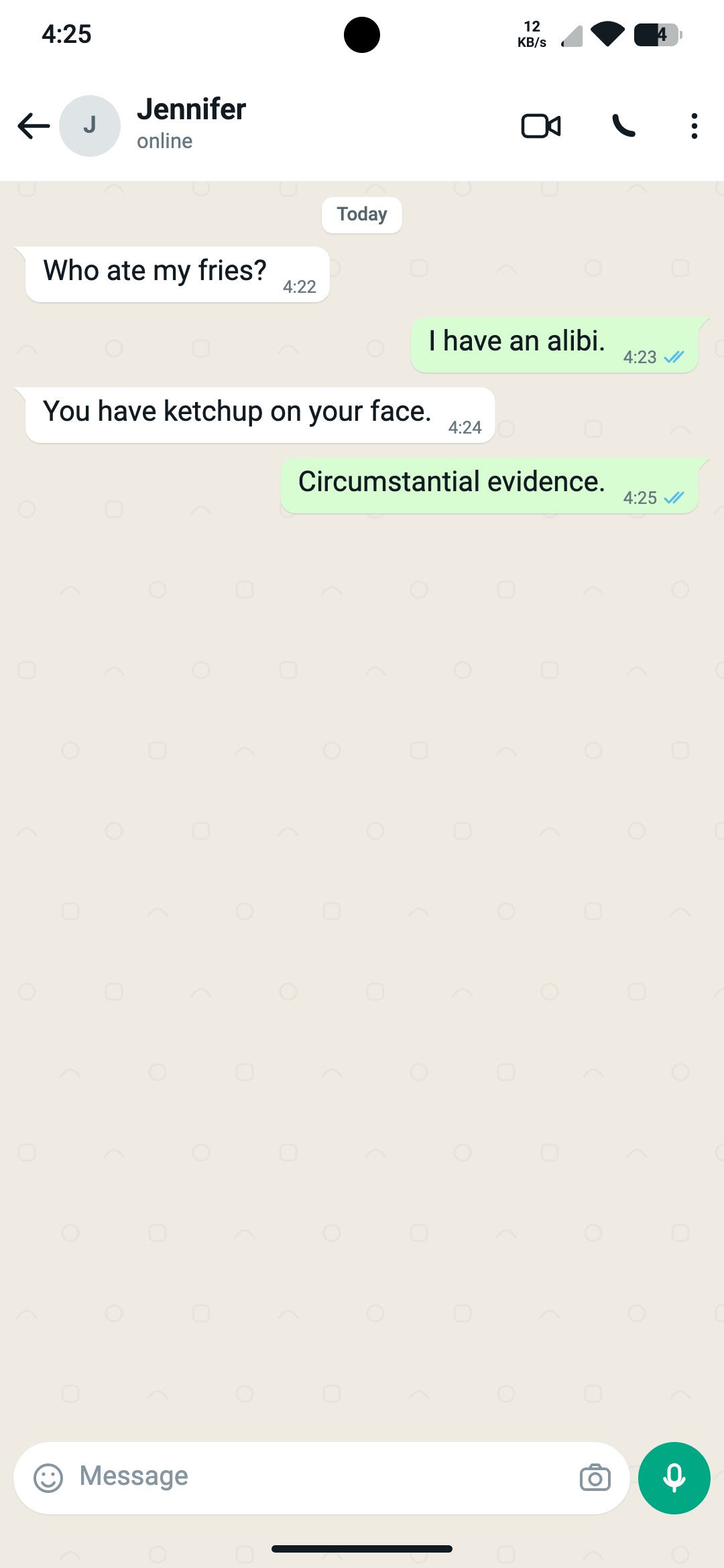
We kept Michael as the first character and owner, with Jennifer asking about the missing fries. We downloaded the Green chat design as a Fast MP4 with typing and notification sounds, then as PNG and JPG photos of the complete four-message conversation.
Start with these files
Compare the actual downloads
| Output | Actual filename | Measured result |
|---|---|---|
| Video · Fast · sound on | ChatStory_WhoAteMyFries_GreenChat_Android_Video_22.11.2026.mp4 | 1080 × 2340 · 1,380,829 bytes · 13.79 seconds |
| Photo · PNG | ChatStory_WhoAteMyFries_GreenChat_Android_Photo_22.11.2026.png | 1080 × 2340 · 189,881 bytes |
| Photo · JPG | ChatStory_WhoAteMyFries_GreenChat_Android_Photo_22.11.2026.jpg | 1080 × 2340 · 109,370 bytes |
The MP4 was inspected for video dimensions, duration and an audio track. Images were reopened and decoded. These are the tool’s actual downloads, kept under aliases so the designs can be compared. Browser recording support and file sizes can vary.
Repeat this example
- Open Chat Story Maker and keep Michael first, Jennifer second and the four sample messages. Video starts playing by default, with the preview muted.
- Choose the Green chat tile under Style; in the bottom bar choose MP4 if offered, Fast under Speed and Sound on. Use the toolbar under Preview to review: drag the ruler, jump between messages or replay. Select Download and keep the tab visible until recording finishes.
- Choose Photo under Output, PNG under Format and Download. Switch Format to JPG and download again. Open the video and both images to compare their content.
Check your download
All three outputs are 1080 × 2340. Jennifer appears on the left and Michael on the right. In the video, Jennifer shows typing dots and Michael types in the bottom field before each reveal. The MP4 includes an audio track; PNG and JPG capture the complete conversation without animation.
A common mistake
The preview speaker controls listening, not the exported soundtrack. Use the Sound switch in the bottom bar to include or exclude video sound. Choose Photo under Output before looking for PNG or JPG.
Make a fictional chat video or photoSources and credits
Original fictional chat examples. Names and scripts are fictional. Screenshots show the current tool. Image and video files are unchanged browser downloads saved under descriptive guide filenames. The sample text files are copy references, not story imports. The chat designs do not use connected messaging accounts.
Start with the characters
Chat Story Maker opens with Michael first and Jennifer second, plus a four-message joke about missing fries. The first character is always the owner: their replies appear on the right. The tool has three columns: Chat Story Maker on the left (phone, style and status bar), Messages in the middle and Preview on the right. Characters are the circles in the message bar at the bottom of Messages; the owner’s circle has a filled person badge in its upper-left corner. Click the name under a circle to rename it in place, then press Enter. To add someone, select the + circle and type their name. Names must be different and can contain up to 20 characters; the chat supports up to eight people. Avatars use initials until you add a photo with the small camera on a character’s circle; the owner needs no photo because their own avatar never appears.
Write each side of the conversation
At the bottom of the transcript, select the speaker’s circle above the message box (the chosen one has a ring), type in the center field and select the + button on the right. Enter adds the message; Shift+Enter adds a line break. New messages appear at the bottom of the list, one row each, in the order you add them. The owner’s rows are mirrored: bin on the left, text and picture on the right. The sample text file above is a copy reference, not an import file.
For more participants and a complete rewrite, follow the character and message editing walkthrough.
Watch the video preview
Video is selected by default and playback starts automatically with the preview muted. Other characters show typing dots before their messages appear. The owner types their draft letter by letter in the bottom message field before sending. Longer messages take longer to type, within the tool’s timing limits. The toolbar under Preview scrubs with its ruler, jumps between messages, plays or pauses, and loops. Editing the story restarts the preview.
Choose a style, speed and sound
At the top of the left column, choose the Phone; on the right of that row, the sun and moon Theme switch makes the screen light or dark. Below, select Green chat, Bubble chat or Gradient chat under Style. The selected tile is colored; the others are gray. Under Background, pick one of that style’s looks, or + for your own photo (one at a time: remove it with × to add another). Below them is the phone’s status bar itself: change its time, network, signal and battery right on it, or roll the die in the panel’s corner for a random bar. In the bottom bar, Speed offers Slow and Fast; it changes both the preview and the download. The speaker at the end of the toolbar under Preview mutes only the preview. The Sound switch in the bottom bar controls typing and message-notification audio in the downloaded video. To hear the preview, keep Sound on and unmute the toolbar’s speaker; enabling Sound alone does not unmute playback.
Choose a format and filename
The bottom bar contains Output (Video or Photo), Format, and for video Speed and Sound, then the filename and Download. In Video mode, choose MP4 or WebM; only formats your browser can record are offered. Choose Photo for a still of the complete conversation, then PNG or JPG; PNG is initially selected for photos. Every output is 1080 × 2340 pixels. The automatic filename combines ChatStory, the opening words of the first message, the style, phone, output type and date, such as ChatStory_WhoAteMyFries_GreenChat_IPhone_Video_22.11.2026.mp4. Use the filename pencil to set a manual name that stays fixed as you edit.
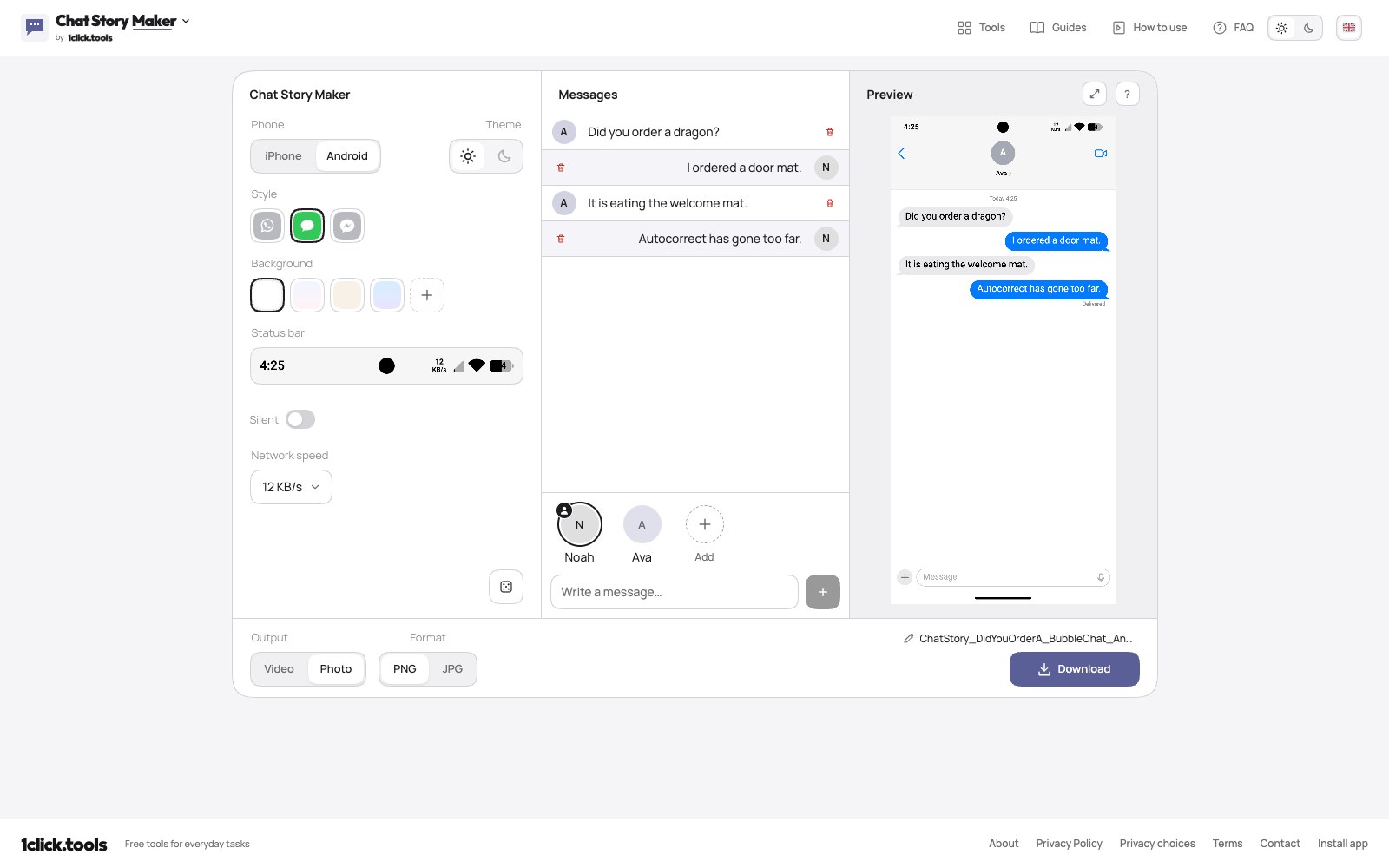
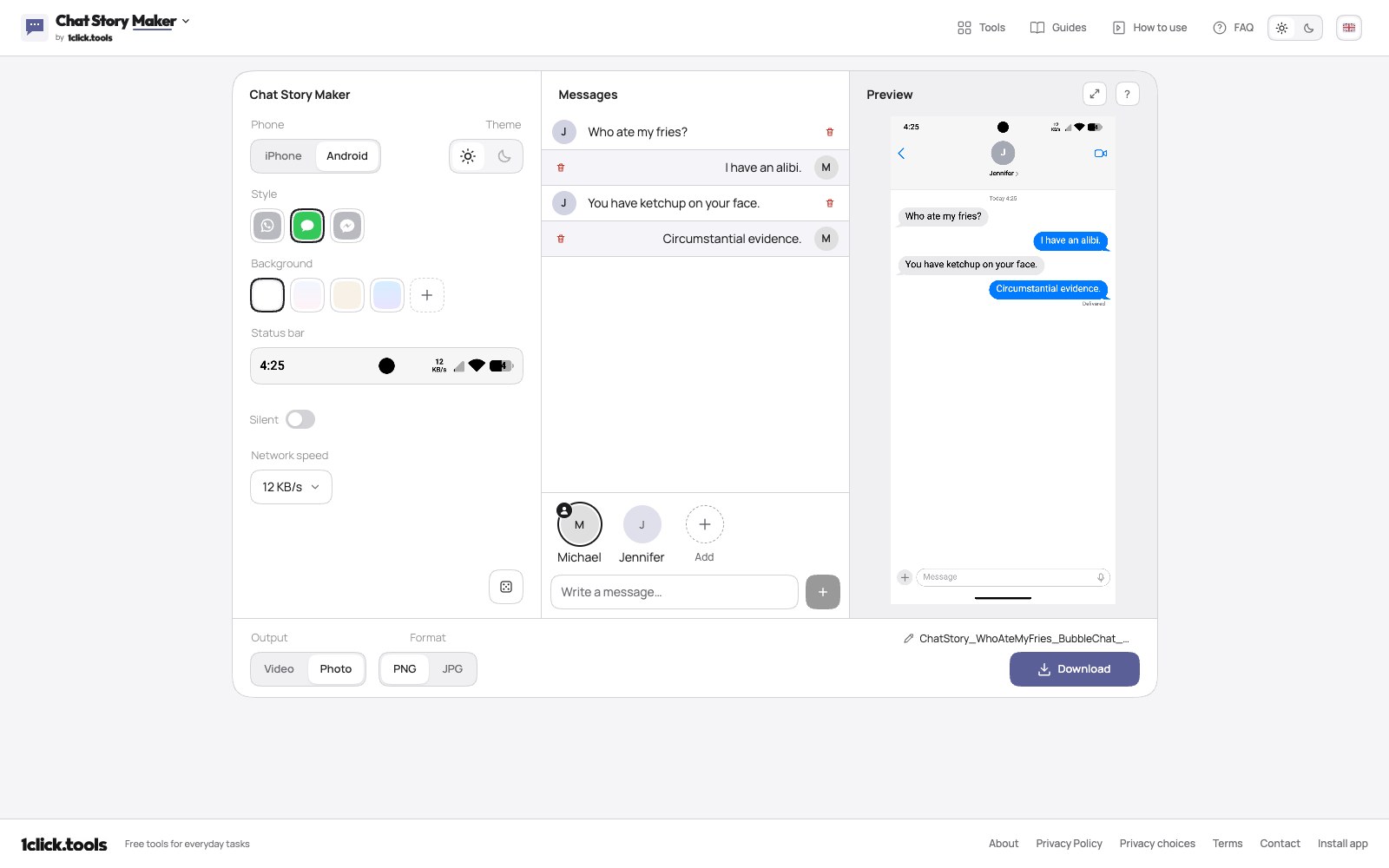
Compare chat designs, video controls and photo formats before exporting.
Download and check the result
Select Download. Video is recorded locally in real time: keep the tab visible while progress fills the Download button, or select the same button to cancel. Open the finished file and check names, message order, timing and sound. If a video format is unavailable, try the other offered format, turn off video sound or use another browser. Photo remains an option. The actual image and video downloads below use the same four-message story.
Keep a copy of your script
The editor holds up to 30 messages of up to 280 characters each, but the whole conversation must fit one phone screen. Shorten or remove messages if the preview reports that it cannot fit. Names, messages, rendering and recording stay in your browser; they are not sent to analytics. Your work stays in this browser through a reload and when you come back; under Keep my work in Privacy choices you can keep it only until you close the tab, not keep it at all, or delete it. Download your result and keep the script separately if you want to recreate it later.