A little guidance
Chat story designs and formats: video, PNG and JPG
Compare the Green, Bubble and Gradient chat designs on iPhone and Android, choose Video or Photo, and understand MP4, WebM, PNG, JPG, preview speed and audio controls.
Real example: three designs, photos and an animated export
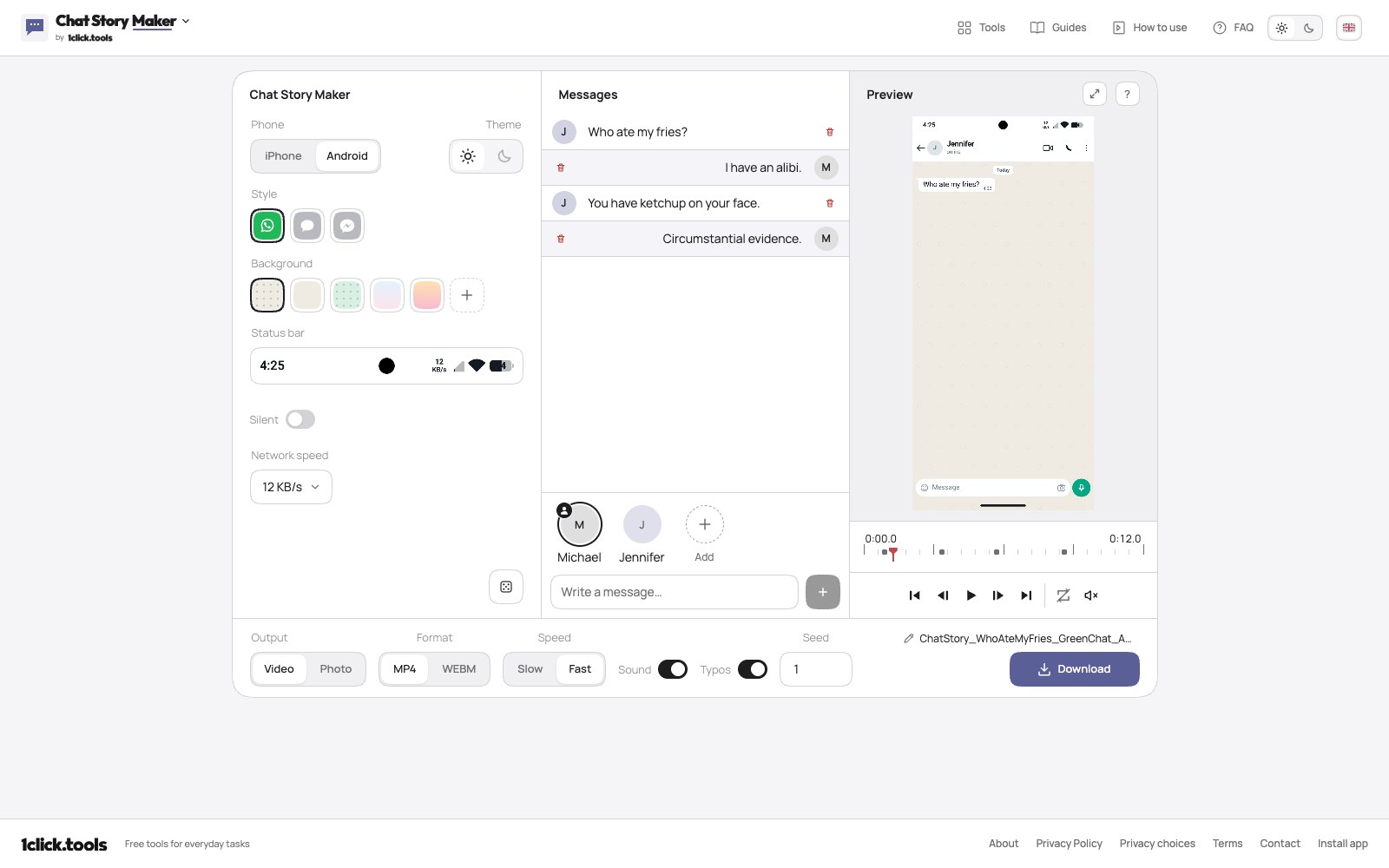
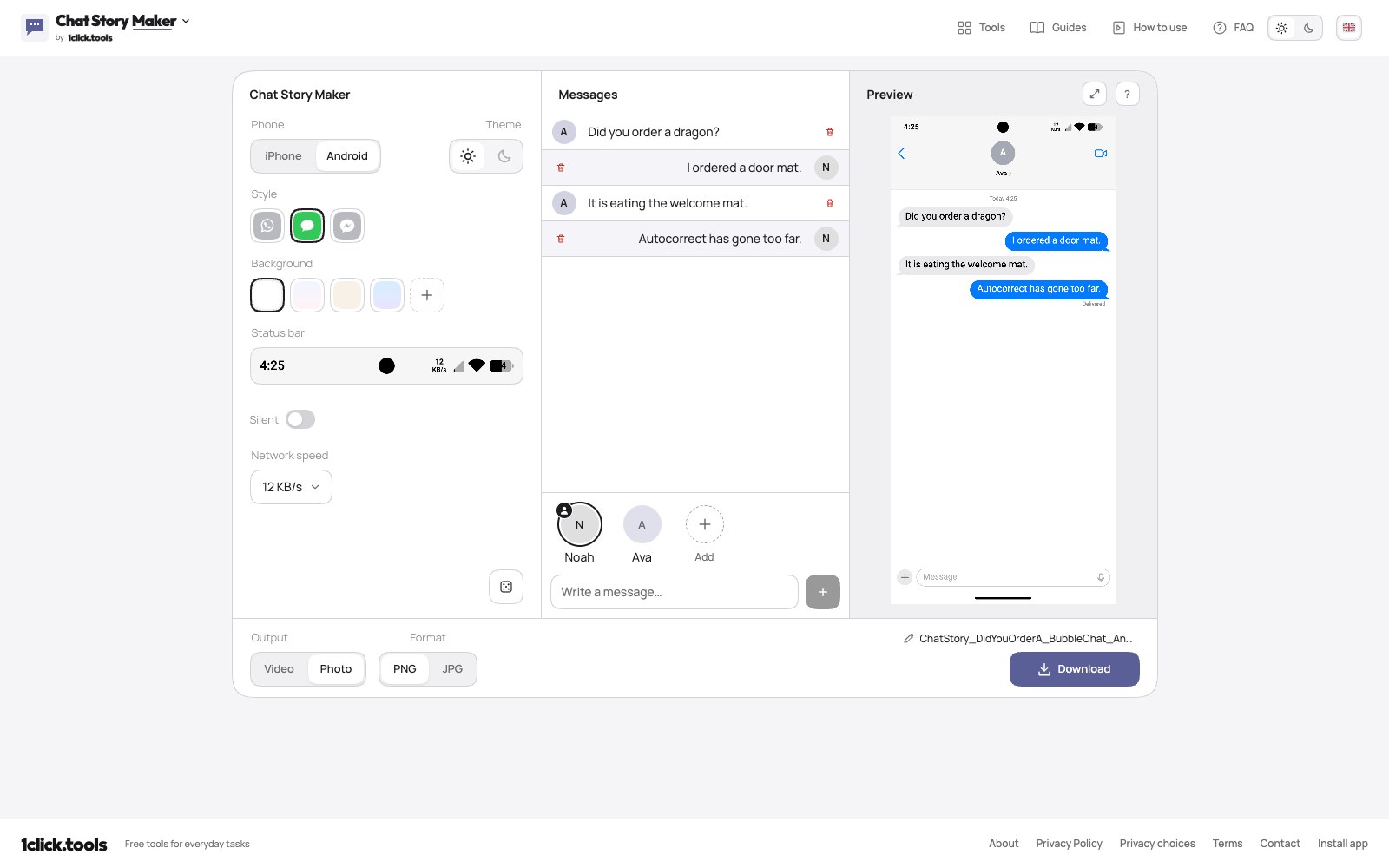
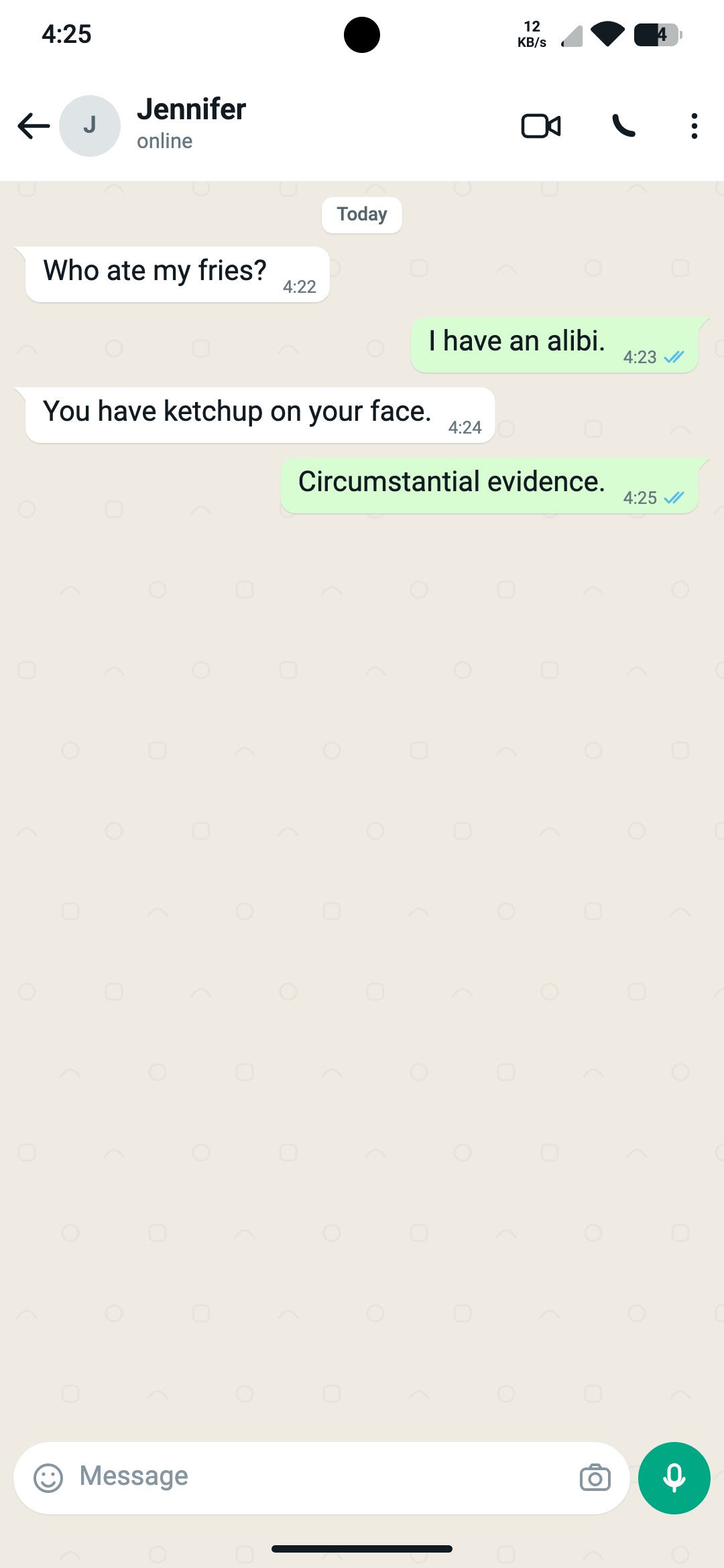
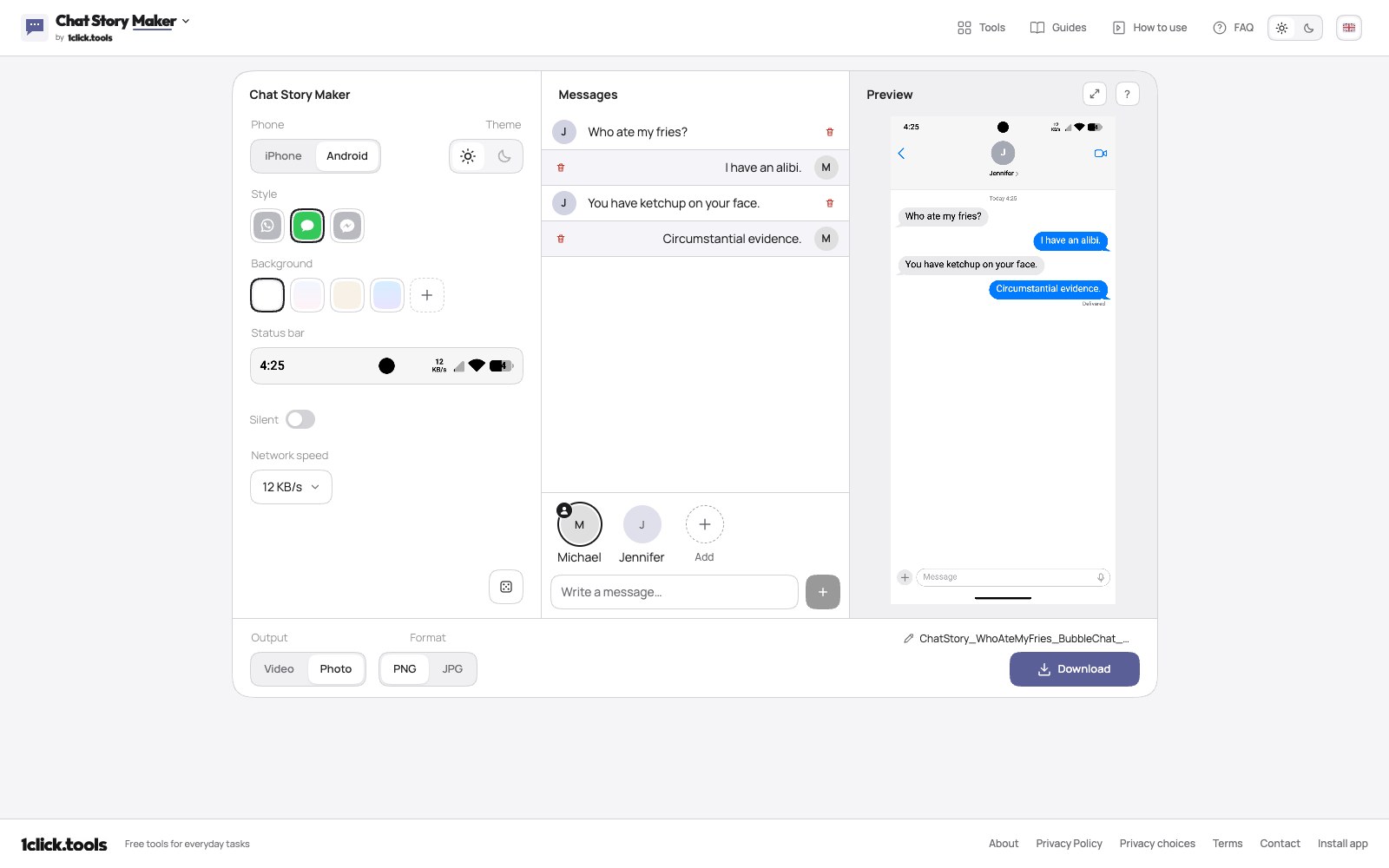
We kept Michael, Jennifer and the four-message conversation fixed while switching designs. All PNGs and the Green chat JPG are actual downloads. The Green chat MP4 adds typing animation and sound to the same script.
Start with these files
- Download the shared sample script418 bytes
Compare the actual downloads
- Download Green chat PNG185.4 KiB
- Download Bubble chat PNG129.3 KiB
- Download Gradient chat PNG139.2 KiB
- Download Green chat JPG106.8 KiB
- Download Green chat MP4 with sound1.3 MiB
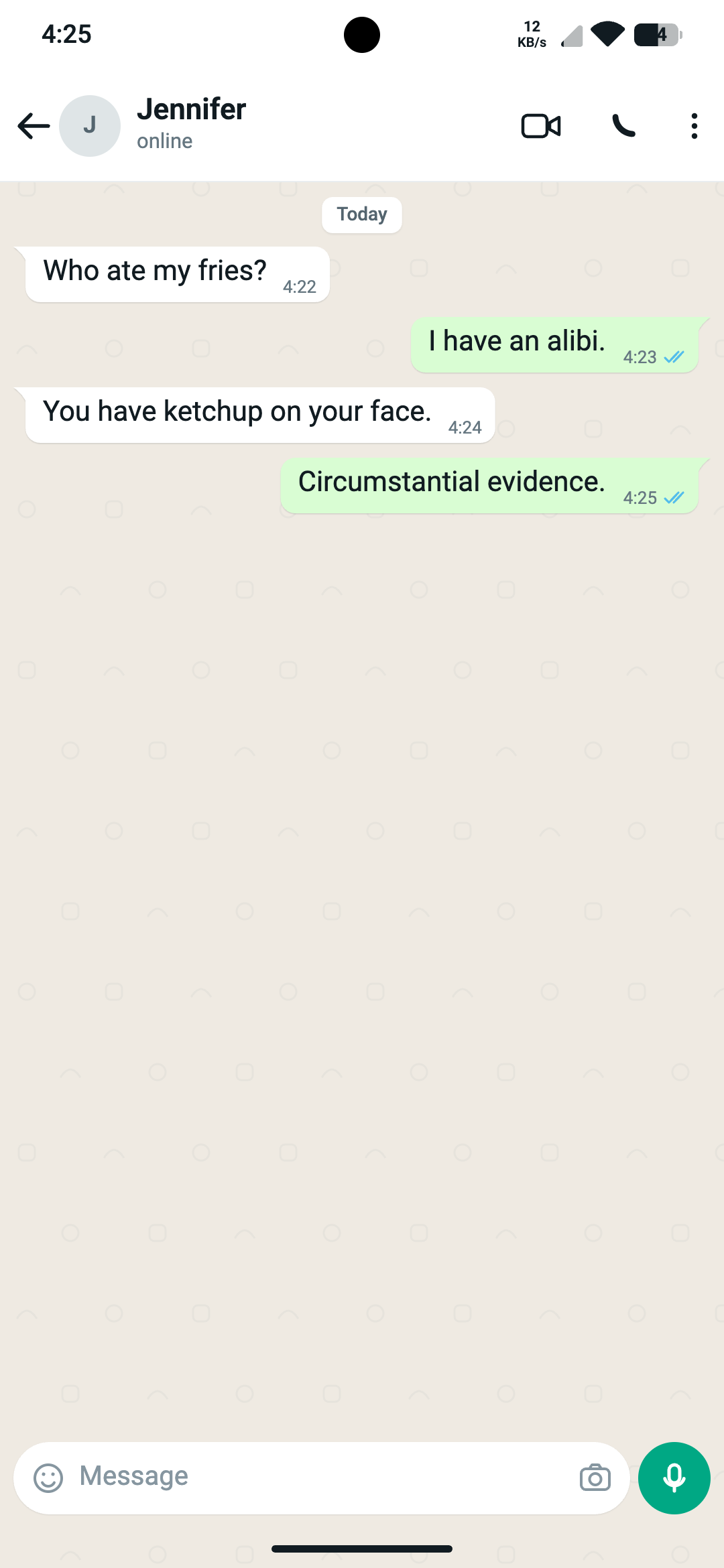
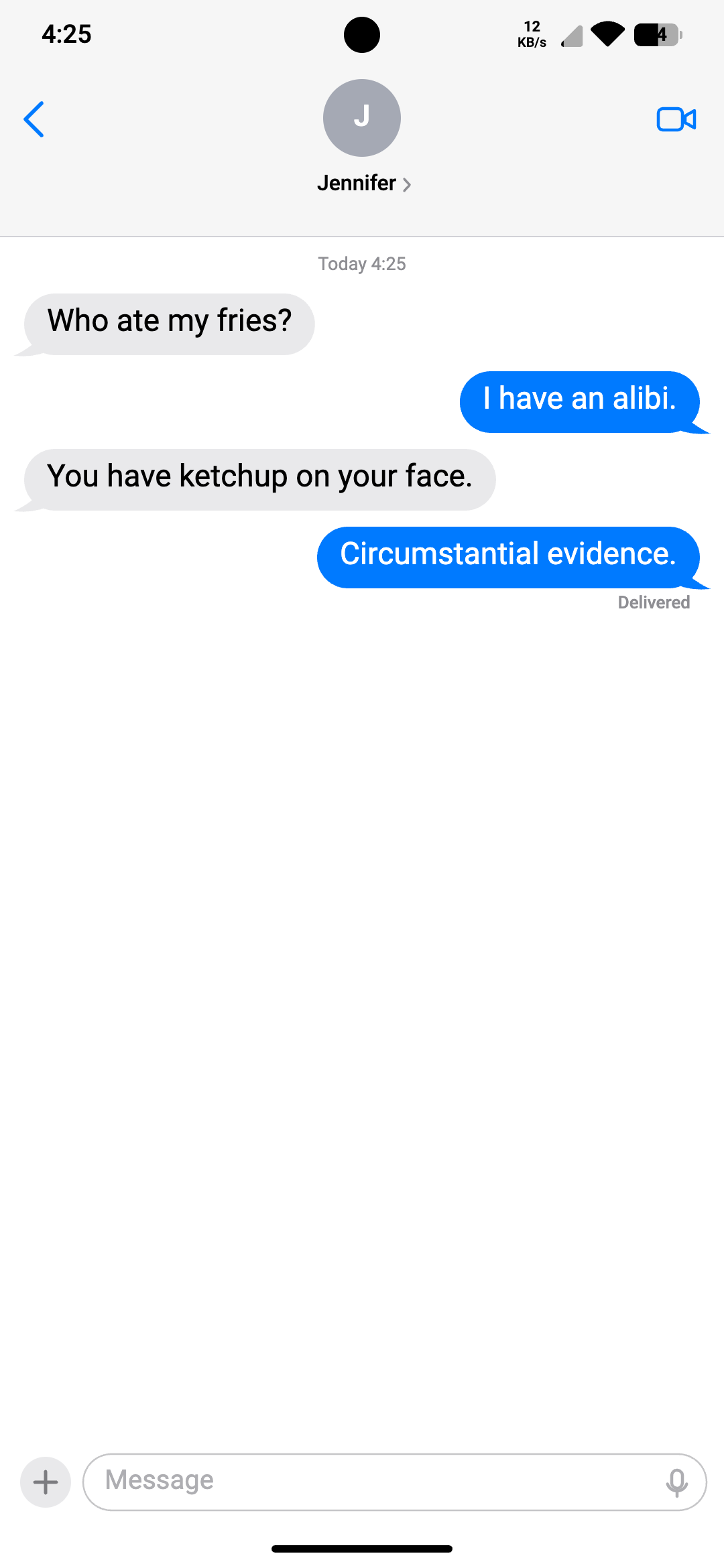
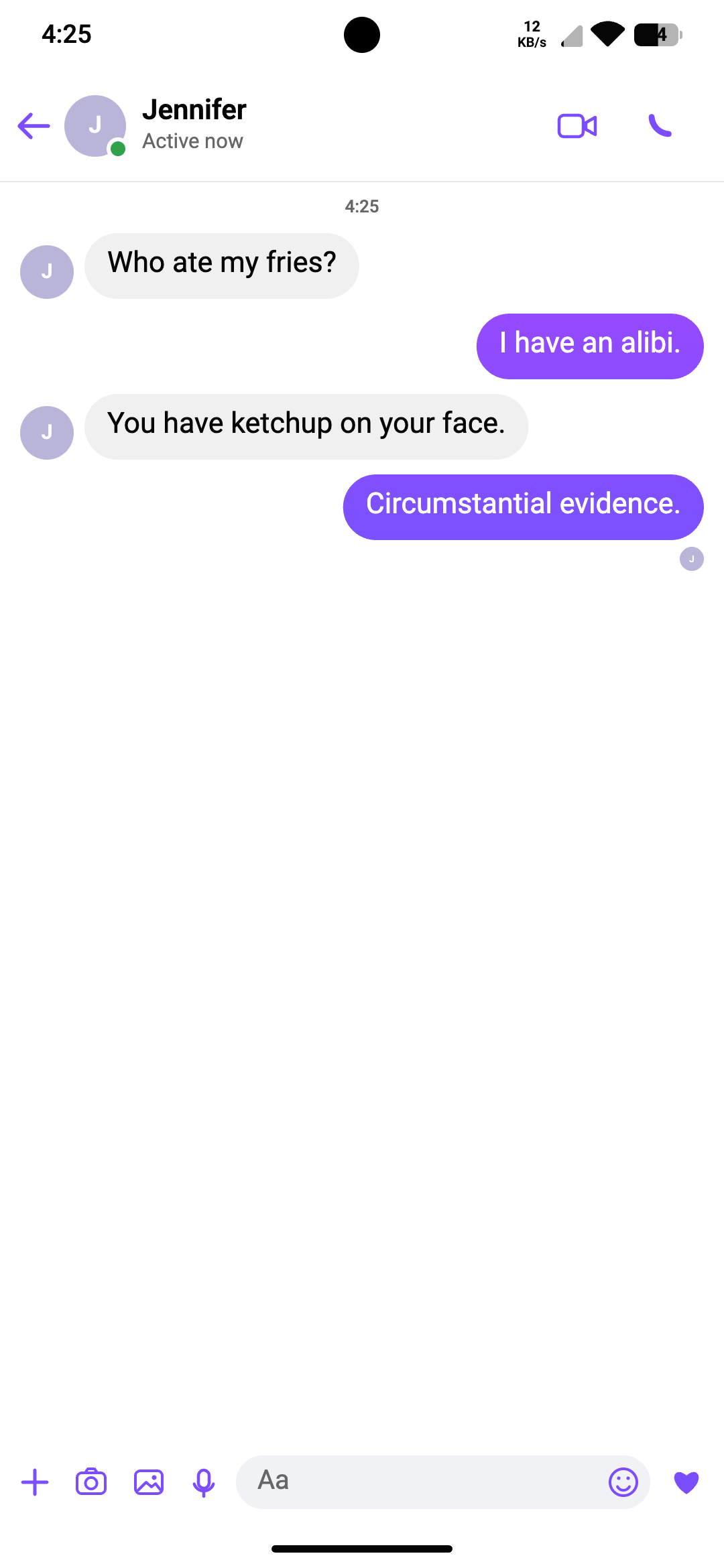
| Design / format | Visible result | Measured result |
|---|---|---|
| Green chat · PNG | White header, quiet patterned background, green owner replies with times and ticks | 1080 × 2340 · 189,881 bytes |
| Bubble chat · PNG | Gray incoming and blue owner replies | 1080 × 2340 · 132,415 bytes |
| Gradient chat · PNG | Incoming initials and gradient owner replies | 1080 × 2340 · 142,565 bytes |
| Green chat · JPG | Complete still of the same chat | 1080 × 2340 · 109,370 bytes |
| Green chat · MP4 | Fast typing and message reveals, sound on | 1080 × 2340 · 1,380,829 bytes |
Every image was decoded and the video was inspected after downloading. All have the same 1080 × 2340 (19.5:9) phone-screen dimensions. File size and available video formats depend on your browser and settings; no assumption is made that JPG is always smaller.
Repeat this example
- Keep the default names and messages. Choose Photo and PNG in the bottom bar, then download Green chat, Bubble chat and Gradient chat in turn, chosen with the Style tiles.
- Return to Green chat, choose JPG and download a photo for comparison.
- Choose Video, MP4 if offered, Fast under Speed and Sound on. Review the preview, then Download. If MP4 is unavailable, select an offered WebM format instead.
Check your download
All exports keep the same speakers, text order and 1080 × 2340 canvas. Editor bins and selection controls are excluded. Video reveals the script progressively; Photo shows it all at once.
A common mistake
Video and Photo offer different formats. Renaming a file does not convert it. Select the output type and format first, then set the filename and download.
Compare chat designs and output formatsSources and credits
Original fictional chat examples. Names and scripts are fictional. Screenshots show the current tool. Image and video files are unchanged browser downloads saved under descriptive guide filenames. The sample text files are copy references, not story imports. The chat designs do not use connected messaging accounts.
Keep the conversation fixed while comparing
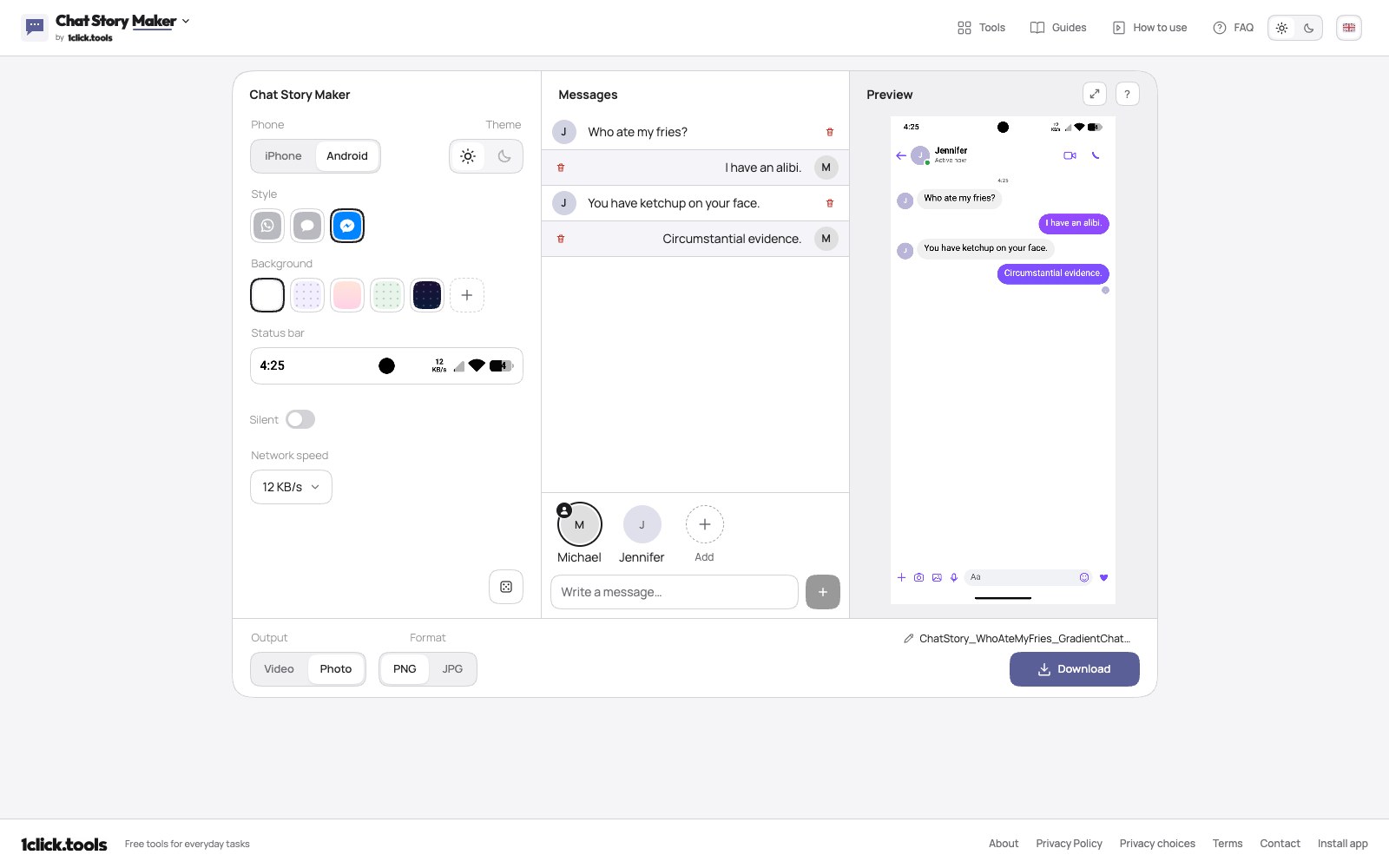
Keep the default Michael and Jennifer names and four messages. Michael is the first character and owner, so his replies appear on the right. Choose one of the three Style tiles in the left column, below Phone: Green chat, Bubble chat or Gradient chat. The active tile is colored and the others are gray. Changing the design preserves names and messages. Every output is a fixed 1080 × 2340 portrait; there is no separate size selector.
Start with the first chat story walkthrough to recreate the sample.
Compare the three bubble layouts
Green chat has a white header with the contact’s status, a quiet patterned background, bubbles with a small pointed tail on the first message of each run, and the time and read ticks inside each bubble. Bubble chat has a centered avatar and name, gray incoming and blue outgoing bubbles with curled tails on the last message of each run, and Delivered under your last message. Gradient chat has an Active now header, rounded bubbles whose joined corners tighten in a run, outgoing bubbles that shift from violet to blue down the screen, and a small seen avatar. Each style has a light and a dark screen. In a one-to-one chat every design shows only the other person in the header and no names on messages, like the real apps. With more than two participants, non-owners have their names and initials or photos on the left, while the first character remains on the right without a name.
Choose Video or Photo
Video comes first under Output in the bottom bar and is selected by default. Choose MP4 or WebM under Format for typing animation and message reveals. Photo captures the complete conversation at once and offers PNG or JPG. PNG preserves the rendered pixels; JPG uses lossy compression at a fixed quality setting. There is no image-quality slider. File size depends on the conversation, design, format and browser, so compare actual downloads.
Choose the phone and status bar
Phone switches between an iPhone screen (status bar around a camera island, battery with the number inside, signal bars, home indicator and iPhone-like keyboard, set in the free Inter font) and an Android screen (punch-hole camera, signal triangle and Wi-Fi beside a horizontal battery with the number inside, as on current Android phones, gesture bar and Android-like keyboard, in the free Roboto font); Theme switches light and dark. Under them, the status bar is drawn exactly as in the preview and you change it right on the bar. Click the clock for a 24-hour time picker; in Green chat the message times count up to it. Click the battery for its level and the Charging bolt. Click the signal bars (or Android triangle) to light one more, the Wi-Fi or network name for the next network (Wi-Fi, 5G, LTE, 4G, 3G). On Android, choose the Network speed under the bar (Off to start). The Silent switch under the bar turns silent mode on, which shows a bell with a slash beside the clock on iPhone or before the network icons on Android. The clock rolls, new bars grow in, the battery counts and the bolt pops in as you go. The die in the bottom-right corner of the panel fills the bar at random, with a light shine sweeping across it. To watch the result larger, select the expand button beside ? above the preview.
Add typos to the owner’s typing
Typos in the bottom bar (on by default) makes the owner sometimes hit a neighbouring key, type on a little, pause, delete back and retype, as people do; the sent message is always your text. Seed decides where the typos fall: type another number to try others. A seed always gives the same typos, so the preview and the download match.
Set video speed and audio
Choose Slow or Fast under Speed in the bottom bar; downloaded video follows the preview timing. Longer messages take longer to type. The owner’s draft is visible in the bottom field; other people show typing dots. The Sound switch includes or excludes both typing and notification sounds in the download. The toolbar’s speaker under Preview is a separate listening control and starts muted. If Sound is off, preview audio is unavailable too.
Review playback and export support
The toolbar under Preview pauses, resumes, scrubs, steps between messages and loops the preview. Edits and setting changes restart playback. Format offers only what the current browser can record with the current Sound setting; it does not convert an existing video. Keep the tab visible while the Download button fills with recording progress. Select the button again to cancel. If video with sound is unavailable, try turning Sound off, another browser or Photo.
Check the fit after switching designs
Designs reserve different amounts of room for names, bubbles and controls. Long messages wrap and longer conversations shrink to fit, keeping the owner on the right and everyone else on the left. If a design cannot fit the conversation legibly, shorten or remove messages. The 30-message editor limit does not mean 30 long messages will fit one screen. Use the filename pencil for a custom name; changing the filename extension does not select a different encoder.
To correct or shorten the story, follow the character, inline editing and deletion example.
Understand the fictional design
These are original drawings inspired by chat interfaces, not connected messaging accounts. Dates, online status and delivery marks are decorative. A delivery or seen indicator appears only after a final outgoing message in designs that use it. The tool does not read or send real messages and is not affiliated with the messaging brands. Rendering and recording happen in the browser. Your work stays in this browser through a reload and when you come back; under Keep my work in Privacy choices you can keep it only until you close the tab, not keep it at all, or delete it.