A little guidance
How to make custom Would You Rather questions
Write up to 50 A/B questions, reorder them, choose a built-in photo or illustrated design and download cards. Follow a two-question example with a real PNG export.
Real example: two custom questions and the Photo design
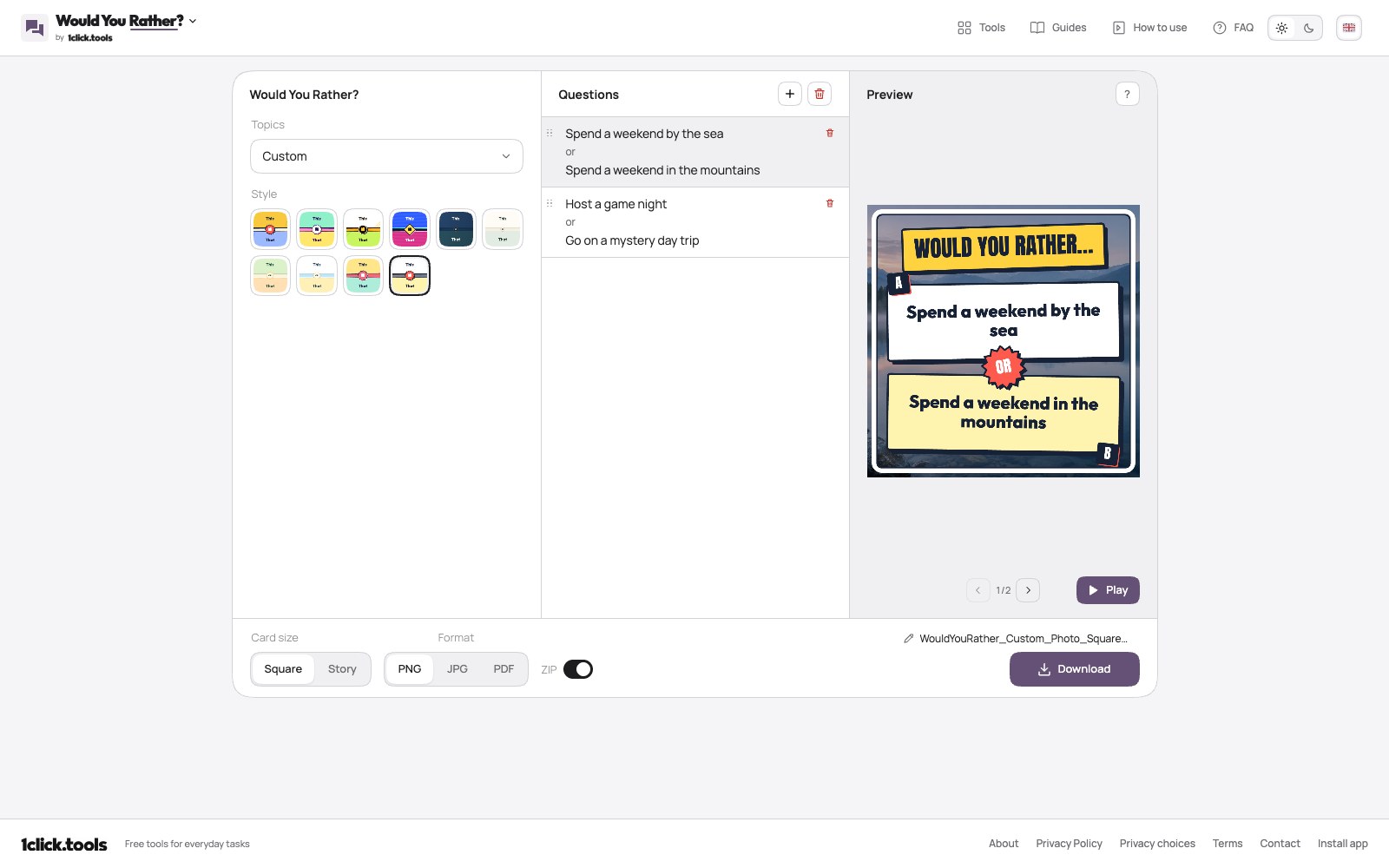
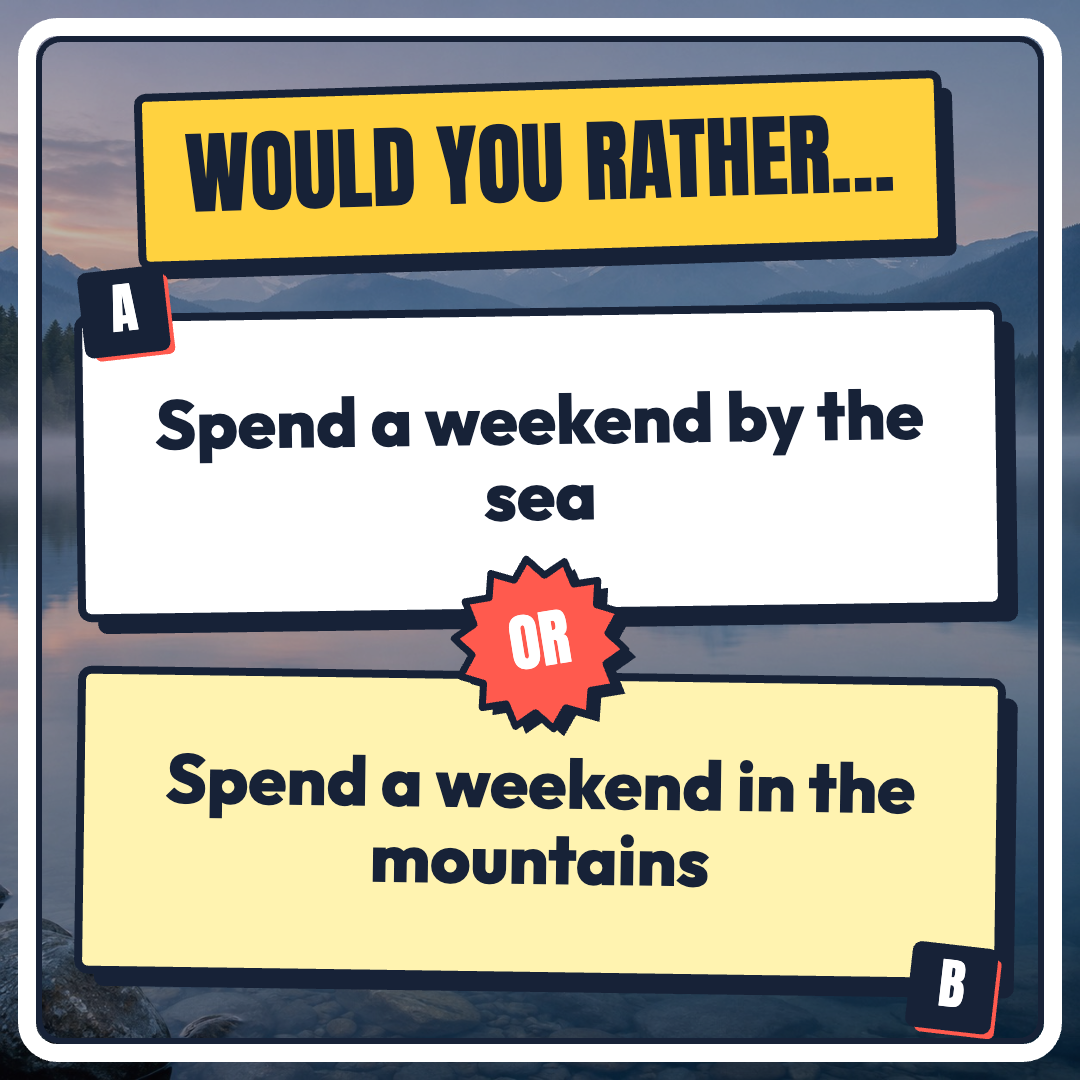
We selected Custom in Topics, added the two pairs through new rows opened with +, moved the sea/mountains question to first position, and selected the built-in Photo design. Square, PNG and ZIP on produced a two-image archive; the PNG below is its unchanged first entry.
Start with these files
- Download the two A/B question pairs375 bytes
Compare the actual downloads
| Item | Role | Actual result |
|---|---|---|
| Custom question list | Sea / mountains first; game night / mystery trip second | 2 questions after reordering |
| Photo design | Built-in Alpine background | Selected in Style |
| would-you-rather-custom-photo.png | WouldYouRather_Custom_Photo_Square_22.11.2026_01.png | 1080 × 1080 · 577,297 bytes |
The text file is a prepared reference, not a tool import or export. The PNG is an unchanged first entry from the real two-card ZIP under a guide filename. Its 1080 × 1080 dimensions were checked by reopening it.
Repeat this example
- Choose Custom in Topics. Select + beside Questions and copy each pair into the new row, pressing Enter between choices and after choice B. Add game night first and sea/mountains second.
- Move question 2 to the top using its drag handle, or focus that handle and press Home.
- Choose the Photo thumbnail, then Square, PNG and ZIP on, and select Download. Open the first image in the two-card archive.
Check your download
The first PNG asks Spend a weekend by the sea / Spend a weekend in the mountains. The built-in photograph fills the card background. The second custom question is the archive’s second image.
A common mistake
Selecting + opens the editable row; press Enter after both choices to add the pair. Each question’s bin removes only that question, while Trash beside + asks before clearing the list.
Make custom question cardsSources and credits
Would You Rather example questions. Original topic and custom choices entered in the actual tool. Screenshots and downloads were captured from a real browser session.
Add both choices in Custom
Choose Custom, the first option in Topics. It starts with its own empty list. Select + beside the Questions title to open a new row, type Choice A, press Enter, then type Choice B and press Enter again. Both choices must contain text. Each accepts up to 160 characters, and the custom list holds up to 50 questions. The next empty row stays available while you enter pairs; Escape closes it.
Prefer ready-made choices? Start with the topic card and ZIP guide.
Prepare the two example questions
The downloadable text sample is a reference to copy from, not an import file. Add Host a game night / Go on a mystery day trip first. Add Spend a weekend by the sea / Spend a weekend in the mountains second. Each completed new row appends one pair to Custom. Switching to another topic keeps the custom list in this tab.
Reorder and remove questions
Move the second pair above the first using its drag handle. You can also focus Move question 2 and press Home. Click a row to preview it; the selected question follows its new position when reordered. A row’s bin removes one pair, while Trash in the header asks before clearing the list. After the example move, the sea/mountains question is first and becomes image _01 in the export.
Choose the built-in Photo design
Select Photo under Style. Its built-in Alpine photograph fills the canvas, with the answers on two sticker cards. There is no background-upload control in the current tool; the other nine designs provide illustrated and editorial alternatives. Your questions stay unchanged when you switch designs.
Export the set
Choose Square, PNG and ZIP on, then Download to save both custom questions in their current order and design. The worked example supplies the unchanged first image extracted from that real ZIP under the guide alias would-you-rather-custom-photo.png. Open it to check the crop, spelling and text contrast. Choose PDF instead for one two-page file, or turn ZIP off for two separate images.
Use the same design while playing
Play in the pager row uses the selected style, including the Photo design’s background, answer colors and font. It always starts at question 1, regardless of which card was previewed, and continues through the list. Your custom questions remain in the current browser tab; votes belong to the current game.
See how to record votes and review final results for your question set.