A little guidance
How to create a Wi-Fi QR code for guests
Share a guest network without asking visitors to type its password. Enter the network name, security and password, then check the downloaded Wi-Fi code.
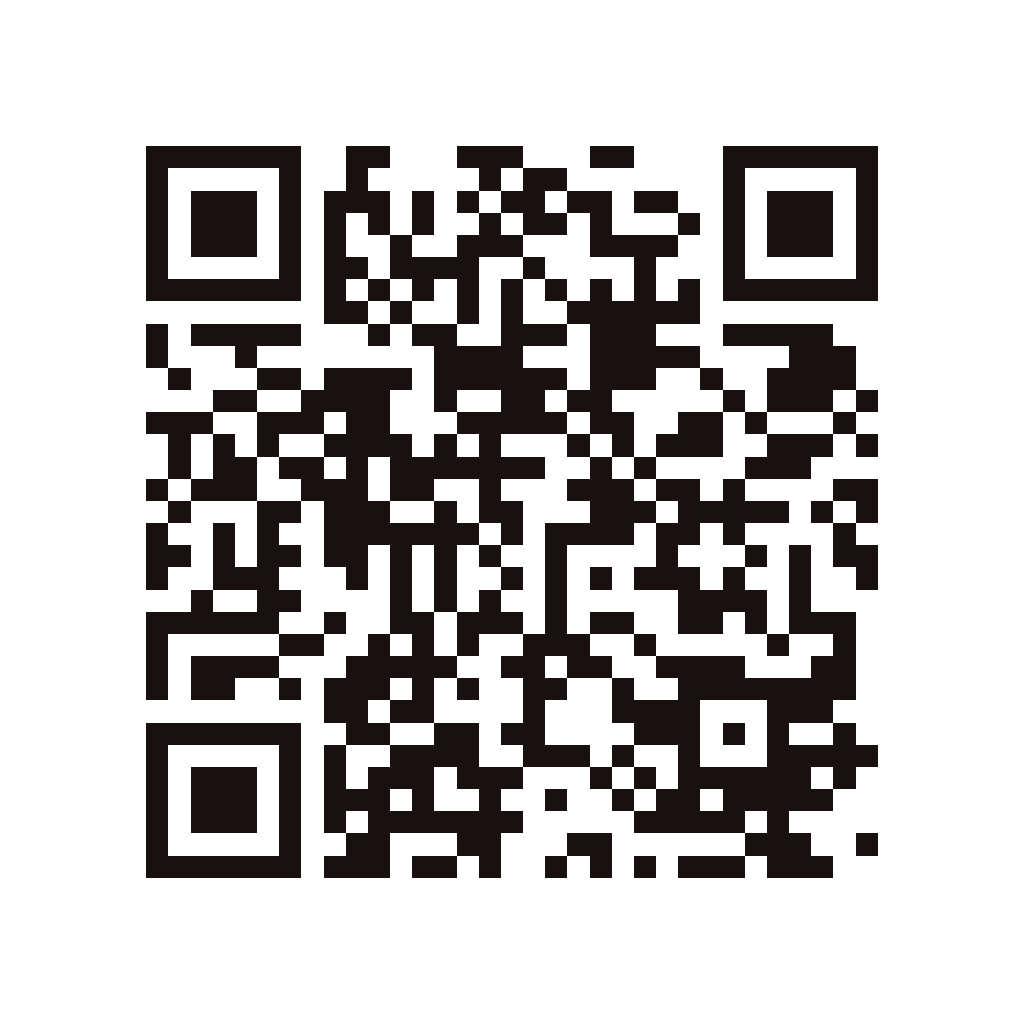
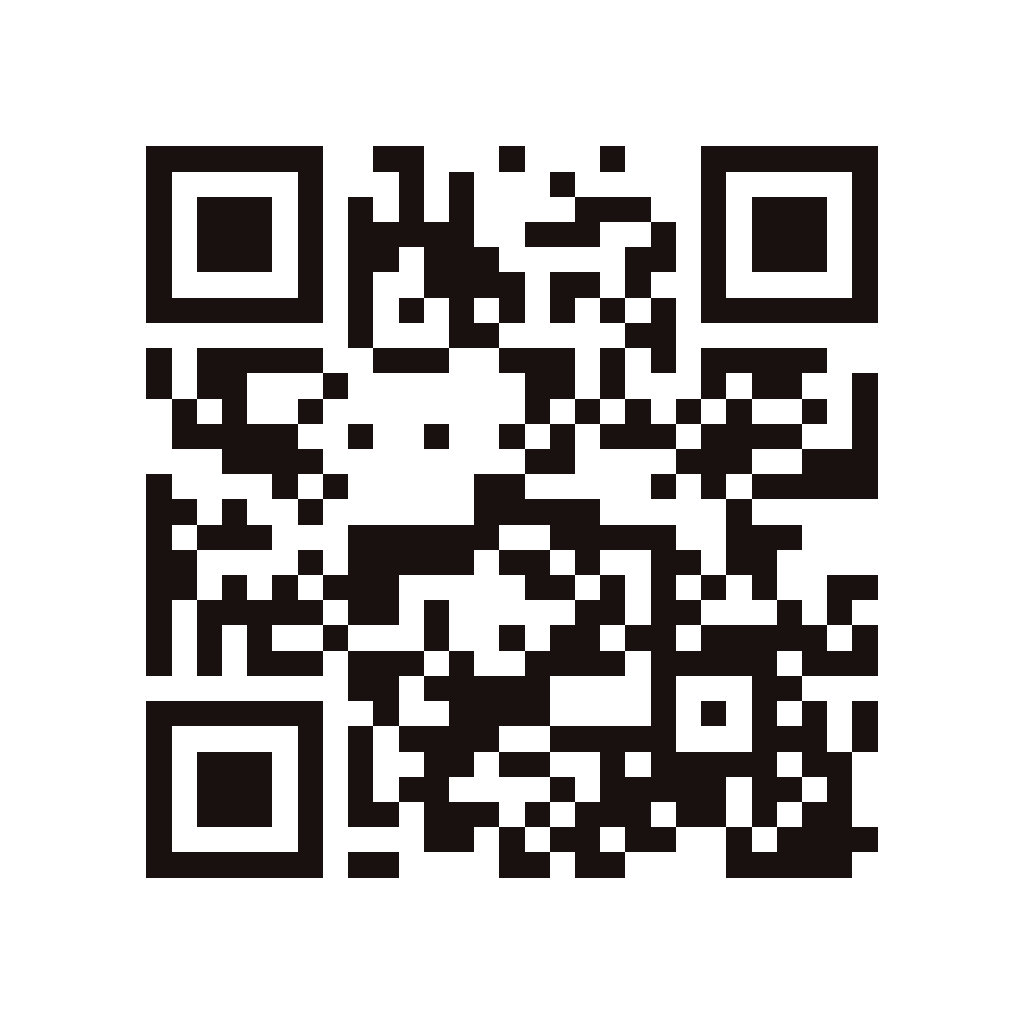
A fictional guest network, with a password and without one
We created Studio Guest with WPA / WPA2-Personal and the fictional password guest-example-2026, then created Studio Open using Open network. Both had Hidden network unchecked. PNG and SVG exports were decoded for each.
Compare the actual downloads
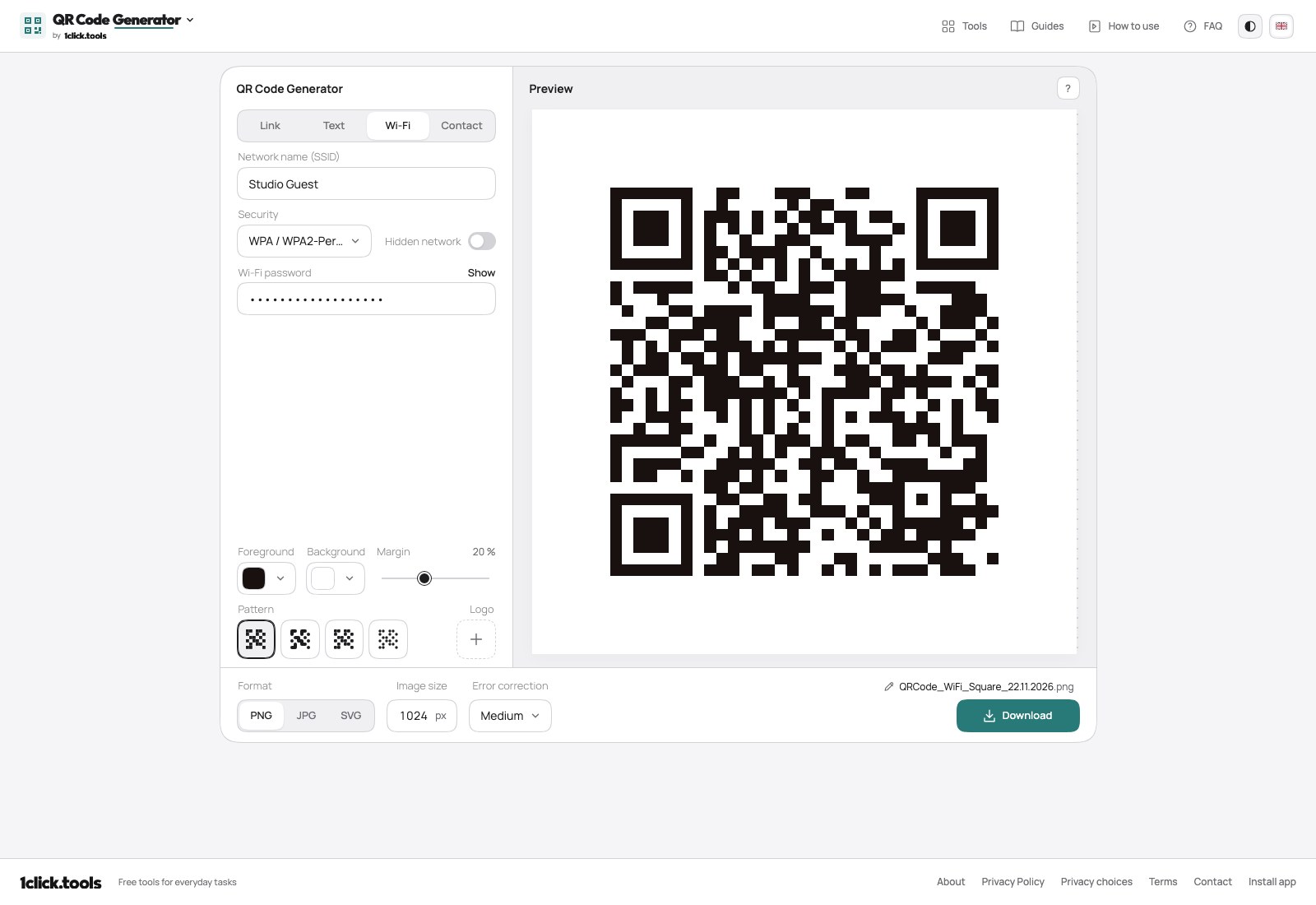
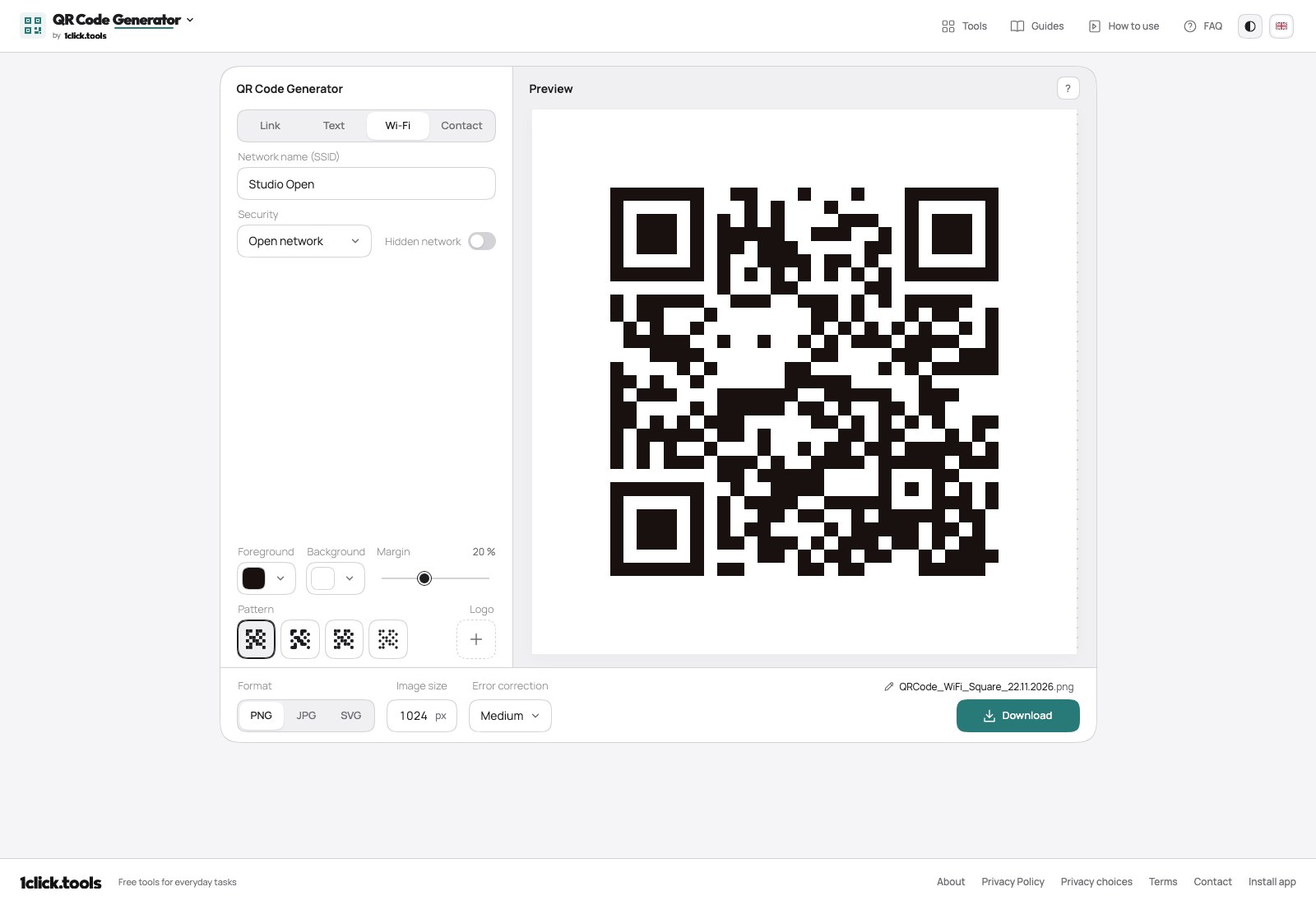
| Field | Password-protected example | Open-network example |
|---|---|---|
| Network name | Studio Guest | Studio Open |
| Security | WPA / WPA2-Personal | Open network |
| Password | guest-example-2026 | No password field |
| Hidden network | Unchecked | Unchecked |
| Decoded security field | T:WPA | T:nopass |
These are fictional network details. The sample images do not connect to a real guest network. Anyone can recover a password from a Wi-Fi QR code.
Repeat this example
- Select Wi-Fi. Enter Studio Guest and guest-example-2026, leaving WPA / WPA2-Personal selected.
- Under Logo, select Remove logo. Leave Hidden network unchecked and download PNG or SVG.
- For the second example, change the name to Studio Open and Security to Open network, then download again.
Check the decoded result
The protected example decodes to WIFI:T:WPA;S:Studio Guest;P:guest-example-2026;H:false;; The open example decodes to WIFI:T:nopass;S:Studio Open;H:false;; A real connection still needs a compatible reader, the actual network and correct credentials.
A common mistake
Matching the password but misspelling the network name, or choosing a different security type from the router, does not produce the intended connection.
Create your own QR codeSources and credits
Actual QR Code Generator sessions. Files are unchanged browser exports saved under descriptive guide names. Both the PNG and a raster rendering of the exported SVG were independently decoded with jsQR. This verifies the samples, not physical printing, phone contact imports or real Wi-Fi connections.
ZXing: barcode content formats. Describes URL, plain-text, Wi-Fi and contact payload conventions. What a phone does after scanning depends on its reader.
Use the exact guest-network details
Find the network name and password in your router settings or the information supplied by the network owner. Use a guest network if that is what visitors should join. The generator does not create a network, change your router or check whether the password works. The sample Studio Guest network and its password are fictional.
Fill in the Wi-Fi fields
Select Wi-Fi. Enter Network name (SSID), choose Security and enter Wi-Fi password. WPA / WPA2-Personal is available alongside WEP and Open network; match the existing network settings. Open network has no password field. Only check Hidden network if the network actually hides its name. Enterprise authentication is not supported.
Download a code for the welcome card
Keep a dark Square pattern on white and at least the default 20% Margin. Rename the file if needed, then download PNG for a welcome document or SVG for a print layout. The QR payload contains the Wi-Fi details directly; you do not need to type WIFI: punctuation yourself. Changing a router password later means creating and distributing a new code.
Before printing your guest card, check formats, margins and print testing.
Test joining the real network
Scan your own downloaded code with a device that is not already connected and is within range. A compatible scanner can offer to join the encoded network, but the exact prompt and support vary by device. Confirm that the device joins the intended guest network and can reach the services guests need. Software decoding of the sample verifies its text, not a real router connection.
Share it only where the password belongs
A Wi-Fi QR code is readable data, not an encrypted password vault. Someone with a copy can recover the network name and password. Treat the printed card or downloaded image like the password itself. The tool processes the details in your browser, but sharing the resulting image shares those details.