A little guidance
How to make printable bingo cards
Make bingo cards from editable topics, choose a grid and design, and print or download an A4 PDF or card images. Follow a five-card example with real files.
Real example: five Friends Bingo cards on two PDF pages
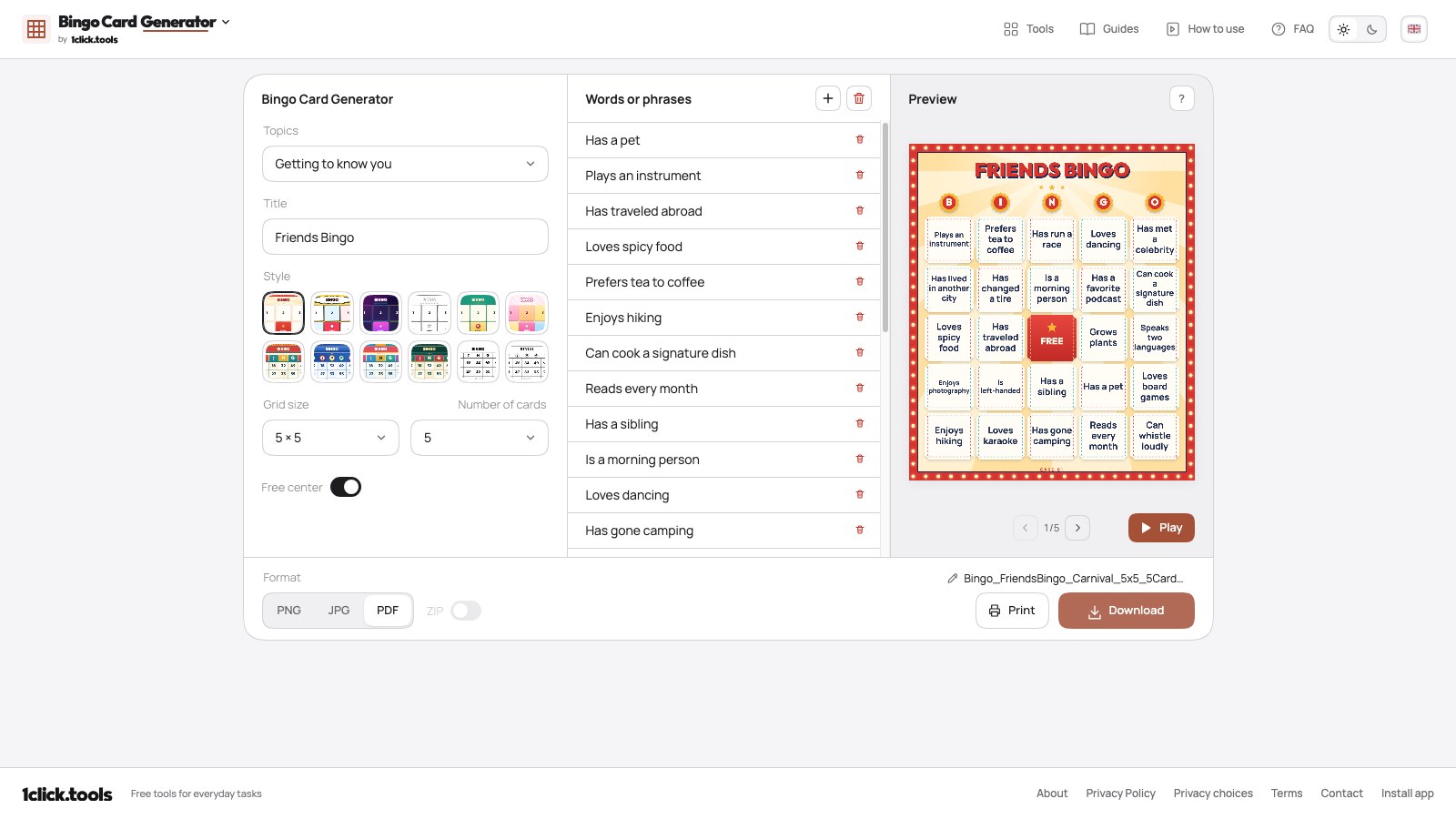
We kept Getting to know you, Friends Bingo, the 5 × 5 grid, Carnival and Free center on. We changed Number of cards from 10 to 5, downloaded the automatic four-cards-per-page PDF, and then downloaded the same set as a ZIP of PNG images.
Compare the actual downloads
| Output | Settings | Measured download |
|---|---|---|
| A4 portrait PDF | 5 cards · automatic 4 per page | 2 pages · 2,165,746 bytes |
| PNG images in a ZIP | Same 5-card set · 1400 × 1650 each | 5 images · 4,407,987 bytes |
The PDF was reopened and contains 2 A4 portrait pages at 595.28 × 841.89 points. Its browser filename was Bingo_FriendsBingo_Carnival_5x5_5Cards_22.11.2026.pdf. The ZIP contains five numbered PNG files, each decoded at 1400 × 1650 pixels. Descriptive guide filenames preserve the exported bytes.
Repeat this example
- Open Bingo Card Generator and keep Getting to know you, Friends Bingo, Carnival, 5 × 5 and Free center on.
- Set Number of cards to 5. Choose PDF and Download; the five cards are arranged automatically on two A4 pages.
- Switch Format to PNG, leave ZIP on and download the same five-card set. Open the PDF and extract the images.
Check your download
The PDF has four cards on page one and one on page two. The ZIP contains Bingo_FriendsBingo_Carnival_5x5_5Cards_22.11.2026_01.png through Bingo_FriendsBingo_Carnival_5x5_5Cards_22.11.2026_05.png. Each card has 24 prompts and one free center.
A common mistake
There is no Print layout dropdown. PDF and Print choose one, two or four cards per A4 page automatically; image exports always contain one card per image.
Make a printable bingo setSources and credits
Original Bingo Card Generator examples. Screenshots show the actual tool. PDFs, PNGs and ZIP archives are unchanged browser downloads, or unchanged PNG entries extracted from those ZIP files, saved under descriptive guide filenames. The Space Bingo text file is a copy reference, not an import file.
Start with an editable topic
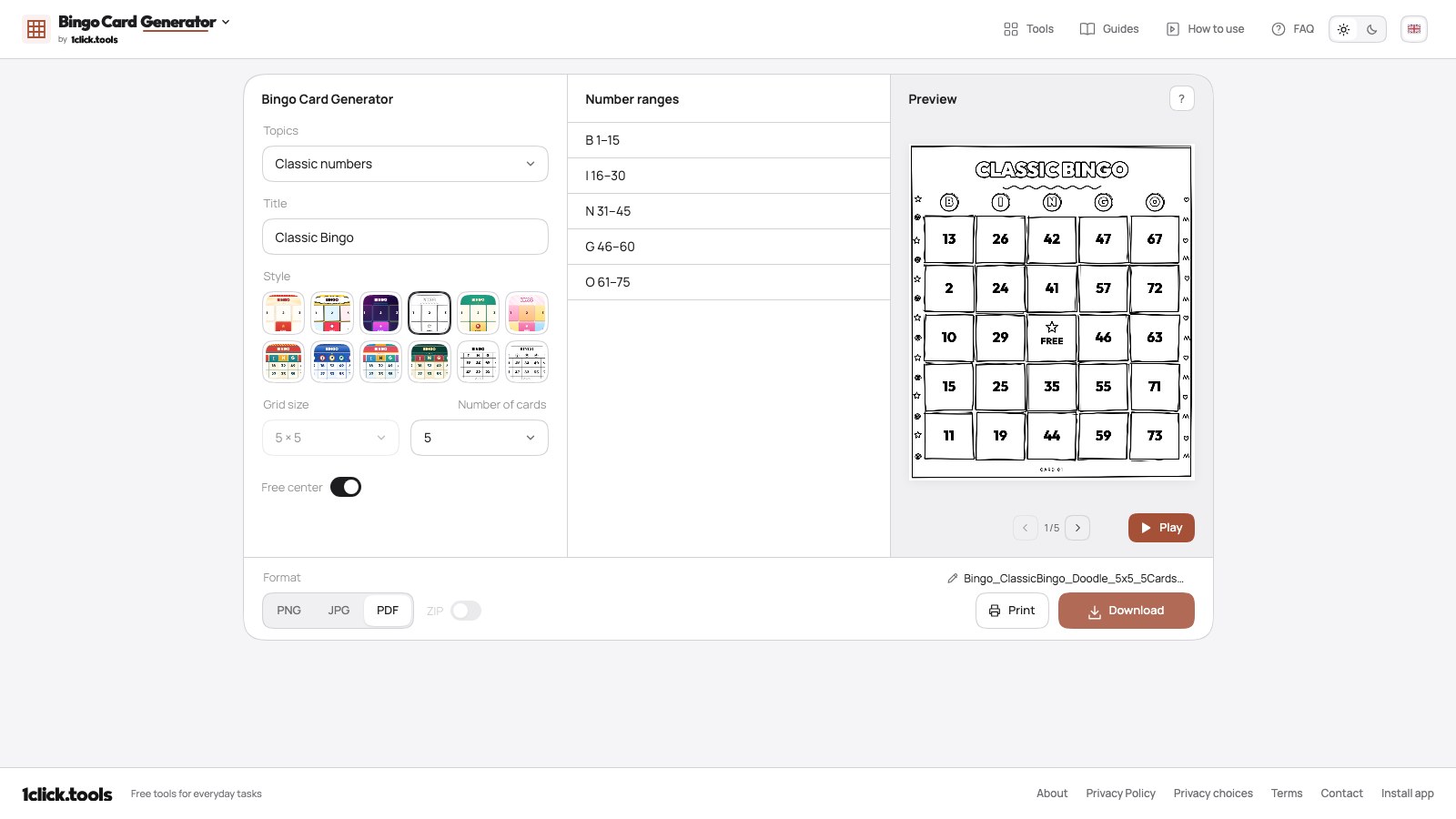
Bingo Card Generator opens on the Getting to know you topic, with Friends Bingo as the title, a 5 × 5 grid, ten cards, Carnival and Free center on. Topics lists Custom first, then Family gathering, Animals, Science words, Meeting bingo, Icebreaker, Classic numbers and the other ready-made topics. Choosing a topic loads its original entries and title. Classic numbers uses the traditional 75-number rules.
Make the words fit your group
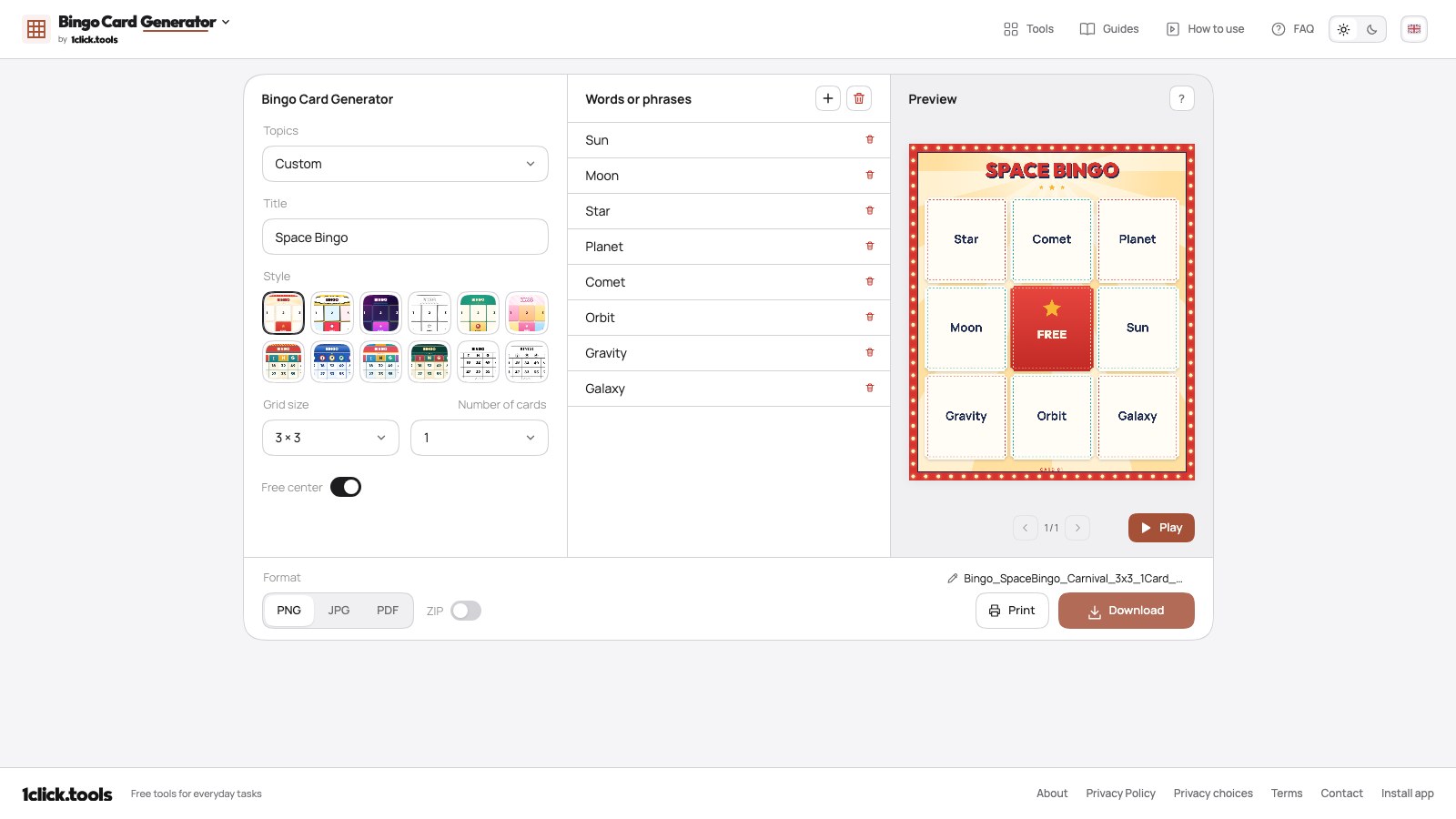
The entries appear in the middle Words or phrases column, one row each, for topics and Custom alike. Click any row to change its text in place, or use the small red bin in its top-right corner to delete it. Select + in the list header to open a new row, type or paste entries separated by commas or lines, and press Enter. Exact repeated entries are kept once. The red Trash button beside + asks for confirmation before clearing the list; your topic, title and design stay unchanged. A 5 × 5 card with a free center needs at least 24 entries; without it, the card needs 25. Extra entries are shuffled into different subsets on the cards.
For a list written from scratch, follow the custom word bingo walkthrough.
Set the title and card design
Title and the twelve Style thumbnails are in the left Bingo Card Generator column. Keep Friends Bingo for the worked example, or type a title up to 60 characters. The designs are Carnival, Comic, Neon, Doodle, Lucky Balls, Candy, Retro Pop, Blue Ribbon, Rainbow Hall, Jackpot, Classic Ink and Ticket Press. Classic Ink and Ticket Press are designed for economical black-and-white printing. All designs appear in the preview, downloads and printed cards.
Choose the grid and quantity on the left
Grid size and Number of cards share a row in the left column; Free center is below them. Choose 3 × 3, 4 × 4 or 5 × 5 for word cards. Quantities are 1, 2, 5, 10, 20 or 30. For the worked example, keep 5 × 5 and Free center on, then change Number of cards to 5. Use the preview arrows to inspect the set.
Print or download an A4 PDF
The bottom bar has Format, ZIP, the filename, Print and Download. Select PDF for one A4 portrait file. PDF and Print automatically place four cards per page, or one or two larger cards when the set contains only one or two cards. Five cards therefore produce two pages. Print opens the browser print dialog with the same layout; Download saves the PDF. Cards are embedded images rather than editable document text.
Compare card designs, automatic print layouts and image downloads before distributing your set.
Keep image copies and your original list
Choose PNG or JPG under Format. With ZIP on, Download saves one ZIP containing numbered 1400 × 1650 images; with ZIP off, each card downloads as its own numbered image. The ZIP switch remains visible but is off and disabled for PDF. Automatic filenames combine the tool, title, design, grid, card count and date, such as Bingo_FriendsBingo_Carnival_5x5_5Cards_22.11.2026.pdf. Use the filename pencil to enter your own name. Generation and downloads happen in your browser; a reload keeps your work, but keep a separate copy of custom words.
Call a game with the printed cards
Select Play under the preview to open the caller game. Press Call, or Space, to draw a numbered ball for classic cards or a word ball for word cards. Bingo history is the default tab and shows called balls newest first; Called board lights up every call so far. Winning calls receive a BINGO ribbon after the tool checks your generated cards for a completed row, column or diagonal. Auto call is the chunky countdown switch beside Call and draws every four seconds. After a BINGO, Keep calling resumes an enabled Auto call. New game in the bottom-right corner clears the calls and starts with a fresh shuffle.