A little guidance
How to copy files between two folders in your browser
Select files in one File Commander panel and copy them into the folder open in the other panel. Existing files are never overwritten.
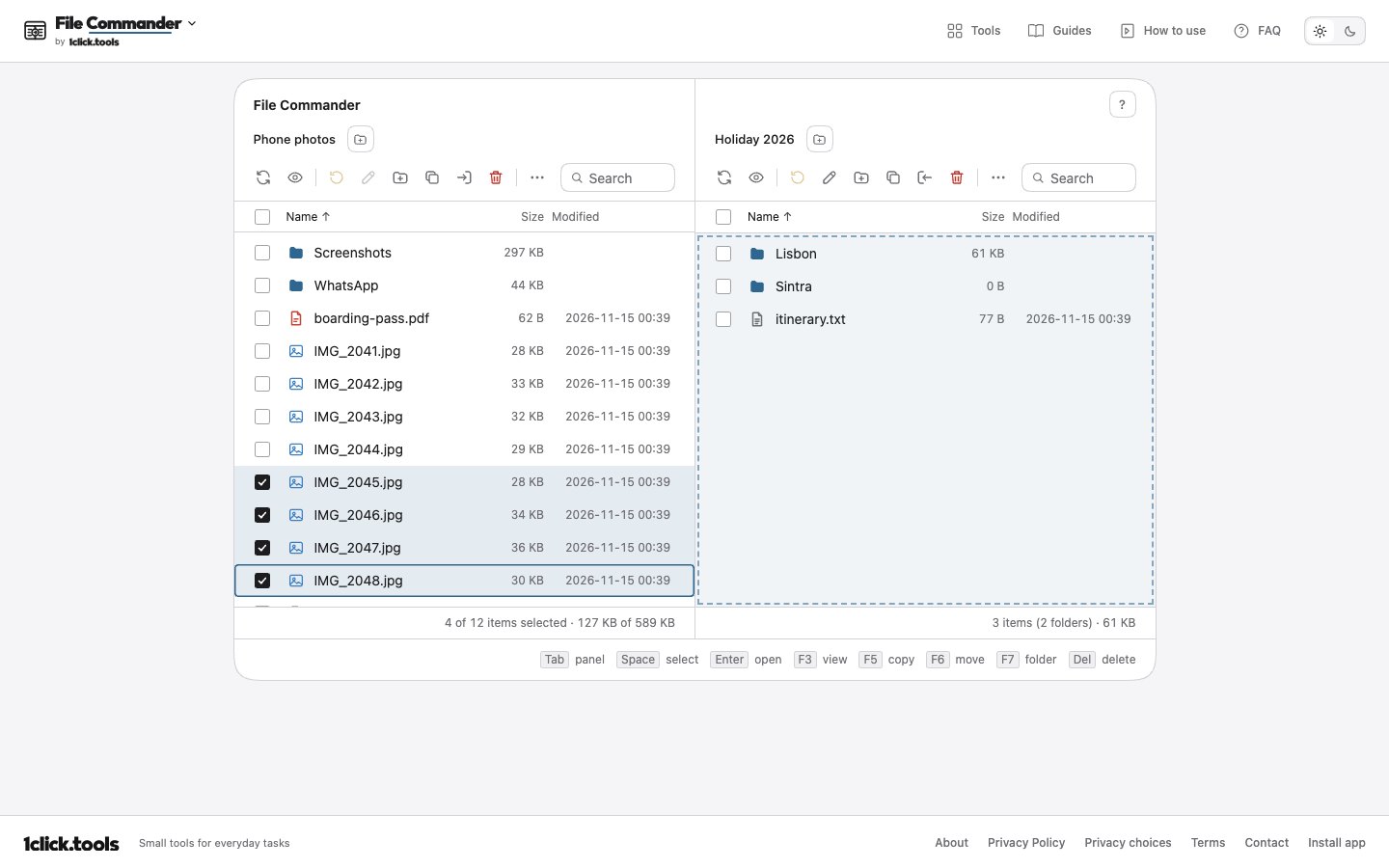
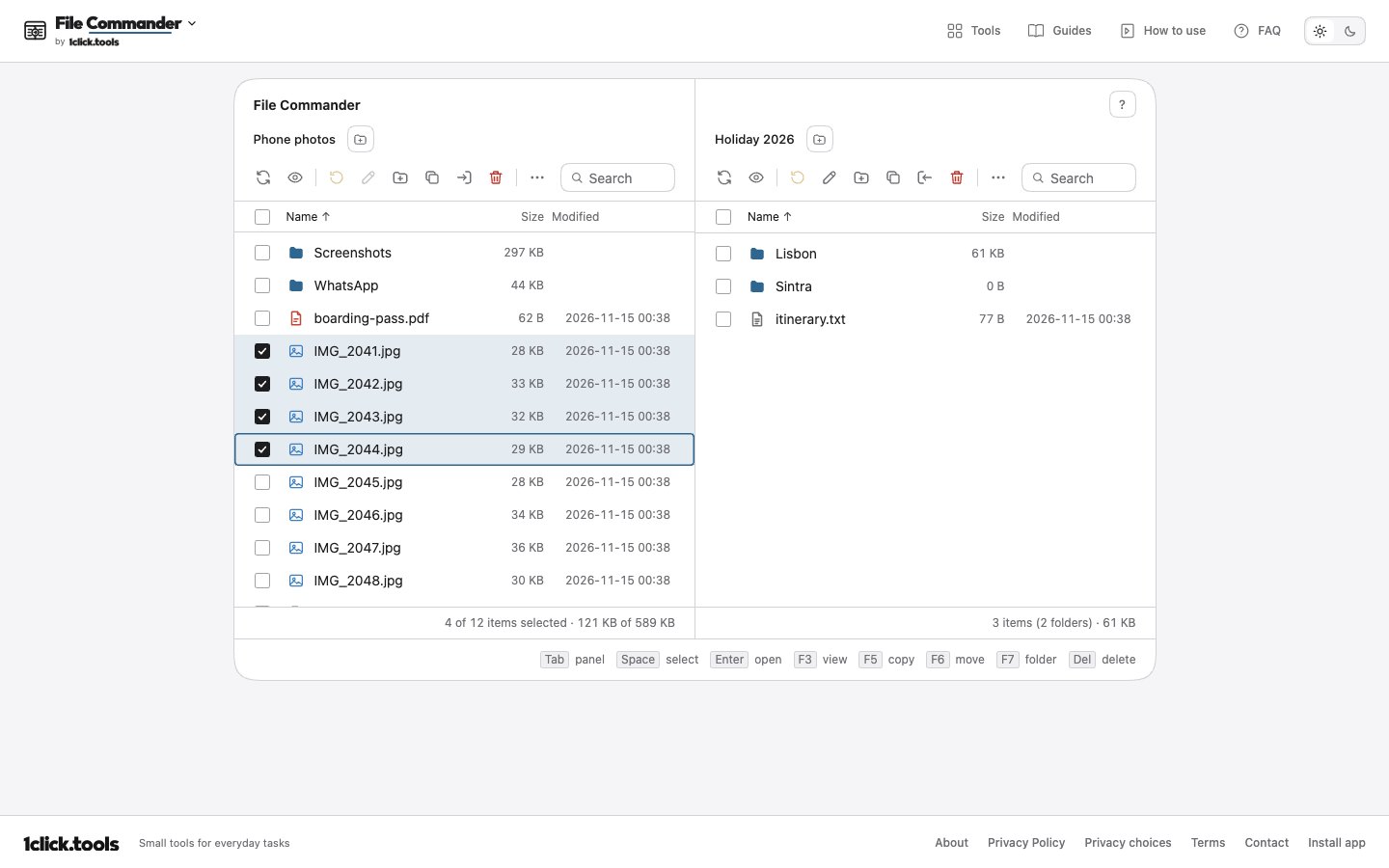
Copy four holiday photos into Holiday 2026
We selected IMG_2041.jpg to IMG_2044.jpg in Phone photos and copied them to the Holiday 2026 folder in the right panel.
| Step | Left · Phone photos | Right · Holiday 2026 |
|---|---|---|
| Before | 4 of 12 items selected · 121 KB | Lisbon, Sintra, itinerary.txt |
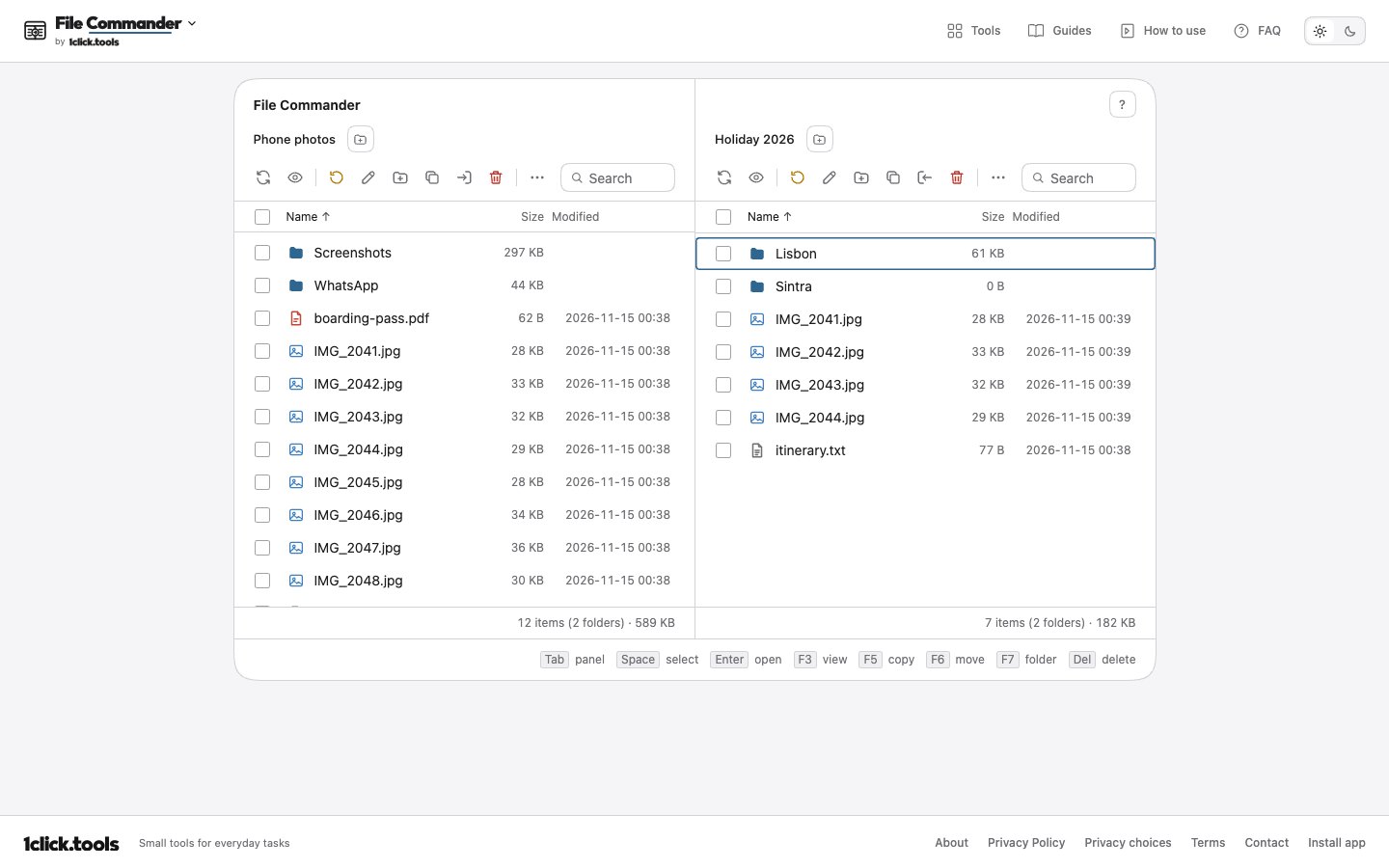
| Copy | Originals stay | IMG_2041.jpg to IMG_2044.jpg added |
| Same name already there | — | Copy gets a number, e.g. IMG_2041 (2).jpg |
Copies never replace existing files; a taken name gets a number instead.
Repeat this example
- Click IMG_2041.jpg, then Shift-click IMG_2044.jpg.
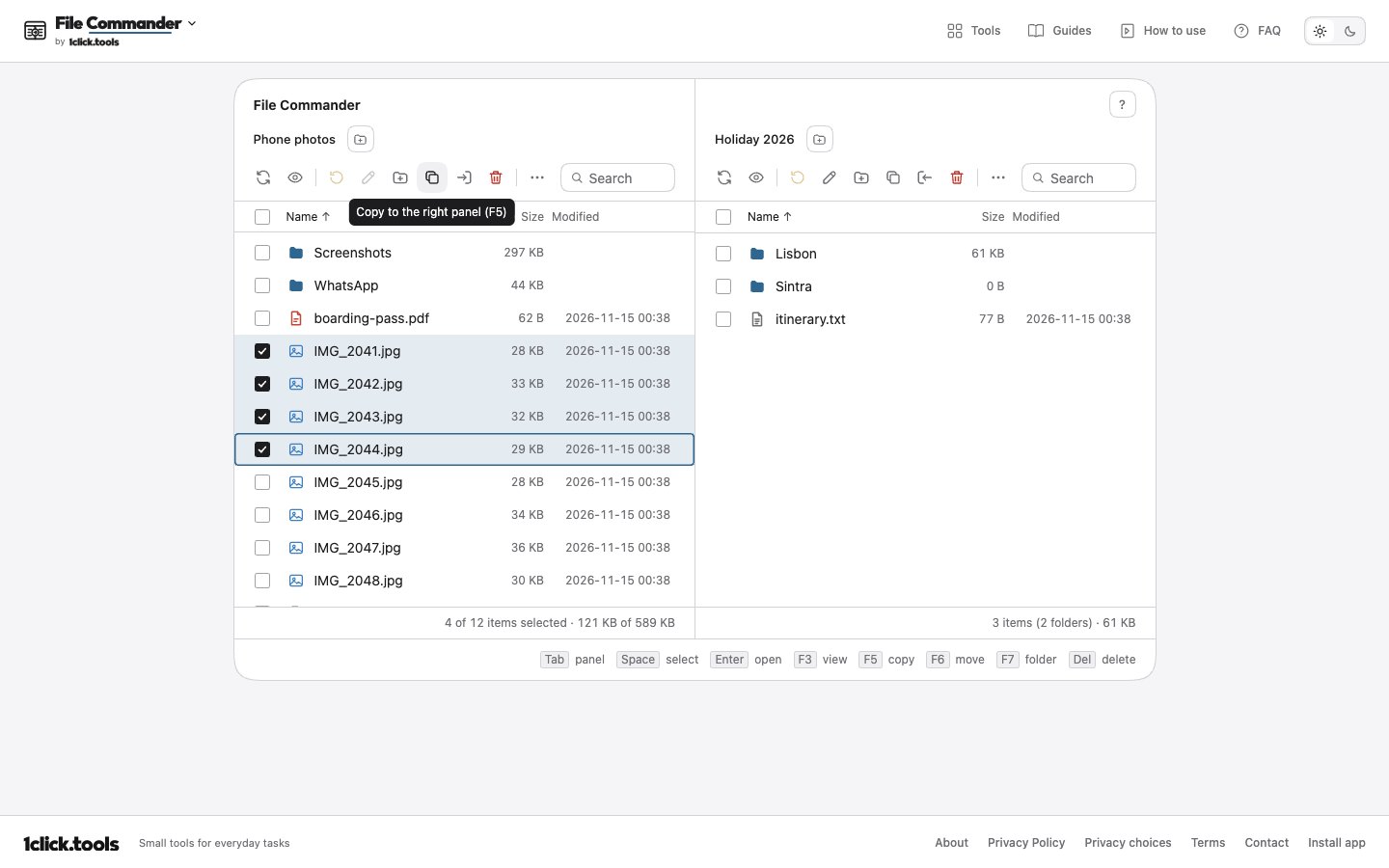
- Click the Copy icon in the left panel’s toolbar.
- Look at the right panel.
Check the result
The right panel lists the four photos with the same sizes as the originals, and the left panel still has them.
A common mistake
Clicking Copy in the wrong panel’s toolbar copies in the other direction. Use the toolbar of the panel you are copying from.
Open File CommanderSources and credits
Sample folders made for these guides. Phone photos and Holiday 2026 hold generated landscape pictures and short text files created for the screenshots. Every screenshot shows the real tool working on those files.
Open the source and the destination
Open the folder you are copying from in one panel and the destination folder in the other. In this example, Phone photos is on the left and Holiday 2026 on the right.
Select what to copy
Click the first file, then Shift-click the last to select a range, or tick the checkboxes. The bottom of the panel shows how many items are selected and their total size. With nothing selected, Copy uses the file under the cursor.
More ways to pick files are in the selection guide.
Click Copy
Copy is the two-sheets icon in the toolbar of the panel you are copying from; its tooltip tells you which panel the files go to. You can also press F5. Folders are copied with everything inside them, and a progress bar with Stop appears for large copies.
Check the other panel
The copies appear in the other panel straight away. If a file with the same name already exists there, the copy gets a number, such as IMG_2041 (2).jpg, so nothing is ever replaced. Changed your mind? Undo removes the copies.
Prefer dragging? See how drag and drop moves or copies files.