A little guidance
How to convert a PNG, JPG or WebP image to ICO
Save any PNG, JPG or WebP as a real .ico file in your browser, choose its size up to 256 × 256 pixels, keep transparency and name it favicon.ico.
A square logo and a photo of dice turned into icons
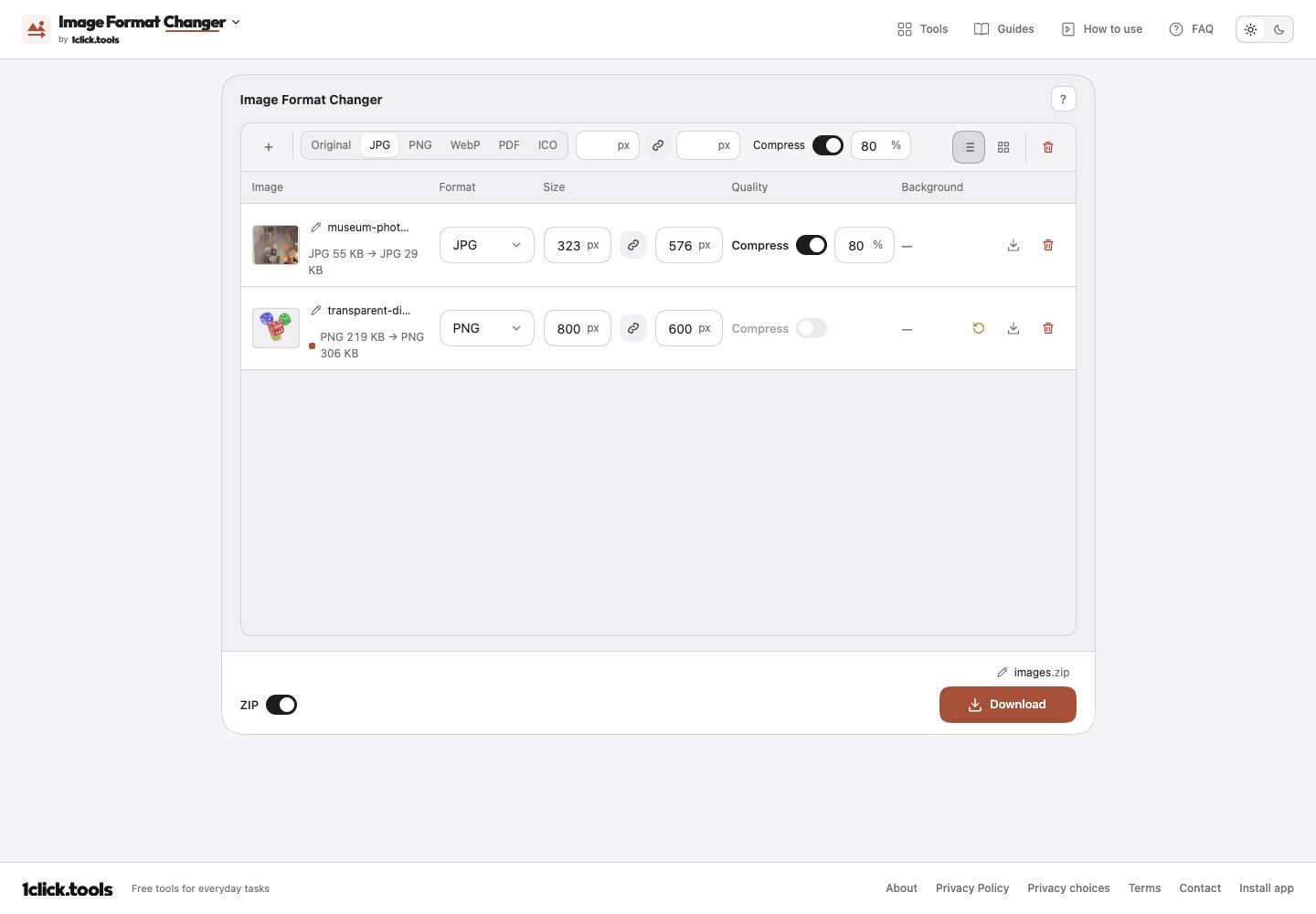
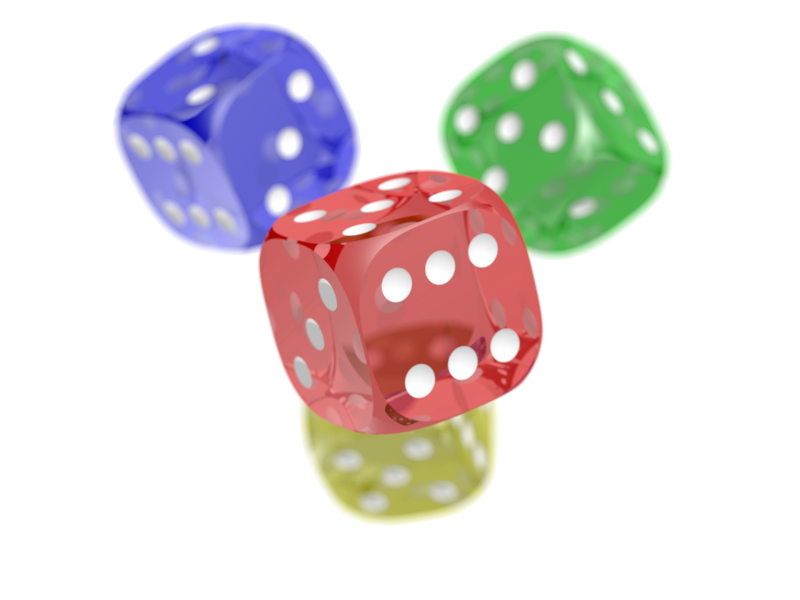
We added a 512 × 512 logo with transparent corners and an 800 × 600 PNG of dice and chose ICO in the toolbar at original size. Then we converted the logo again at 32 pixels wide and renamed it favicon.
Start with these files
- Square logo · 512 × 512 PNG16.6 KiB
- Transparent dice · 800 × 600 PNG219.3 KiB
Compare the actual downloads
| Source | Size setting | ICO download |
|---|---|---|
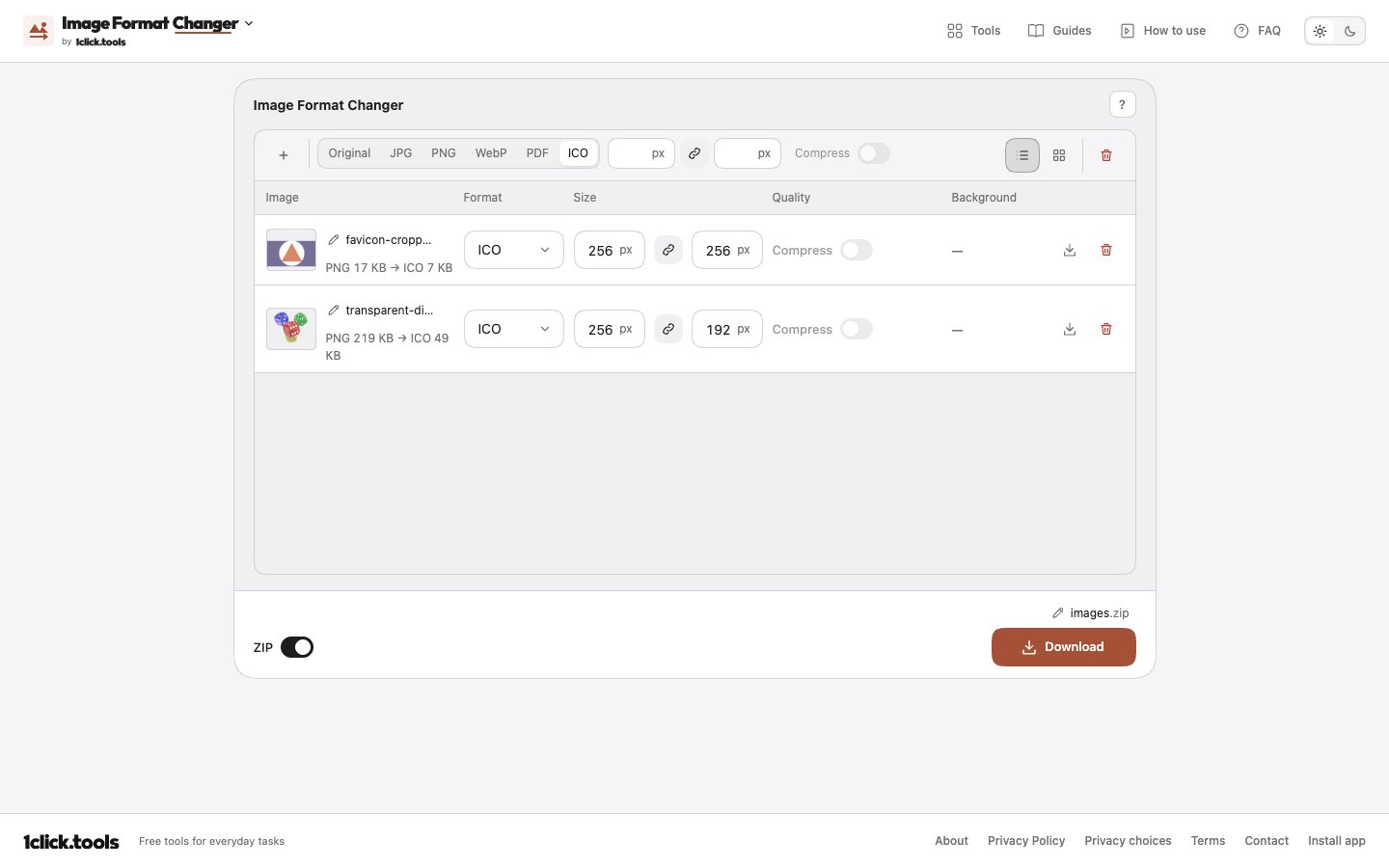
| favicon-cropped-512.png · 512 × 512 | Original size | favicon-cropped-512.ico · one 256 × 256 image · 7,394 bytes |
| transparent-dice.png · 800 × 600 | Original size | transparent-dice.ico · one 256 × 192 image · 49,916 bytes |
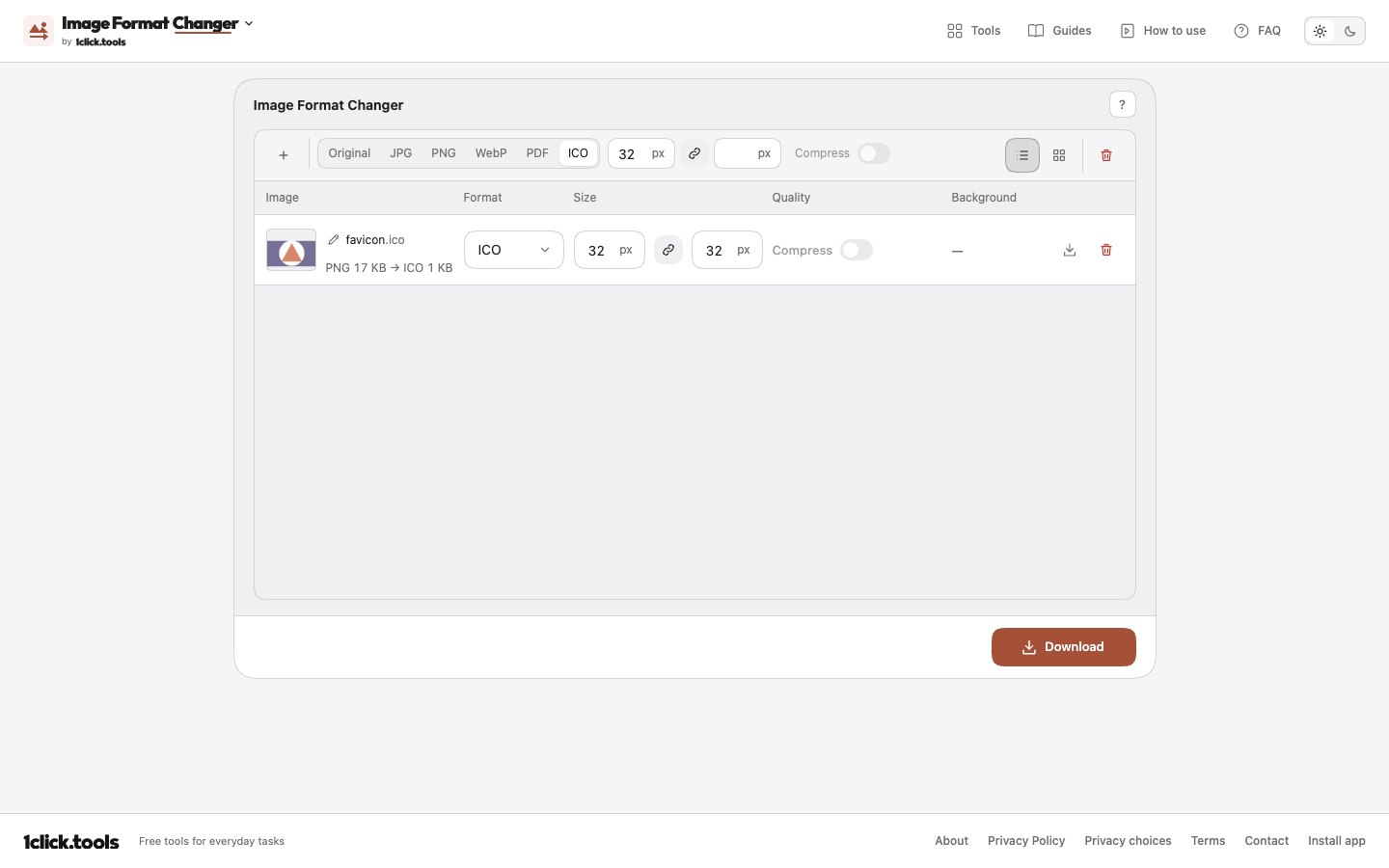
| favicon-cropped-512.png · 512 × 512 | Width 32, link on · renamed favicon | favicon.ico · one 32 × 32 image · 896 bytes |
Each ICO from Image Format Changer holds exactly one image. The dice ICO above is the real download from this run.
Repeat this example
- Add your image and click ICO in the toolbar.
- Leave the size empty for up to 256 pixels, or type a width such as 32.
- Click the row’s name to rename it if needed, then click the download icon in the row.
Check the result
The download ends in .ico, opens as an icon, and its corners are still transparent where the source was transparent.
A common mistake
Expecting several sizes in one file. This ICO has one size; for a favicon.ico with 16, 32 and 48 pixels, use Favicon & App Icon Generator.
Open Image Format ChangerSources and credits
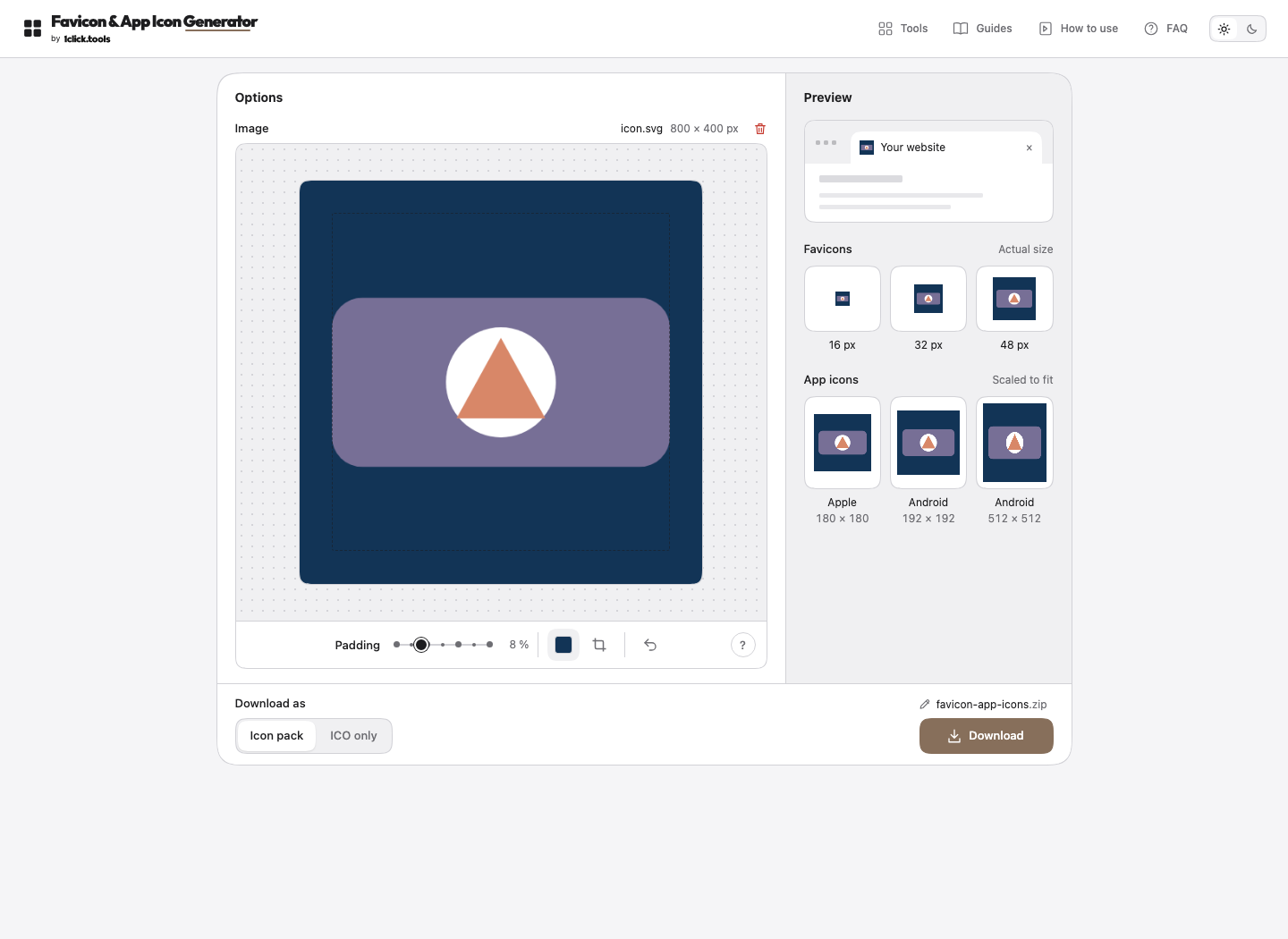
Square logo: original geometric sample artwork. Made for these guides; the 512 × 512 PNG is the cropped image from the Favicon & App Icon Generator example. Screenshots come from a real Image Format Changer run.
Dice image: Daniel G., Ed g2s and CyberShadow · CC BY-SA 3.0. The supplied PNG is unchanged. The ICO version is shared under the same license.
Add the image and choose ICO
Add a PNG, JPG, WebP or GIF to Image Format Changer and click ICO in the format buttons of the toolbar. Every image without its own settings becomes an icon; to convert just one image in a batch, choose ICO in that row’s Format menu instead. Compress turns off, because ICO stores its picture with lossless PNG encoding.
Converting to other formats in the same batch? See how to convert images without uploading.
Know what the ICO contains
Each download is a real .ico file with one image inside, never several sizes. It can be up to 256 pixels per side. At original size a larger picture is scaled down to fit: a 512 × 512 logo becomes 256 × 256 and an 800 × 600 photo 256 × 192, without stretching. Smaller sizes you enter are kept as they are.
Set the size and keep transparency
Type the size you need in the width field with the link on, for example 32 for a classic 32 × 32 favicon; a square source gives a square icon. A non-square image keeps its shape, so crop it square first, or unlink the fields and enter equal values if slight stretching is fine. Transparent pixels stay transparent; a JPG has none, so its background stays.
Download, or use the Favicon Generator
Click the name next to the row’s pencil and type favicon to download favicon.ico. Several images download together as separate ICO files in one ZIP while ZIP is on. If a website needs one favicon.ico holding 16, 32 and 48 pixel versions, plus Apple and Android icons, use Favicon & App Icon Generator instead.
For a multi-size favicon and app icons, follow the favicon and app icon pack guide.