A little guidance
How to create a favicon and app icons from an image
Turn a logo into favicon.ico, PNG app icons and a web manifest. Follow a real download example and install the files on your website.
One source image, a favicon and a complete icon pack
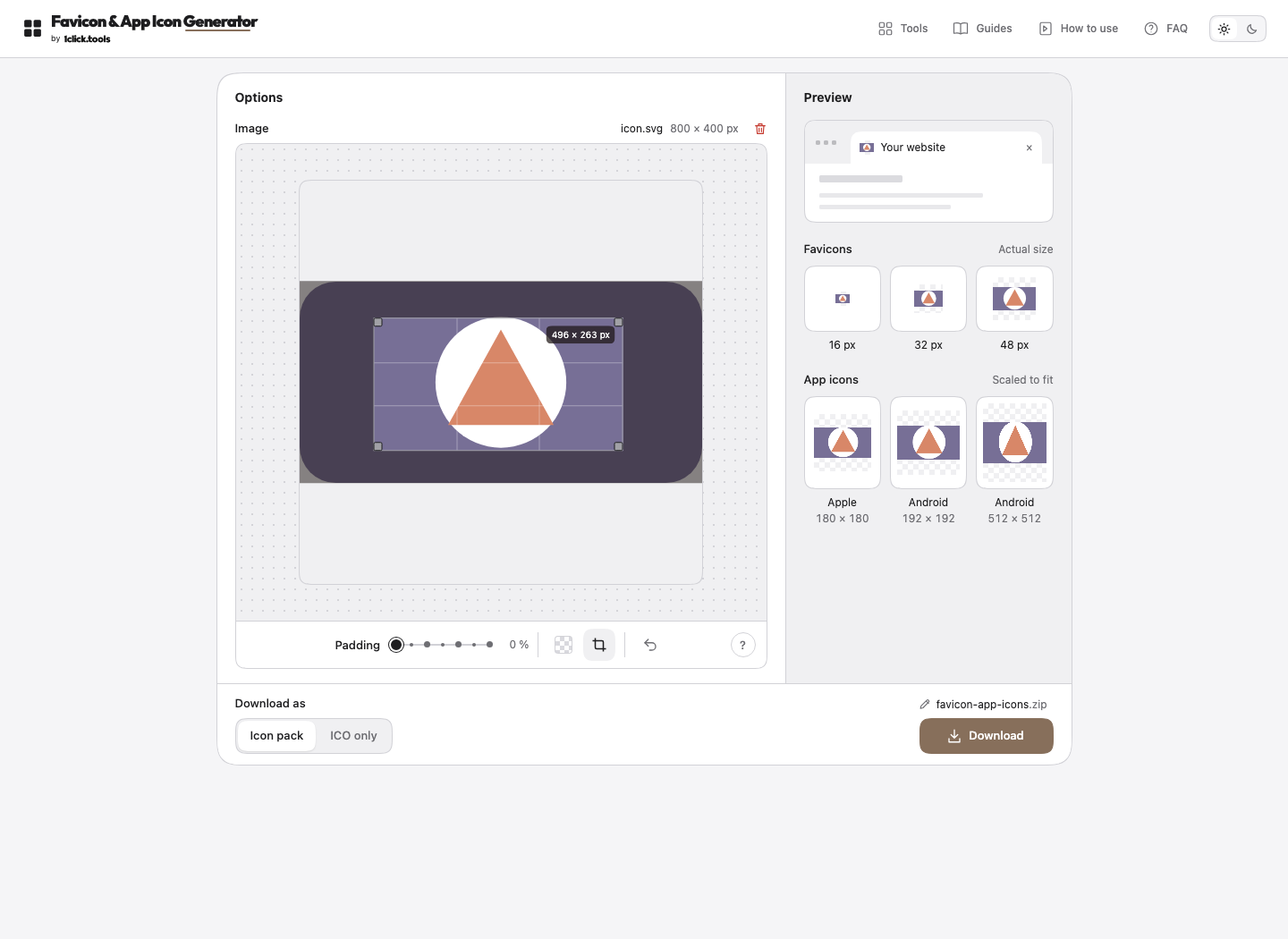
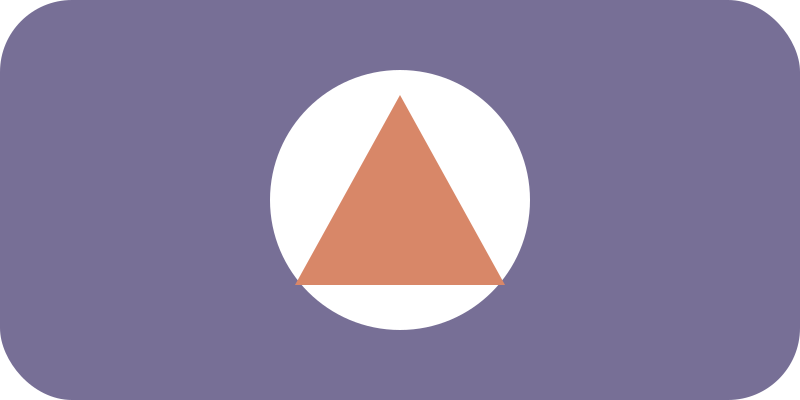
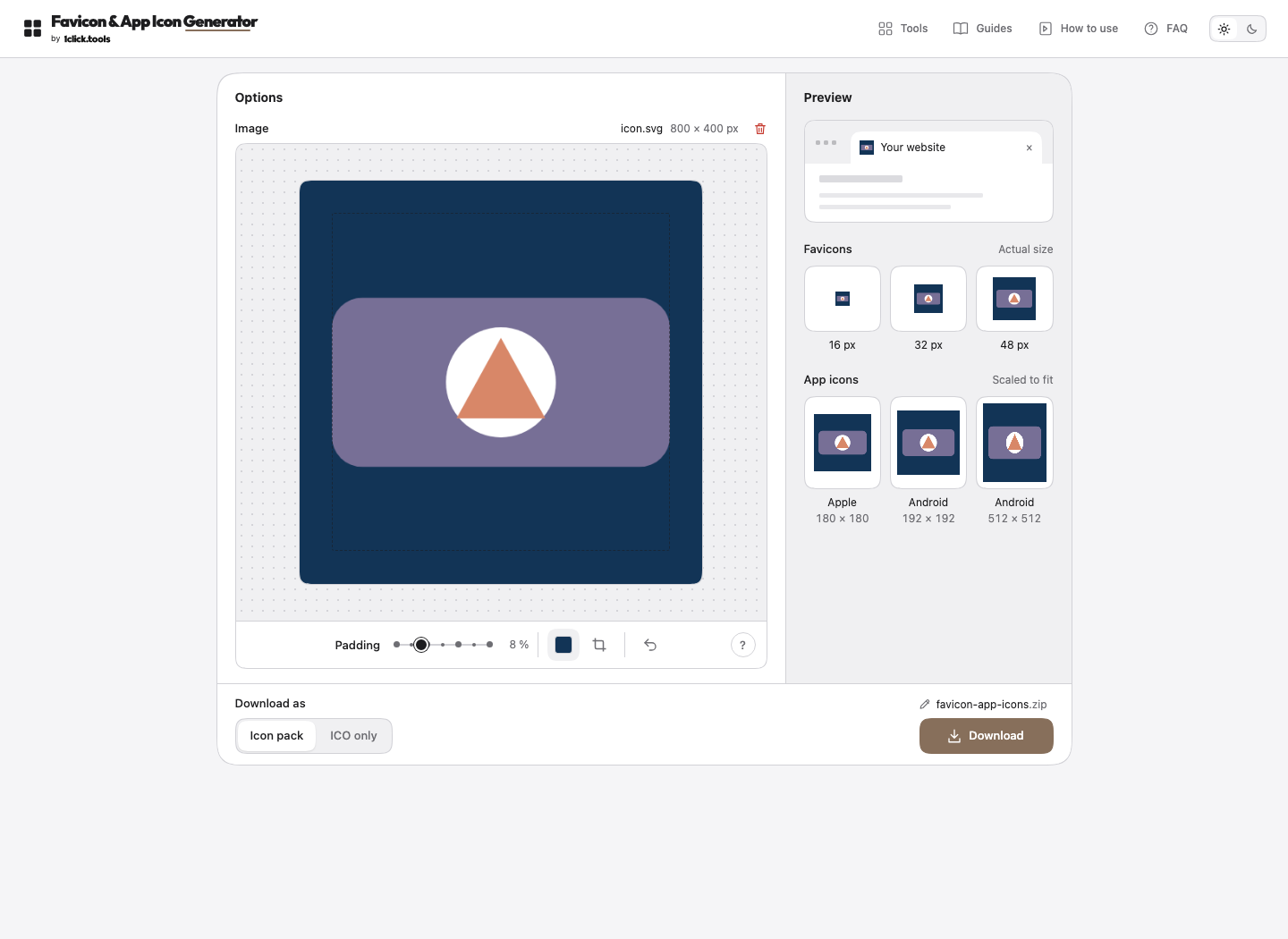
We opened an 800 × 400 SVG, kept cropping off and set Padding to 8% and a #123456 background. We downloaded the ICO and the complete ZIP from the same settings.
Start with these files
- Download the 800 × 400 SVG source242 bytes
Compare the actual downloads
| Downloaded file | Actual contents | Use |
|---|---|---|
| favicon.ico | 16, 32 and 48 pixel PNG images in one ICO | Browser favicon |
| favicon-16.png / favicon-32.png | 16 × 16 / 32 × 32 PNG | PNG favicon links |
| apple-touch-icon.png | 180 × 180 PNG | Apple touch icon |
| icon-192.png / icon-512.png | 192 × 192 / 512 × 512 PNG | Manifest icons |
| site.webmanifest / snippet.html | Manifest and HTML link tags | Website installation |
Repeat this example
- Download the source SVG above. The tool opens with the 1click.tools favicon: drop the SVG onto it, or remove it with the red bin and choose the SVG.
- Leave cropping off. Set Padding to 8% and Background to #123456.
- Download with ICO only, then with Icon pack. Extract the ZIP and compare its eight entries.
Inspect the pack before installing
The ICO contains three sizes. The ZIP contains eight files and the manifest uses #123456 for its background and theme colors. The original SVG is not overwritten or included in the ZIP.
A common mistake
Uploading the ZIP itself or adding snippet.html as a page does not install a favicon. Extract the icons, publish them at their referenced paths and copy the link tags into your page head.
Try your image in Favicon & App Icon GeneratorSources and credits
Original geometric sample artwork. Prepared for these guides. Screenshots and result files come from actual browser runs. The source was named icon.svg during capture; the downloadable favicon-source.svg contains the same artwork.
Choose your source image
Open the generator and choose or drop a PNG, JPG, WebP or SVG in the Image area on the left. The input must be no larger than 10 MB or 16 million pixels. A simple mark with strong contrast usually stays clearer than a photograph at 16 pixels. The source is read on your device and is not overwritten.
Adjust the icon and its background
Padding, Background and the crop icon sit in the toolbar under the image. Without a crop, the whole image fits inside the square icon and nothing is trimmed. Select the crop icon to choose an area freely, then double-click, double-tap or press Enter to apply it. Rectangular selections fit inside the square output. Background starts transparent; pick a color and set its opacity in the color picker. For the downloadable example above, cropping is off, Padding is 8% and the background is #123456.
For the exact resize and confirmation steps, follow the free crop and background example.
Check the small previews
The browser-tab preview shows a 16 pixel icon. The separate 16, 32 and 48 pixel favicon previews are displayed at actual size. Apple and Android previews are scaled to fit their tiles; the labels give the real exported dimensions. Check the 16 pixel version before downloading: fine text or thin lines can disappear even when the large preview looks clear.
Download an ICO or the complete pack
Under Download as, ICO only saves favicon.ico with 16, 32 and 48 pixel images in one file. Icon pack saves an eight-file ZIP: favicon.ico, favicon-16.png, favicon-32.png, apple-touch-icon.png, icon-192.png, icon-512.png, site.webmanifest and snippet.html. The Apple icon is 180 × 180 pixels, and the Android PNGs are 192 × 192 and 512 × 512. Select the file name to rename the download. The pack is created locally.
Install the files on your website
Extract the ZIP and copy the icon files and site.webmanifest into your website’s public root, where /favicon.ico and /site.webmanifest can be requested directly. Open snippet.html as text and copy its link tags into the head of your site’s HTML or the equivalent metadata setting in your framework. If you use an assets subfolder, adjust the paths in the tags and the manifest. You do not need to publish snippet.html itself.
Check the deployed icons
Deploy the website and open the icon URLs directly to check that they return image files. Check the link tags in the served page and inspect the browser tab. If an old icon remains cached, test in a fresh browser session. If your site already has a manifest, merge the icon entries instead of adding a second conflicting manifest. The generated manifest supplies icons and standalone display; the icon pack alone does not implement a complete installable app.