A little guidance
How to add a call-to-action frame to a QR code
Add a title, body text and optional image below a QR code. Adjust frame colors, alignment and padding, then export the complete artwork.
A blue caption frame with a separate sample image
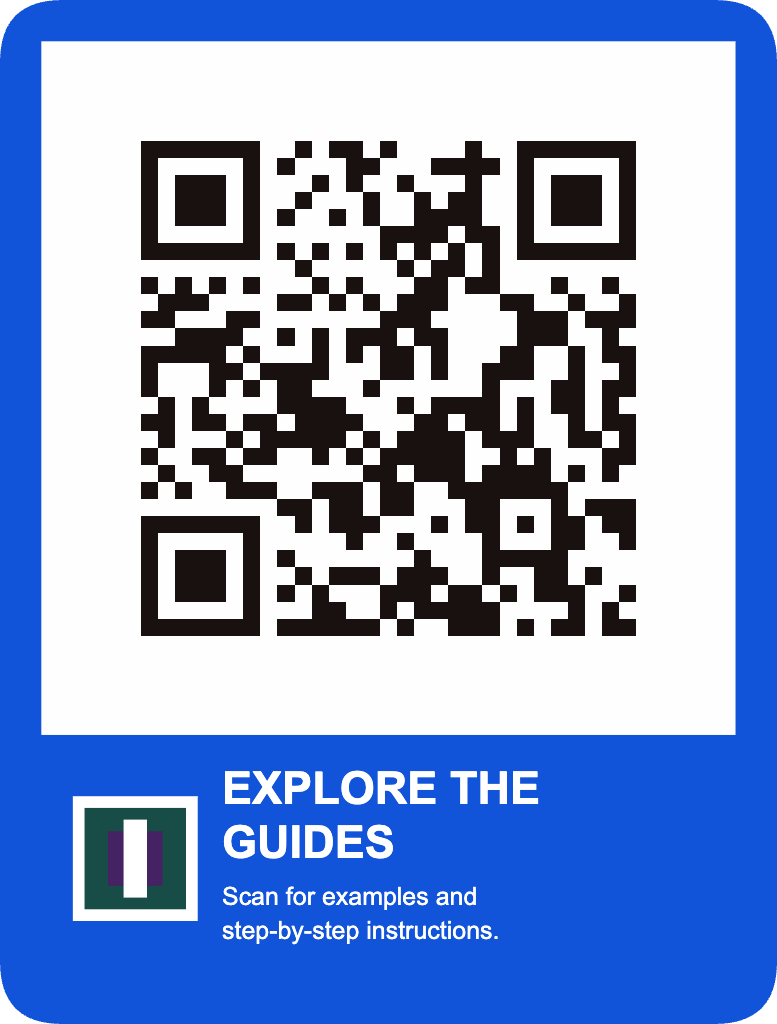
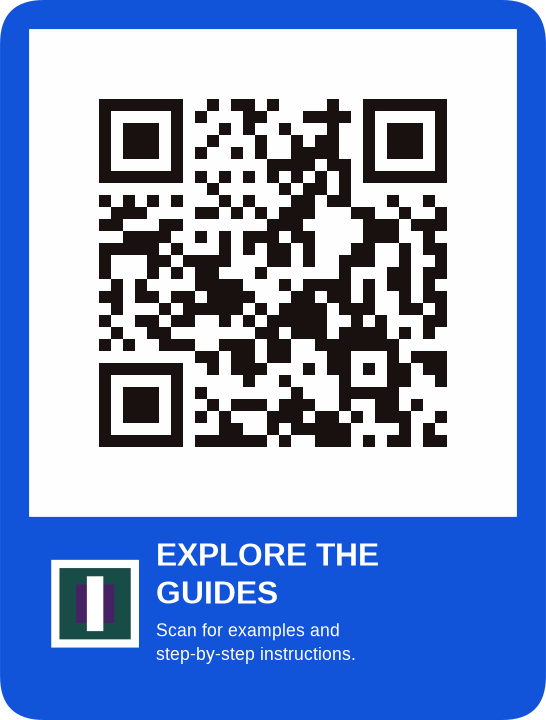
We made a plain link code, enabled Call to Action, added the supplied sample image and entered a title and body. Left alignment, 6% Padding and a 20% QR Margin produced a rectangular 777 × 1024 PNG at Longest edge 1024 px. The SVG matched the same artwork.
Start with these files
- Download the sample logo2.4 KiB
Compare the actual downloads
- Download the 777 px PNG44.6 KiB
- Download the matching SVG35.4 KiB
| Control | Recorded setting |
|---|---|
| Title | EXPLORE THE GUIDES |
| Body | Scan for examples and step-by-step instructions. |
| Frame colors | White text · blue background |
| Alignment / Padding | Left · 6% |
| PNG dimensions | 777 × 1024 |
| QR Margin | 20% |
Repeat this example
- Enter https://1click.tools/guides, remove the centered logo, and in Colors choose Solid with Margin 20%.
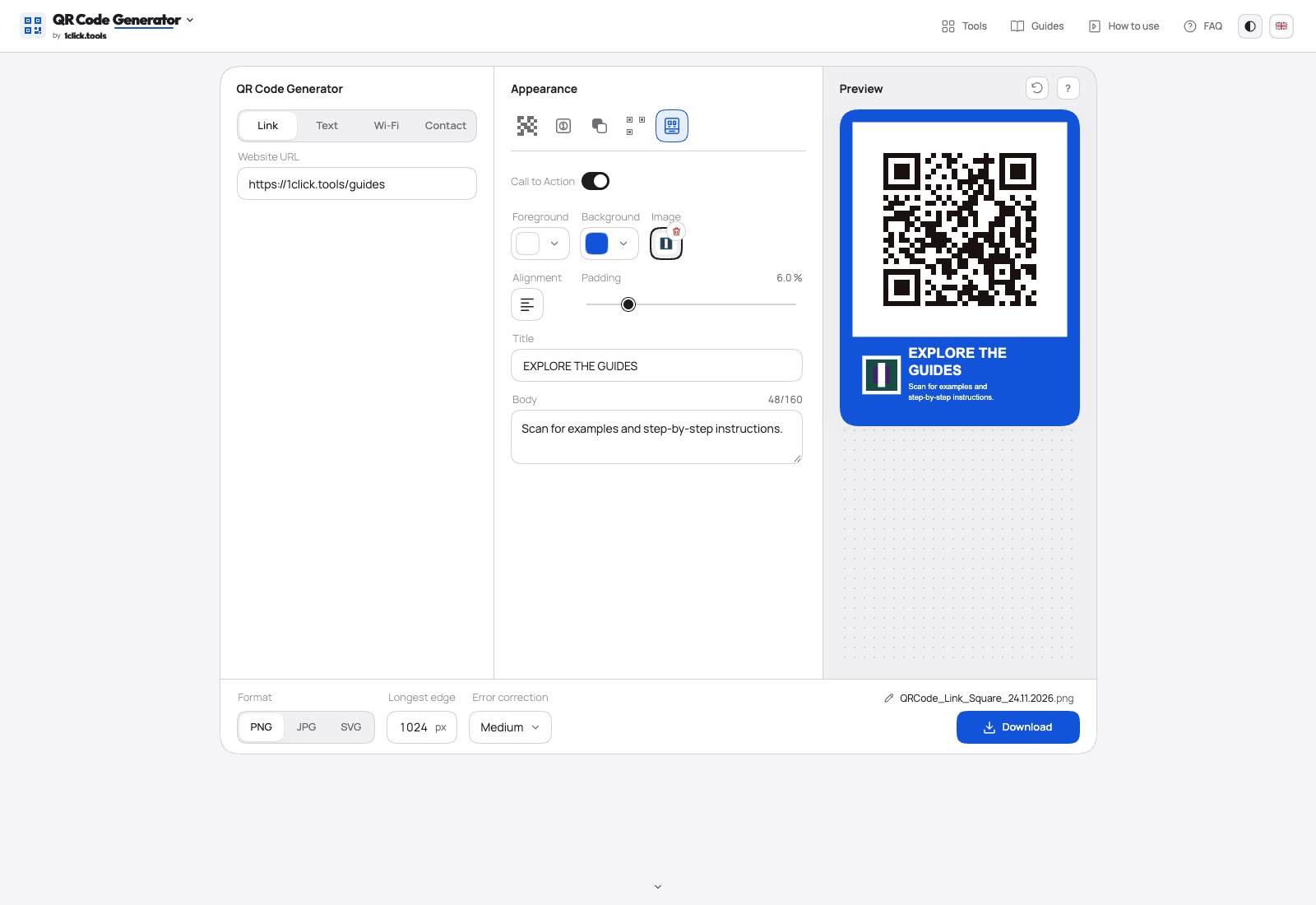
- Enable Call to Action. Add the sample PNG under Image, keep white Foreground and blue Background, then choose left Alignment and Padding 6%.
- Enter the recorded title and body, set Longest edge to 1024 and download PNG or SVG.
Check the decoded result
Both exports decode to https://1click.tools/guides. Title, body and caption image are visible artwork and are absent from the QR payload.
A common mistake
Treating frame Padding as a replacement for the QR quiet zone. Keep Margin in Colors as well.
Create your own QR codeSources and credits
Actual QR Code Generator sessions. Files are unchanged browser exports saved under descriptive guide names. Both the PNG and a raster rendering of the exported SVG were independently decoded with jsQR. This verifies the samples, not physical printing, phone contact imports or real Wi-Fi connections.
ZXing: barcode content formats. Describes URL, plain-text, Wi-Fi and contact payload conventions. What a phone does after scanning depends on its reader.
Enable the caption frame
Enter the encoded content first. Open Call to Action, the last appearance tab, and turn on its switch. Title and Body appear below the QR panel. These words are visual artwork; they do not change the address or other content encoded in the QR code.
Set colors and an optional image
Foreground and Background color the caption frame and its text. Image sits next to Background and accepts PNG, JPG or WebP using the same upload limits as a logo. The optional caption image is separate from the centered Logo. The example has white text on blue with a small sample image.
Align the caption and adjust padding
Use the Alignment icon to choose left, center or right. Padding follows it and sets the space around the QR panel from 0–30%. The example uses left alignment and 6% Padding. Margin in Colors sets the QR quiet zone inside the panel; keep it even when the frame has generous padding.
For quiet-zone guidance, see the QR print guide.
Download the whole artwork
PNG/JPG use Longest edge from 256–4096 px when the frame is enabled. The other edge follows the caption layout, so the image can be rectangular. SVG scales the artwork but embedded images remain raster. Download and check that the title, body, image and QR code are all visible, then scan a proof at the final size.