A little guidance
How to check if JSON is valid and find the error
JSON Prettifier checks JSON as you type and names the exact line and column of the first error, with a plain explanation and Go to error.
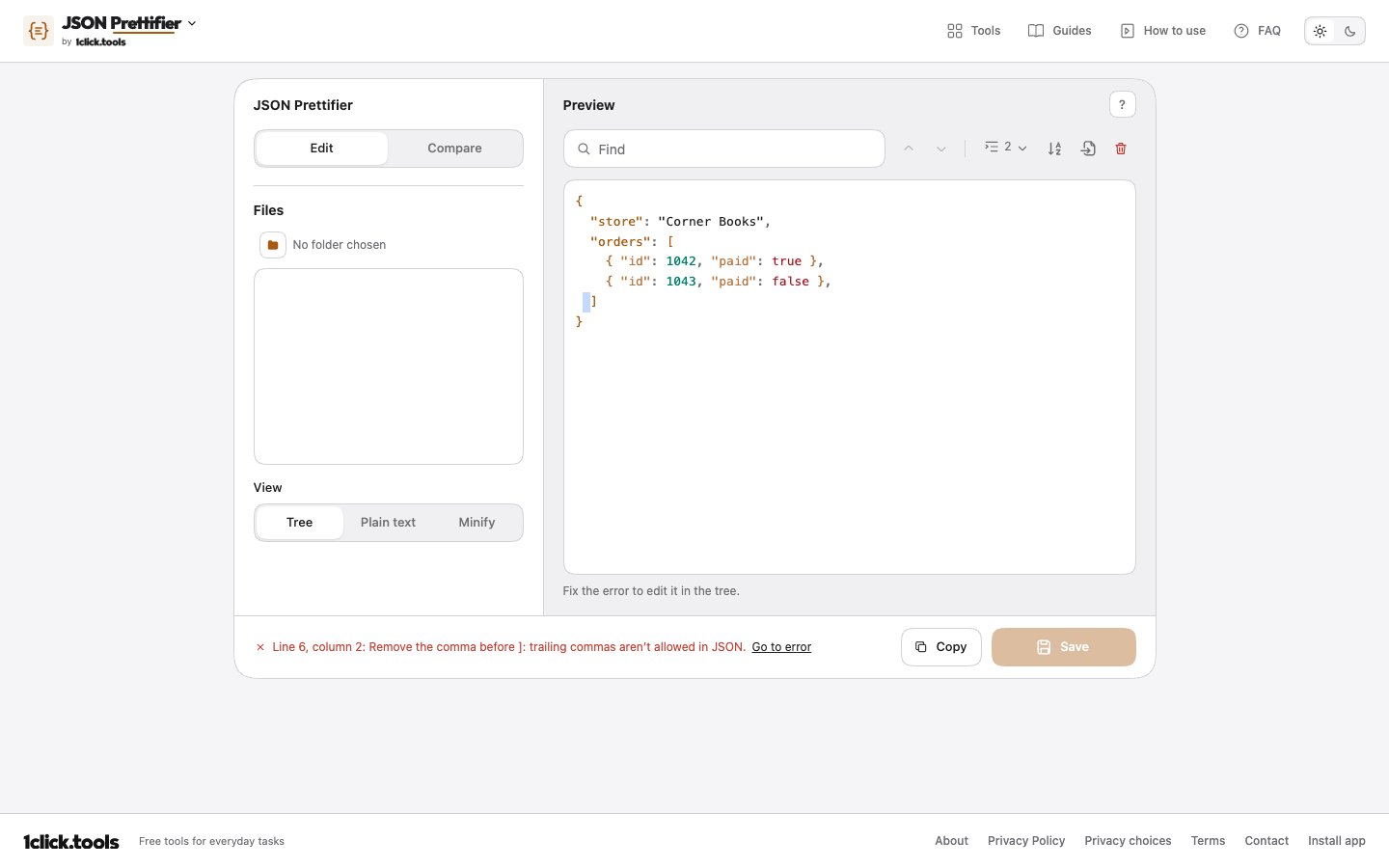
Find a trailing comma on line 6
We pasted JSON with a comma after the last order. The bottom line reported the line and column, and Go to error selected the spot.
| What we pasted | What the check says |
|---|---|
| { "id": 1043, "paid": false },\n ] | Line 6, column 2: Remove the comma before ]: trailing commas aren’t allowed in JSON. |
| After removing the comma | Valid JSON · 2 keys |
Only the first error is shown; fix it and the check moves on.
Repeat this example
- Paste the JSON.
- Read the line at the bottom.
- Click Go to error and fix the highlighted character.
Check the result
After the fix the bottom line reads Valid JSON and the tree comes back.
A common mistake
Looking for the error on the line above: the position points at the ] after the extra comma.
Open JSON PrettifierSources and credits
Sample JSON made for these guides. The bookshop orders, names and emails are invented. Every screenshot shows the real tool working on that JSON.
Paste the JSON
Clear the example with the trash icon and paste your JSON. Invalid JSON opens as text so you can fix it there; every change is checked a moment after you stop typing.
Read the line at the bottom
Valid JSON shows the number of keys and the size. Otherwise you see the line and column of the first problem and what is wrong, for example “Remove the comma before ]: trailing commas aren’t allowed in JSON.”
The most frequent causes are explained in the common JSON errors guide.
Jump to the error
Go to error selects the exact character in the text and scrolls to it, also sideways on very long lines.
Fix and repeat
Correct the mistake; the check updates immediately and moves on to the next error, if there is one. As soon as the JSON is valid it is formatted and the tree comes back.