A little guidance
How to undo a copy, move or rename
File Commander’s Undo reverses your last file actions, from a mistaken move to a whole multi-rename, up to 20 steps back.
Move four photos, then undo the move
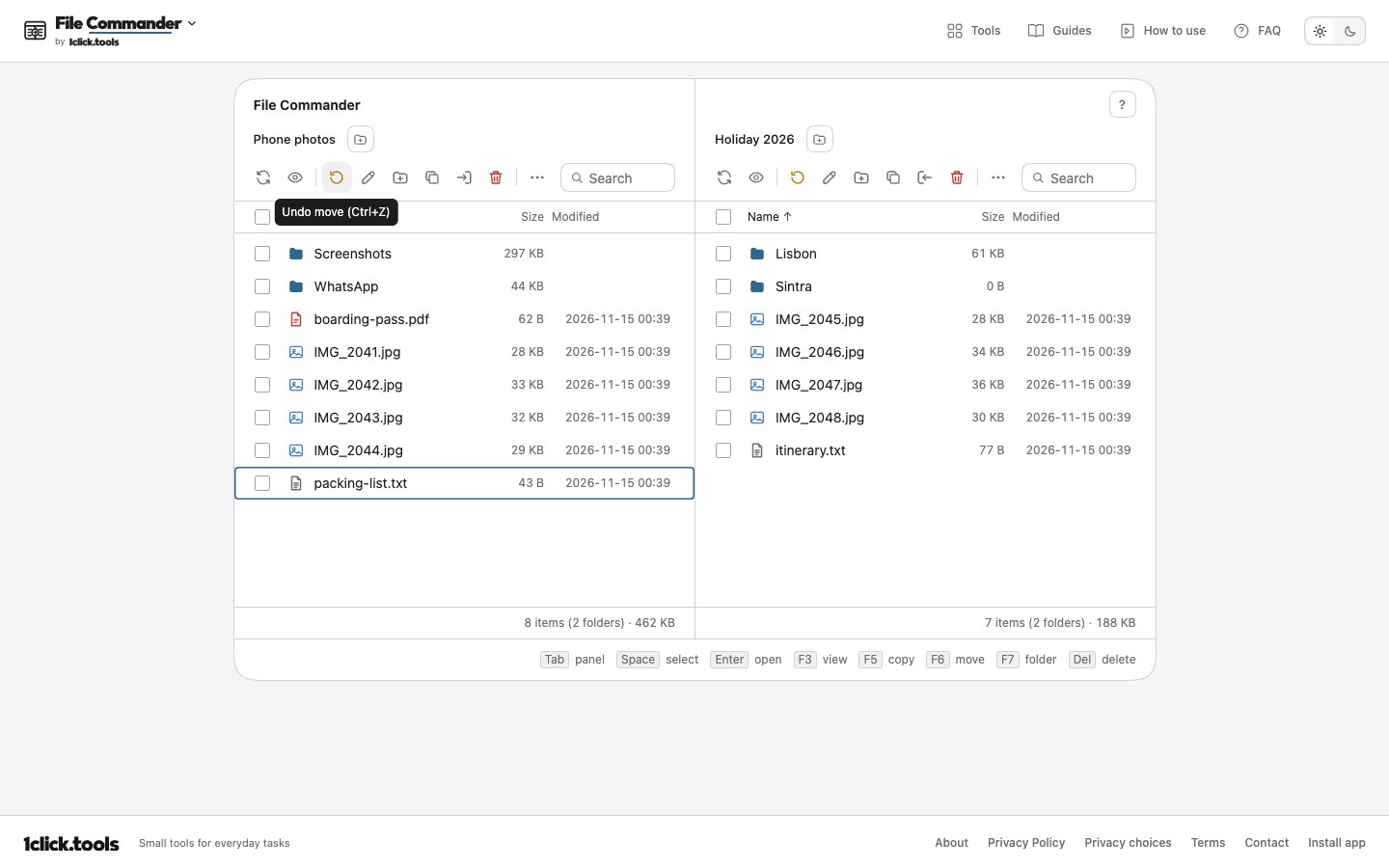
After dragging IMG_2045.jpg to IMG_2048.jpg into Holiday 2026, the Undo tooltip read Undo move. Clicking it moved them back to Phone photos.
| Action | Undo does |
|---|---|
| Copy | Removes the copies |
| Move | Moves the files back |
| Rename / Multi-rename | Restores the old names |
| New folder | Removes it if it is still empty |
| Delete | Restores the files |
| Convert / Remove metadata | Deletes the new files |
Up to 20 actions are kept while the page is open.
Repeat this example
- Move some files.
- Hover over Undo to see what it will reverse.
- Click Undo or press Ctrl/Cmd+Z.
Check the result
The files are back in their original folder.
A common mistake
Expecting Undo after a reload: the history lives only in the open tab.
Open File CommanderSources and credits
Sample folders made for these guides. Phone photos and Holiday 2026 hold generated landscape pictures and short text files created for the screenshots. Every screenshot shows the real tool working on those files.
Find Undo
Undo is the round arrow in each panel’s toolbar, right before Rename. Its tooltip names what it will reverse, for example Undo move. Ctrl/Cmd+Z does the same, and it is also in the right-click menu on an empty part of a panel.
What can be undone
Rename, multi-rename, new folder, copy, move, delete, image conversion and metadata removal. A copy is undone by removing the copies; a move by moving the files back; a conversion by deleting the new files.
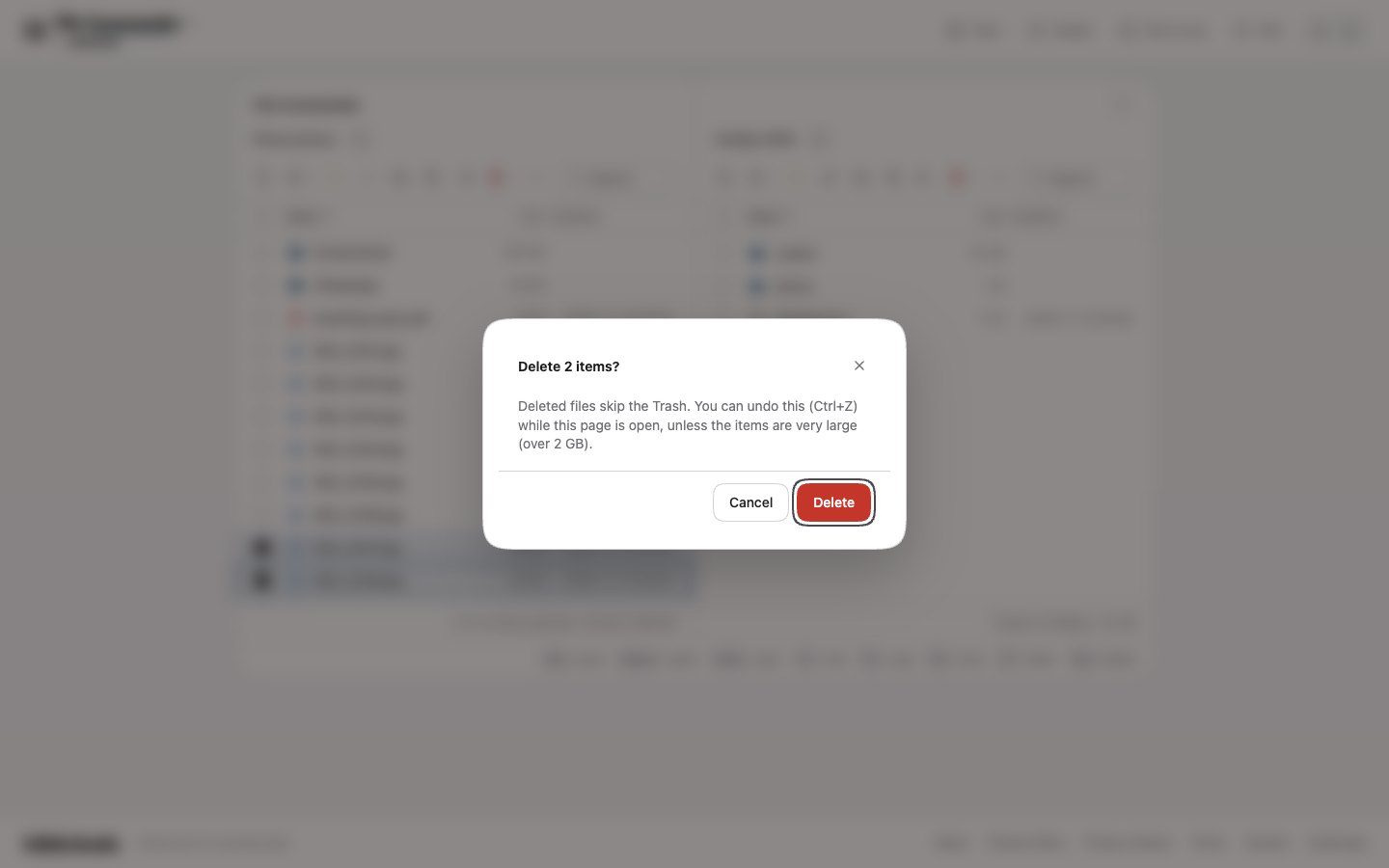
Deleting is special; read how deleted files are kept for Undo.
Step further back
Press Undo again to reverse the action before that, up to 20 steps. A new folder is only removed if it is still empty, so nothing you put in it is lost.
While the page is open
Undo history lives in this browser tab. Reloading or closing the page clears it, together with the copies kept for undoing deletes.