A little guidance
How to split a PDF into separate pages
Turn every page of a PDF into its own one-page PDF in your browser. Choose One per page and download them together in a ZIP.
Split a six-page report into six PDFs
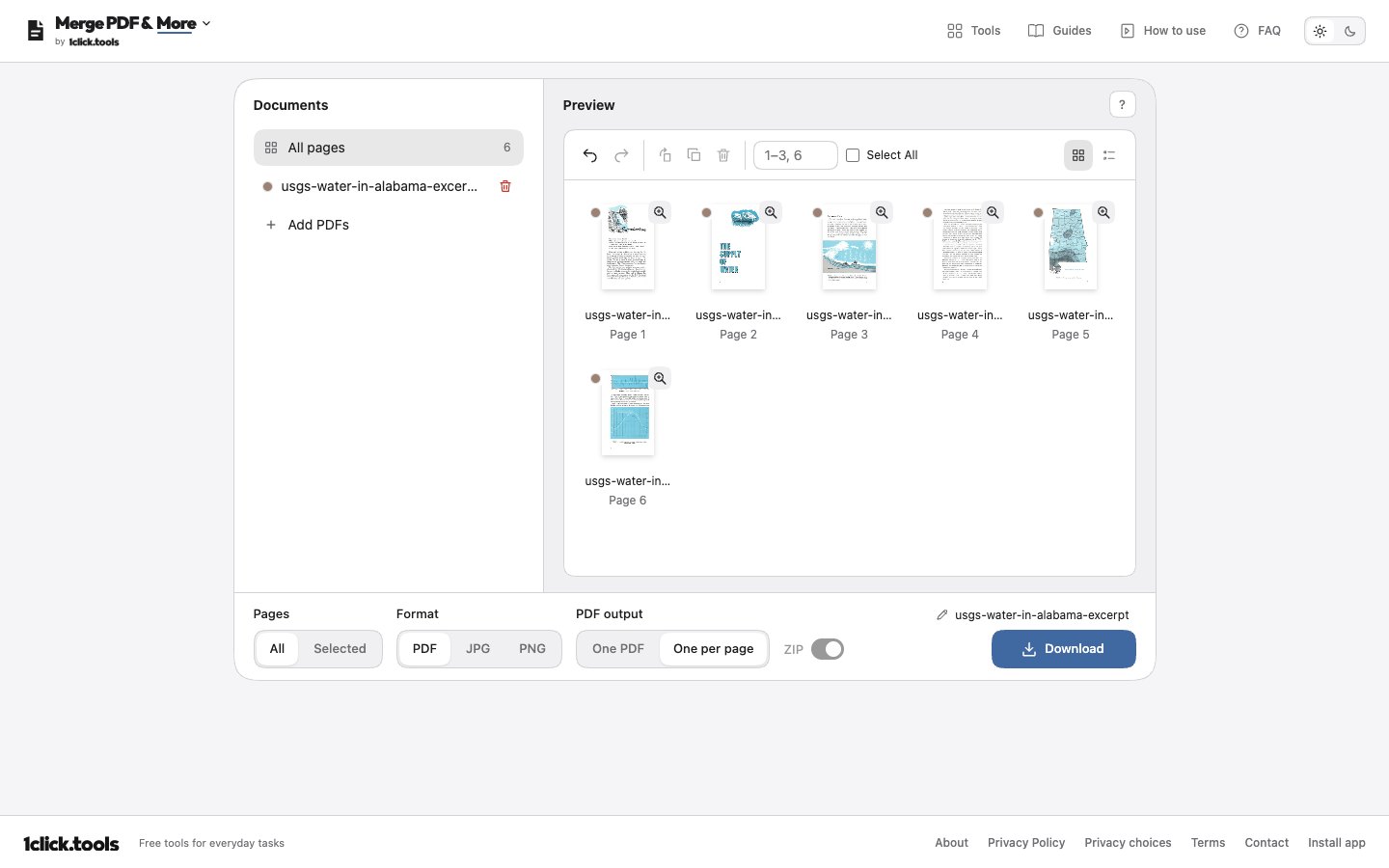
We added the six-page Water in Alabama excerpt, set PDF output to One per page and downloaded it. The ZIP switch turned on by itself.
Start with these files
| Setting | Value | Result |
|---|---|---|
| Pages | All | All six pages are split |
| PDF output | One per page | One PDF per page |
| ZIP | On, required | Current pattern: MergePDF_UsgsWaterInAlabamaExcerpt_DD.MM.YYYY.zip |
| Files in the ZIP | 6 | The same stem followed by -001.pdf to -006.pdf, one page each |
The numbers in the file names follow the order of the pages in the workspace, so reorder or delete pages first if you need to.
Repeat this example
- Drop the PDF on Preview or click Choose PDFs.
- In the bottom bar, set PDF output to One per page.
- Click Download and unzip the file.
Check the result
The ZIP holds one PDF per page, numbered 001, 002 and so on, and each opens with a single page.
A common mistake
Leaving a page selected: Pages then switches to Selected and only that page is split. Set Pages to All to split the whole document.
Open Merge PDF & MoreSources and credits
USGS: A layman’s look at water in Alabama (1963). Public-domain USGS report. Our sample contains printed pages 1–6 (PDF pages 7–12 of the original); no page artwork was changed.
Add the PDF
Drop the PDF on Preview or click Choose PDFs. Every page appears as a thumbnail with its position underneath. The file is opened in your browser; it is not uploaded.
Choose One per page
In the bottom bar, leave Pages on All and Format on PDF, then set PDF output to One per page. The ZIP switch turns on by itself and stays on, because several files are downloaded as one ZIP.
Name and download
The automatic name combines MergePDF, the first PDF’s name and the current date, and is used for the ZIP and every file in it. Click the filename to change it, then click Download. On 22 November 2026, a six-page PDF named report.pdf gives MergePDF_Report_22.11.2026.zip with MergePDF_Report_22.11.2026-001.pdf to -006.pdf inside.
Split only some pages
To split part of the document, select those pages first: type a range such as 2-4 in the box above the pages, or click and Shift-click thumbnails. Pages switches to Selected, and One per page then makes one PDF for each selected page. The tool splits into single pages only; it has no option for chunks of several pages.
To save chosen pages together in one PDF instead, see how to extract selected PDF pages.