A little guidance
How to sort JSON keys alphabetically
Press the A–Z button in the Preview toolbar to order the keys of every object in your JSON, which makes two files much easier to compare.
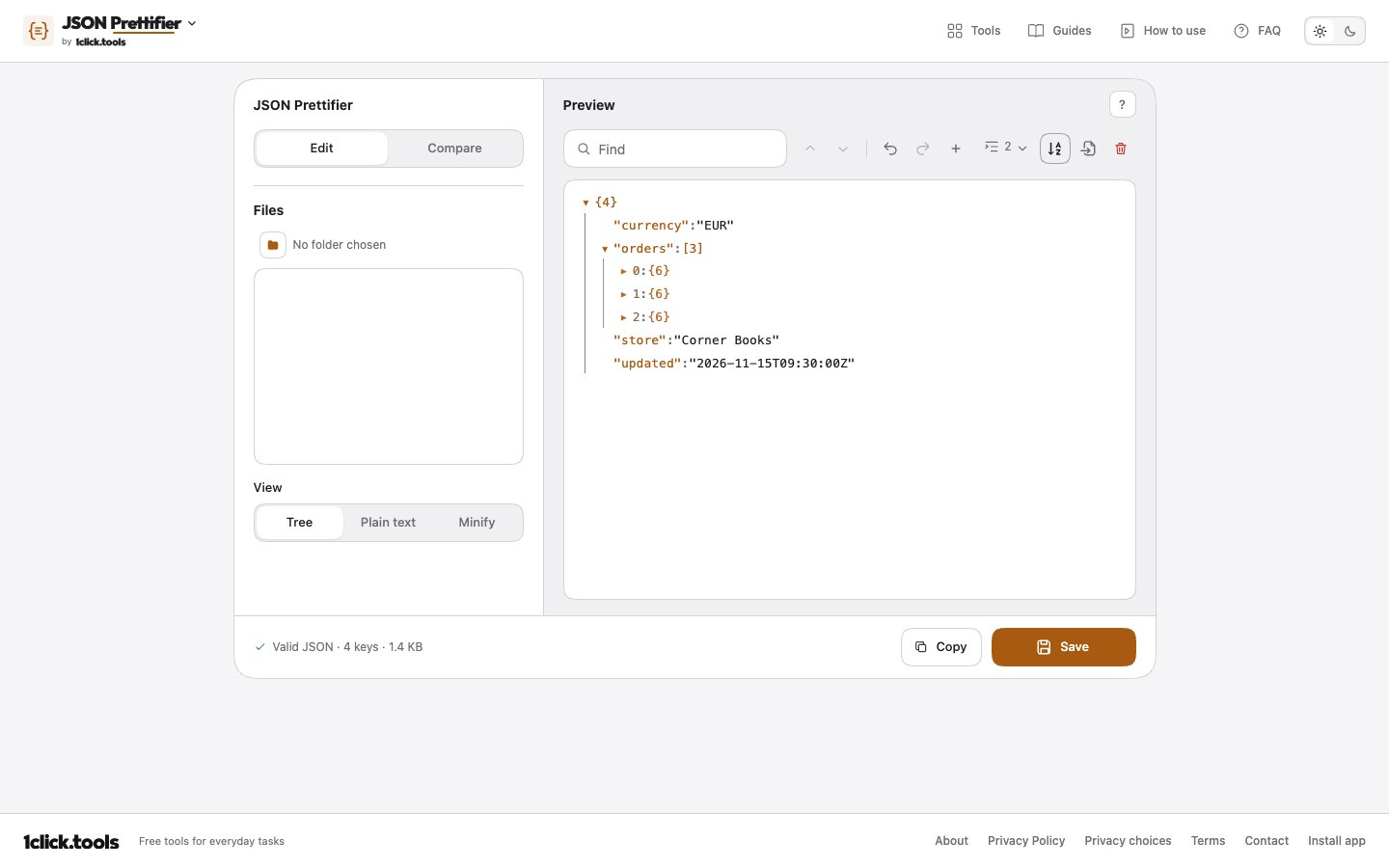
Sort every key in the orders A–Z
We pressed the Sort keys A–Z button in the Preview toolbar. Each order now lists customer, id, items, notes, paid, shipped; the orders array kept its order.
| Level | Before | After |
|---|---|---|
| Top | store, currency, updated, orders | currency, orders, store, updated |
| Order | id, customer, items, paid, shipped, notes | customer, id, items, notes, paid, shipped |
| Arrays | Orders 1042, 1043, 1044 | Same order |
Undo puts the original key order back.
Repeat this example
- Open the JSON.
- Press the A–Z button in the Preview toolbar.
- Copy or save it.
Check the result
At the top level, currency now comes before orders, store and updated.
A common mistake
Expecting arrays to be sorted too: array order is part of the data and stays as it is.
Open JSON PrettifierSources and credits
Sample JSON made for these guides. The bookshop orders, names and emails are invented. Every screenshot shows the real tool working on that JSON.
Open the JSON
Paste it or open a .json file.
Press Sort keys A–Z
The A–Z button with a down arrow is in the toolbar at the top of the Preview. Keys in every object, at every level, are sorted alphabetically at once, and the button stays highlighted while sorting is on. Arrays keep their order, because the order of items matters.
Use it to compare files
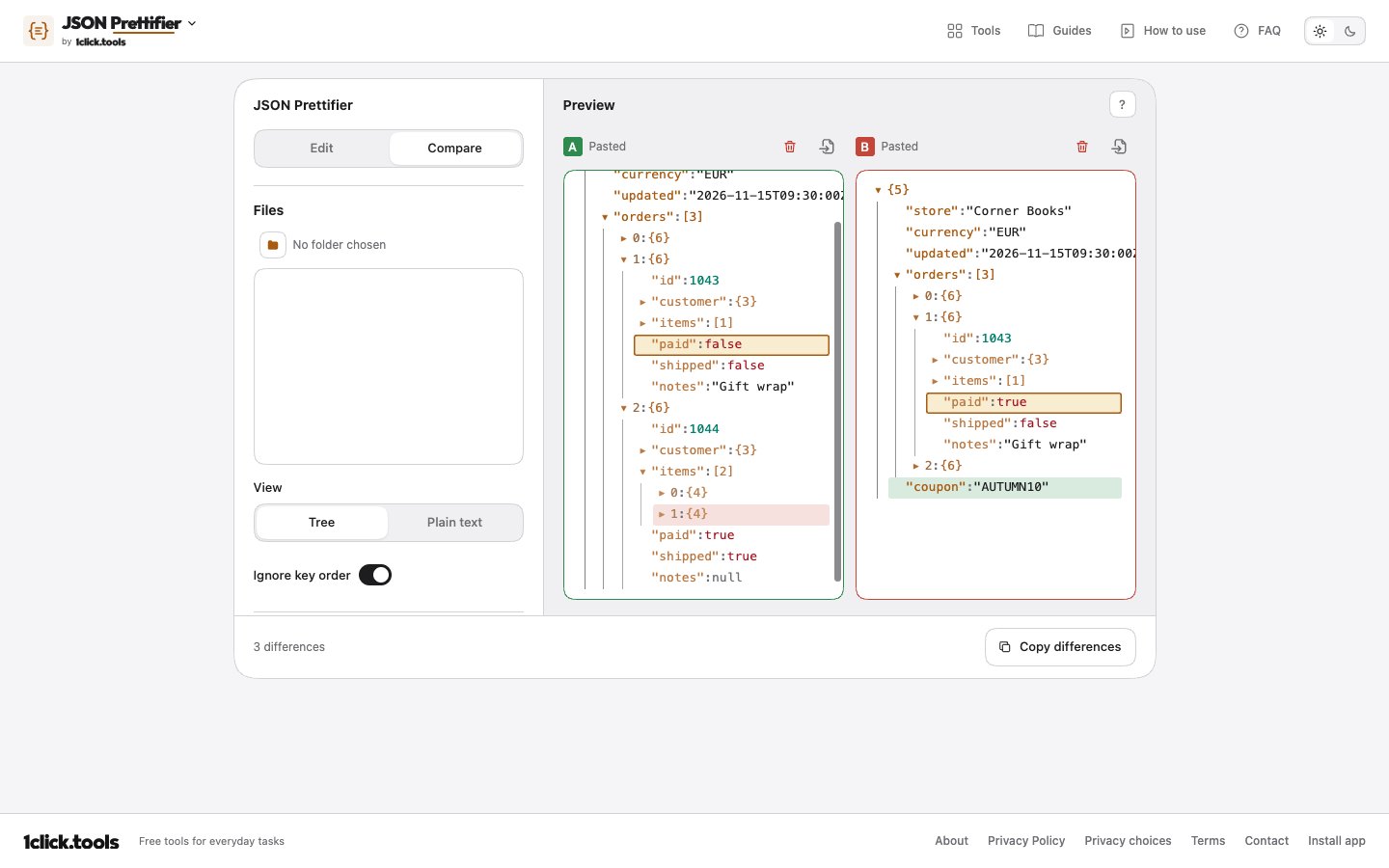
Sorting two versions of a config or API response the same way puts matching keys on the same lines. To see the differences directly, choose Compare at the top of the left panel, which ignores key order by default.
See every difference with the compare guide.
Get the original order back
Press Undo (or Ctrl/Cmd+Z) right after sorting and the keys go back to their original order and the button turns off. Pressing the button again only stops sorting new changes.