A little guidance
How to compare two JSON files and see the differences
Put two JSON documents side by side in JSON Prettifier: every changed, added and removed value is marked and listed, even when the keys are in a different order.
Two versions of the bookshop orders
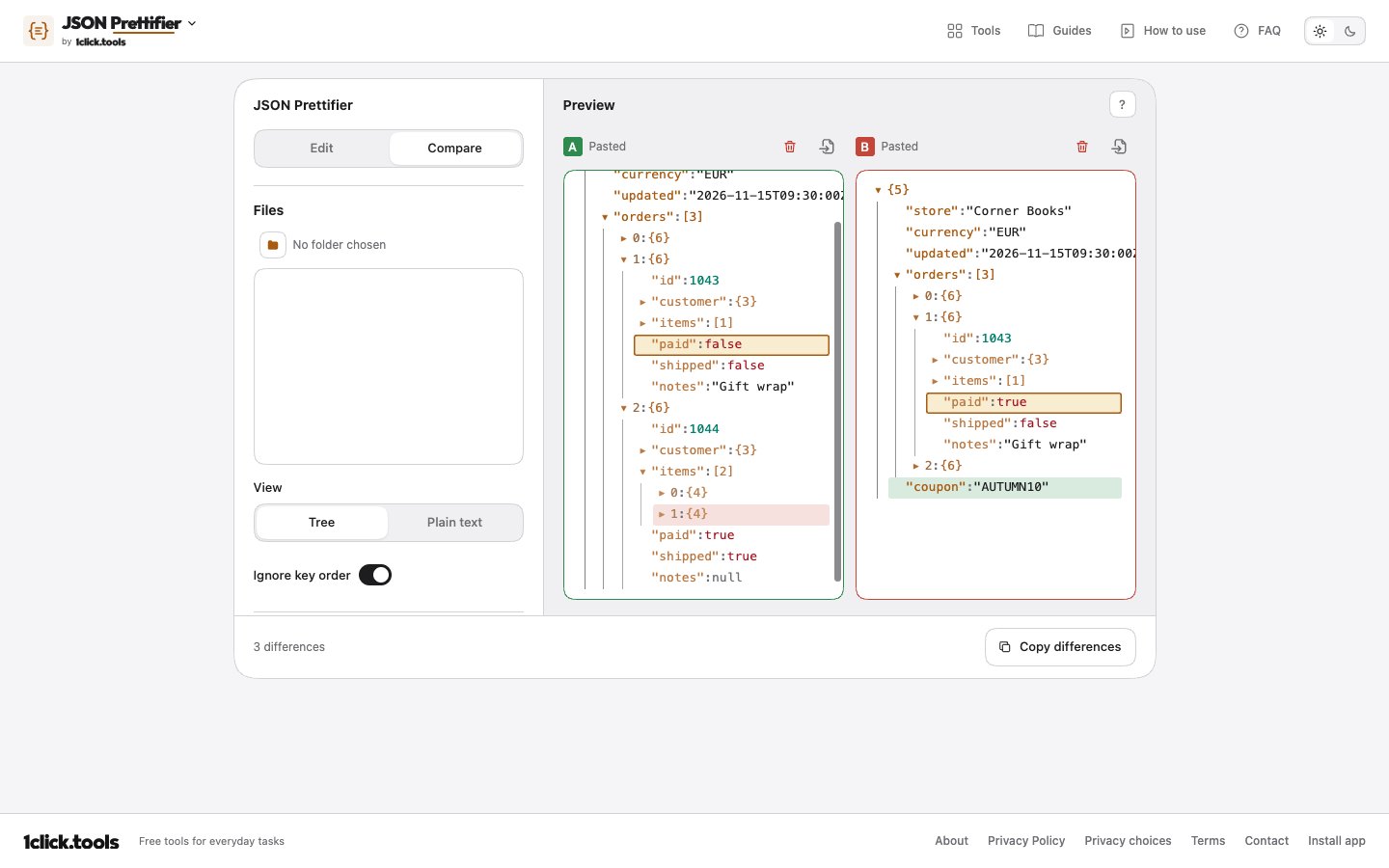
We put yesterday’s orders in A and today’s in B. Today Luka’s order 1043 is paid, Mia’s second item was removed and a coupon was added; the keys of one order are also in a different order.
| Path | Difference |
|---|---|
| orders[1].paid | changed: false → true |
| orders[2].items[1] | removed (the bookmark set) |
| coupon | added: "AUTUMN10" |
| Key order of orders[0] | ignored with Ignore key order on |
Numbers are compared by value, so 24 and 24.0 count as equal.
Repeat this example
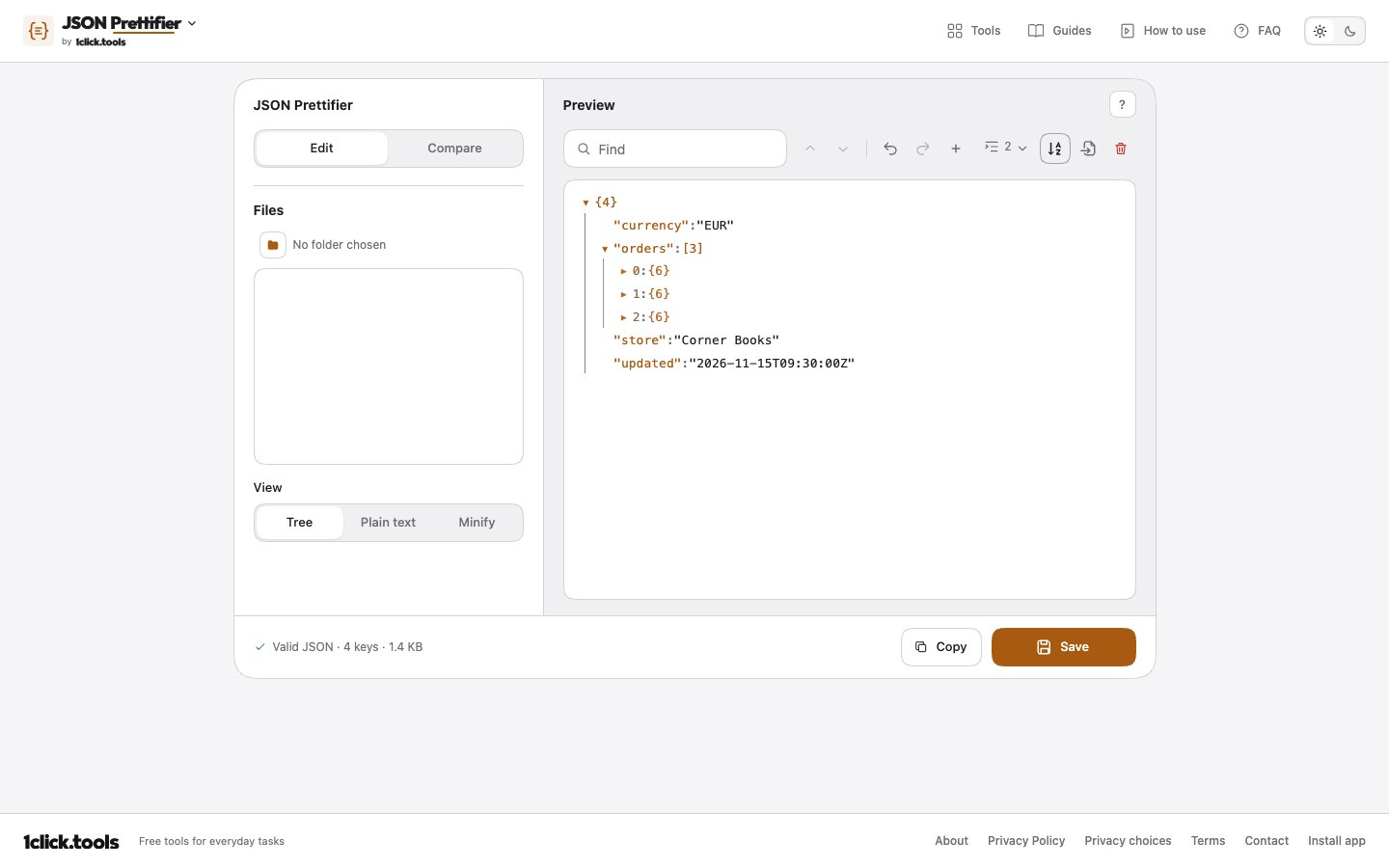
- Choose Compare at the top, under JSON Prettifier.
- Paste the old JSON into A and the new JSON into B.
- Click a difference in the list to jump to it.
Check the result
The bottom line says 3 differences, and the list shows paid, the removed item and coupon.
A common mistake
Expecting reordered keys to show up: turn off Ignore key order to see them.
Open JSON PrettifierSources and credits
Sample JSON made for these guides. The bookshop orders, names and emails are invented. Every screenshot shows the real tool working on that JSON.
Switch to Compare
Choose Compare at the top of the left panel, under JSON Prettifier. The Preview shows A (green border) and B (red border), as trees or, with View set to Plain text, as text. A is the JSON you were working on, so it may already be filled in.
Add the two JSON documents
Paste, drop or upload one JSON into A and the other into B. With a folder open, use the A and B buttons next to each file in the list (the file in A gets a green A, the file in B a red B), or drag a file onto either side.
Read the differences
Changed values are marked in amber on both sides, and objects that hold a difference open by themselves in the trees. A removed value is marked red in A, with a red line in B where it is missing; an added value is green in B, with a green line in A. Inserting or removing an item in a list marks only that item. The Differences list on the left names each one by its path, such as orders[1].paid; click it to scroll both sides there.
Choose how strict to be
Ignore key order is on by default, so {"a":1,"b":2} and {"b":2,"a":1} count as the same. Turn it off to see reordered keys too. Copy differences in the bottom bar copies the whole list as text.
Want the keys in the same order in both files? See how Sort keys works.