A little guidance
How to find files by name or extension, like *.jpg
Use the search box in each File Commander panel to narrow a folder to matching names or masks such as *.jpg or *.jpg *.png.
Show only the JPG files
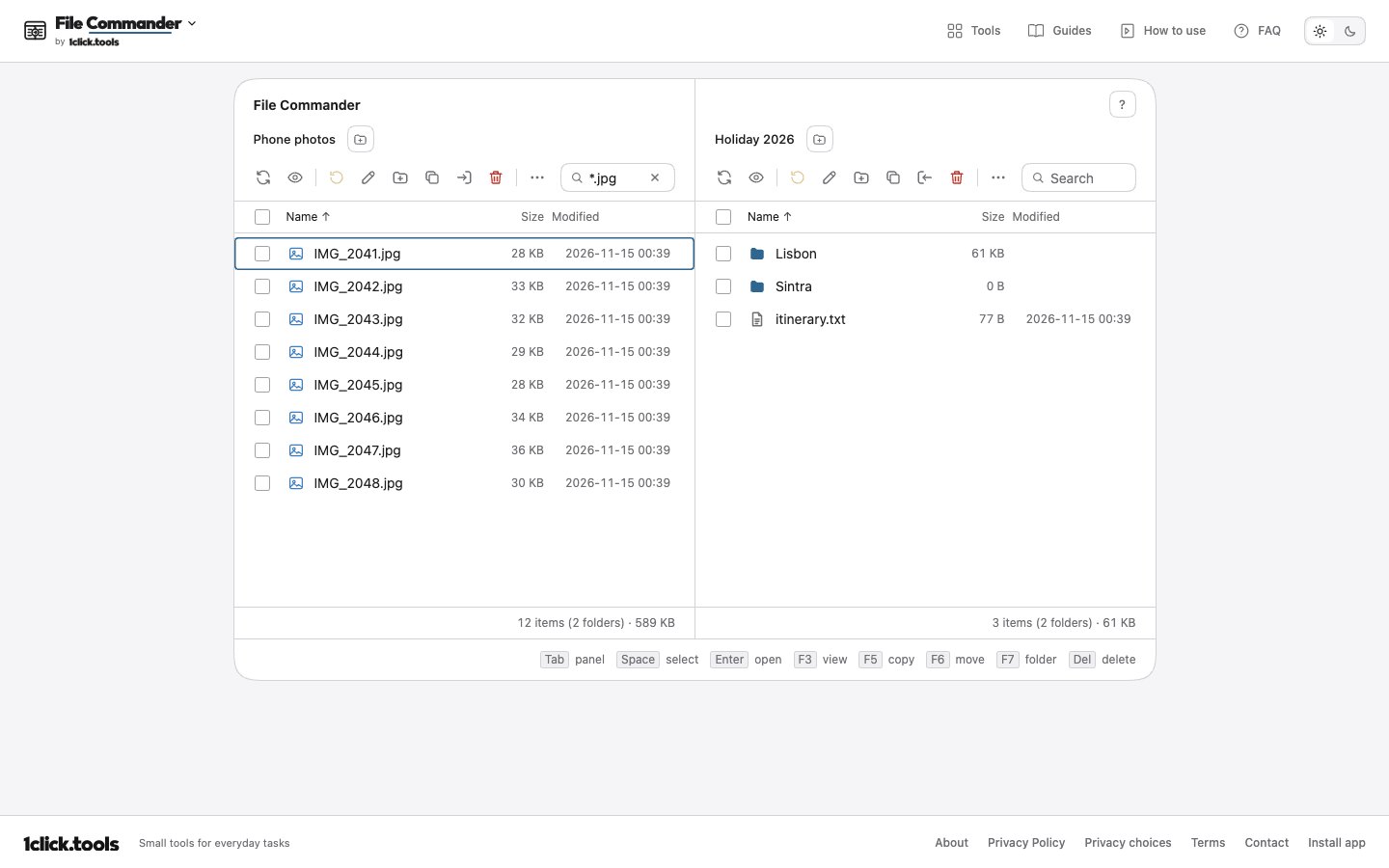
We typed *.jpg in the left panel’s search box. Folders, the PDF and the text file disappeared from the list.
| You type | Shows |
|---|---|
| 2026 | Names containing 2026 |
| *.jpg | Only JPG files |
| *.jpg *.png | JPG and PNG files |
| IMG_204?.jpg | IMG_2040.jpg to IMG_2049.jpg |
Search is per panel and doesn’t change any files.
Repeat this example
- Click the search box in the panel’s toolbar.
- Type *.jpg.
- Clear it with × when you’re done.
Check the result
Only the eight JPG photos are listed.
A common mistake
Typing jpg without *. also matches names that contain “jpg” anywhere; use *.jpg for the extension.
Open File CommanderSources and credits
Sample folders made for these guides. Phone photos and Holiday 2026 hold generated landscape pictures and short text files created for the screenshots. Every screenshot shows the real tool working on those files.
Type part of a name
The search box sits at the right end of each panel’s toolbar. Type any part of a name, such as 2026 or invoice, and the list shows only matching files and folders. Upper and lower case don’t matter.
Use masks for file types
Type *.jpg to see only JPG files, or *.jpg *.png for both. A question mark matches one character, so IMG_204?.jpg finds IMG_2041.jpg to IMG_2049.jpg.
Act on the results
Search works together with selection: search *.jpg, select all, then copy, move, convert or delete just those files. The bottom of the panel shows the folder’s totals.
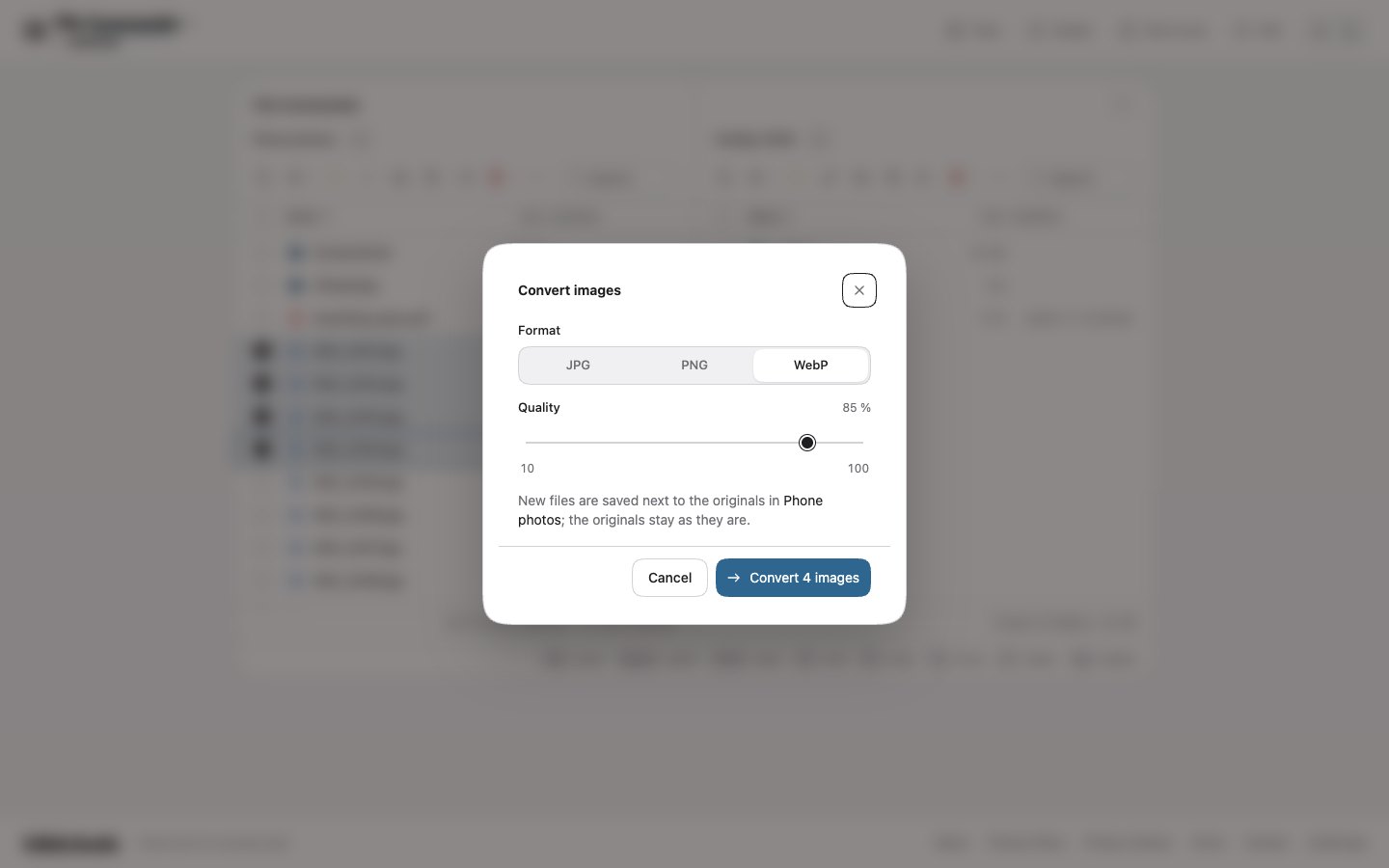
For example, convert every JPG to WebP.
Clear the search
Click the × in the search box, or delete the text, to see everything again. Opening another folder also clears it.