A little guidance
How to convert a folder of photos to WebP, JPG or PNG
Select photos in File Commander and save converted copies next to the originals, with a quality setting. Nothing is uploaded.
Convert four JPG photos to WebP
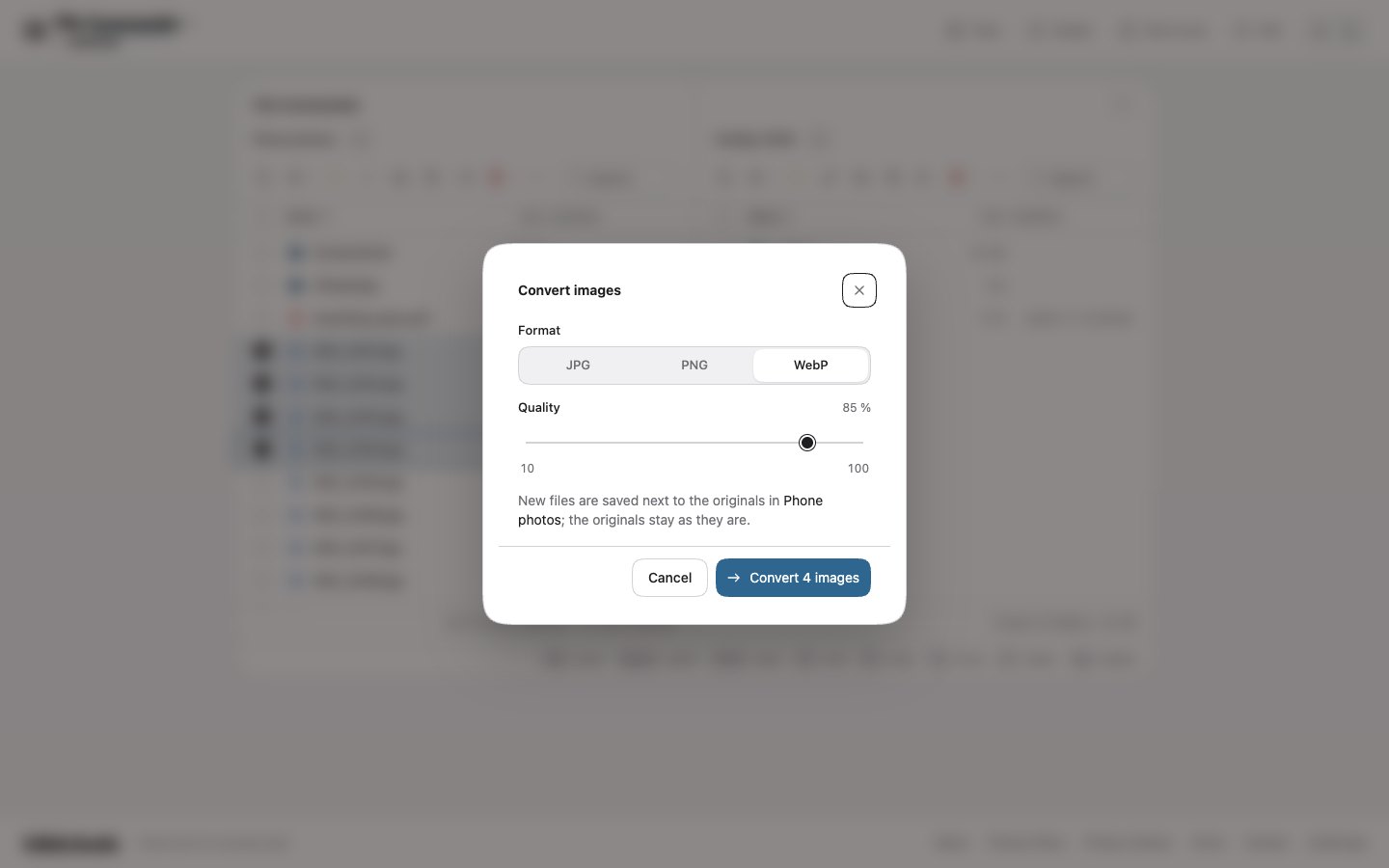
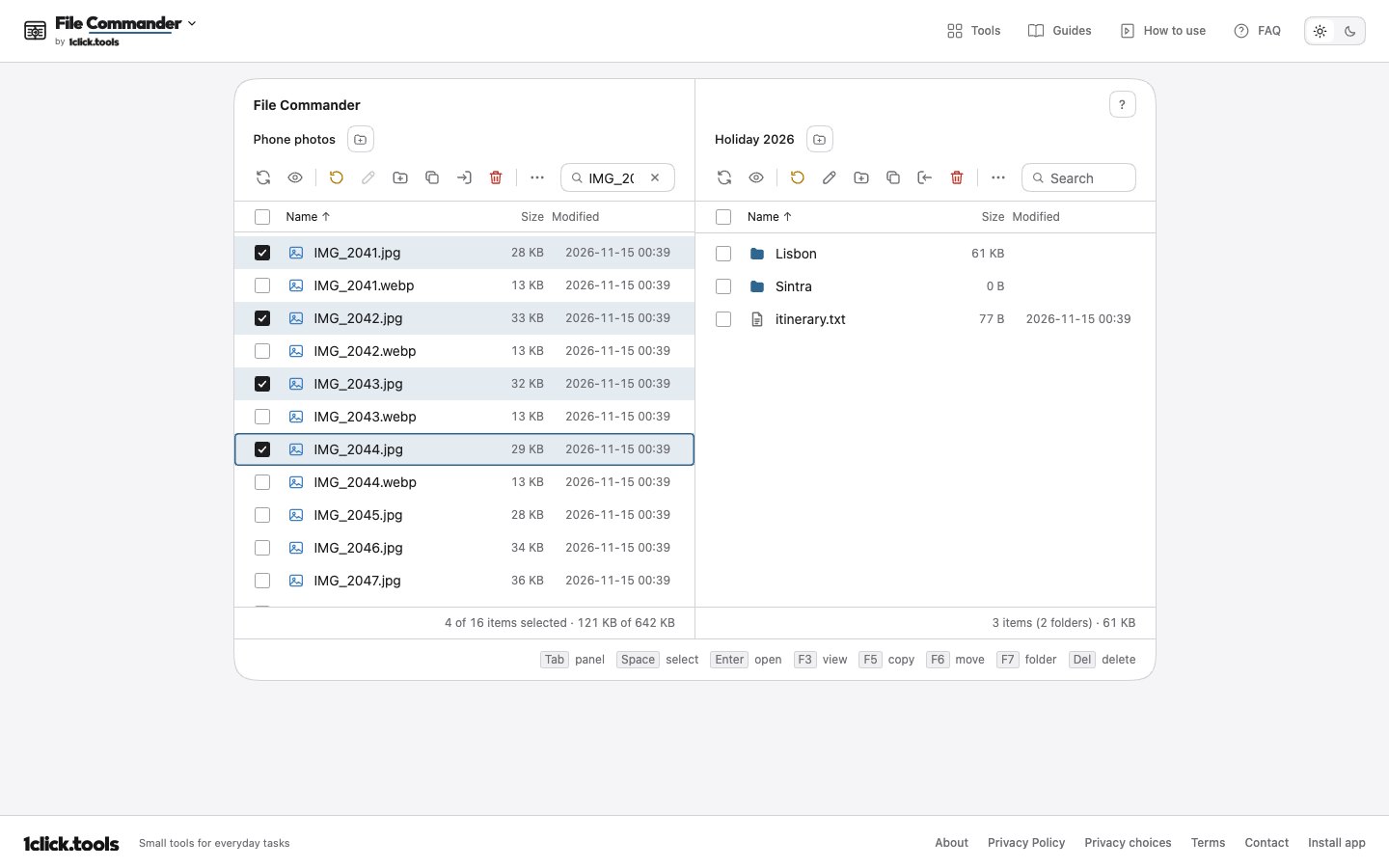
We selected IMG_2041.jpg to IMG_2044.jpg, chose … › Convert images, picked WebP at 85% and converted. The WebP copies appeared next to the JPGs.
| Setting | Value |
|---|---|
| Format | WebP |
| Quality | 85% |
| Saved to | The same folder, next to the originals |
| Originals | Unchanged |
Conversion happens on your computer with the same engine as the Image Format Changer.
Repeat this example
- Select the photos.
- Open … › Convert images and choose WebP.
- Click Convert 4 images.
Check the result
Each photo has a .webp copy next to it, smaller than the JPG.
A common mistake
Converting PNG screenshots to JPG loses transparency; keep PNG or WebP for images with transparent areas.
Open File CommanderSources and credits
Sample folders made for these guides. Phone photos and Holiday 2026 hold generated landscape pictures and short text files created for the screenshots. Every screenshot shows the real tool working on those files.
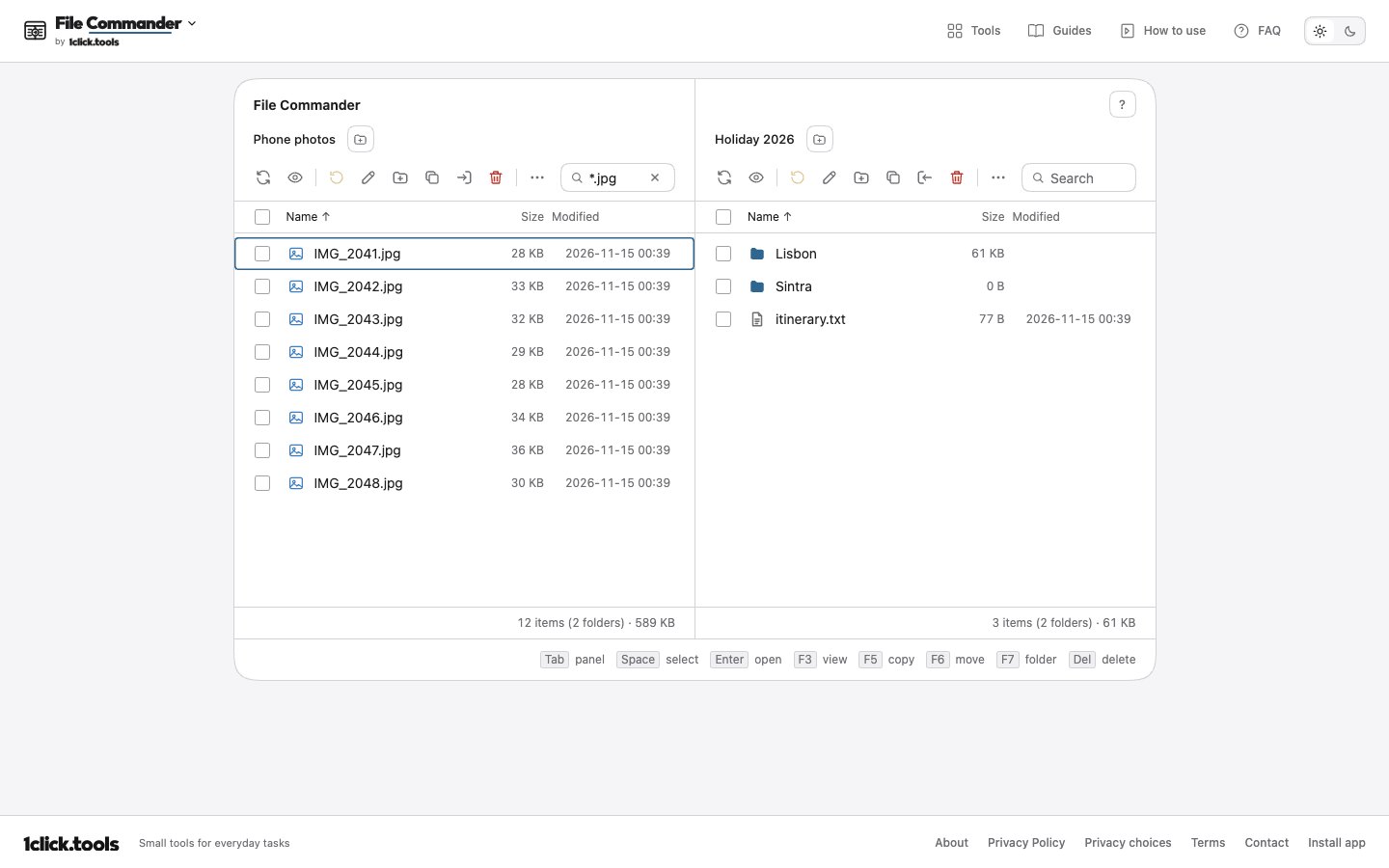
Select the pictures
Select the photos in one panel. JPG, PNG, WebP, GIF, AVIF and BMP can be converted; other files in the selection are skipped.
To pick only one type, search for *.png or *.jpg first.
Open Convert images
Choose Convert images in the … menu of the toolbar, or in the right-click menu. Pick JPG, PNG or WebP. For JPG and WebP set the quality; 80–85% keeps photos looking the same at a much smaller size.
Convert
The converted files are saved in the same folder as the originals, for example IMG_2041.webp beside IMG_2041.jpg. The originals stay as they are. If a name is taken, the new file gets a number.
Compare and tidy up
Compare sizes in the list, preview the results with quick view, then delete the originals if you no longer need them. Undo removes the converted copies.