A little guidance
How to change the order of pages in a PDF
Rearrange PDF pages in your browser by dragging thumbnails, or with Alt and the arrow keys, then download the reordered PDF.
Move a diagram in front of a report
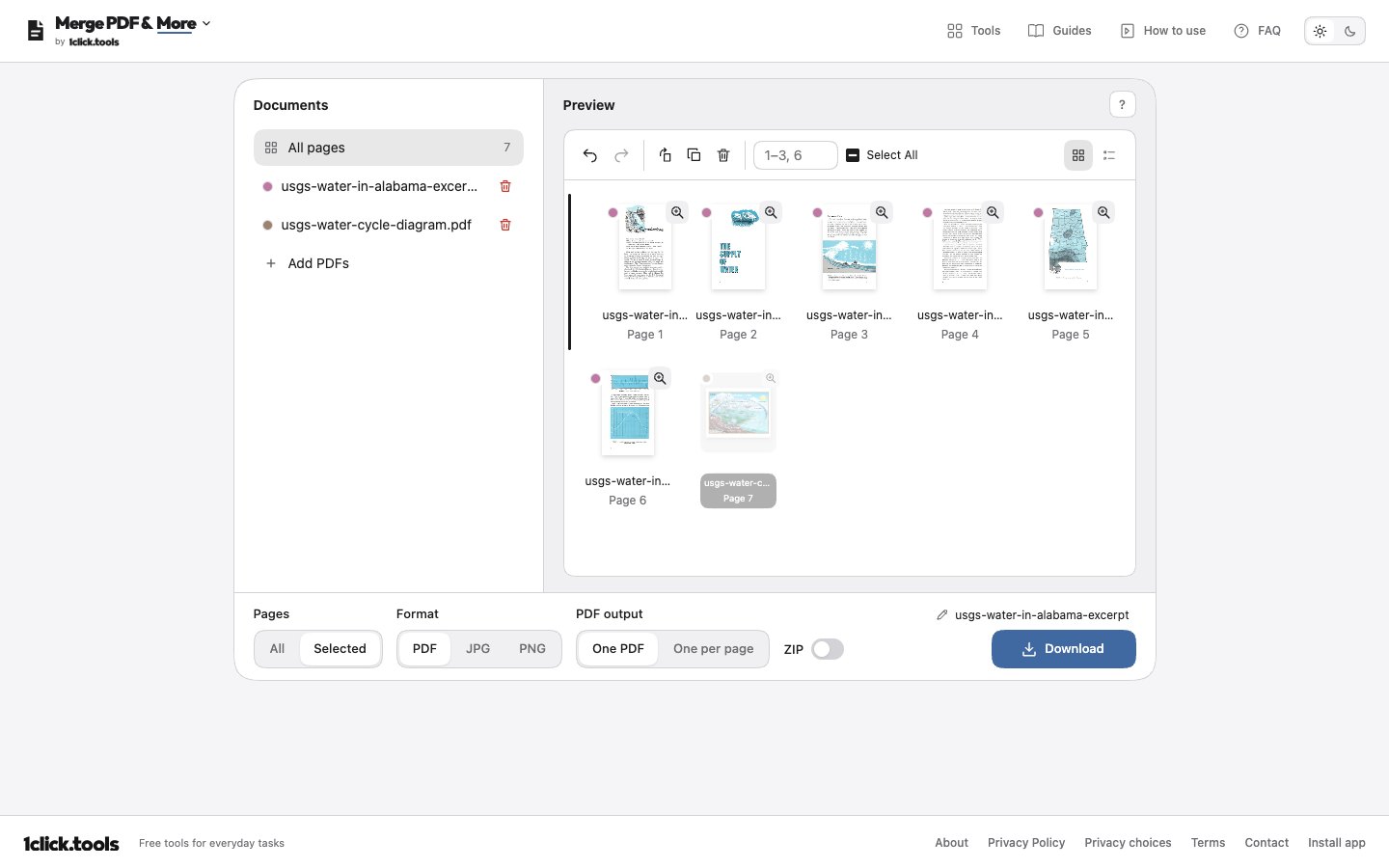
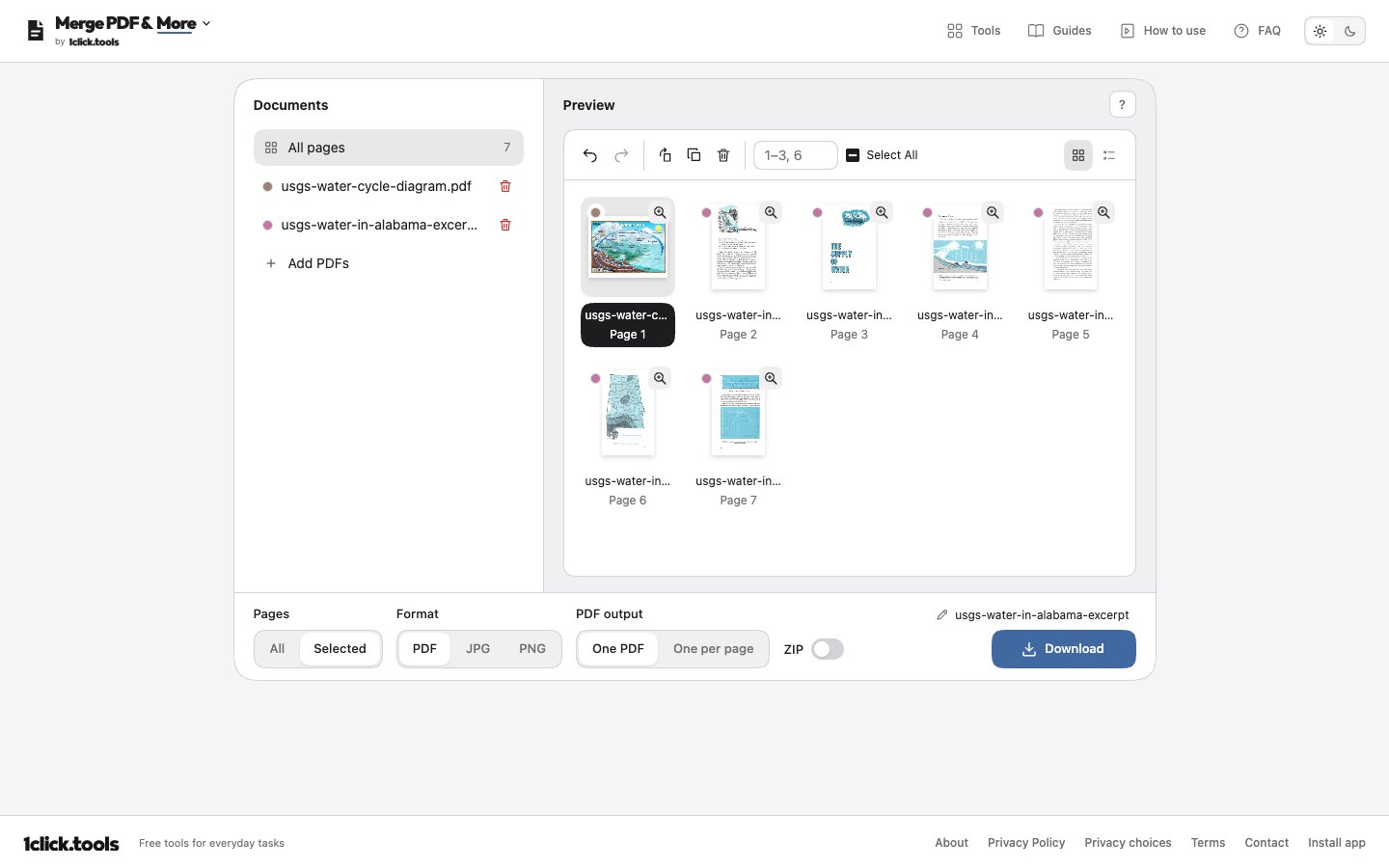
We added the six-page report and then the one-page water-cycle diagram, which landed at position 7. We dragged it in front of page 1 and downloaded all seven pages as one PDF.
Start with these files
| Page 1 | Pages 2–7 | |
|---|---|---|
| Before | Report, printed page 1 | Report pages 2–6, then the diagram |
| After dragging | Water-cycle diagram | Report pages 1–6 |
| Download | One PDF, 7 pages | Same order as the workspace |
Documents lists the files in the order their pages appear, so it updates when you move pages between them.
Repeat this example
- Add the report, then the diagram.
- Drag the diagram thumbnail onto the left half of page 1 and release.
- Set Pages to All and click Download.
Check the result
The downloaded PDF has seven pages and opens on the diagram.
A common mistake
Downloading right after dragging: the dragged page stays selected and Pages is on Selected, so you get only that page. Switch Pages to All first.
Open Merge PDF & MoreSources and credits
USGS: A layman’s look at water in Alabama (1963). Public-domain USGS report. Our sample contains printed pages 1–6 (PDF pages 7–12 of the original); no page artwork was changed.
USGS: The Water Cycle, John Evans and Howard Perlman. Public-domain USGS diagram. The PDF is unchanged.
Add your PDFs
Add one PDF, or several to merge and reorder in one go. Pages from different files get different colored dots, and Documents lists every file.
For more on combining files, see how to merge PDF files without uploading.
Drag a page to its new place
Drag a thumbnail and a dark line with an opening gap shows where it will land; release to drop it. To move several pages at once, select them first and drag any one of them: they move together and keep their order.
Move pages with the keyboard
Click a page, then hold Alt (Option on a Mac) and press the up or down arrow to move it, or the selected pages, one place earlier or later. The list view, from the switch on the right of the toolbar, shows pages one per row with their file names, which helps with long documents.
Download in the new order
Undo puts the old order back. When the order is right, make sure Pages is set to All, since a page you dragged stays selected, and click Download with One PDF. The page numbers under the thumbnails are the page numbers of the download. The automatic filename combines MergePDF, the name of the first PDF you added and the current date, even if another document now comes first; click it to rename the download.