A little guidance
How to remove location and camera data from many photos
Save clean copies of JPG, PNG, WebP and PDF files without GPS location, camera details, dates, author or title, right in File Commander.
Clean two photos before sharing
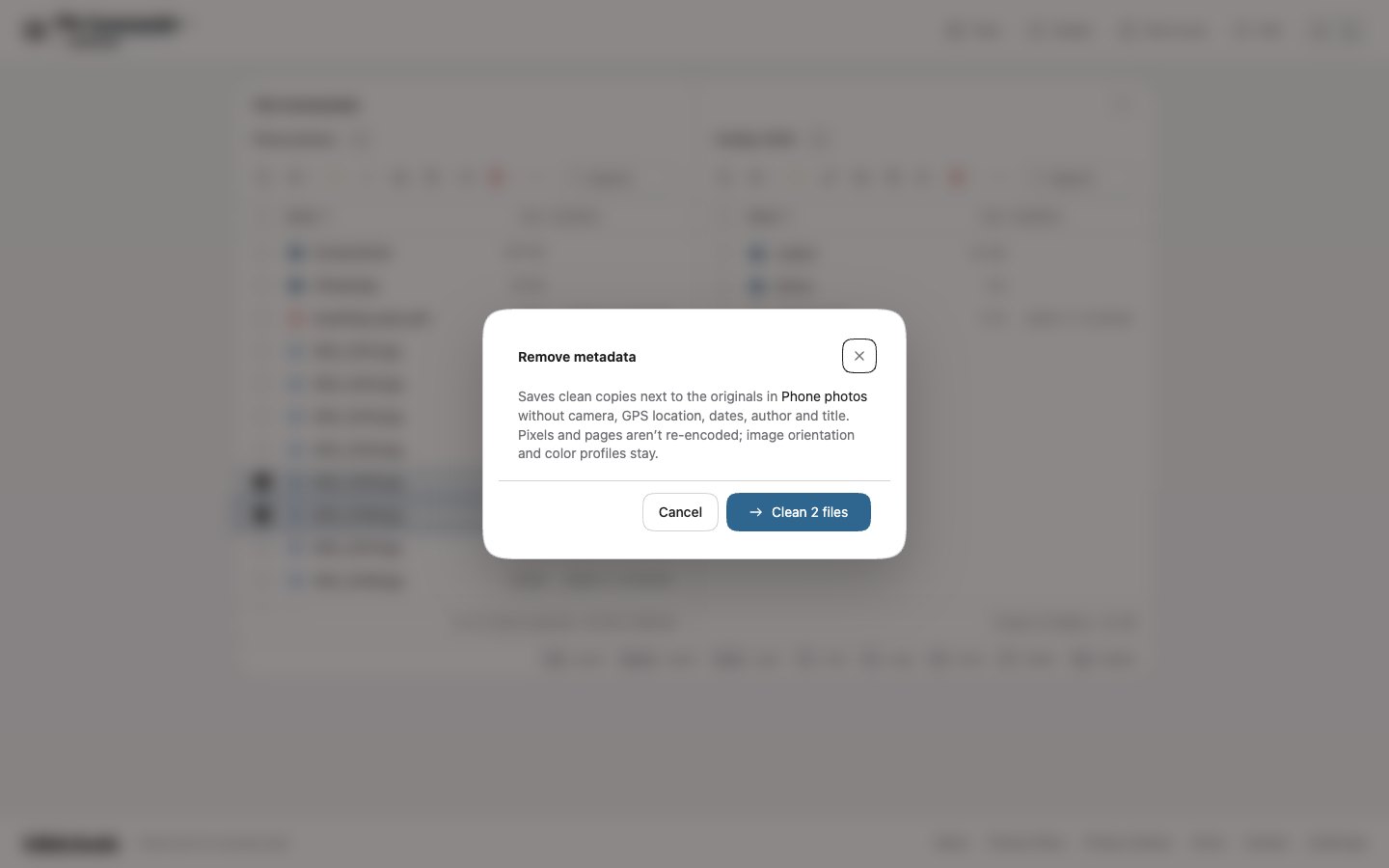
We selected IMG_2045.jpg and IMG_2046.jpg and chose … › Remove metadata. Clean copies were saved beside them with a number added.
| Removed | Kept |
|---|---|
| GPS location | The picture itself |
| Camera and lens details | Orientation |
| Dates and software | Color profile |
| Author, title, description | The original file |
Pictures aren’t re-encoded, so quality doesn’t change.
Repeat this example
- Select the photos or PDFs.
- Open … › Remove metadata.
- Click Clean 2 files and share the numbered copies.
Check the result
IMG_2045 (2).jpg and IMG_2046 (2).jpg appear next to the originals.
A common mistake
Sharing the original instead of the numbered clean copy.
Open File CommanderSources and credits
Sample folders made for these guides. Phone photos and Holiday 2026 hold generated landscape pictures and short text files created for the screenshots. Every screenshot shows the real tool working on those files.
Select the files
Select the photos or PDFs you want to share. JPG, PNG, WebP and PDF are supported; other files are skipped.
Choose Remove metadata
Open the … menu in the toolbar, or right-click the selection, and choose Remove metadata. The dialog says how many of the selected files can be cleaned.
Get clean copies
Clean copies are saved next to the originals with a number added, such as IMG_2045 (2).jpg. Pictures and PDF pages aren’t re-encoded, and image orientation and color profiles are kept so photos still look right.
Share the right file
Share the numbered copies and keep or delete the originals. Removing metadata doesn’t hide faces, street signs or text visible in a photo. To edit titles and authors instead of removing them, use Metadata Editor.
To edit metadata instead of removing it, follow the Metadata Editor guide.