A little guidance
How to preview photos, PDFs and text files quickly
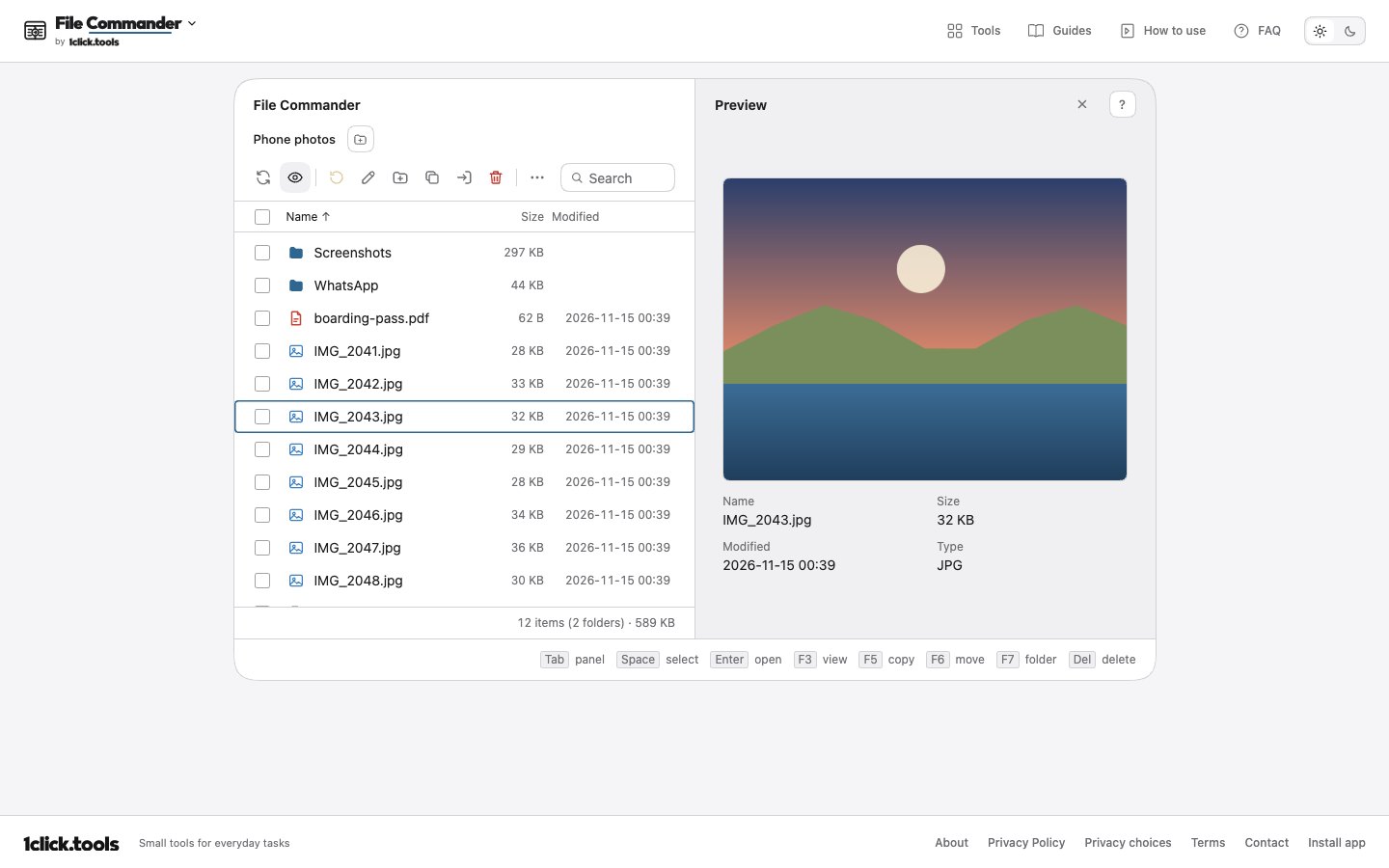
Quick view in File Commander shows the file under the cursor beside the list: pictures, PDFs, video, audio and text, with size and date.
Preview a holiday photo
We put the cursor on IMG_2043.jpg and pressed F3. The right panel turned into a Preview with the picture, size, date and type.
| File type | Preview shows |
|---|---|
| JPG, PNG, WebP, GIF | The picture |
| The pages | |
| Video and audio | A player |
| Text, CSV, Markdown | The first 64 KB of text |
| Folders | Total size |
Formats the browser can’t display, such as HEIC, show their details only.
Repeat this example
- Double-click a file, or put the cursor on it and press F3.
- Use the arrow keys to preview the next files.
- Close the preview with × or F3.
Check the result
The preview changes as the cursor moves.
A common mistake
Looking for the other panel while quick view is open: close the preview with × or F3 to get it back.
Open File CommanderSources and credits
Sample folders made for these guides. Phone photos and Holiday 2026 hold generated landscape pictures and short text files created for the screenshots. Every screenshot shows the real tool working on those files.
Open quick view
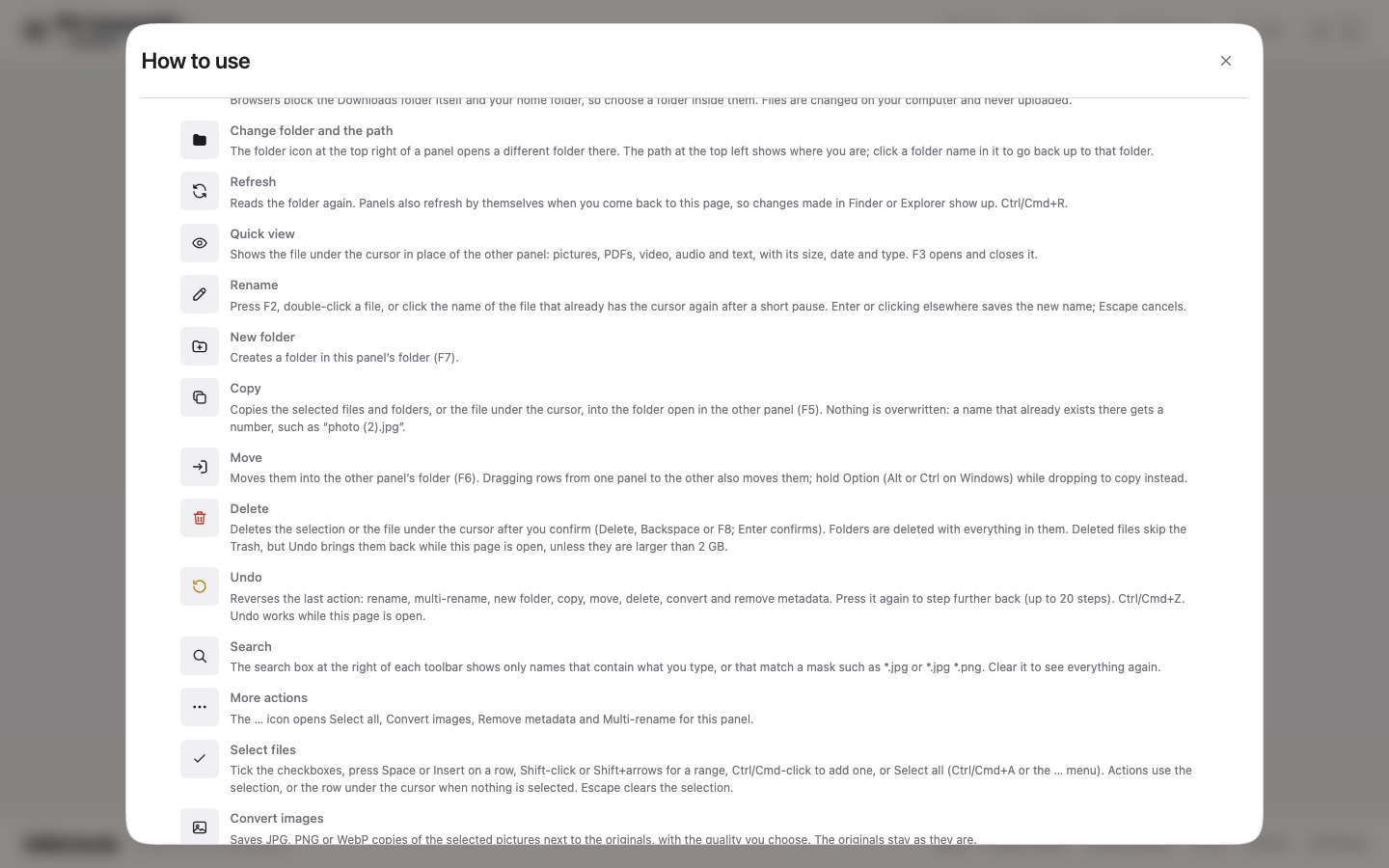
Double-click a file, click the eye icon in the toolbar, or press F3. The other panel turns into a Preview of the file under the cursor.
Move through files
Use the arrow keys or click files: the preview follows the cursor, so you can flip through a folder of photos quickly. Folders show their total size.
Every key is listed in the keyboard shortcuts guide.
What it shows
JPG, PNG, WebP, GIF and other browser-supported pictures, PDFs, video, audio and the start of text files such as .txt, .csv or .md. Below the preview are the name, size, date and type. Formats the browser can’t display, such as HEIC, show their details only.
Close it
Click × in the Preview title or press F3 again to get the other panel back.