A little guidance
How to pretty print JSON so it is easy to read
Paste minified JSON into JSON Prettifier, or open a .json file, and it is formatted at once and shown as a coloured tree you can open level by level, or as plain text. Nothing is uploaded.
Three bookshop orders on one line, made readable
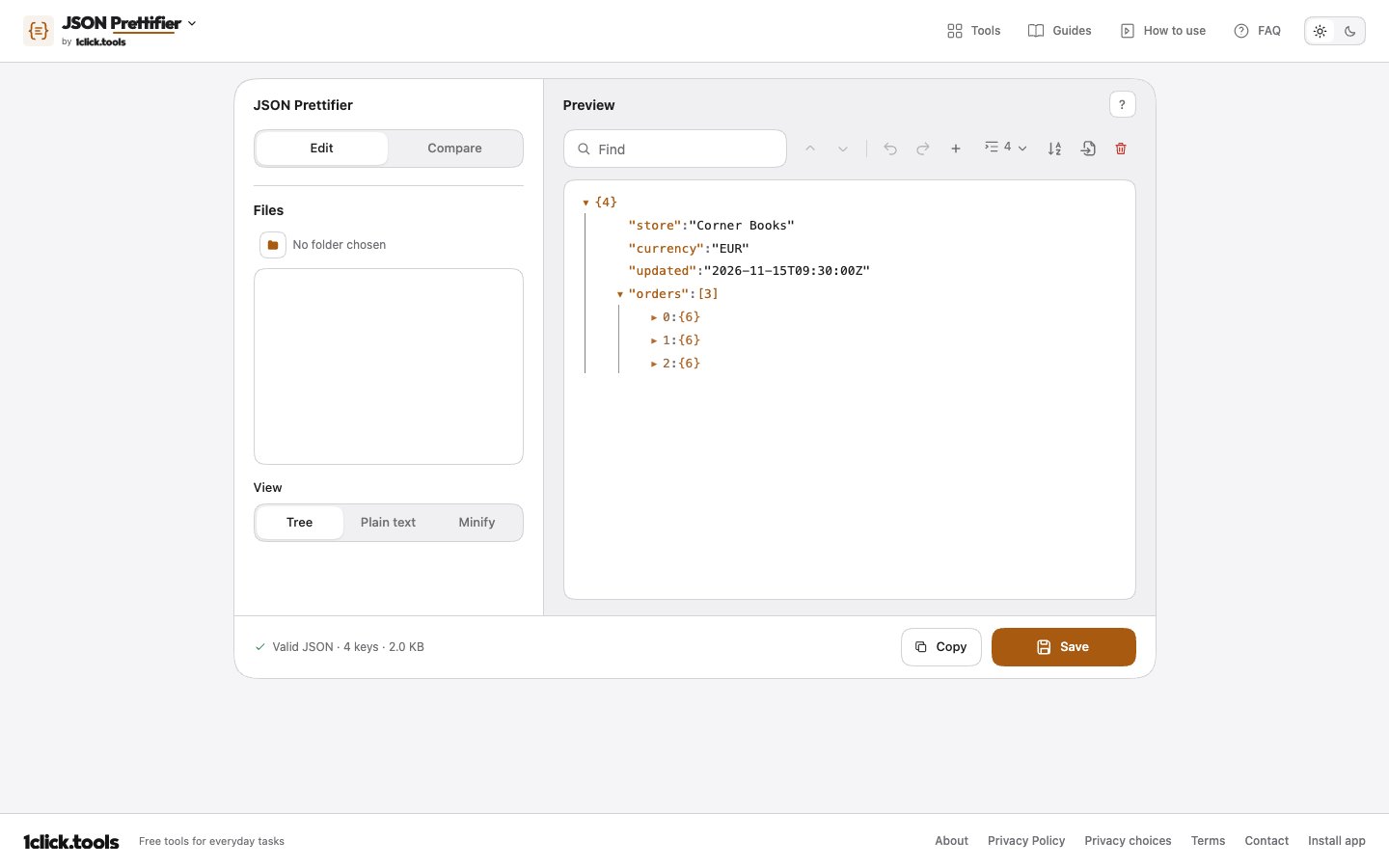
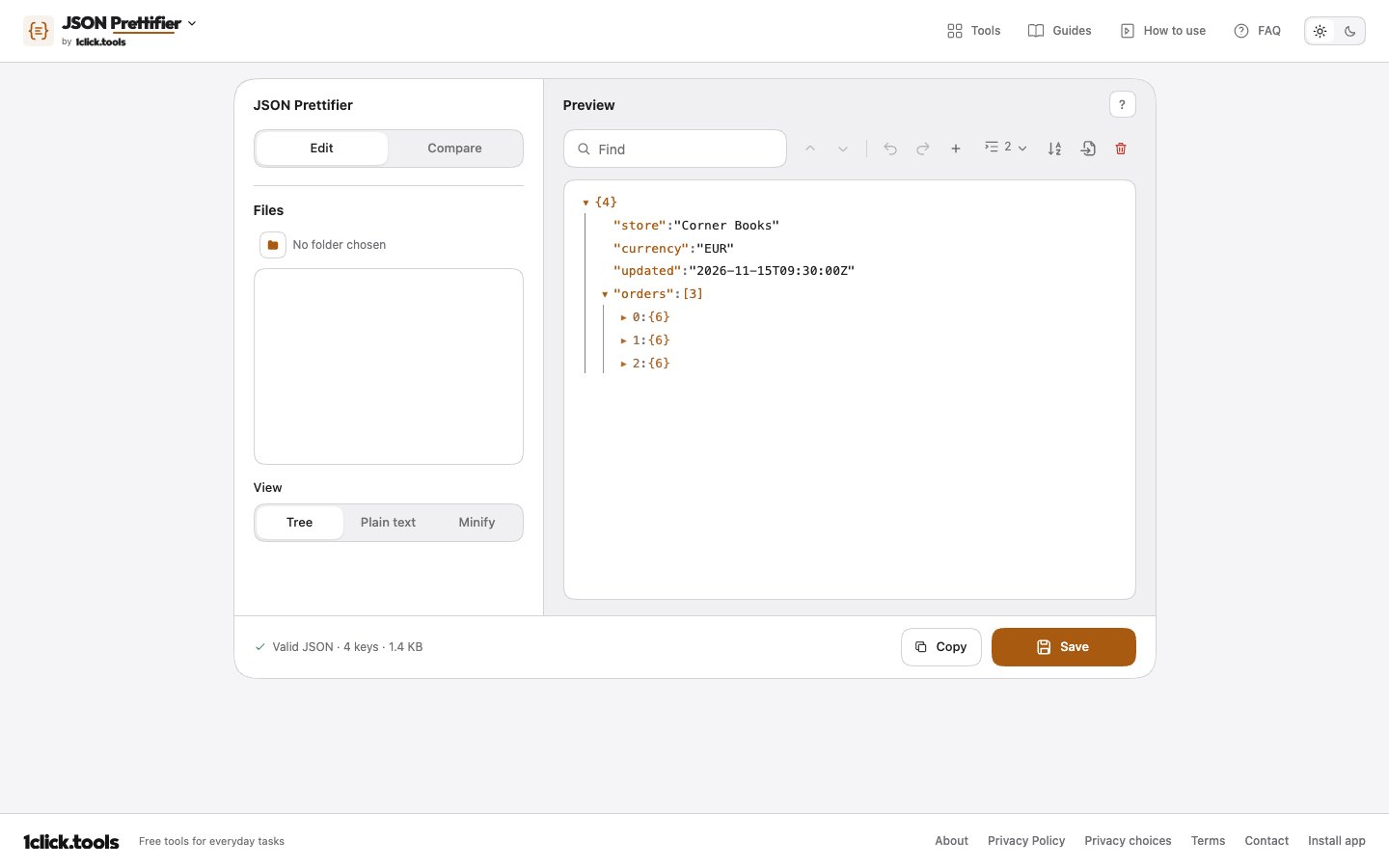
We cleared the example with the trash icon and pasted an 821-character minified API response into the empty editor. It was prettified immediately and shown as a tree, with 2-space indents for copying and saving.
| Before | After |
|---|---|
| One line, 821 characters (0.8 KB) | 76 indented lines (1.4 KB) when copied or saved |
| Hard to see where an order ends | Each order, customer and item on its own row in the tree |
| Valid JSON | Valid JSON · 4 keys |
Prettifying changes only spaces and line breaks.
Repeat this example
- Clear the example with the trash icon, then paste the minified JSON (Ctrl/Cmd+V).
- Leave Edit chosen at the top and View on Tree.
- Read the check at the bottom, then Copy or Save.
Check the result
The bottom line reads Valid JSON, and every nested object has its own indented row in the tree.
A common mistake
Pasting into the tree when JSON is already open doesn’t replace it: delete the old JSON first with the trash icon in the toolbar, and the empty editor comes back.
Open JSON PrettifierSources and credits
Sample JSON made for these guides. The bookshop orders, names and emails are invented. Every screenshot shows the real tool working on that JSON.
Paste, drop or open the JSON
The page opens with an example. Press the trash icon in the Preview toolbar to clear it, then paste with Ctrl/Cmd+V (in the tree, Ctrl/Cmd+V with nothing selected also replaces the JSON), drop a .json file onto the Preview, or choose a folder or file at the top of Files. JSON that arrives this way is formatted straight away.
Read it as a tree or as text
Edit (at the top, under JSON Prettifier) and the Tree view are chosen by default: every object and array on its own row, each level indented one step further. Keys are orange, lighter the deeper they are, and values are coloured by type (true and false red, whole numbers aqua, decimals green, text in the normal text colour, null grey). Choose Plain text under View to see the formatted text with the same colours.
Prefer 4 spaces or tabs? See how to change the indent.
Check that it is valid
The line at the bottom says Valid JSON with the number of keys and the size, or names the first error.
Copy or save it
Copy in the bottom bar copies the whole prettified JSON. For pasted JSON, Save asks where to save a .json file; a file you opened from your computer is saved straight back with Save, or as a new file with Save a copy.