A little guidance
How to move a Claude answer into Google Docs with formatting
Turn a Claude response with headings, checklists, tables and code into a Google Doc. Download a .docx and open it with Google Docs.
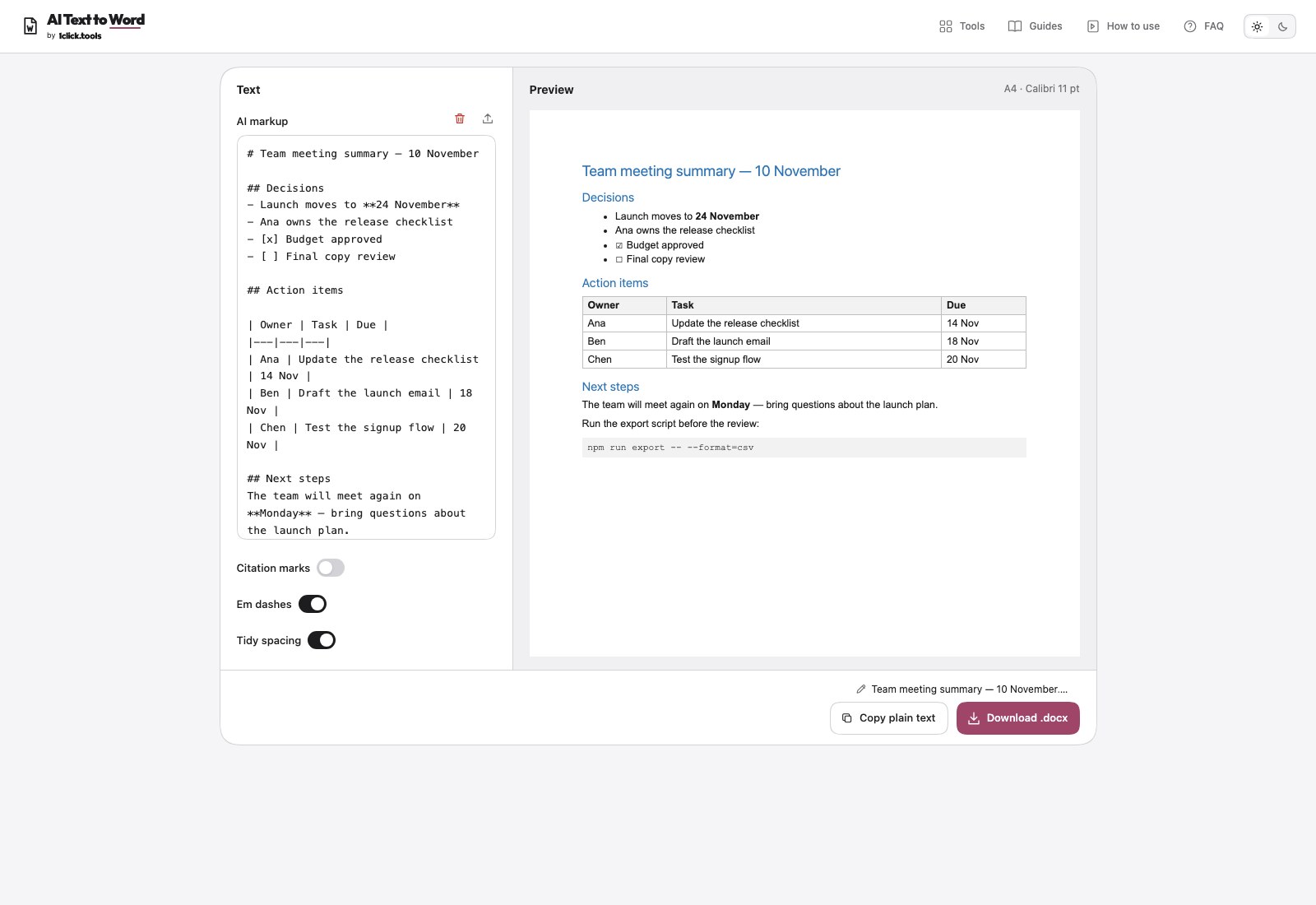
A Claude meeting summary with a checklist, table and code
We pasted a Claude-style meeting summary, checked the page preview and downloaded the .docx to open with Google Docs.
Start with these files
Compare the actual downloads
| In the pasted response | In the Word document |
|---|---|
| # Team meeting summary | Heading 1 style |
| - [x] Budget approved | ☑ Budget approved |
| - [ ] Final copy review | ☐ Final copy review |
| ```bash code block | Consolas on a grey background |
Google Docs opens .docx files from Google Drive and keeps heading styles, lists and tables.
Repeat this example
- Copy the Claude response, delete the example with the bin and paste the response into AI markup.
- Select Download .docx.
- Upload the file to Google Drive and choose Open with > Google Docs.
Check the result
The action-item table is a real table with three columns, not lines of text separated by | characters.
A common mistake
Pasting the copied Markdown straight into Google Docs leaves # signs and | characters in the document.
Paste your own answer into AI Text to WordSources and credits
Sample answers written for these guides. The example texts were written in the Markdown format that ChatGPT and Claude use for their answers; they are not real chat transcripts. Screenshots, Word documents and text files come from actual AI Text to Word sessions using these files.
Copy the response from Claude
Copy the Claude response. When it is copied as Markdown, pasting into an editor that does not interpret Markdown can leave # signs, asterisks and table pipes, or flatten a table into lines of text.
Paste and check the page preview
Delete the example text with the bin at the top right of AI markup and paste the response. The preview shows A4 page proportions with headings, bold text, checklists, tables and code blocks; on phones it appears below the editor. Checklist items show ☑ for done and ☐ for open, and code blocks keep their line breaks in a monospace font.
Download the .docx
Select Download .docx in the bottom bar. The automatic filename combines AITextToWord, the opening heading words and current date, such as AITextToWord_TeamMeetingSummary_22.11.2026.docx; use the pencil next to the name to change it first.
Open it with Google Docs
Upload the file to Google Drive, right-click it and choose Open with > Google Docs. Or, in Google Docs, choose File > Open > Upload and select the file. Headings use heading styles, so they appear in the Google Docs outline, and tables keep their rows and columns.
Saving a ChatGPT answer? Follow the ChatGPT to Word example.
Know the differences between editors
Each editor applies its own fonts and spacing, so the result can look slightly different from the preview. Code blocks are kept as monospace text; Google Docs does not have a separate code block style.