A little guidance
How to copy a ChatGPT answer to Word without ** and ## symbols
Paste a ChatGPT answer and download a Word document with real headings, lists and tables. Remove citation marks such as 【3†source】 first.
A ChatGPT travel plan, from Markdown to a Word document
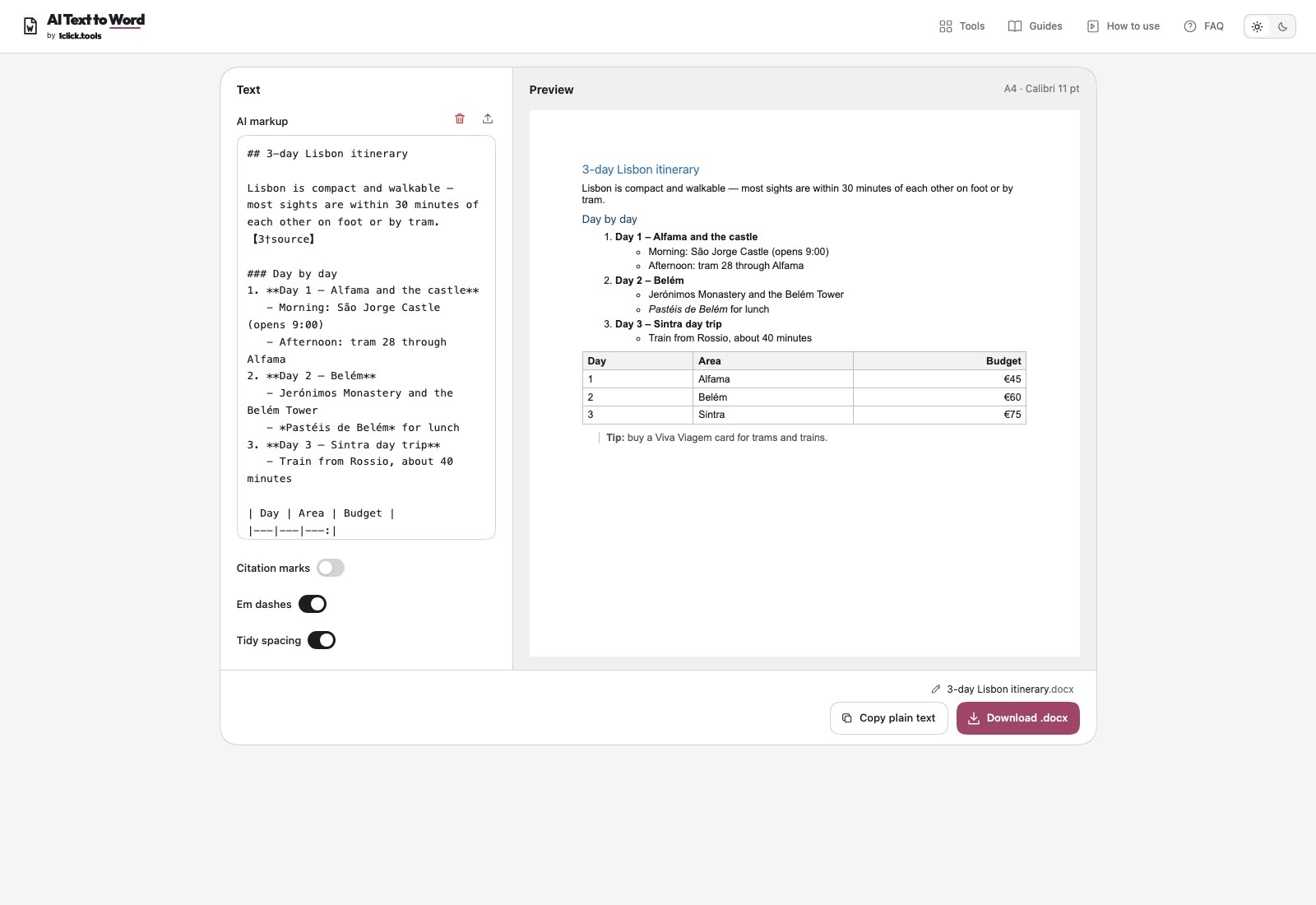
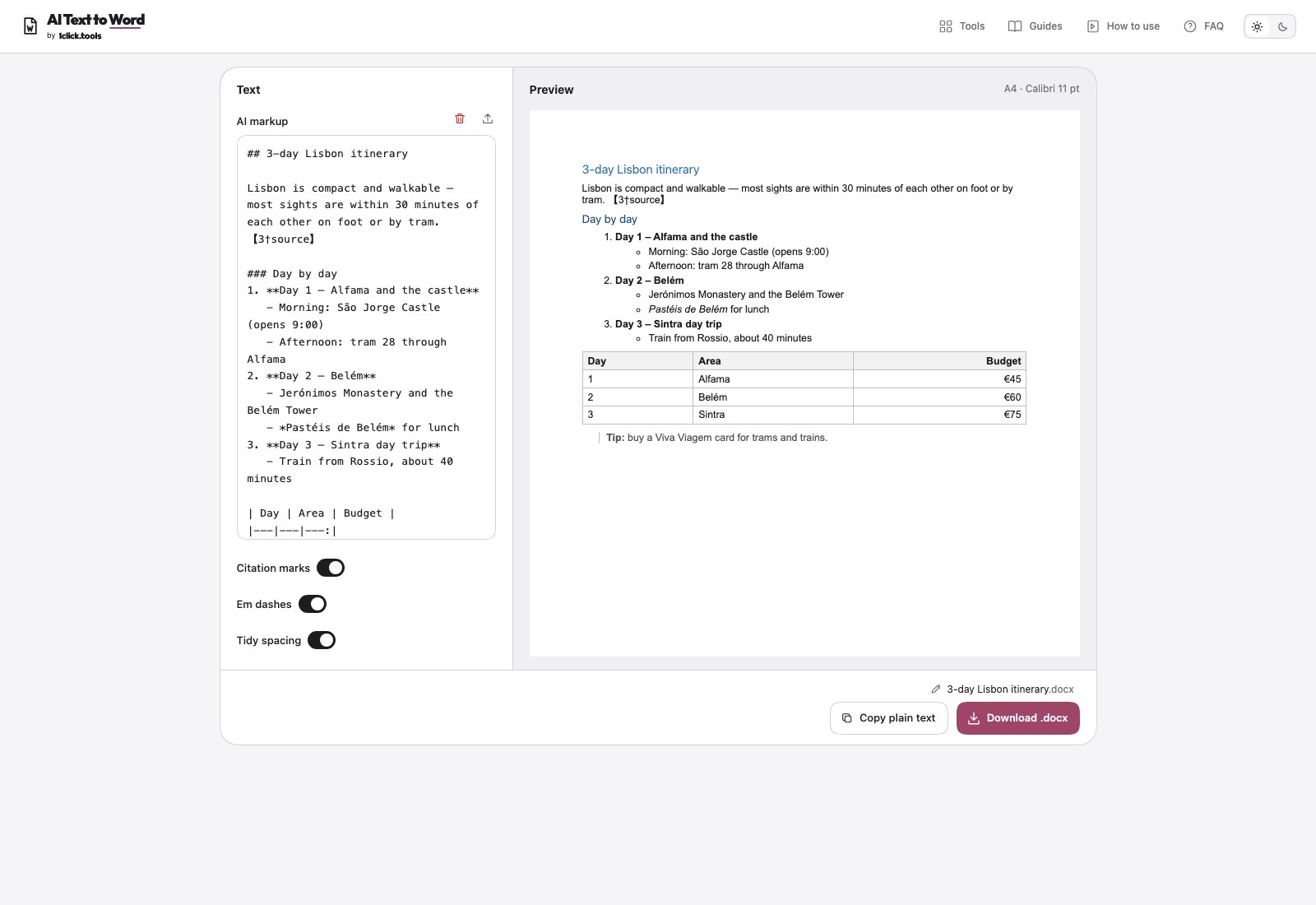
We pasted a ChatGPT-style itinerary with a heading, nested lists, a table, a quote and a 【3†source】 citation mark, then downloaded it as a Word document.
Start with these files
Compare the actual downloads
| In the pasted answer | In the Word document |
|---|---|
| ## 3-day Lisbon itinerary | Heading 2 style |
| 1. **Day 1 – Alfama…** with - bullets below | Numbered list with nested bullets |
| | Day | Area | Budget | | Bordered table, shaded header row, right-aligned budget |
| 【3†source】 | Removed |
The Word file uses built-in Heading styles, so headings appear in Word’s navigation pane.
Repeat this example
- Copy the ChatGPT answer, delete the example with the bin at the top right of AI markup and paste the answer.
- Keep Citation marks off and check the preview.
- Select Download .docx and open the Word file. The current automatic name is AITextToWord_3DayLisbonItinerary_22.11.2026.docx; the downloadable guide copy retains the alias chatgpt-lisbon-trip.docx.
Check the result
No ** or ## symbols and no 【3†source】 marker appear in the preview or in the Word document.
A common mistake
Pasting the copied answer straight into Word keeps every Markdown symbol. Convert it first.
Paste your own answer into AI Text to WordSources and credits
Sample answers written for these guides. The example texts were written in the Markdown format that ChatGPT and Claude use for their answers; they are not real chat transcripts. Screenshots, Word documents and text files come from actual AI Text to Word sessions using these files.
Copy the answer from ChatGPT
Copy the answer from ChatGPT. If the copied text contains Markdown, it uses two asterisks for bold, # signs for headings and | characters for tables. When the destination does not interpret Markdown, those symbols stay in the document.
Paste it into AI Text to Word
Open AI Text to Word and select the bin at the top right of AI markup to delete the example text, then paste the answer into the box. The preview always shows A4 page proportions; on phones it appears below the editor. In the preview, ## becomes a heading, **bold** becomes bold text, numbered and bulleted lists keep their nesting, and tables get borders and a header row.
Remove citation marks
Answers that used web search can contain reference markers such as 【3†source】 or hidden citation characters. Citation marks, below the editor, is off by default, so markers are removed from the preview and every export. Turn it on to keep them.
Pasting into a form instead? See how to copy AI text as plain text.
Download the Word document
Select Download .docx in the bottom bar. For pasted text, the automatic filename combines AITextToWord, the opening words of the first heading and the current date, such as AITextToWord_3DayLisbonItinerary_22.11.2026.docx; use the pencil next to the name to change it. Open it in Microsoft Word, Pages or LibreOffice: headings use Word’s built-in Heading styles, so they appear in the navigation pane and an automatic table of contents.
Check the facts, not only the formatting
The tool changes formatting, not content. Read names, prices, dates and opening times before sharing the document, especially in answers produced from web search.