
A little guidance
How to open two folders side by side in your browser
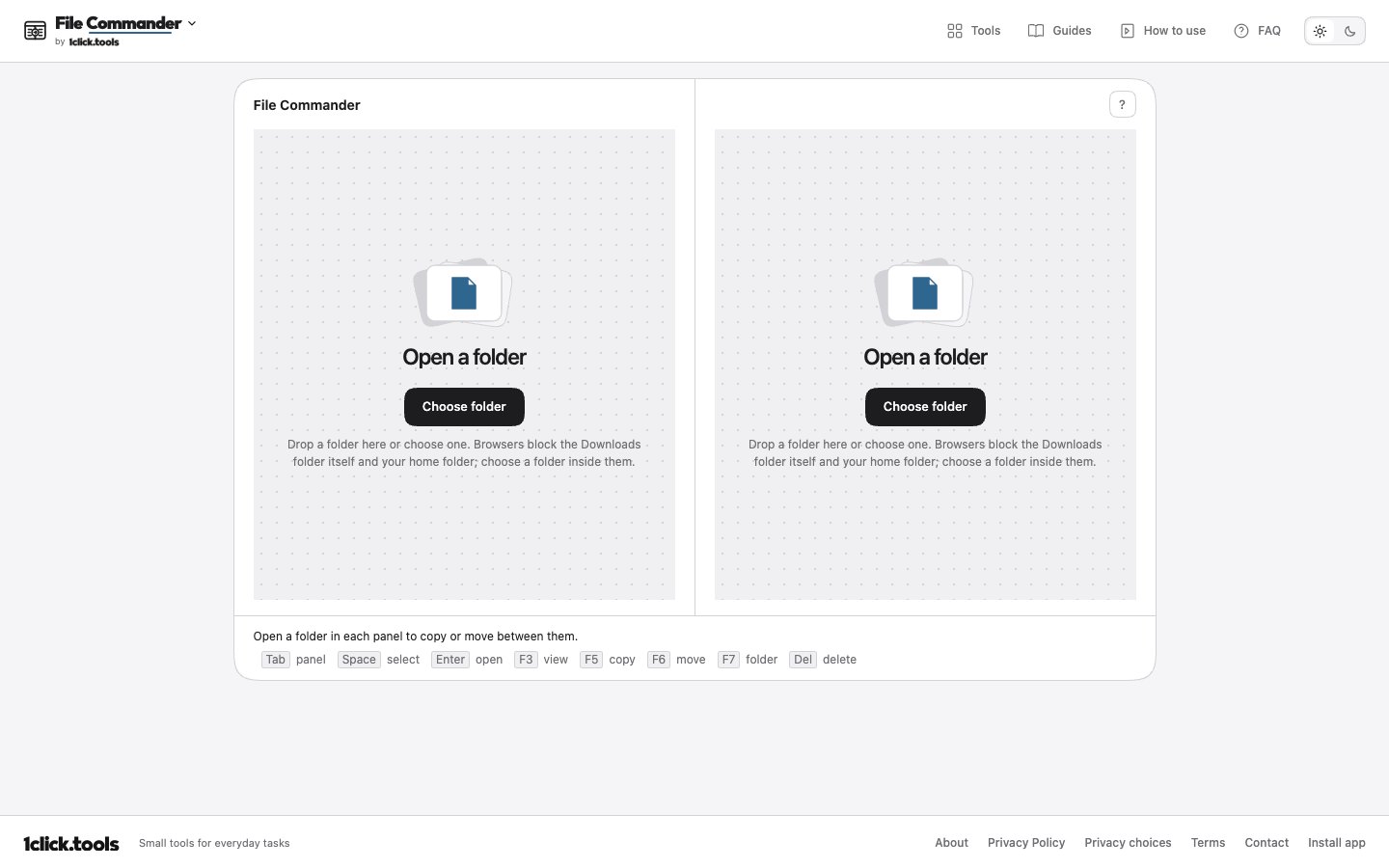
Open a folder in each File Commander panel, allow editing once, and come back to the same folders next time. Works in Chrome, Edge and Opera on a computer.
Phone photos on the left, Holiday 2026 on the right
We started with two empty panels, chose a folder of phone photos for the left one and a holiday folder for the right one.
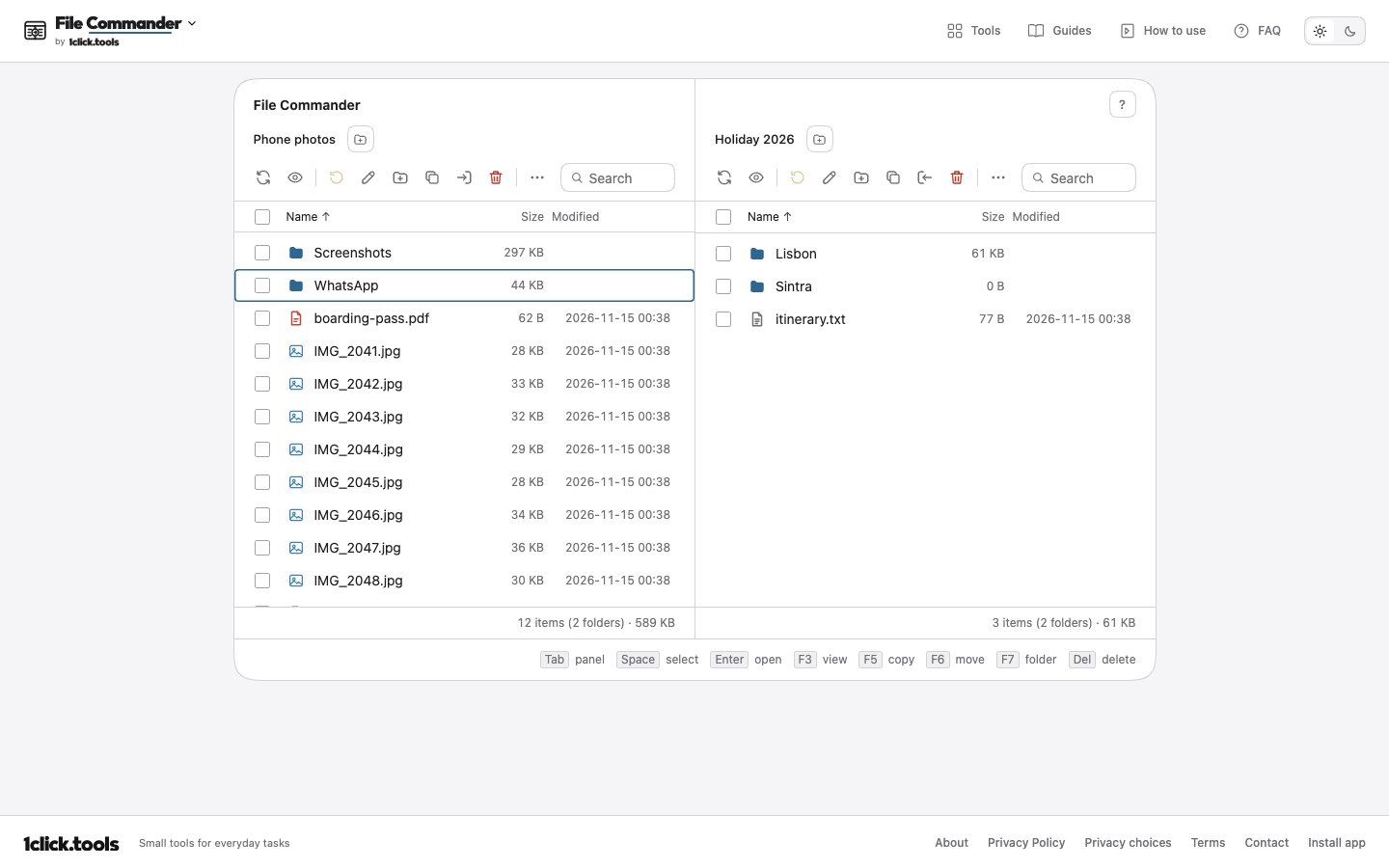
| Panel | Folder | Contents |
|---|---|---|
| Left | Phone photos | 2 folders, 10 files · 589 KB |
| Right | Holiday 2026 | 2 folders, 1 file · 61 KB |
| Access | Allowed once per folder | Remembered for the next visit |
The browser only gives the page the two folders you picked. Nothing else on the computer is visible to it.
Repeat this example
- Click Choose folder in the left panel and pick your photos folder.
- Allow the browser to edit the folder.
- Do the same in the right panel with the destination folder.
Check the result
Each panel shows its folder name at the top, the number of items and the total size at the bottom.
A common mistake
Choosing the whole Downloads or home folder: browsers block them. Choose a folder inside them.
Open File CommanderSources and credits
Sample folders made for these guides. Phone photos and Holiday 2026 hold generated landscape pictures and short text files created for the screenshots. Every screenshot shows the real tool working on those files.
Choose a folder for each panel
Each panel starts with Choose folder. Click it and pick a folder on your computer, or drag a folder from Finder or Explorer onto the empty panel. The left and right panels are independent, so you can open two different folders, two places on different drives, or the same folder twice.
Allow editing once
The browser asks whether 1click.tools may view and edit the folder. Allow it, or File Commander can’t copy, move, rename or delete there. The permission covers only the folder you picked and everything inside it; the page can’t see anything else on your computer.
Choosing Downloads and getting an error? Read why browsers block the Downloads folder.
Find your way around a panel
The top row shows the folder name. Click a folder in the list to put the cursor on it and press Enter, or double-click it, to go inside; the path grows into clickable names, so you can jump back up. The small folder icon right after the name opens a different folder in that panel.
Come back to the same folders
File Commander remembers both folders. On your next visit they open again by themselves if the browser still allows it; otherwise a Reopen button asks once more. Nothing is uploaded: the files stay on your computer the whole time.