
A little guidance
Why the browser won’t open your Downloads folder, and what to do
Chrome and Edge block web pages from editing your whole Downloads or home folder. Here is why, and how to work with those files in File Commander anyway.
Open a folder inside Downloads instead
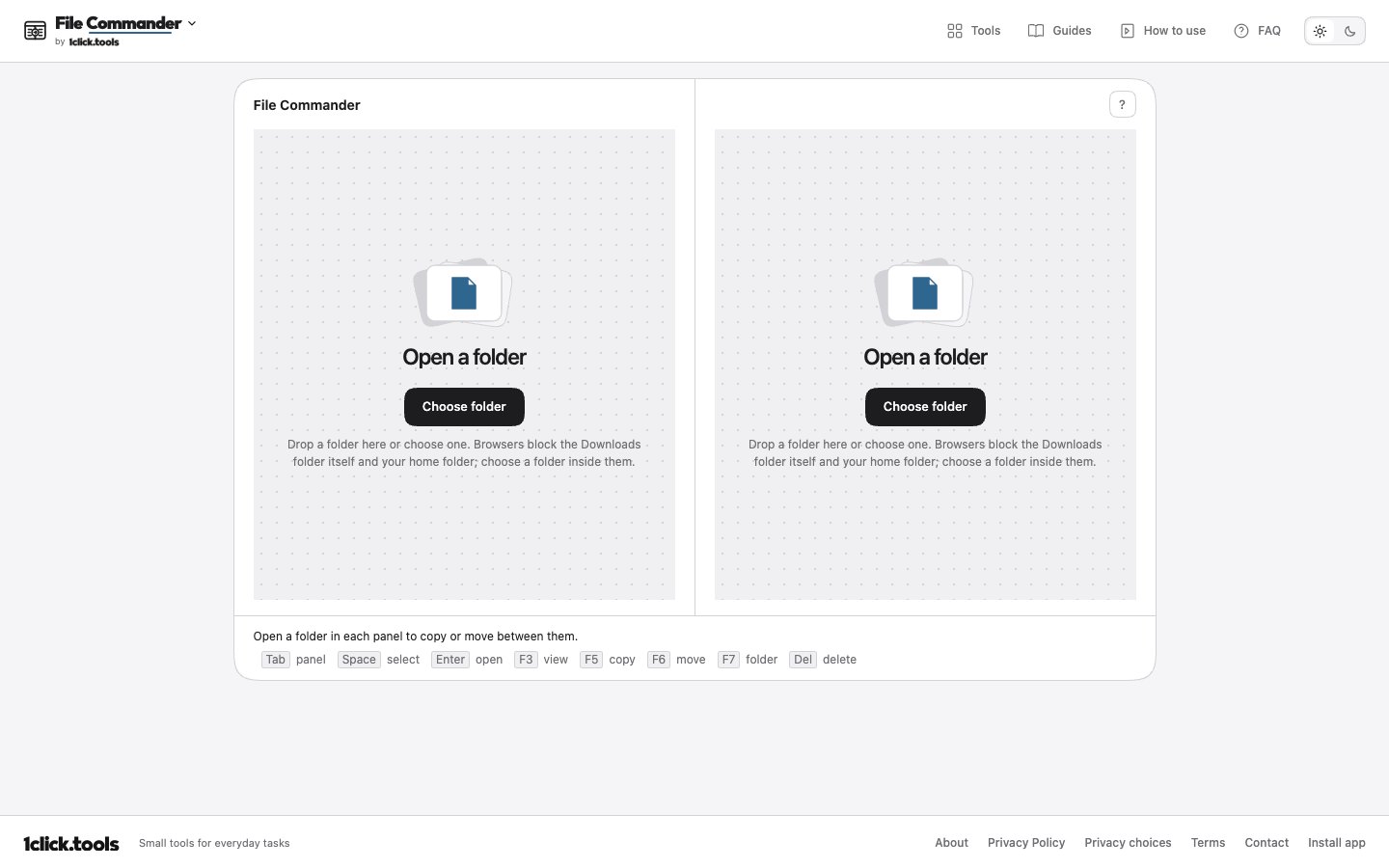
Choosing the Downloads folder itself is refused by the browser. We opened subfolders instead; the empty panel reminds you of this.
| Folder | Can it be opened? |
|---|---|
| Downloads itself | No, blocked by the browser |
| A folder inside Downloads | Yes |
| Home folder itself | No |
| Documents, Pictures, external drives | Yes |
This is a browser rule for every website, not a File Commander setting.
Repeat this example
- Create a folder inside Downloads, such as Sort.
- Choose that folder in File Commander.
- Drag files from Downloads into the open panel to copy them in.
Check the result
The folder opens and lists its files.
A common mistake
Trying another browser setting: there is none. Open a subfolder instead.
Open File CommanderSources and credits
Sample folders made for these guides. Phone photos and Holiday 2026 hold generated landscape pictures and short text files created for the screenshots. Every screenshot shows the real tool working on those files.
What you see
When you choose Downloads or your home folder, the browser says the folder can’t be opened because it contains system files. File Commander can’t change this: the browser decides, for every website.
Why browsers block it
Downloads and the home folder contain files from many apps, and granting one website write access to all of them is risky. Browsers therefore block the folder itself, but not the folders inside it.
Open a folder inside instead
Create a folder inside Downloads, such as Downloads/Sort, and open that, or open the specific subfolder you need. You can also open Documents, Pictures, Desktop subfolders or an external drive.
Then continue with how to open two folders side by side.
Move files out of Downloads
Drag files from Downloads in Finder or Explorer onto an open File Commander panel to copy them into that folder, then sort, rename or convert them there.