A little guidance
How to view and edit JSON in a tree
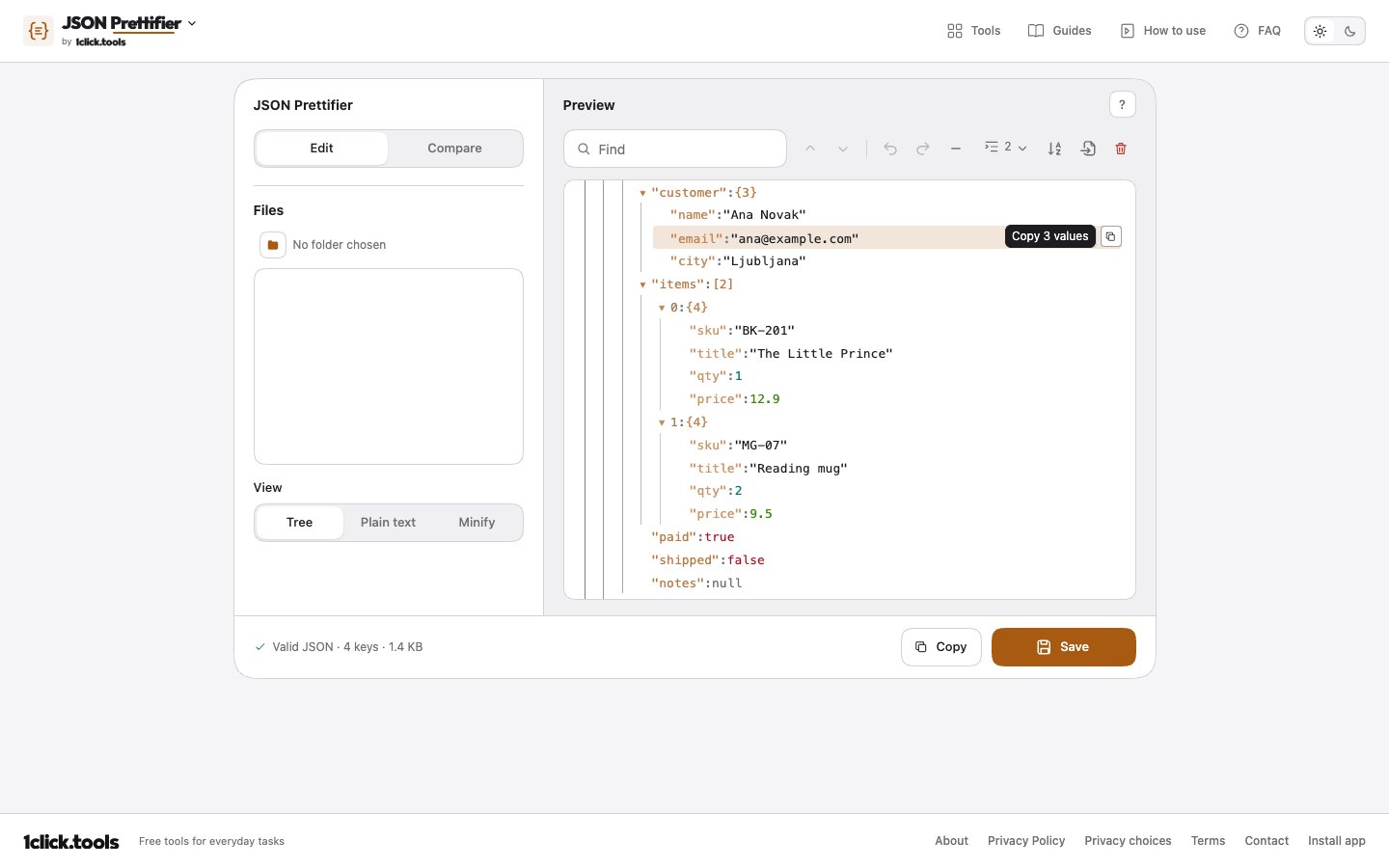
JSON Prettifier shows JSON as a tree: open and close objects and arrays, see how many keys or items each one has, and change, add, move or delete keys and values in place.
Browse the orders and change a note
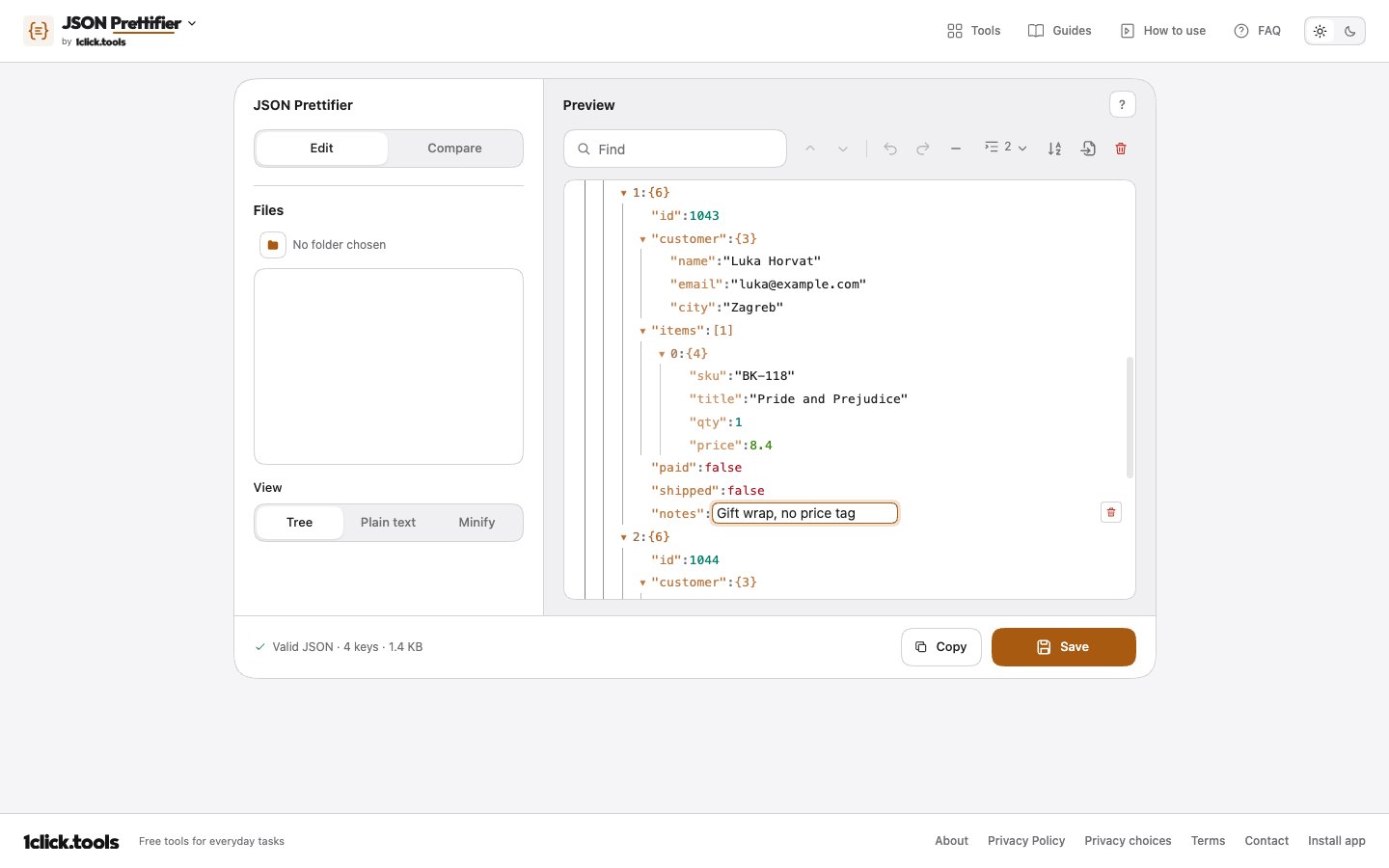
We opened the orders in the Tree view, expanded every level and double-clicked Luka’s note to change it. The edit box opened right in the tree.
| Row | Shows |
|---|---|
| {4} | The top-level object with 4 keys |
| "orders": [3] | An array with 3 orders |
| "paid": true | A value, colored by type |
| Double-click "Gift wrap" | An edit box; Enter keeps the change |
Expand all is the + icon in the toolbar, which then turns into − for Collapse all; Undo and Redo are next to it.
Repeat this example
- Open the JSON with View on Tree.
- Use + in the toolbar to expand everything.
- Double-click a value, type and press Enter.
Check the result
Each object shows its number of keys, each array its number of items, and the changed value appears as soon as you press Enter.
A common mistake
Typing quotes around text: text values stay text, so just type the words.
Open JSON PrettifierSources and credits
Sample JSON made for these guides. The bookshop orders, names and emails are invented. Every screenshot shows the real tool working on that JSON.
Open the JSON
Paste or open it with Edit chosen at the top and View set to Tree. Objects show {number of keys} and arrays [number of items]; the first two levels are open. Keys and brackets are orange, lighter at each level, and values are coloured by type.
Open and close branches
Click ▸ to open an object or array and ▾ to close it. The + icon in the toolbar expands every level at once; it then turns into − to collapse them again.
To copy just the rows you need, follow the copy guide.
Edit a key or value
Double-click a key or value, type, and press Enter (Escape cancels). Text stays text; for numbers, true, false and null, what you type becomes its JSON type, so 42 is a number. Double-click {…} or […] to edit a whole object or array as JSON.
Add, move, delete and undo
Hover a row for + to add a key or item and the trash icon to delete it; Delete removes the selected rows. Drag a row onto another to move it before or after that row, or into a closed object or array. Undo and Redo in the toolbar, or Ctrl/Cmd+Z and Ctrl/Cmd+Shift+Z, step through your edits.