A little guidance
How to copy part of a JSON file
Select rows in the JSON tree and copy just those values with the copy icon at the corner of the selection.
Copy all customer emails
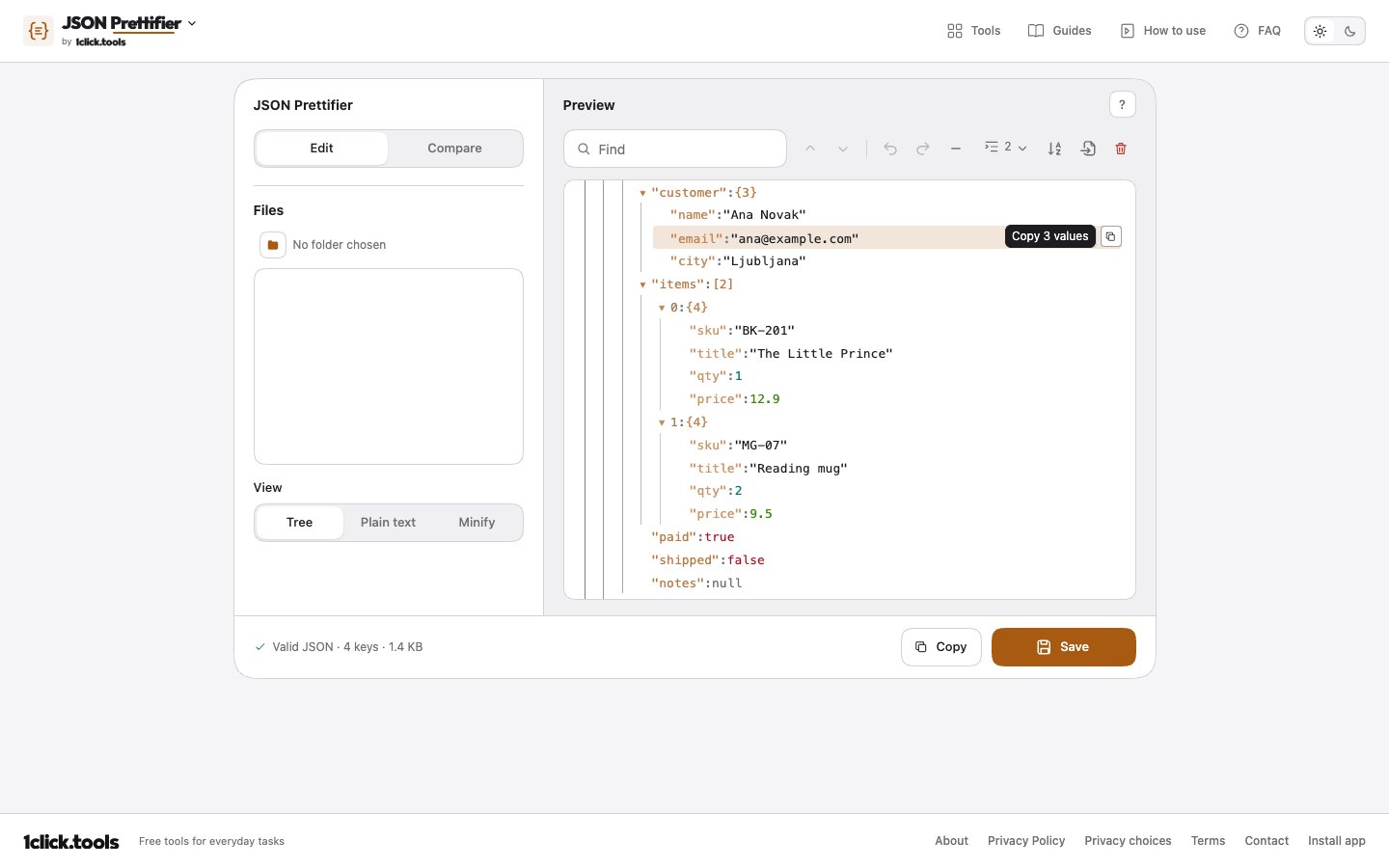
In the tree we clicked the first email and Ctrl/Cmd-clicked the other two. The copy icon offered Copy 3 values and copied them as a list.
| Selection | Copied as |
|---|---|
| One email | "ana@example.com" |
| Three emails (same key) | ["ana@example.com", "luka@example.com", "mia@example.com"] |
| customer and paid of one order | {"customer": {…}, "paid": true} |
The bottom Copy button still copies the whole JSON.
Repeat this example
- Expand the orders with + in the toolbar.
- Click the first email, then Ctrl/Cmd-click the others.
- Click the copy icon or press Ctrl/Cmd+C.
Check the result
Pasting gives a list of the three emails in the current indent.
A common mistake
Clicking a row without Ctrl/Cmd replaces the selection instead of adding to it.
Open JSON PrettifierSources and credits
Sample JSON made for these guides. The bookshop orders, names and emails are invented. Every screenshot shows the real tool working on that JSON.
Select in the tree
Click a row to select it and Ctrl/Cmd-click to add more. Selected rows are tinted.
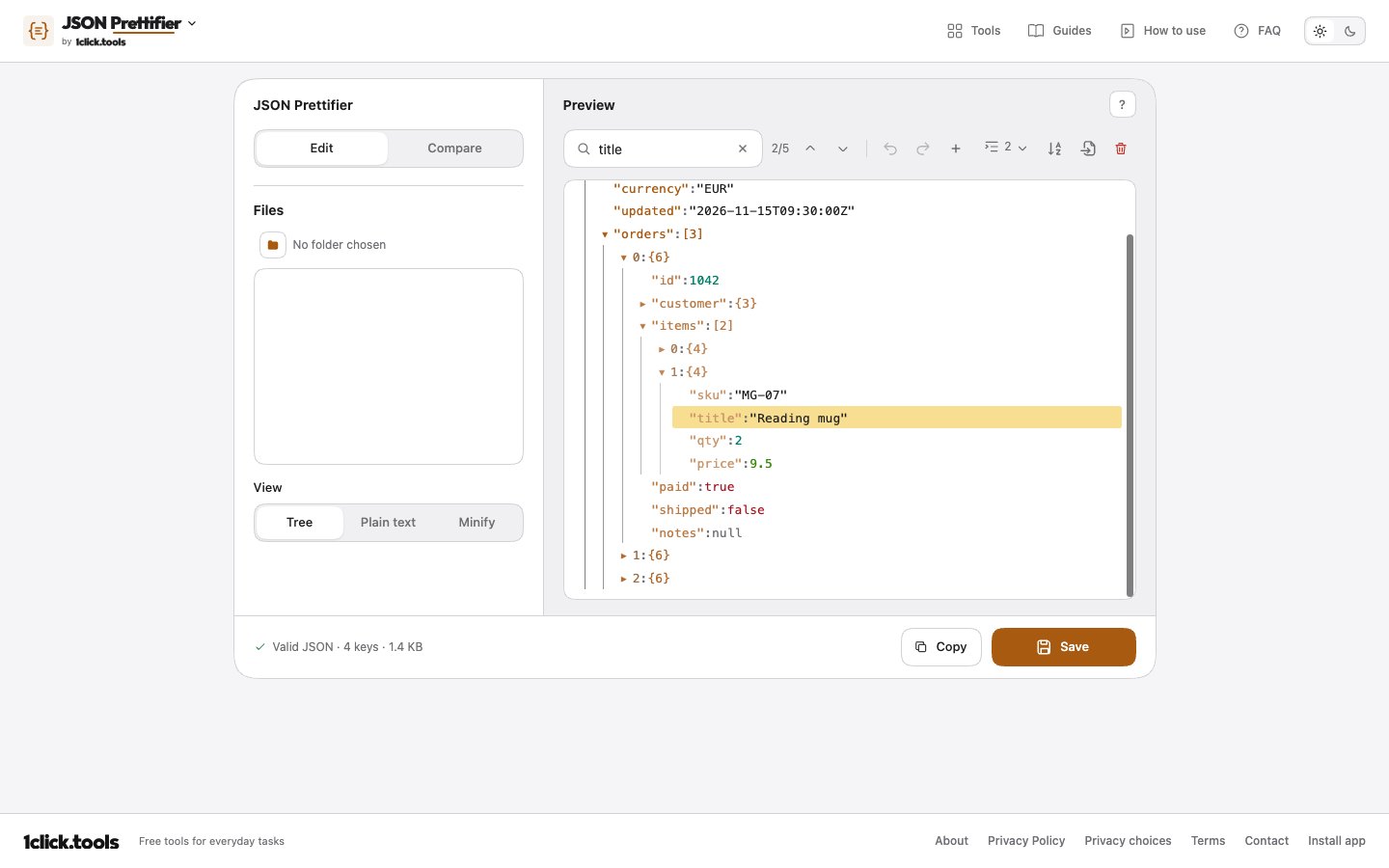
Find the rows first with the find bar.
Click the copy icon
A small copy icon appears at the top right of the selection; its label says how many values it copies. Ctrl/Cmd+C does the same.
Know what you get
One row copies its value on its own. Several keys with different names copy as a small object; other selections, such as the same key from several items, copy as an array.
Copy everything
The Copy button in the bottom bar always copies the whole JSON, with the indent you chose.