A little guidance
How to combine images into one PDF
Turn JPG, PNG or WebP images into one PDF, or save separate PDFs. Follow a two-image example with mixed page sizes, transparency and a real download.
Real example: a landscape PNG and portrait JPG in one PDF
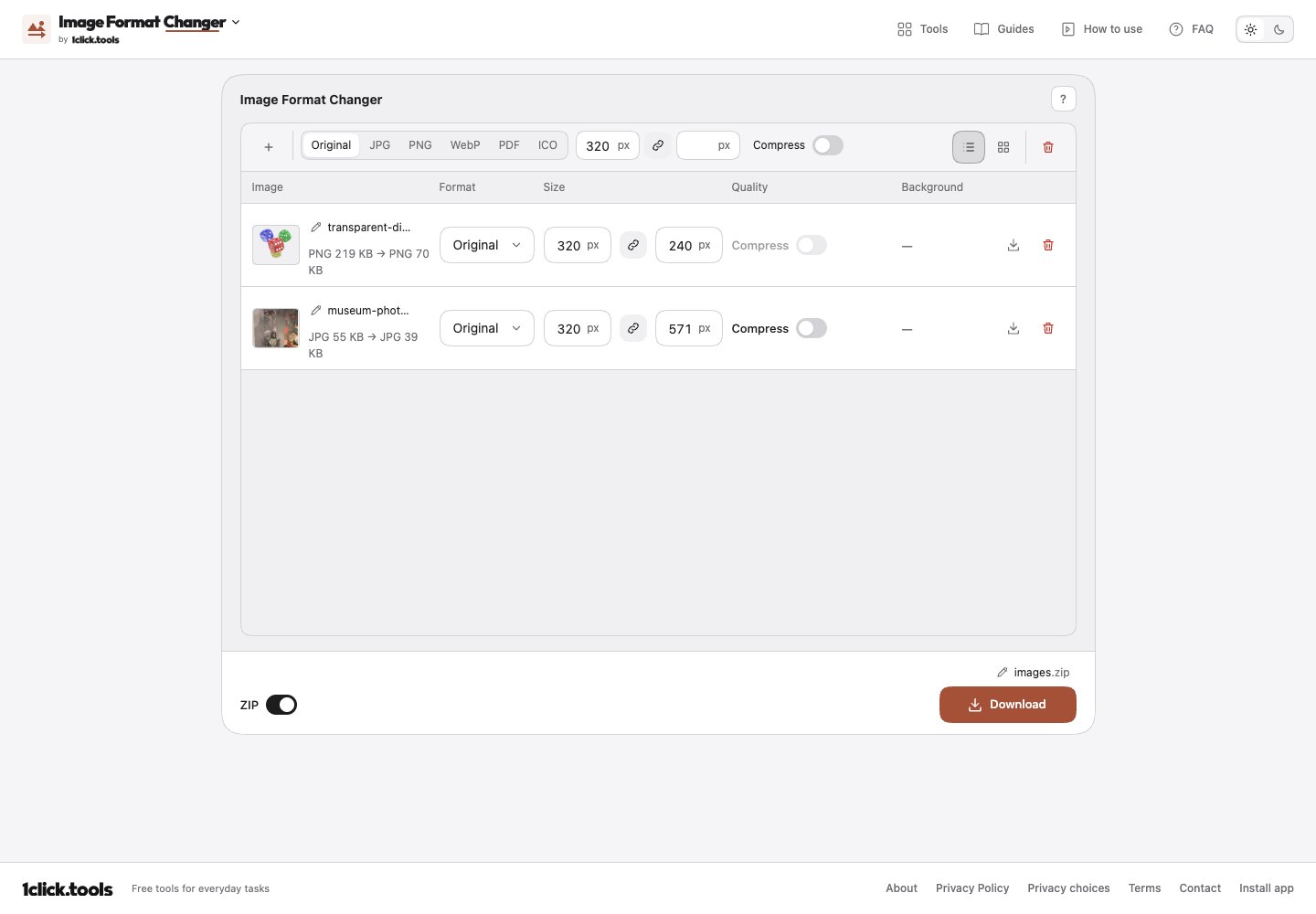
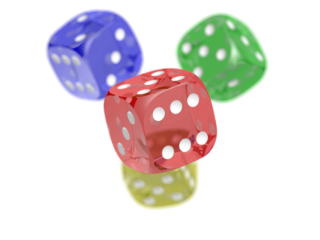
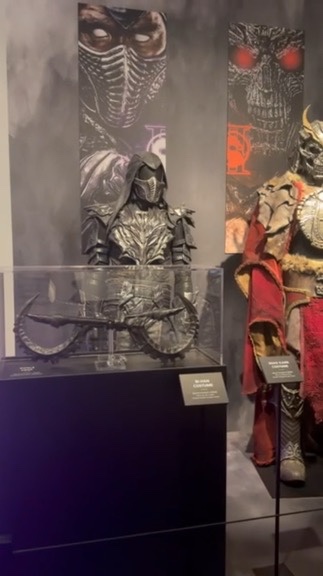
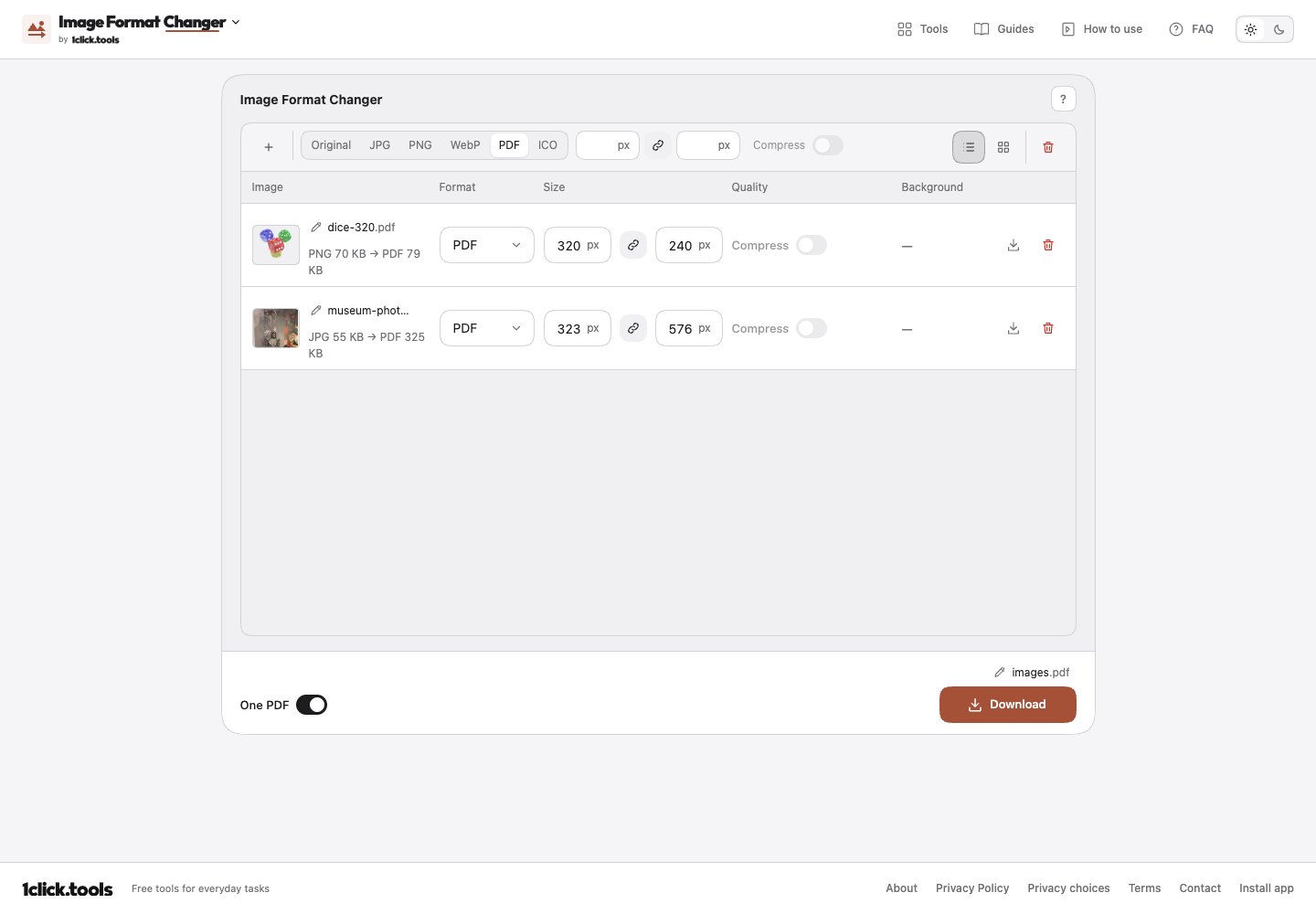
We added the transparent dice PNG first and the museum photo second, chose PDF for both and enabled One PDF. Original dimensions were kept. The actual download contains the two images in that order.
Start with these files
- Transparent dice · 320 × 240 PNG69.8 KiB
- Museum photo · 323 × 576 JPG55.4 KiB
Compare the actual downloads
| Page | Source image | PDF page size |
|---|---|---|
| 1 · landscape | dice-320.png · 320 × 240 px | 240 × 180 points |
| 2 · portrait | museum-photo.jpg · 323 × 576 px | 242.25 × 432 points |
The real two-page download is 413,042 bytes. PDF uses lossless image encoding and can be larger than the source images. Page size follows each image at 96 pixels per inch; the two pages intentionally have different shapes.
Repeat this example
- Download both sources. Add the dice PNG first, then the museum photo. Confirm their order in list view.
- Choose PDF in the toolbar and leave width and height empty. Confirm that both rows show PDF. Turn on One PDF in the bar.
- Choose Download and open images.pdf. Check both pages. To save separate files instead, turn One PDF off and choose Download; individual row download icons always save one image.
Check your download
The first page is the landscape dice image; the second is the portrait museum photo. No image is cropped or padded. The dice transparency is retained in the PDF and appears white in a typical viewer. The museum image remains a picture, not selectable text.
A common mistake
Changing the toolbar format does not override an image’s own settings. If One PDF is missing, change every row to PDF or reset the rows marked with a dot. The tool does not silently omit non-PDF images or download an incomplete combined PDF after a failed image.
Try combining these imagesSources and credits
Dice image: Daniel G., Ed g2s and CyberShadow · CC BY-SA 3.0. The supplied 320 × 240 PNG is a resized copy. The dice image in the PDF is shared under the same license.
Museum photo from the supplied sample files. The source JPG is unchanged. Its decoded image appears on the second PDF page.
Actual Image Format Changer session. Screenshot and download come from the working tool. Both PDF pages were reopened and rendered to check order, sizes and transparency.
Choose images in the order you need
Add JPG/JPEG, PNG, WebP or GIF images, up to 25 MB each. The image list determines the page order. The worked example puts the 320 × 240 transparent dice PNG first and the 323 × 576 museum JPG second. Check the order in list view before downloading. To change the order, remove images and re-add them in the desired sequence. Animated inputs become still images.
Choose PDF for every image
Select PDF in the toolbar above the images. Images using the shared settings follow that choice; images with their own settings keep them. If a row still uses JPG, PNG or WebP, choose PDF in its Format menu or use its reset icon. The One PDF switch appears in the bar only when every image is set to PDF. Existing PDF files are not accepted as image inputs.
Already have PDF documents? Use the PDF merging guide to combine or reorder their pages.
Download one PDF or separate files
Turn on One PDF in the bar, then choose Download. The file images.pdf, which you can rename next to Download, contains one page for each image in list order. Turn One PDF off to save separate PDFs named after the images, in one ZIP when ZIP is on. The download icon on an individual row always saves only that image, even when One PDF is on.
Keep each image’s proportions and page size
Leave width and height empty for original image dimensions, or keep them linked when entering a width or height. Each PDF page fits that image with no added margins or crop, using 96 image pixels per inch. The example’s landscape page is 240 × 180 PDF points; the portrait page is 242.25 × 432 points. Pages can have different sizes. This tool has no A4 or Letter page preset.
For more examples of linked sizing, see how to resize landscape and portrait images.
Check transparency, quality and file size
PDF exports use lossless image encoding and keep transparent pixels, so Compress is unavailable. PDF viewers usually display transparent parts over a white page. Select a thumbnail to open the image and switch between Original and Result. A PDF can be larger than the source JPG; reduce dimensions if needed. Images containing text remain images: this tool does not perform OCR or create selectable text.
Retry a failed image before combining
If an image fails, no partial combined PDF is downloaded. Check the marked row, replace an unreadable source or choose smaller dimensions, then choose Download again. Prepared images are reused where possible. Processing happens in your browser; files and content are not uploaded. Keep the originals and downloaded PDF before closing the tab; a reload keeps your images.