A little guidance
How to open a folder of JSON files, edit them and save
Open a project or config folder in JSON Prettifier to see all its JSON files, change one in the tree and save it straight back to your computer.
Fix the port in a project’s dev config
We opened a small project folder with package.json, tsconfig.json and config and locales subfolders. Its first file, config/dev.json, opened at once; we double-clicked the port, changed it from 3000 to 5173 and saved.
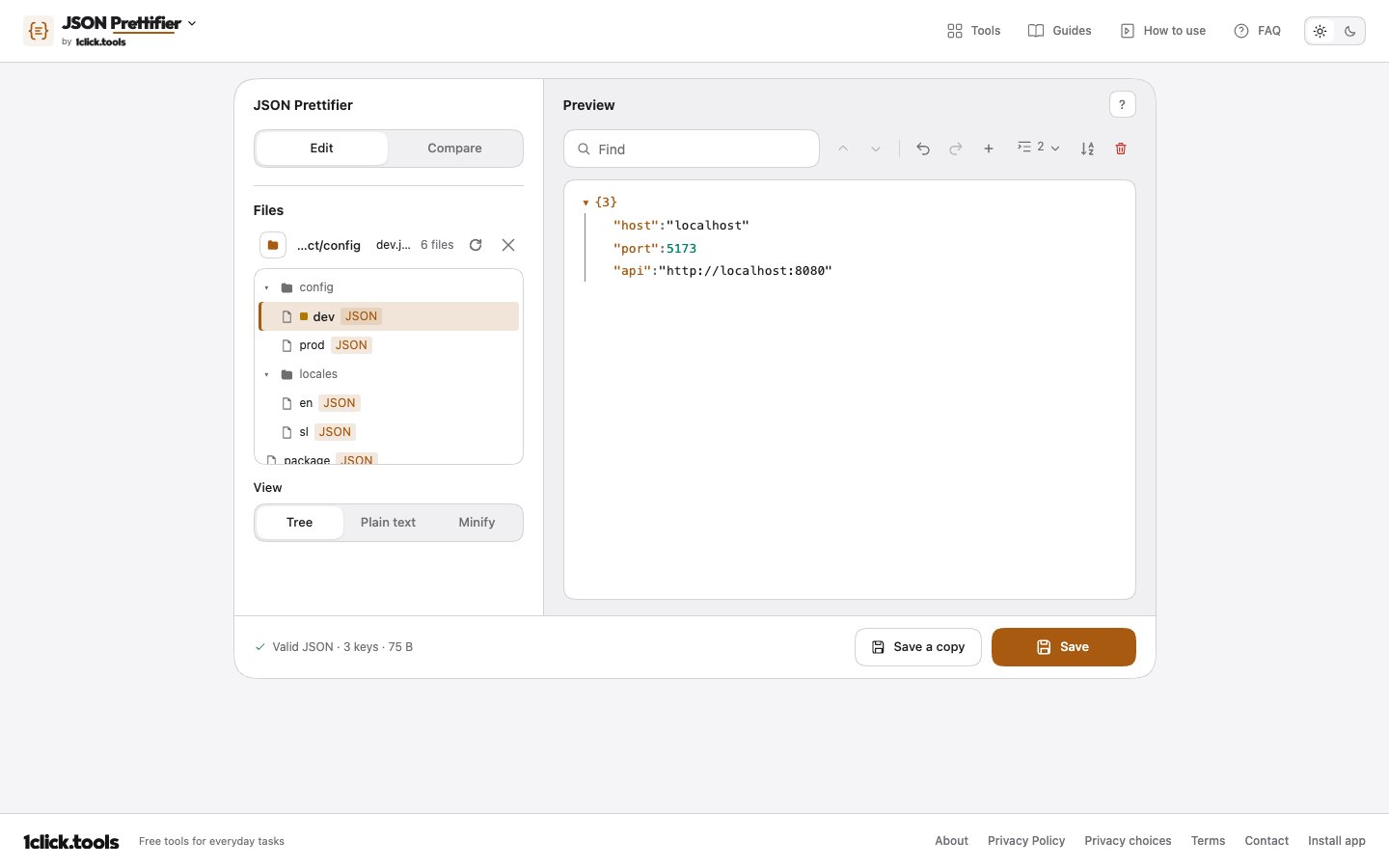
| Step | What you see |
|---|---|
| Open the folder | 6 JSON files in a tree with their sizes; the first one opens |
| config/dev.json | Its row is highlighted in the list |
| Change the port | A dot next to the file, and Save can be pressed |
| Save | Saved; the file on disk has the new port |
For these screenshots the folder came from the browser’s private storage instead of the folder picker, so it behaves exactly like a folder on your computer.
Repeat this example
- Click the import icon next to Files and pick the folder.
- Click the file in the Files list, if it isn’t the first one.
- Double-click a value, change it and press Save or Ctrl/Cmd+S.
Check the result
After saving, the dot next to the file disappears and Save is greyed out again.
A common mistake
Choosing your whole Downloads or home folder: browsers block those; pick a folder inside them.
Open JSON PrettifierSources and credits
Sample JSON made for these guides. The bookshop orders, names and emails are invented. Every screenshot shows the real tool working on that JSON.
Open the folder
Click the folder bar at the top of Files and pick a folder; you can also drop the folder onto the Preview. The Files list shows every JSON file in it and its subfolders (node_modules, .git and build folders are skipped), and the first file opens at once.
Open another file
Click a file in the list. It opens in the tree, and its row is highlighted in the list.
Edit and save
Double-click a value to change it; the check at the bottom keeps telling you whether the JSON is valid, and an amber square in the list marks unsaved changes. Save becomes available; press it or Ctrl/Cmd+S to write the file back. The browser asks once for permission to save.
More ways to edit in the tree guide.
Keep the original instead
Save a copy asks where to save the changed JSON as a new file and leaves the original untouched. Saving works in Chrome, Edge and Opera on a computer; in other browsers Save and Save a copy download the file.