A little guidance
How to delete pages from a PDF
Remove unwanted pages from a PDF in your browser: select them, click the bin in the page toolbar and download the shorter PDF. Undo brings pages back.
Remove the last two pages of a report
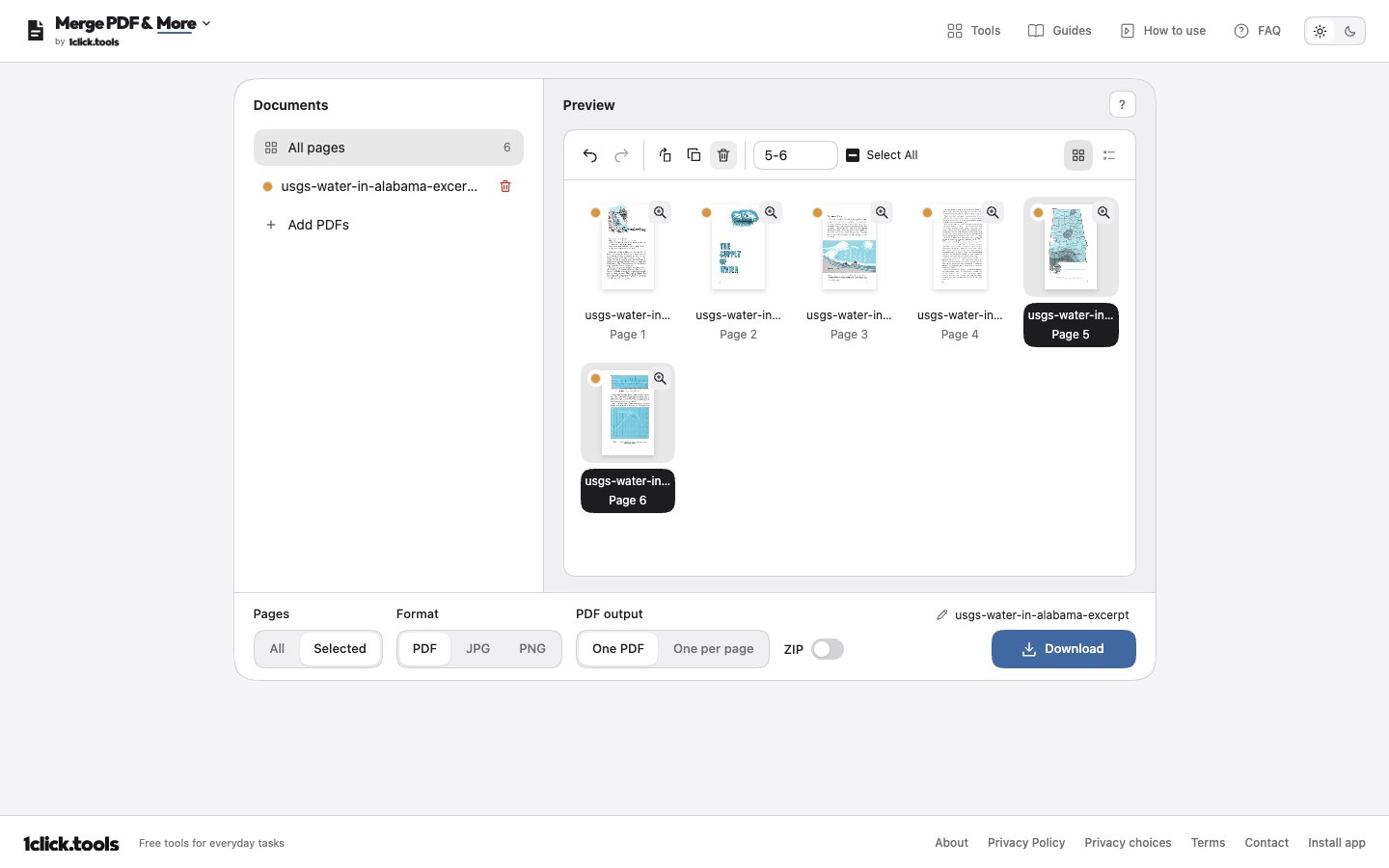
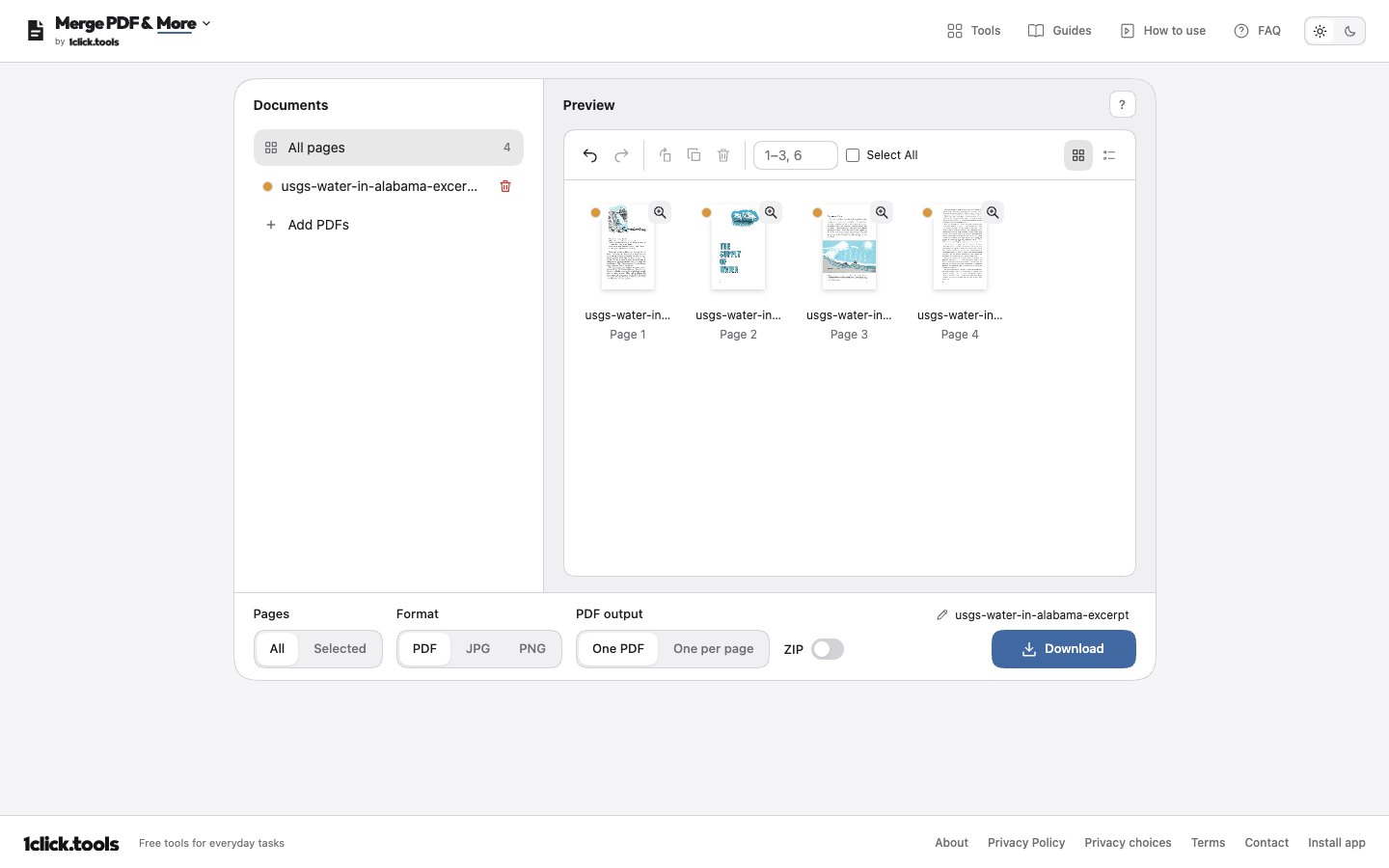
We typed 5-6 in the page range box, which selected pages 5 and 6, clicked the Delete selected pages icon and downloaded the four pages that were left.
Start with these files
| Step | Workspace | Bottom bar |
|---|---|---|
| Range 5-6 | 6 pages, 2 selected | Pages: Selected |
| Delete selected pages | 4 pages, none selected | Pages: All |
| Download | One PDF | A four-page PDF |
Deleting only changes the workspace. The PDF on your computer stays as it was until you save the download over it.
Repeat this example
- Type 5-6 in the box above the pages, or click and Shift-click the pages.
- Click the bin icon, Delete selected pages.
- Click Download.
Check the result
All pages under Documents shows 4, and the downloaded PDF opens with four pages.
A common mistake
Using the bin next to a file name under Documents: that removes the whole document, not single pages. Undo brings it back.
Open Merge PDF & MoreSources and credits
USGS: A layman’s look at water in Alabama (1963). Public-domain USGS report. Our sample contains printed pages 1–6 (PDF pages 7–12 of the original); no page artwork was changed.
Select the pages to remove
Add the PDF, then click a page to select it. Cmd-click on a Mac or Ctrl-click on Windows adds more pages, Shift-click selects a run, and the box above the pages takes ranges such as 5-6 or 1, 4. Selected pages get a dark label.
Click Delete
The bin icon in the toolbar above the pages, labelled Delete selected pages, removes the selection from the workspace. The page numbers close up straight away, and All pages under Documents shows the new count.
Changed your mind?
Click Undo, the left arrow at the start of the toolbar, to bring the pages back in their old places. Undo and Redo go up to 40 steps back while the page is open. Your original PDF on your computer is never changed.
Download the shorter PDF
After deleting, nothing is selected, so Pages is back on All. Leave Format on PDF and PDF output on One PDF, then click Download. If you only need a few pages of a long document, selecting them and downloading Selected can be quicker than deleting the rest.
For the selection route, see how to extract selected PDF pages.