A little guidance
How to add or change the thumbnail of a PDF or JPG
See whether a PDF or JPG photo has a thumbnail, make any page of a PDF, or the photo itself, its thumbnail when you save, or remove the one it has.
Make page 2 the thumbnail of a three-page PDF
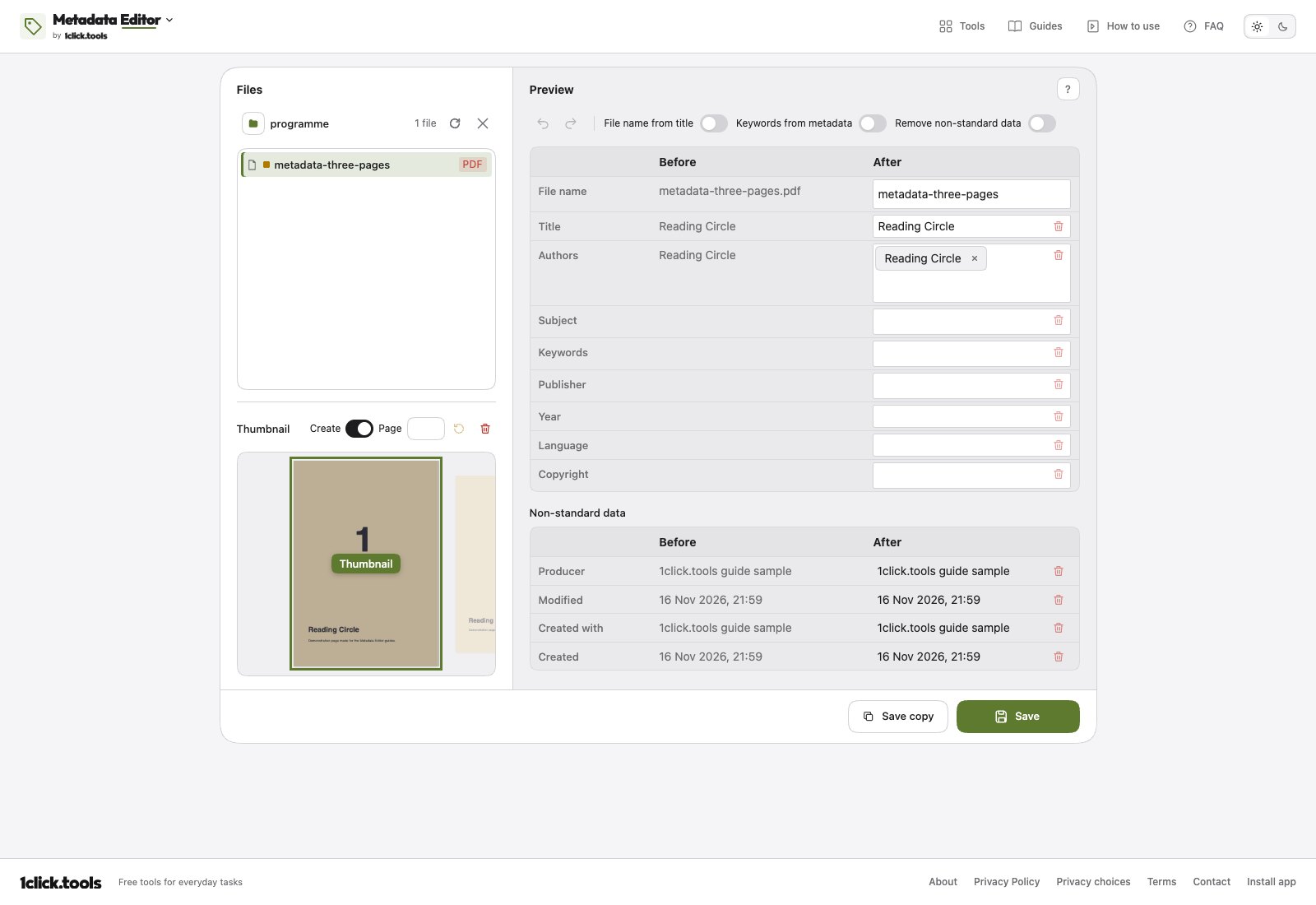
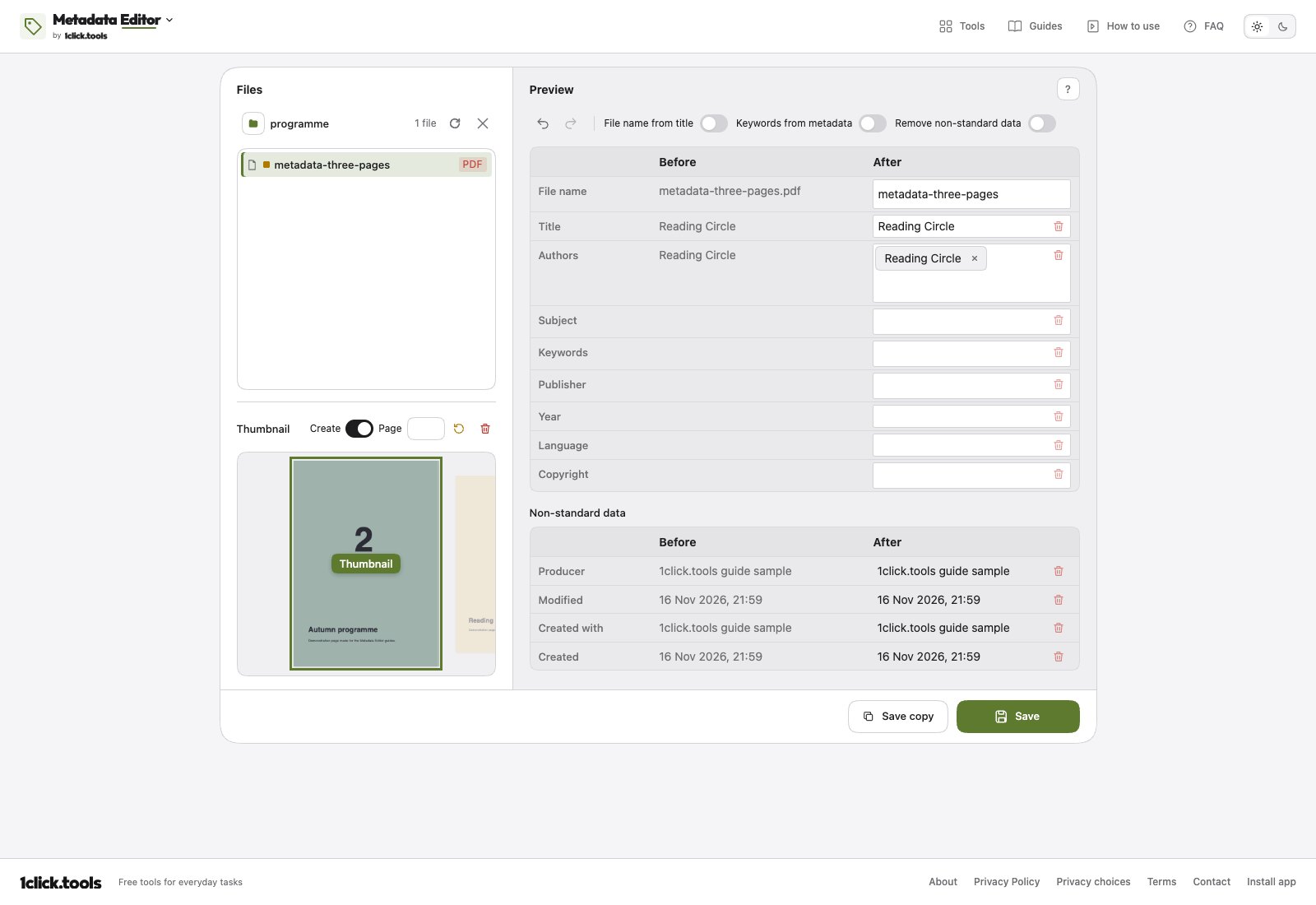
We opened a three-page sample PDF with no thumbnail. Create was already on and the Thumbnail slide showed page 1; we moved to page 2 and saved.
Start with these files
| Step | Thumbnail slide |
|---|---|
| Opened, Create on | A picture of page 1 |
| Page 2 in the middle | A picture of page 2 |
| After Save | The thumbnail now stored in the PDF |
JPG photos work the same way, using the photo itself. PNG and WebP have no place for a thumbnail.
Repeat this example
- Add the PDF and click it in the Files list.
- Create is already on: scroll to page 2, or type 2 in Page.
- Click Save or Save copy.
Check your download
After saving, the Thumbnail slide shows the picture stored in the file instead of the empty page.
A common mistake
Expecting a thumbnail before saving: the switch only chooses the page, and the bin only marks the old one for removal; Save writes the change. Turn Create off if you want to save a file without a thumbnail.
Try these files in Metadata EditorSources and credits
Original Metadata Editor demonstration files. The sample PDF pages and illustrated landscape were made for these guides. Names and location fields are demonstration metadata. Screenshots come from actual tool sessions and the result files from the same editing engine; the PNG illustration is not a camera photograph.
Open the file
Add a PDF or a JPG photo and click it in the Files list. Under the list, the Thumbnail section shows a preview that starts with the Thumbnail slide, outlined and labelled Thumbnail, followed by the PDF’s pages or the photo. PNG and WebP have no place for a thumbnail, so they show only the photo.
To edit the title and authors at the same time, see the PDF title, authors and year guide.
See the current thumbnail
The Thumbnail slide shows the thumbnail the file already has. When the file has none, clicking it in the list turns Create on and the slide shows page 1, the page Save will use; turn Create off and it shows a dark page labelled No thumbnail yet. A thumbnail is the small picture some apps and file managers show for the file, such as Acrobat’s page list.
Choose the page
For a PDF, scroll the pages sideways (one page per scroll step), use the arrow keys or type a number in Page; the page in the middle is the one you’ll use. Create is already on for a file without a thumbnail; for a file that has one, turn on Change. The Thumbnail slide now shows that page, and follows you if you move to another page while the switch is on. For a JPG, the switch uses the photo itself.
Remove or undo
The bin next to Page removes the existing thumbnail when you save, and the Thumbnail slide shows the empty page. Turning Create off saves the file without a new thumbnail. Reset, beside it, goes back to the start: page 1 for a file without a thumbnail, the old thumbnail otherwise.
Save
Nothing changes until you click Save or Save copy. The chosen page is stored as a small picture inside the file, replacing an older thumbnail. A PDF thumbnail adds a few kilobytes; a JPG thumbnail is kept in the photo’s camera data and the picture itself isn’t re-encoded.