A little guidance
How to add a favicon to your website
Put the files from the Favicon & App Icon Generator pack in your site root, paste five link tags into the head, and check the icon in the browser tab.
From the downloaded ZIP to the files and tags on a site
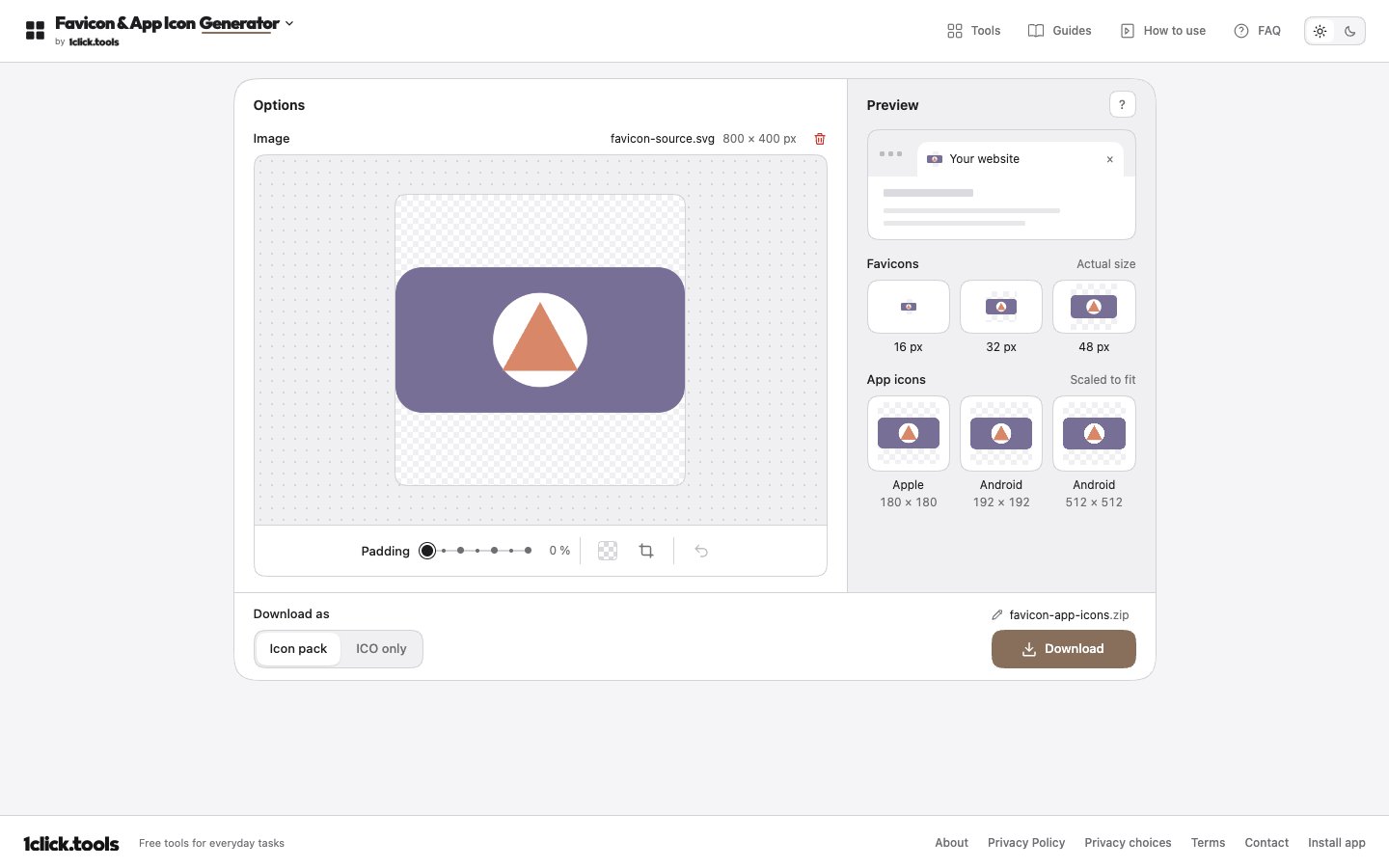
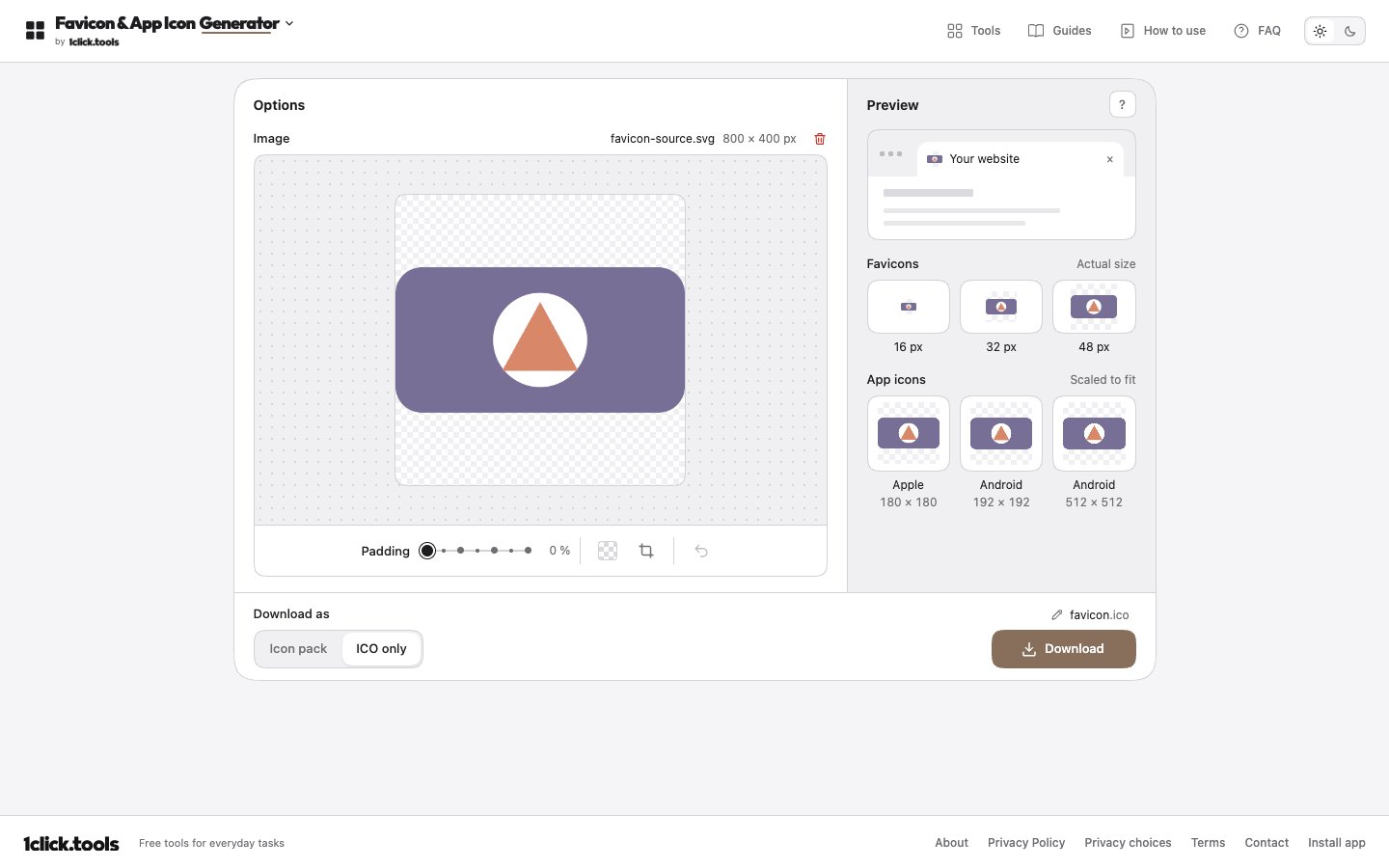
We opened an 800 × 400 SVG logo and chose Icon pack. Current automatic downloads follow Favicon_AppIcons_DD.MM.YYYY.zip; the historical guide capture used the previous favicon-app-icons.zip default. The table shows where each of the ZIP’s eight files goes on a website.
Start with these files
- Download the 800 × 400 SVG source242 bytes
Compare the actual downloads
| File in the ZIP | Where it goes | Referenced by |
|---|---|---|
| favicon.ico | Site root: /favicon.ico | <link rel="icon" href="/favicon.ico" sizes="any"> |
| favicon-16.png, favicon-32.png | Site root | Two <link rel="icon" type="image/png"> tags |
| apple-touch-icon.png (180 × 180) | Site root | <link rel="apple-touch-icon"> |
| icon-192.png, icon-512.png | Site root | The icons list in site.webmanifest |
| site.webmanifest | Site root | <link rel="manifest" href="/site.webmanifest"> |
| snippet.html | Not uploaded | Copy its five tags into the page head |
Every path in snippet.html and site.webmanifest starts at the site root. Keep the files there, or edit the paths to match where you put them.
Repeat this example
- Open your image, choose Icon pack under Download as and click Download.
- Extract the downloaded ZIP and copy the six images and site.webmanifest into your site’s root (public) folder.
- Copy the five lines from snippet.html into the head of your pages, publish, and reload with Ctrl+Shift+R or Cmd+Shift+R.
Check the result
yoursite/favicon.ico and yoursite/site.webmanifest open directly, the page source contains the five link tags, and the browser tab shows your icon in a private window.
A common mistake
Uploading the ZIP, or the files inside a folder such as /icons/ without changing the paths. The tags then point at files that don’t exist and the browser keeps showing its default icon.
Make your icon packSources and credits
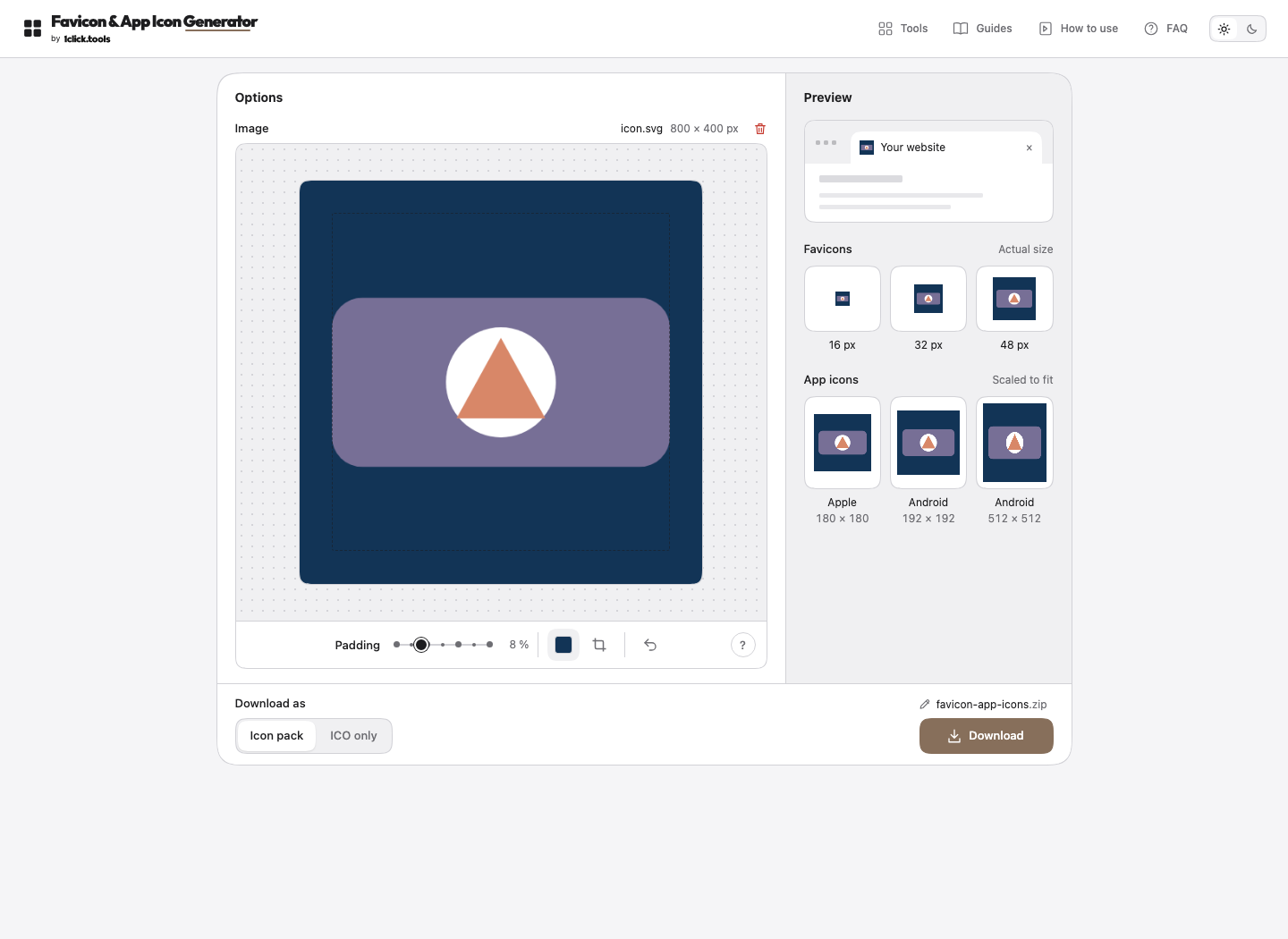
Original geometric sample artwork. Prepared for these guides. Screenshots come from an actual browser run of the tool with favicon-source.svg. The sample pack was made from the same artwork with Padding 8% and a #123456 background.
Download the icon pack, not only the ICO
Under Download as, choose Icon pack and click Download. The automatic name follows the pattern Favicon_AppIcons_DD.MM.YYYY.zip. The ZIP has eight files: favicon.ico, favicon-16.png, favicon-32.png, apple-touch-icon.png, icon-192.png, icon-512.png, site.webmanifest and snippet.html. ICO only saves one ICO download with 16, 32 and 48 pixel images inside. That is enough for the browser tab, but not for the Apple home screen icon or the Android icons listed in the manifest.
Still need to make the icon? Follow how to create a favicon and app icons from an image.
Put the files in your site root
Extract the ZIP and copy the six image files and site.webmanifest to the folder your site serves at its top level, so they open at addresses like example.com/favicon.ico and example.com/site.webmanifest. In many projects that is the public or static folder; on simple hosting it is the folder next to your index.html. snippet.html is only for copying from and does not need to be uploaded. The tag and manifest paths all start with a slash, so if you put the icons in a subfolder instead, change every path in snippet.html and the two src paths in site.webmanifest to match.
Paste the link tags into the head
Open snippet.html in a text editor and copy its five lines into the head of every page, or into your shared layout or template: <link rel="icon" href="/favicon.ico" sizes="any">, the two PNG icons with sizes 16x16 and 32x32, <link rel="apple-touch-icon" href="/apple-touch-icon.png"> and <link rel="manifest" href="/site.webmanifest">. The Apple tag points iPhones and iPads at the 180 × 180 icon used when someone adds your site to the home screen. The manifest lists icon-192.png and icon-512.png for Android and installed apps. It also sets theme_color and background_color to your background color (white when the background is transparent) and display to standalone. It has no name or short_name, so add them if you want a name under the home screen icon. If your site already has a manifest, copy the icons entries into it instead of linking a second one, and remove any old favicon tags so they don’t compete.
Check that it worked
After publishing, open yoursite/favicon.ico, yoursite/apple-touch-icon.png and yoursite/site.webmanifest directly; each should show the icon or the manifest text, not a 404 page. Then open the site and look at the browser tab. Browsers keep favicons cached for a long time, so if the old icon or a blank one stays, do a hard refresh (Ctrl+Shift+R on Windows, Cmd+Shift+R on a Mac), open the site in a private window, or close and reopen the tab. Bookmarks and home screen shortcuts made earlier may keep the old icon until you add them again.
Icon too small or hard to see at 16 pixels? See how to crop a favicon and choose its background.