A little guidance
How to rotate PDF pages and save the rotation
Turn sideways or upside-down PDF pages the right way up in your browser. The rotation is saved in the downloaded PDF, not only on screen.
Turn one page upside down and another a quarter turn
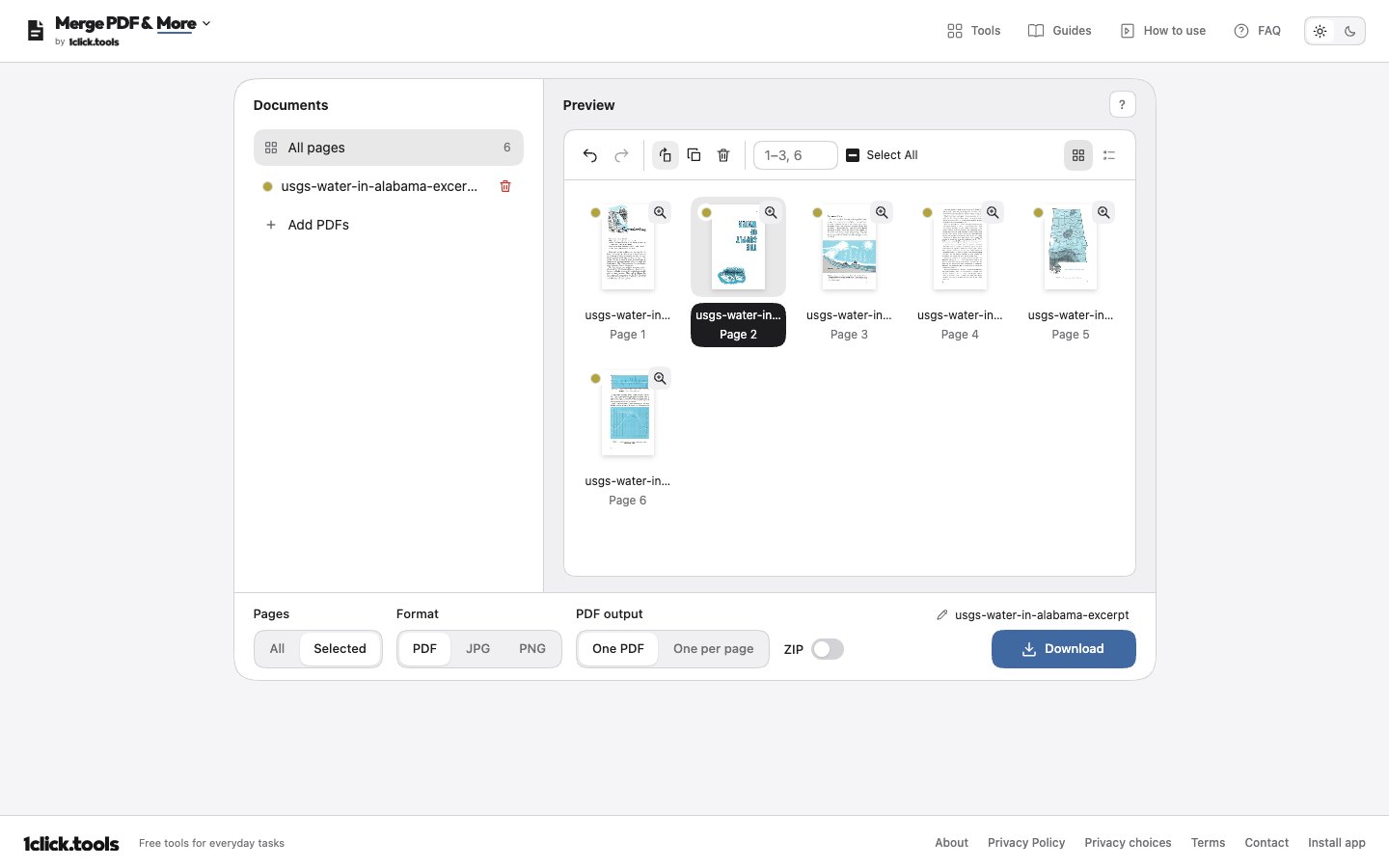
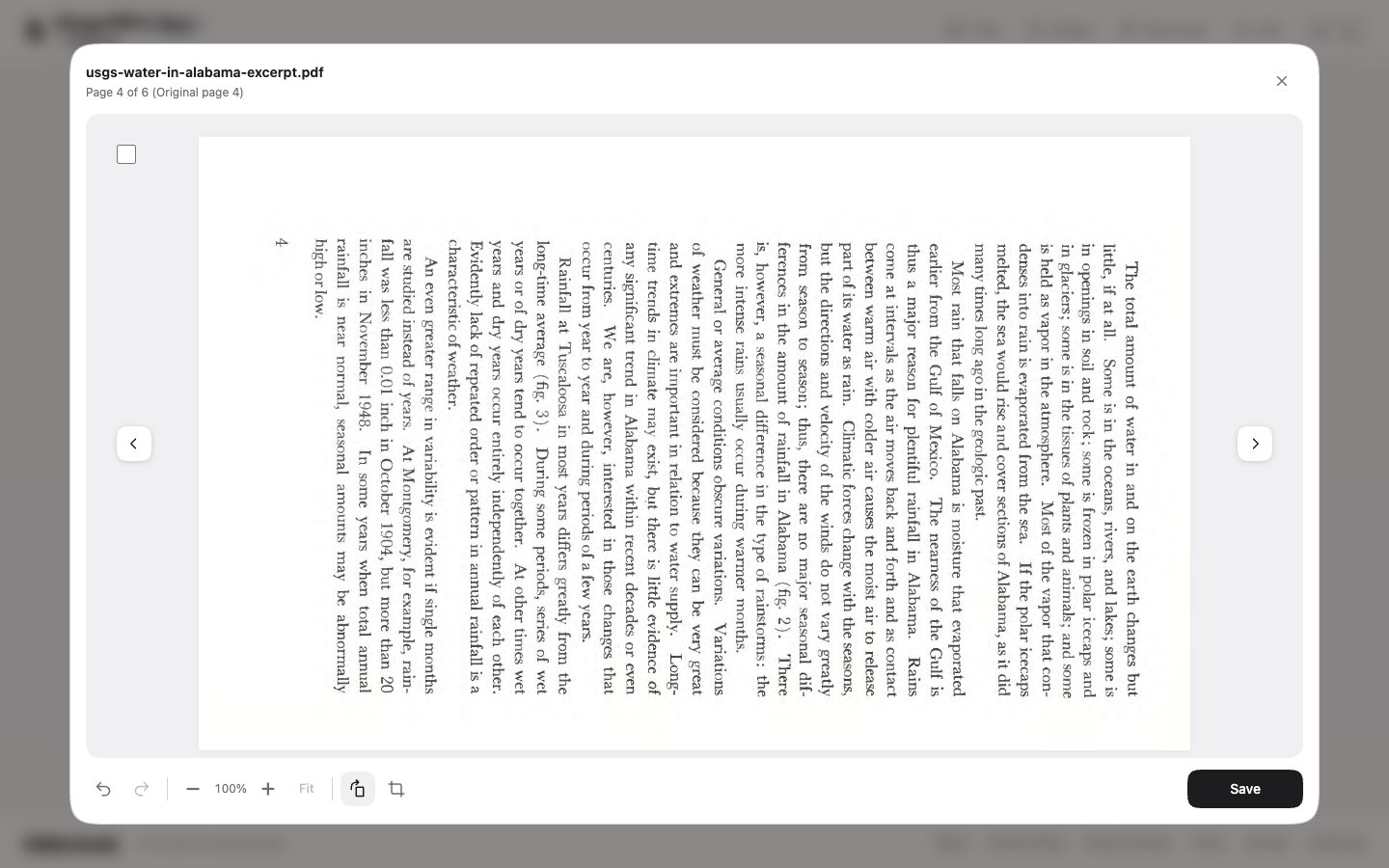
We selected page 2 and clicked Rotate selected pages twice, then opened page 4 in the large preview, clicked Rotate clockwise and Save. The downloaded PDF keeps both rotations.
Start with these files
| Page | How | Rotation in the download |
|---|---|---|
| 2 | Toolbar, Rotate selected pages × 2 | 180° |
| 4 | Large preview, Rotate clockwise, then Save | 90° clockwise |
| 1, 3, 5, 6 | Not changed | 0° |
Rotation is stored as the page’s rotation setting in the new PDF, so the page itself is not re-rendered and keeps its text and quality.
Repeat this example
- Select the page and click Rotate selected pages until it is the right way up.
- Or open the page large, click Rotate clockwise and then Save.
- Set Pages to All and click Download.
Check the result
Open the download in any PDF viewer: the pages appear turned exactly as the thumbnails show.
A common mistake
Closing the large preview with X or Escape: that discards its rotation. Click Save instead.
Open Merge PDF & MoreSources and credits
USGS: A layman’s look at water in Alabama (1963). Public-domain USGS report. Our sample contains printed pages 1–6 (PDF pages 7–12 of the original); no page artwork was changed.
Select the pages to turn
Add the PDF and select the pages that are the wrong way round: click one, Cmd/Ctrl-click to add more, or type a range such as 2, 4. Select All selects every page.
Rotate in the toolbar
Click the Rotate selected pages icon, right after Undo and Redo. Each click turns the selected pages a quarter turn clockwise, and the thumbnails turn with them. Click twice for an upside-down page, three times to turn a page a quarter turn to the left.
Or rotate in the large preview
Double-click a page or click its magnifier to open it large. Rotate clockwise sits next to the zoom buttons at the bottom. Click Save to keep the rotation; the X or Escape closes the preview and discards it.
Download with the rotation
Rotation is written into the downloaded PDF, so the pages open turned in any PDF viewer. The page content is not redrawn, so text stays sharp and selectable. Selecting pages switches Pages to Selected, so set Pages to All, or press Escape to clear the selection, before you click Download.
Rotated pages can also be saved as pictures: see PDF to JPG or PNG.